

Threads is Meta’s text-based social media app, built by the Instagram team for sharing quick updates and joining public conversations. If you already have an Instagram account, you can create a Threads account in just a few taps and connect with your existing followers.
Unlike Instagram, Threads is less about polished visuals and more about sharing ideas, reacting to trending topics, and having real-time conversations. That makes it a useful platform for businesses, creators, and anyone who wants to build a more conversational presence online. As of mid-2026, Threads has grown to more than 500 million monthly active users, making it one of the world’s largest conversation-based social networks.
In this guide, you’ll learn how Threads works, how it compares to Instagram and X (formerly Twitter), how to set up your profile, and which features can help you get the most out of the platform.

What is Instagram’s Threads app?
Threads is Meta’s conversation-focused social media platform. It lets Threads users publish short text posts, reply to other people, share photos, videos, links, and voice notes, and take part in public conversations around topics that interest them. Threads reached 100 million signups within its first five days, making it one of the fastest-growing new app ever launched.
While Threads was originally tied closely to Instagram, it’s now its own app with its own web version, and you can create a Threads account without first creating an Instagram account. That said, the two platforms still work closely together. You can link your profiles, share Threads posts directly to Instagram Stories, and choose whether to connect with the same people across both apps.
Mark Zuckerberg described Threads as an app that “takes the best parts of Instagram and creates a new experience for text, ideas, and discussing what’s on your mind.” He has also said the goal is to build a positive and creative space where people feel comfortable participating in public conversations.
If you’ve used X (formerly Twitter), much of the experience will feel familiar. You scroll through a feed of text updates, reply to posts, repost content, quote other users, and discover conversations as they happen. At the same time, Threads borrows some of Instagram’s design and community features, giving it a different feel from other text-based social networks.
What is the difference between X (Twitter) and Threads?
Threads and X (formerly Twitter) have a lot in common. Both platforms revolve around short text posts, public conversations, replies, reposts, and real-time discussions. The biggest difference is the audience they’re built for.
Threads is closely connected to Meta’s ecosystem, making it a natural choice if you’re already active on Instagram. X, meanwhile, remains the platform people turn to for breaking news, live commentary, and conversations around politics, sports, finance, and current events.
For businesses, I’d think about it this way: Threads is ideal for building relationships with your existing community, while X is often better for joining larger public conversations and reacting to news as it happens.
|
Feature |
Threads |
X (formerly Twitter) |
|
Maximum text length |
500 characters |
280 characters (free), 25,000 characters (Premium) |
|
Photos |
✅ |
✅ |
|
Videos |
Up to 5 minutes |
Up to 2 hours (Premium), 2 min 20 sec (free) |
|
Links |
✅ |
✅ |
|
Tags |
One topic tag per post |
Multiple hashtags per post |
|
Edit posts |
✅ (15-minute window) |
✅ (Premium only) |
|
Delete posts |
✅ |
✅ |
|
Direct messages |
✅ |
✅ |
|
Trending topics |
✅ |
✅ |
|
Paid verification |
❌ |
✅ (X Premium) |
|
Advertising |
✅ (via Meta Ads) |
✅ |
|
Instagram integration |
✅ |
❌ |
|
Best for |
Community building, creator brands, casual conversations |
Breaking news, thought leadership, live events, public discussions |
Neither platform is objectively better. If your audience is already on Instagram, Threads offers an easy way to extend your social media presence without creating an entirely new community from scratch. If your brand depends on real-time news, trending topics, or an audience that’s already established on X, it still deserves a place in your marketing strategy. Many businesses get the best results by using both platforms for different purposes.
The Threads features worth using
Threads has changed a lot since its launch. What started as Meta’s answer to X has grown into a platform with its own community, content formats, and tools for creators and businesses.
1. Create conversations without designing visuals
One of the biggest reasons people enjoy using Threads is that creating content takes far less effort than on many other social media platforms.
Unlike Instagram, where every post often needs a polished image, carousel, or Reel, Threads lets you publish ideas the moment you have them. A simple text post can be enough to spark a discussion, answer a customer question, or share something your audience finds useful.
For businesses, that opens up plenty of opportunities to stay visible without constantly creating new visual assets. For example, you can use Threads to:
- Share your take on an industry trend.
- Turn a frequently asked customer question into a post.
- Share a quick product tip or productivity hack.
- Add context to a blog post or article before linking to it.
I’ve found that Threads works especially well for the ideas that don’t justify a full creative project but are still worth sharing. Instead of waiting until you have the perfect graphic or video, you can start the conversation while it’s still relevant.
That doesn’t mean you should ignore visuals entirely. Threads supports photos, videos, GIFs, and carousels, but they’re there to support your message rather than carry it. On Threads, a thoughtful idea usually matters more than a perfectly designed post.
2. Reach people beyond your followers
One of the biggest advantages of Threads is that your posts aren’t limited to the people who already follow you.
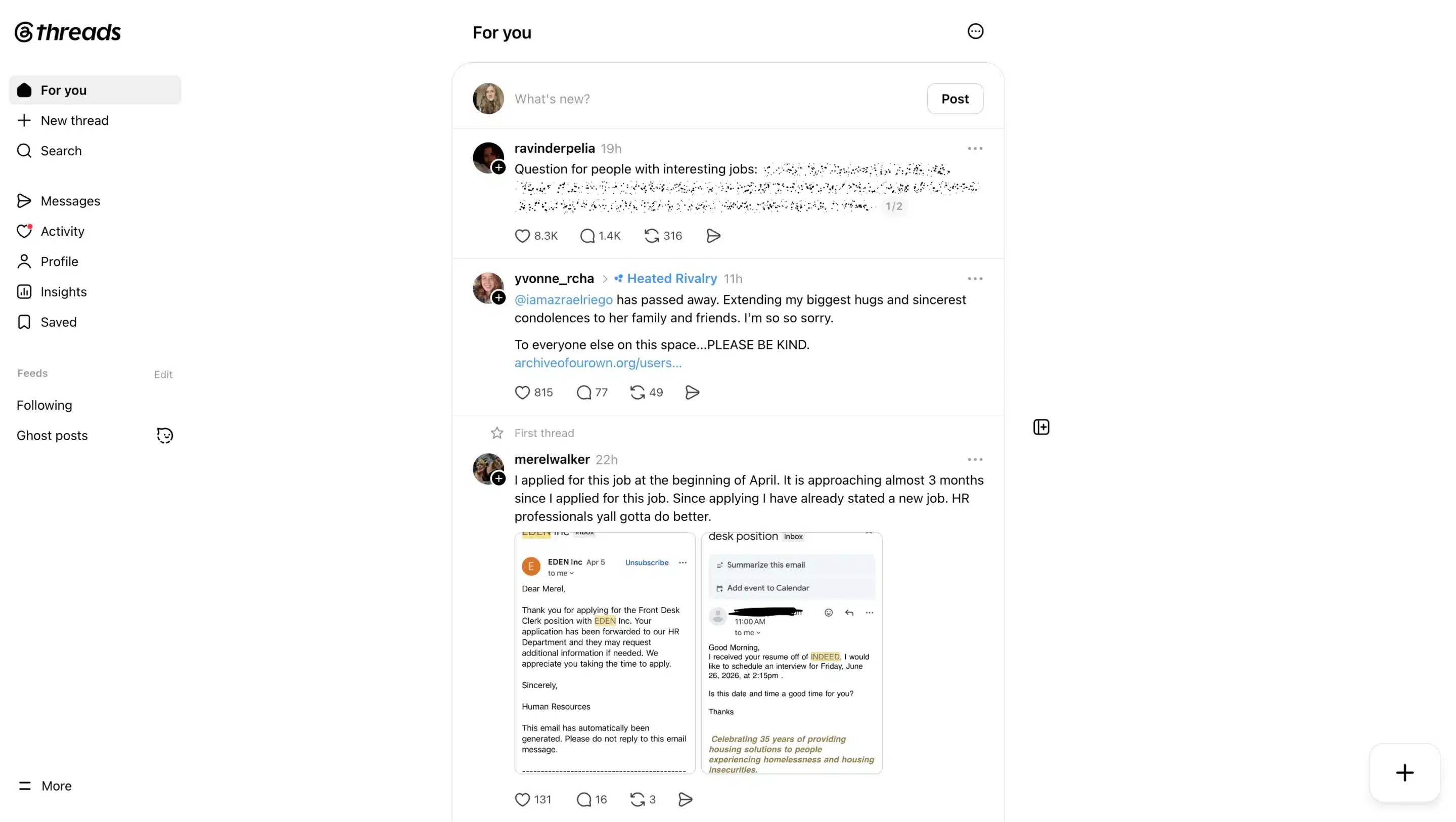
Like Instagram, Threads uses a For You feed that recommends content based on a user’s interests and activity, not just the accounts they follow. That means a single post can reach thousands of people who have never heard of your brand before if it starts generating replies, reposts, and shares.
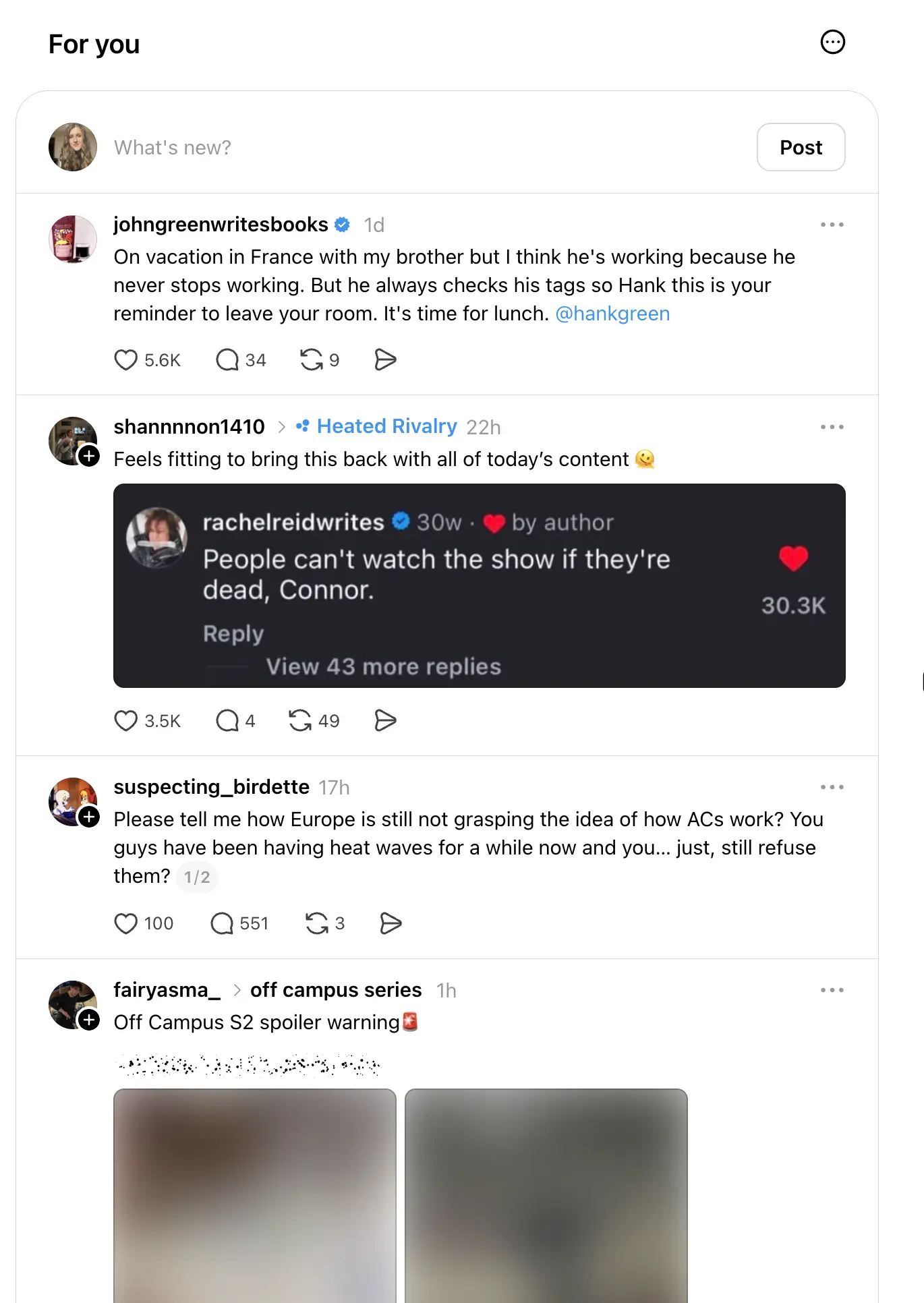
If you connect your Threads and Instagram accounts, you’ll also have an easier time introducing your existing Instagram audience to your new profile. However, don’t assume Instagram users will automatically engage with everything you post. In my experience, Threads rewards interesting conversations far more than follower count.
The best way to expand your reach is to publish posts that invite discussion. Ask thoughtful questions, share a useful observation, or offer an opinion people will want to respond to. The more conversations your posts generate, the more likely they are to appear in other users’ feeds.
3. Join conversations through replies, quotes, and reposts
Threads is built around conversations, so interacting with other users is just as important as publishing your own posts.
Every post includes several ways to engage:
- Reply to continue the conversation or answer a question.
- Repost to share someone else’s post with your audience.
- Quote to add your own perspective to an existing discussion.
- Share to send a post through direct messages, copy its link, or post it to Instagram Stories and other apps.
I’ve found that replies and quote posts often generate more profile visits than publishing another standalone post. When you consistently contribute useful insights to discussions in your niche, people become curious about who you are and start exploring your profile.
That’s why I recommend spending as much time engaging with other people’s content as creating your own. Threads rewards active participation, and joining existing conversations is often one of the fastest ways to grow your presence on the platform.
4. Share content across the Meta ecosystem
Threads and Instagram are closely connected, making it easy to move content between the two Meta platforms.
Every Threads post includes a Share button that lets you send it to Instagram Stories, Messenger, WhatsApp, or any other app on your device. You can also copy the link to include it in a newsletter, blog post, or another social media platform.

This makes it easy to extend the life of a good conversation. If a Threads post sparks plenty of replies, share it to your Instagram Story to encourage more people to join in. Likewise, if an Instagram post is generating engagement, you can bring the discussion to Threads by sharing it there.
That said, I wouldn’t recommend cross-posting everything automatically. People use Instagram and Threads differently. The best-performing content usually feels native to each platform, so adapt your posts when it makes sense instead of publishing identical content everywhere.
5. Discover new communities through recommendations and topic tags
Threads makes it easy to find conversations beyond the people you already follow.
The platform recommends posts in your For You feed based on your interests and activity, helping you discover creators, businesses, and niche communities you might not have found otherwise. You can also search for topics, browse trending discussions, and use topic tags to help other users discover your content.
Unlike hashtags on X or Instagram, Threads allows only one topic tag per post. That encourages creators to choose the topic that’s most relevant instead of adding a long list of hashtags in hopes of reaching more people.

I recommend treating topic tags as a discovery tool rather than an SEO trick. Pick the tag that best describes your post, then focus on creating something people will actually want to reply to. A relevant conversation will almost always outperform a post that’s optimized for search but doesn’t offer anything interesting to discuss.
6. Customize your experience with moderation tools
Threads includes several moderation features that give you more control over who can interact with your content and what appears in your feed.
For example, you can use Hidden Words to automatically filter replies containing specific words, phrases, or emojis. You can also decide who can reply to your posts, limit mentions, block unwanted accounts, and choose whether you want a public or private profile.
These tools make it easier to create the kind of community you want, especially if you manage a business account or have a growing audience. They’re also part of Meta’s broader effort to make Threads a positive and creative space where conversations remain productive and respectful.
I recommend exploring these settings before you start posting regularly. A few minutes spent adjusting your preferences can make a big difference as your audience grows.
7. Manage your account across Instagram and Threads
Although Threads has become much more independent, it still works closely with Instagram.
If your Instagram account is verified through Meta Verified, your verification badge also appears on Threads. Likewise, if you connect the two platforms, it’s easy to move people between your Instagram profile and your Threads profile, helping your audience find you in both places.
Keep in mind that some account settings are still managed through Instagram. For example, if you use the same username on both platforms, changing it on Instagram will also update it on Threads.
This close integration makes it easier to build a presence across both platforms without starting from scratch, while still giving you the flexibility to use each one for a different purpose.
8. Track what’s working with built-in analytics
If you’re using Threads for your business, analytics can help you understand which conversations resonate with your audience.
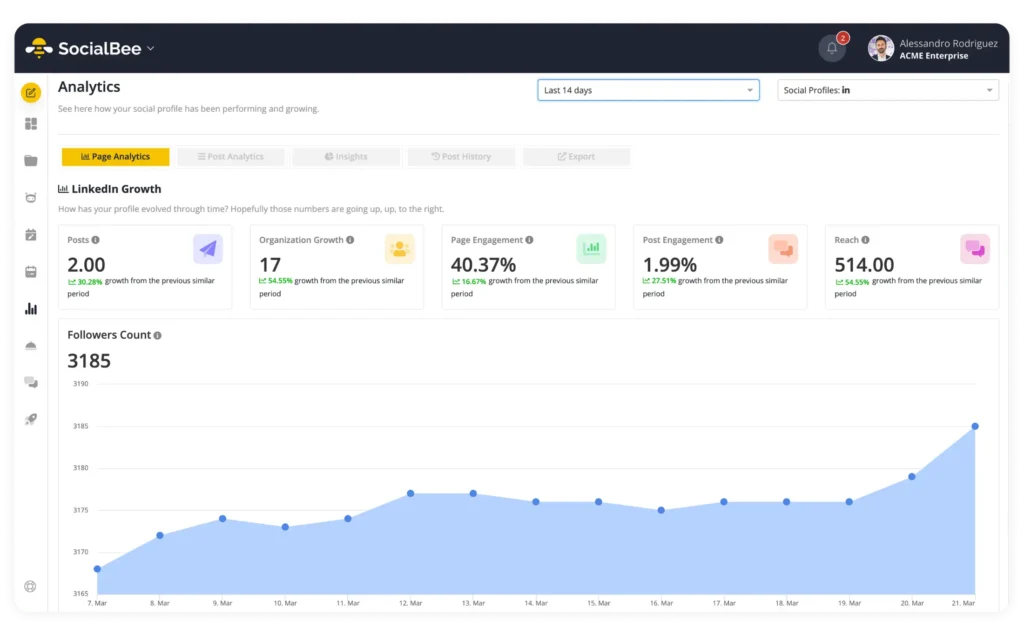
Threads includes an Insights dashboard where eligible accounts can track metrics such as views, replies, reposts, follower growth, and audience demographics. Instead of guessing what to post next, you can identify the topics and formats that consistently generate engagement.

I recommend looking for patterns rather than focusing on a single successful post. If your audience regularly responds to product tips, behind-the-scenes updates, or industry commentary, that’s a good sign to create more content around those themes.
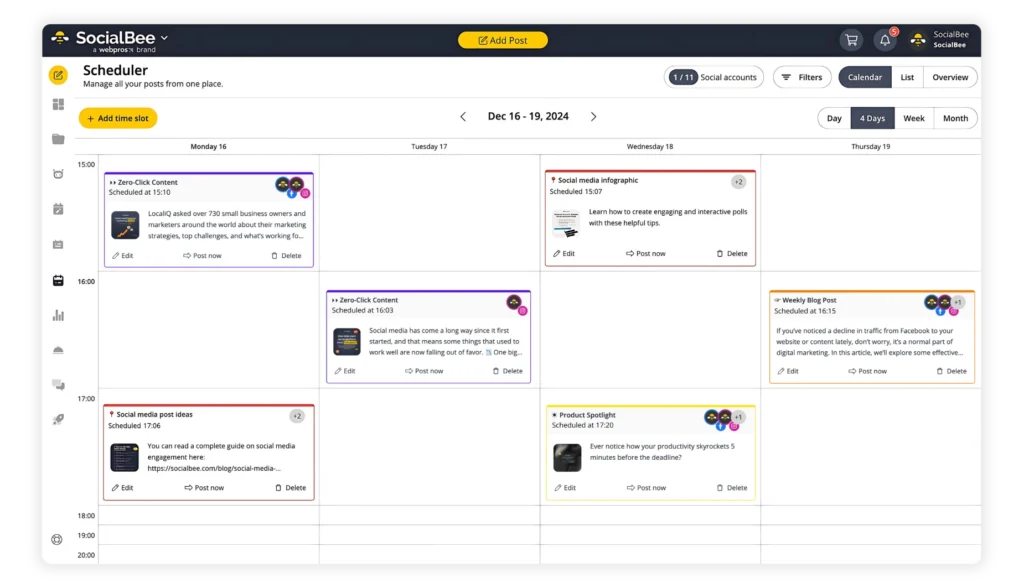
If you manage several social media accounts, using a tool like SocialBee makes this process even easier. Along with scheduling Threads posts, you can monitor your performance from the same dashboard you use for your other social media platforms, making it simpler to adjust your strategy over time.
How to use Threads
Once your account is ready, it’s time to start using Threads. The platform is easy to learn, especially if you’ve used Instagram or X before, but a few setup decisions can make a big difference if you’re using it for your business.
A. How to create a Threads profile
Getting started with Threads only takes a few minutes. You can create a new account using your Instagram account or sign up with an email address or mobile number to make a Threads account separately.
Here’s how to create a Threads profile:
- Download the Threads app from the Apple App Store or Google Play Store, or visit Threads.com.
- Create your account by signing in with your Instagram page or choosing to create a standalone Threads account.
- Complete your profile.
- Select your privacy settings.
- Follow suggested accounts or import your Instagram connections.
- Follow additional users on Threads.
- Review the terms and finish setting up your account.
1. Download the Threads app
First, download Threads from the Apple App Store or Google Play Store. If you prefer using a computer, you can also create an account through Threads.com.
2. Create your account
You can create a Threads account in two ways:
- Sign in with your existing Instagram account.
- Create a standalone account using your email address or mobile number.
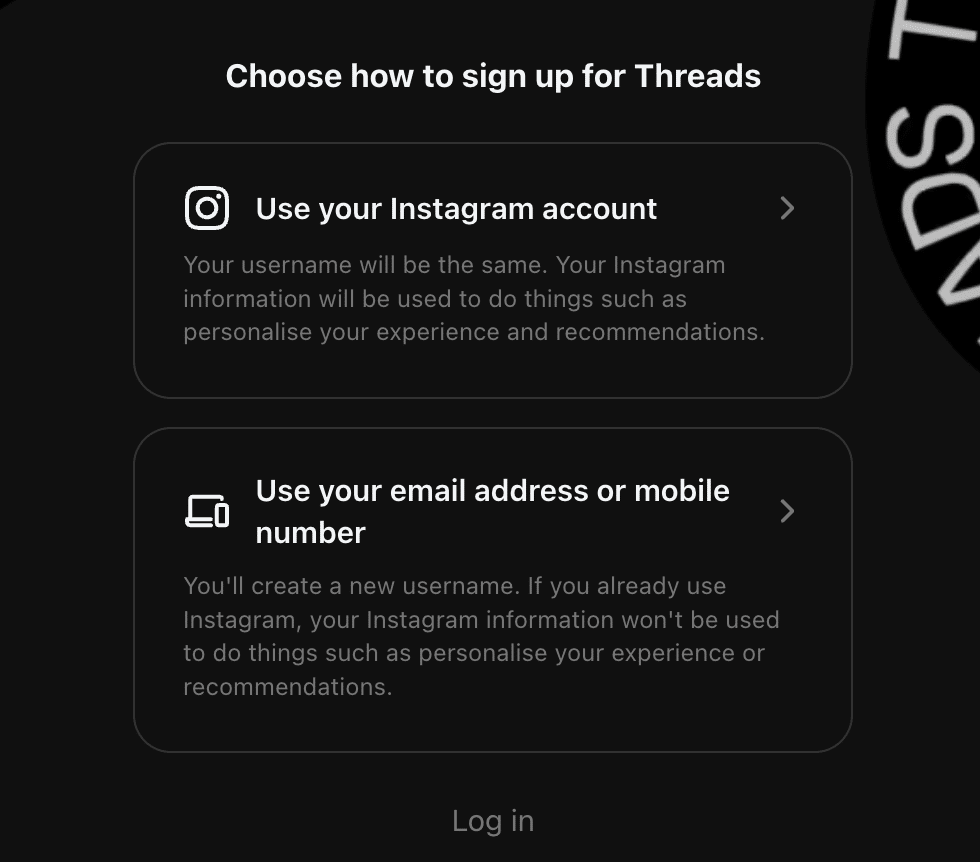
If you connect your Instagram account, you can choose to import details like your username and profile information to speed up the setup process.
3. Complete your profile
Next, set up your profile by adding:
- A profile picture
- A short bio
- A website or other link (optional)
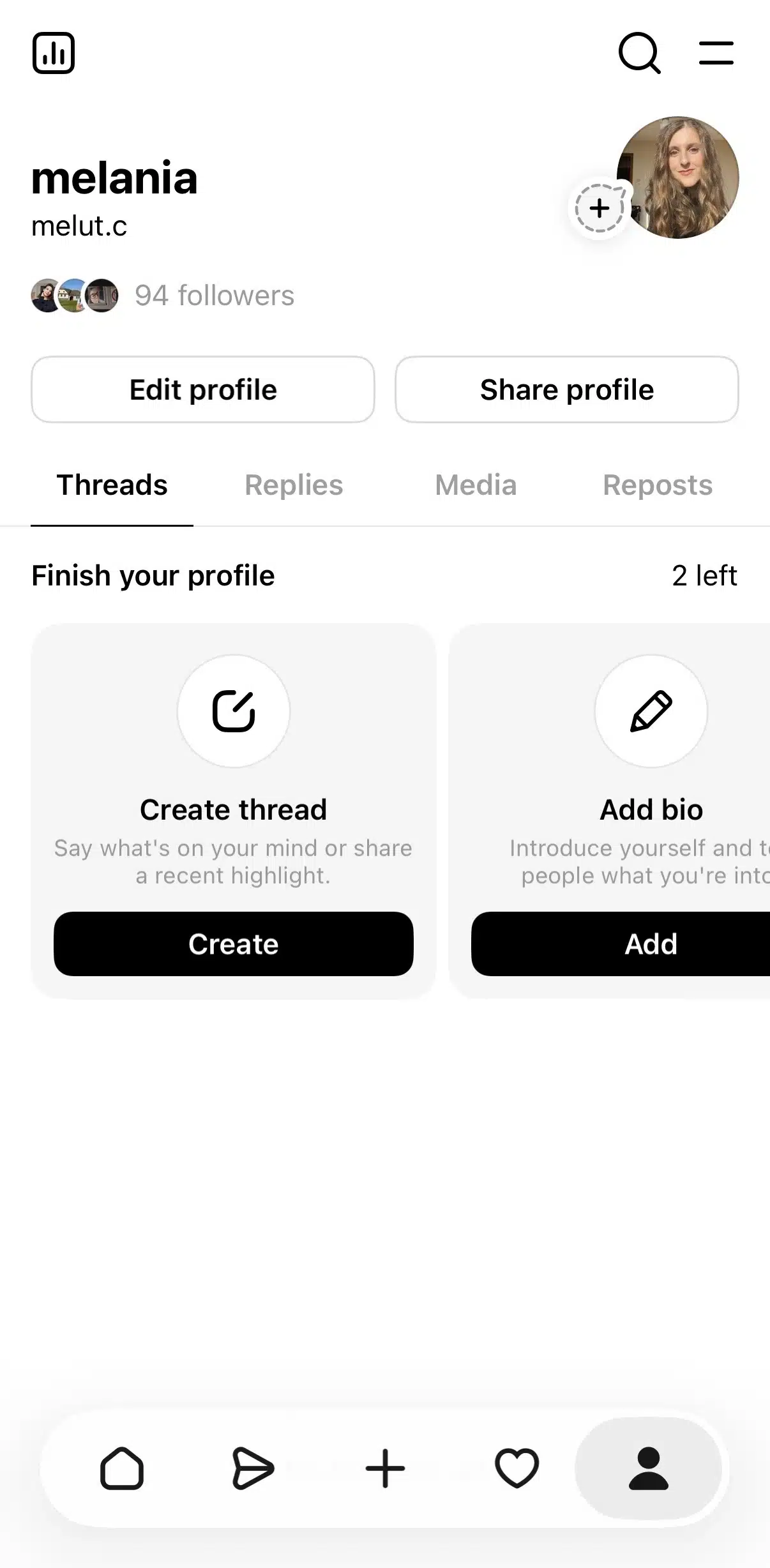
If you’ve connected your Instagram account, you can import your Instagram bio instead of writing one from scratch.
Business tip: Use a recognizable profile photo, write a bio that clearly explains what your business does, and add a link to your website, newsletter, or latest resource. A complete profile gives new visitors a reason to follow you.
4. Select your privacy settings
Choose whether you want your Threads profile to be public or private.
If you’re using Threads to grow a business or personal brand, I recommend choosing a public profile so more people can discover your content.
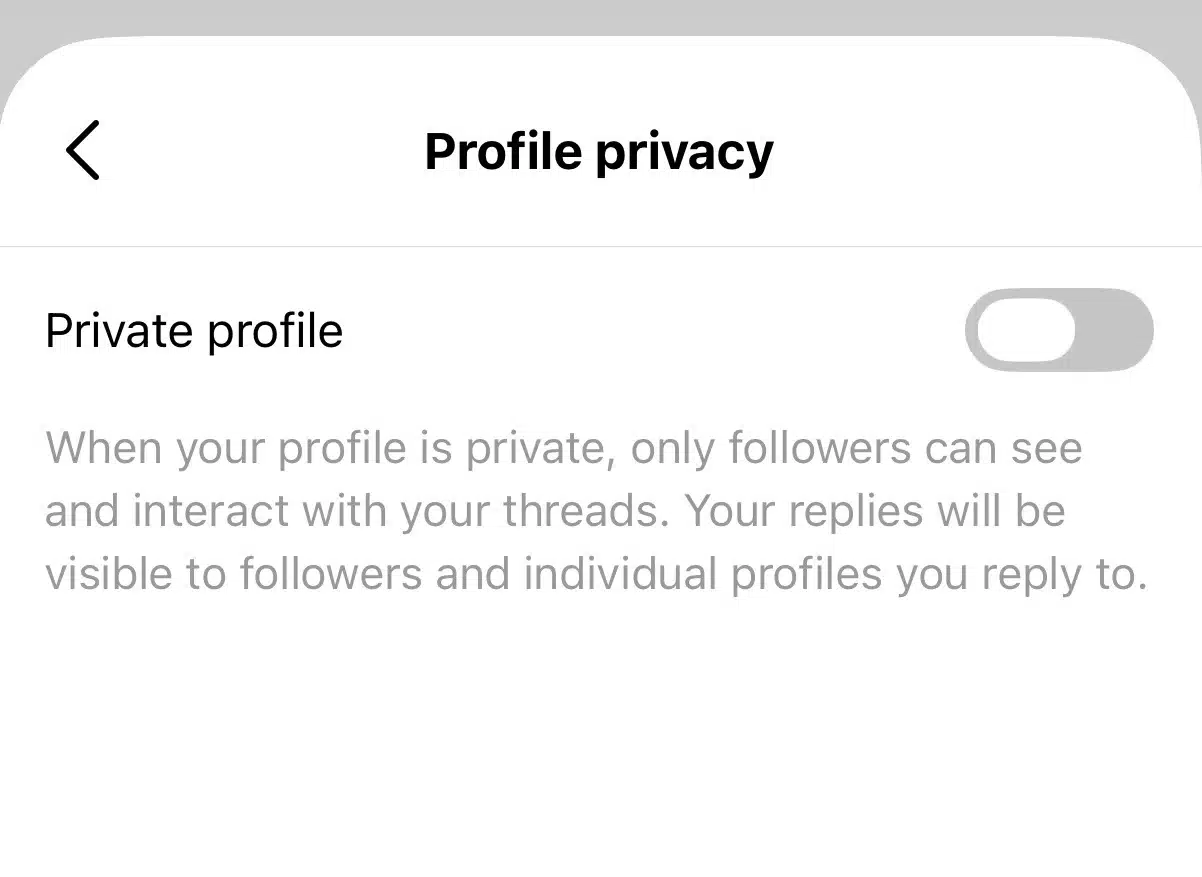
You can always change this later from your account settings.
5. Follow your Instagram connections
If you connected your Instagram account, Threads will suggest people you already follow.
You can tap Follow all to connect with them immediately or choose individual accounts instead.
If someone hasn’t joined Threads yet, they’ll appear as Pending, and you’ll automatically follow them if they create an account later.
6. Follow other users on Threads
You don’t have to limit yourself to your existing Instagram network. You can also discover new people directly on Threads.
To follow someone through Search:
- Tap the Search icon.
- Browse suggested accounts or search for a specific person or brand.
- Tap Follow.
To follow someone from your feed:
- Tap the + button beneath their profile picture.
- Or visit their profile and select Follow.
Business tip: Follow customers, partners, industry experts, creators, and a few brands in your niche. Engaging with their posts is one of the fastest ways to become visible to new audiences.
7. Finish setting up your account
Review the remaining prompts, accept the terms, and your Threads account is ready to use.
B. How to share your first post on Threads
Now it’s time to publish your first Thread.
Here’s how to post on Threads:
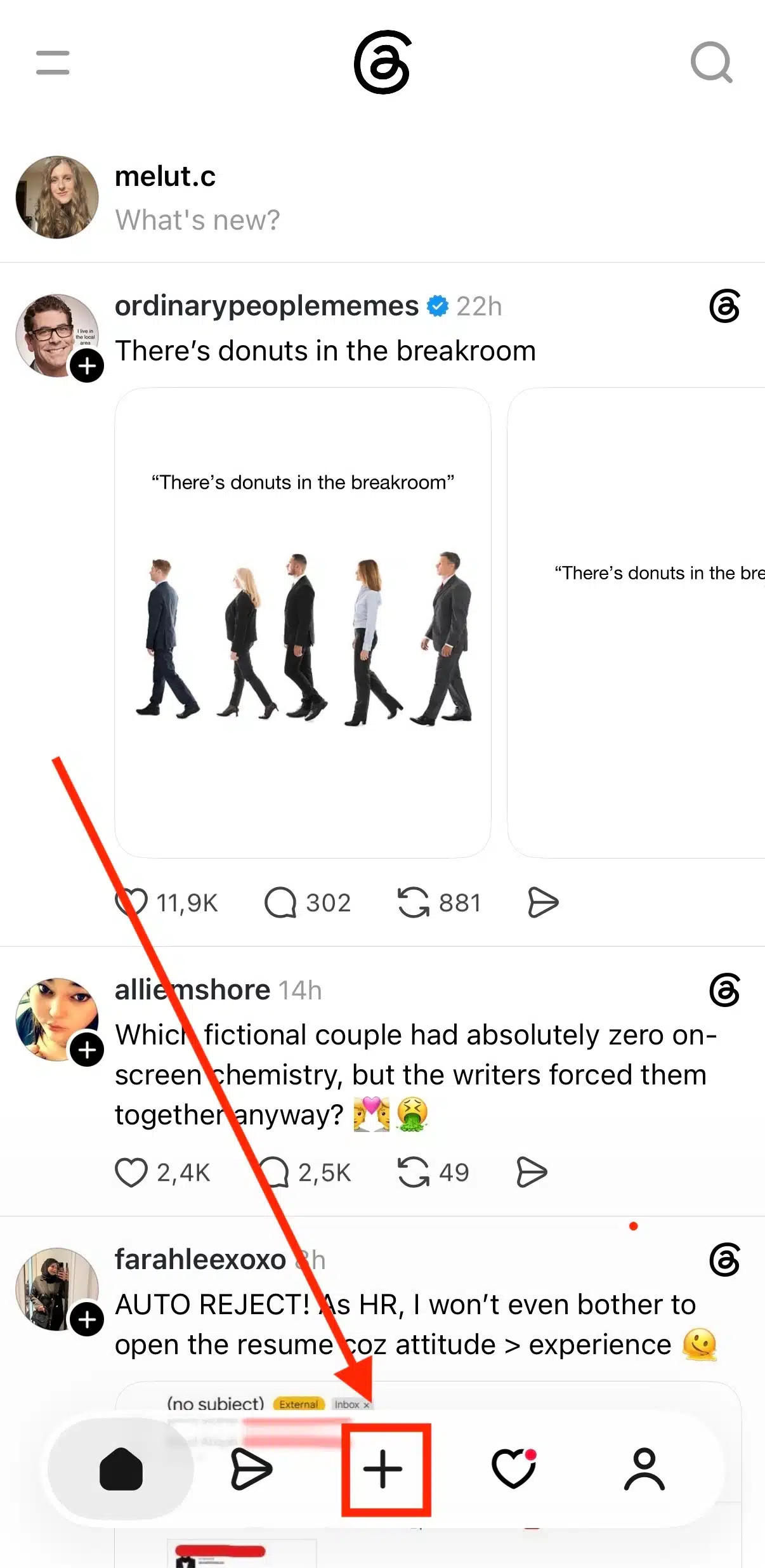
- Tap the New post button.
- Write your post (up to 500 characters).
- Post photos, videos, GIFs, polls, links, or add one topic tag if needed.
- Choose who can reply.
- Tap Post.
1. Create a new post
From your home feed, tap the New post button to open the post composer.
2. Write your post
Enter your text and customize it however you’d like.
Threads supports:
- Up to 500 characters
- Links
- Photos
- Videos (up to 5 minutes)
- GIFs
- Polls
- Voice posts (where available)
- One topic tag per post
- Mentions using the @ symbol
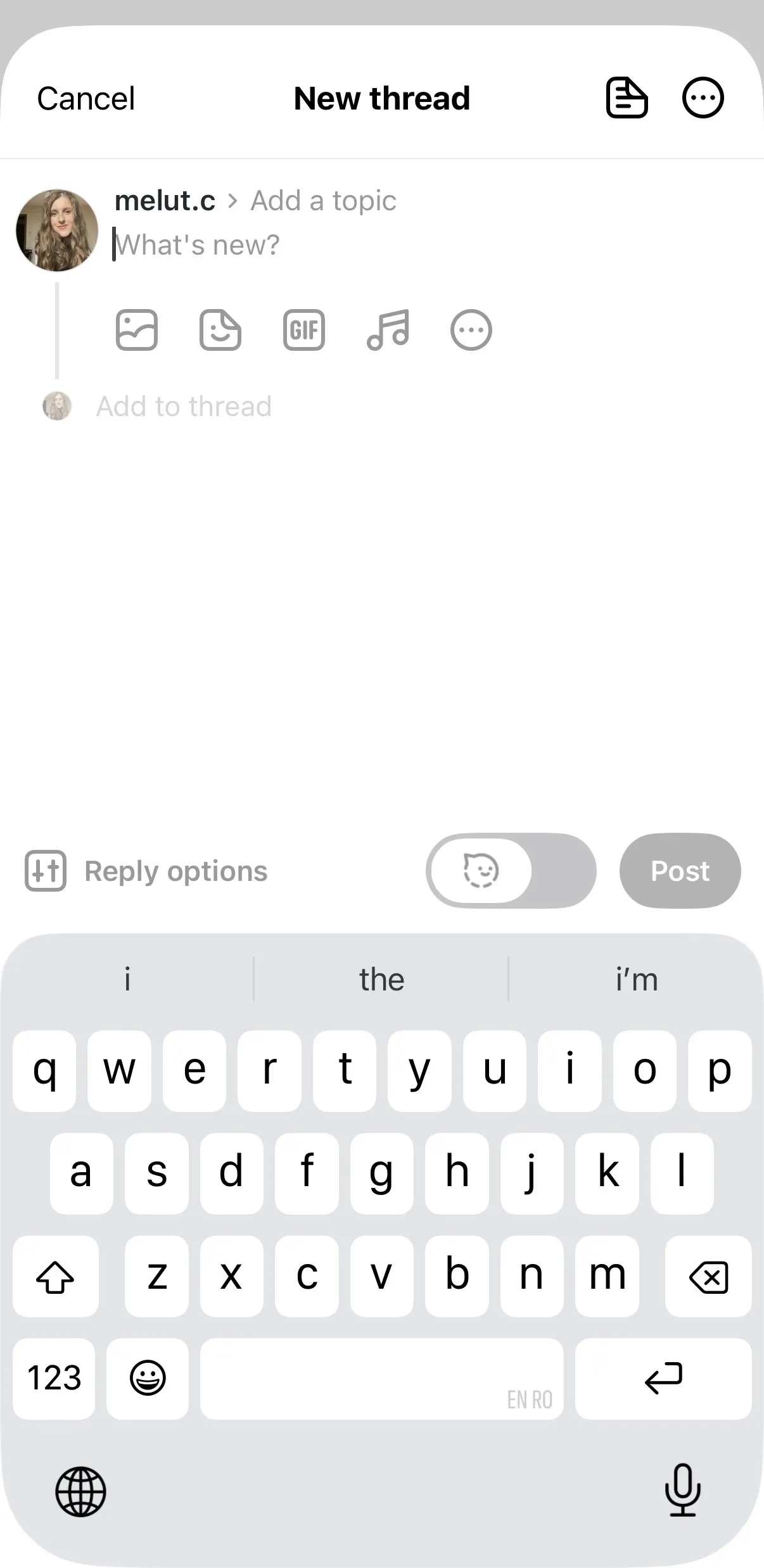
3. Add media
To include a photo or video, tap the media icon below the text box and choose the files you’d like to upload.
If you change your mind, simply remove the attachment before publishing.
4. Publish your post
When you’re happy with your post, tap Post.
If your text exceeds the character limit, Threads can automatically continue it as a multi-post thread.
Ideas for your first business post:
- “Quick tip: Here’s one mistake I see businesses make when…”
- “What’s one thing you wish more brands in our industry talked about?”
- “We just published a new guide. Here’s the biggest takeaway…”
C. How to choose who can reply to your posts on Threads
Threads lets you control who can reply to each post, either before you publish it or afterward through the post settings.
Here’s how to choose who can reply from a post
- Create your Thread.
- Before tapping Post, choose who can reply:
- Anyone
- Profiles you follow
- Mentioned profiles only
- Publish your post.
If you want to change this later, open the post, tap the three-dot menu, and select Who can reply.
Here’s how to choose who can reply from your settings
- Open your profile.
- Tap the menu in the top-right corner.
- Select Privacy (or Notifications, depending on your app version).
- Open the reply settings.
- Choose who can reply to your posts.
When should you use each option?
- Anyone: Best for reaching more people and encouraging public conversations.
- Profiles you follow: Good for keeping discussions more focused.
- Mentioned profiles only: Useful for announcements, customer support, or conversations involving specific people.
D. Manage your Threads account settings
Most account management tasks are only a few taps away.
Delete Threads posts
- Open the post.
- Tap the three-dot menu.
- Select Delete.
Manage Threads notifications
- Open your Profile.
- Tap the menu.
- Select Notifications.
- Pause all notifications or customize them by category.
You can also add Hidden Words to automatically filter replies containing specific words, phrases, or emojis.
Deactivate or delete your Threads profile
- Open Profile > Menu > Account.
- Select Deactivate or Delete profile.
- Choose Deactivate or Delete, then confirm your choice.
If you delete your account, Threads schedules it for deletion after 30 days. Signing in again during that period cancels the deletion.
Block another user
- Visit the user’s profile.
- Tap the three-dot menu.
- Select Block.
Blocking someone prevents them from interacting with your Threads account and helps you maintain a safer, more comfortable experience.
How to use Threads for business
If you’re wondering where Threads fits into your marketing strategy, here are five Threads tips to make it work for your business.
1. Give your brand a more human voice
Threads is one of the few social media platforms where businesses can sound less like brands and more like people.
Instead of filling your feed with product announcements or promotional messages, use Threads to share the conversations happening behind the scenes. Talk about lessons you’ve learned, comment on developments in your industry, celebrate small wins with your team, or share an opinion about a trend that’s relevant to your audience.
For example, a coffee shop could ask customers about their favorite seasonal drinks, and a software company could share a lesson learned while building a new feature.
2. Repurpose your best content into conversation starters
One of the easiest ways to stay active on Threads is to reuse the content you’ve already created.
Instead of posting a blog link with a generic caption, pull out the most interesting statistic, lesson, or opinion and build a conversation around it. If you publish a newsletter, ask readers whether they agree with your main takeaway. If you host a webinar or podcast, share one insight that surprised you and invite others to weigh in.

For example, if you recently published a guide about home gardening, “Our new guide is live. Read it here,” try something like:
“Most people spend more time choosing what plants they like instead of considering which ones would thrive in their garden. What’s the biggest lesson you’ve learned from your previous gardening fails?”
Once the discussion gets going, you can naturally link people to the full resource if they want to learn more.
This approach helps you get more value from the content you’ve already invested in while creating posts that feel native to Threads instead of recycled from other platforms.
3. Build anticipation before launches
Threads is a great platform for talking about what’s coming next, not just announcing it once it’s ready.
Instead of waiting until launch day, share updates throughout the process to build curiosity and keep your audience involved. You could post a behind-the-scenes photo, ask followers to guess what’s coming, reveal small details over time, or invite people to share what they’d like to see.

For example, a restaurant could tease a new seasonal menu. Constant hints to what the dishes will be, images and behind-the-scenes of creating them, and other snippets that increase suspense.
By the time you’re ready to launch, your audience will already be familiar with the story behind it, making your announcement feel like the next chapter instead of an unexpected sales pitch.
4. Use Threads to learn from your audience
Threads isn’t just a place to publish content. It’s also a valuable tool for understanding your customers.
The platform’s conversational nature makes it easy to ask questions, gather opinions, and discover what your audience actually cares about. Instead of relying on assumptions, you can use Threads to validate ideas before investing time and resources into them.
For example, you could ask customers which product they’d like to see next, what challenges they face, which features they use most often, or what topics they’d like you to cover in future content.
Pay attention to the replies as much as the likes. The language people use, the questions they ask, and the problems they mention can inspire future products, services, blog posts, social media content, or customer support resources. Sometimes a single conversation can reveal insights that would have taken much longer to uncover through formal research.
5. Turn successful Threads posts into long-term content
One of the easiest ways to get more value from Threads is to treat it as an idea generator for the rest of your content.
Pay attention to the posts that spark the most replies or questions. If people keep asking for clarification or sharing their own experiences, that’s a sign you’ve found a topic worth exploring further.
For example, you could:
- Expand a popular Threads discussion into a blog post.
- Turn frequently asked questions into a video or FAQ page.
- Use customer replies to inspire your next newsletter.
- Create a carousel or infographic based on a discussion that resonated with your audience.
- Build an entire content series around a topic that consistently generates engagement.
Instead of creating every piece of content from scratch, let your audience tell you what they want to learn more about. Threads gives you immediate feedback, making it one of the easiest places to test ideas before investing time in larger content projects.
5 Threads post ideas to start conversations
Here are five post ideas that work well for businesses on Threads.

2. Turn your expertise into quick tips
Not every insight needs to become a blog post or video.
Threads is perfect for sharing bite-sized advice that people can read in a few seconds and apply immediately. You might explain how to solve a common problem, recommend a useful tool, or share a lesson your team recently learned.
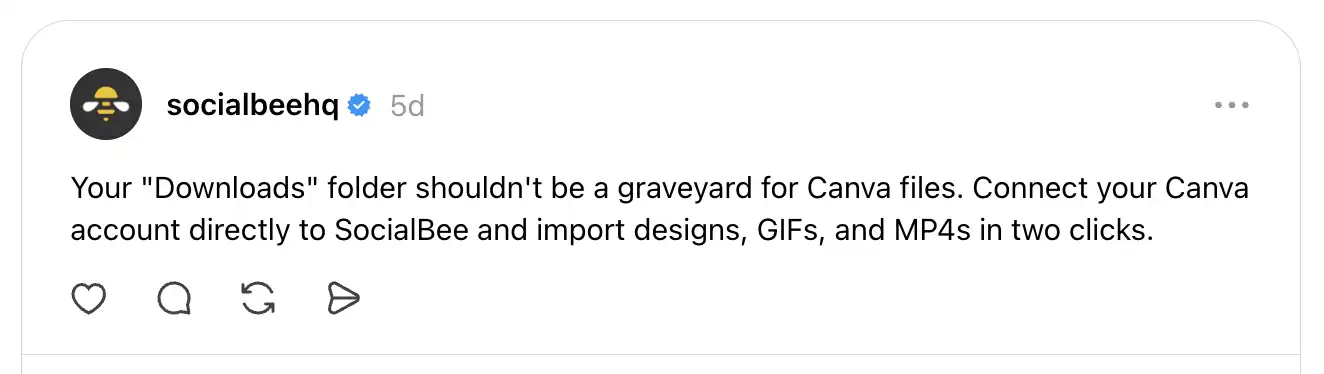
These posts demonstrate your expertise without feeling overly promotional, making them an easy way to build trust with your audience over time.
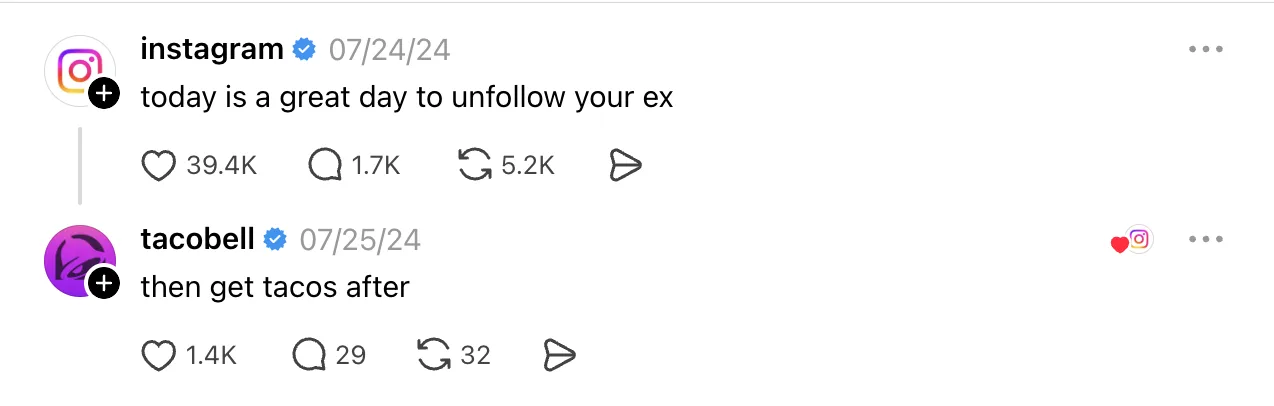
4. Ask your audience for their input
Threads is designed for conversation, making it an excellent place to learn directly from your customers.
Ask questions about their challenges, preferences, or experiences, or invite them to vote in a poll if you’re deciding between different ideas. You can also ask for feedback on a new feature, product concept, or upcoming event before making a final decision.
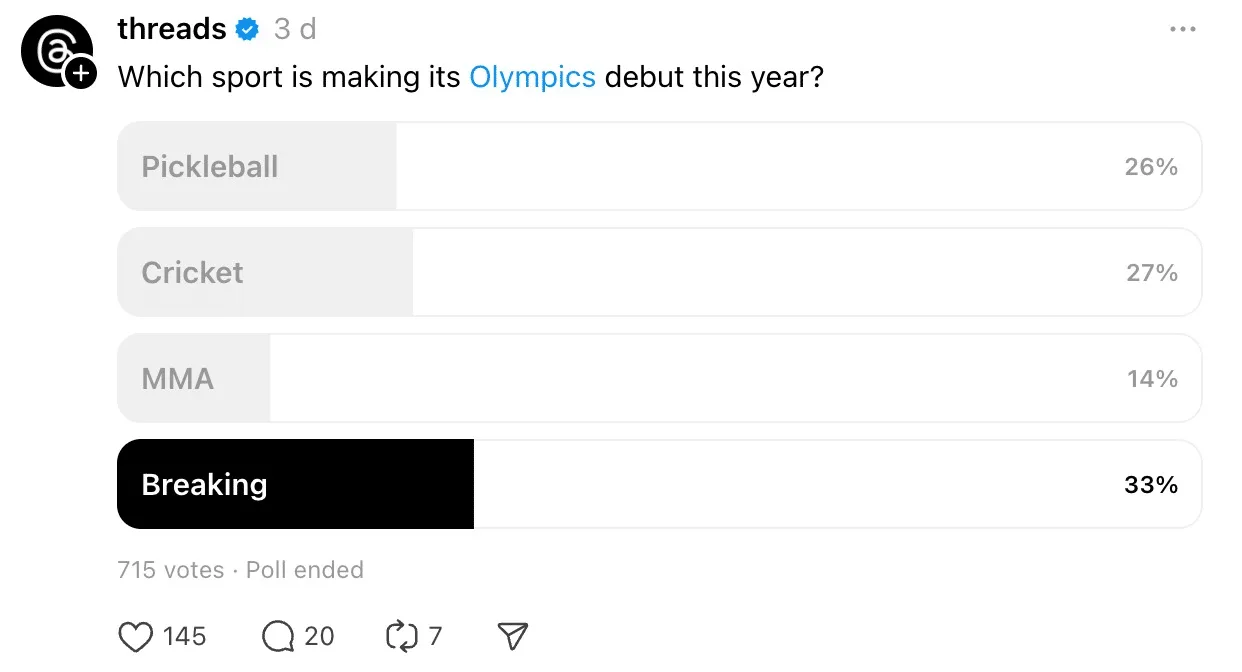
Beyond generating engagement, these conversations can provide valuable insights that influence your future content, products, and marketing decisions.
5. Repurpose your best content into discussions
One of the easiest ways to stay consistent on Threads is to build on content you’ve already created.
Instead of simply posting a link to your latest blog article, newsletter, podcast, or video, start by sharing the most interesting takeaway or asking a question related to the topic. Once the conversation begins, you can direct people to the full resource if they want to learn more.
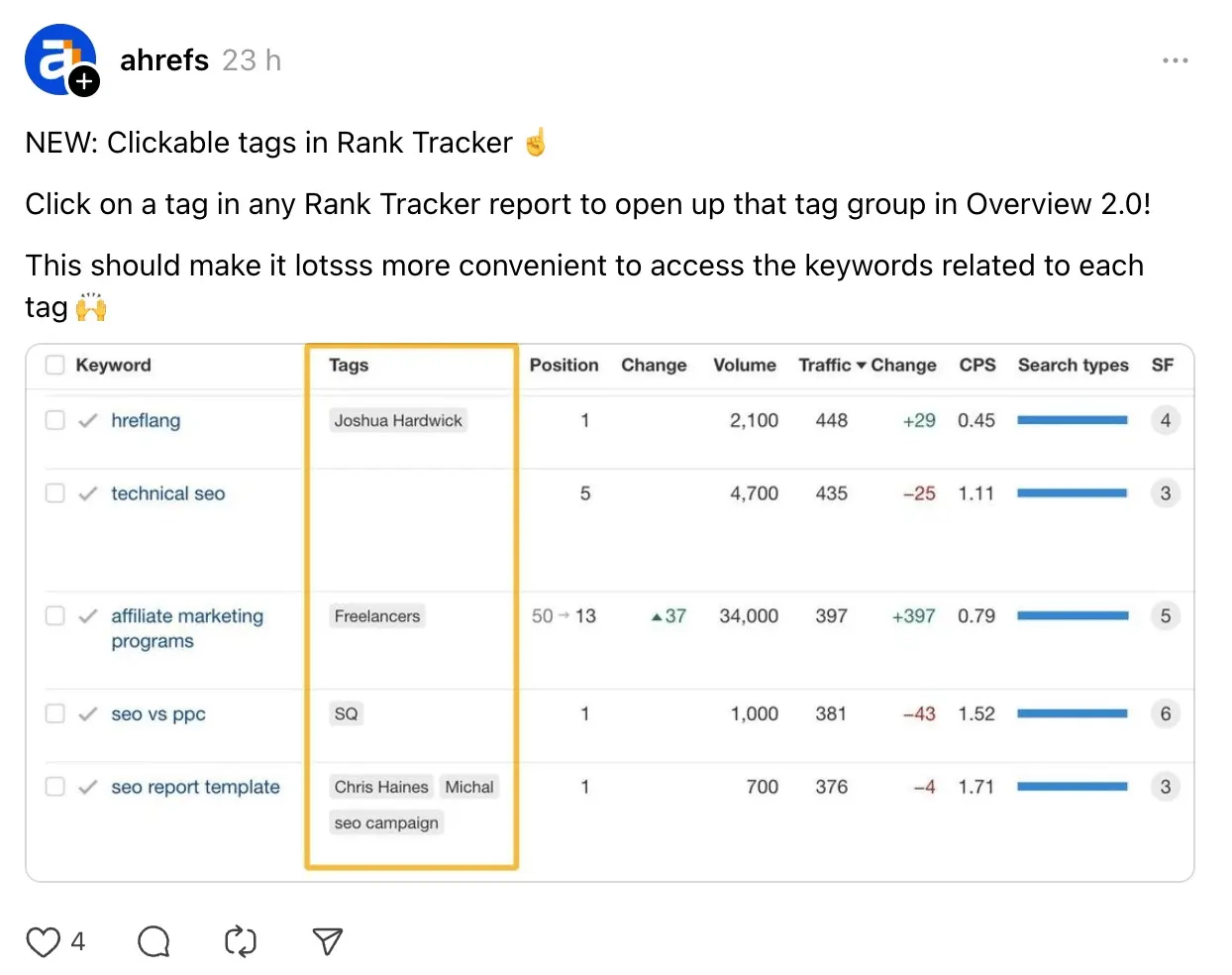
This approach helps you extend the lifespan of your existing content while creating posts that feel natural on Threads, where discussion almost always performs better than promotion alone.
Frequently asked questions
1. Can I join Threads without an Instagram account?
Yes. While Threads originally required an Instagram account to sign up, you can now create a Threads account using an email address or mobile number. If you choose to connect your Instagram account, you can still import details like your Instagram username and profile information and make it easier for your Instagram followers to find you on Threads.
2. How do I manage what I see on Threads?
Threads gives you several ways to customize your experience. You can switch between the For You and Following feeds, follow or unfollow accounts, mute or block users, and use Hidden Words to automatically filter posts and replies containing specific words, phrases, or emojis. The more you interact with content you enjoy, the better Threads becomes at recommending relevant conversations in your feed.
3. How can I view my Threads timeline chronologically?
To see posts in chronological order, switch to the Following feed. Unlike the For You feed, which recommends content from across the platform based on your interests, the Following feed displays posts from the accounts you follow in reverse chronological order, making it the best option if you want to keep up with the latest updates from specific creators, businesses, or friends.
4. Should your business use Threads?
If your audience is active on Threads, it’s worth including the platform in your social media strategy. Threads works particularly well for businesses that want to build relationships, share quick updates, answer customer questions, and participate in conversations without creating highly produced content for every post. It shouldn’t replace your other social channels, but it can complement platforms like Instagram by giving your brand a more conversational voice.
5. How often should you post on Threads?
Consistency matters more than how many posts you make. For most businesses, posting one to three times per day is enough to stay visible without overwhelming your audience. More importantly, leave time to reply to comments and engage with other users. On Threads, conversations are just as important as the posts themselves, so a consistent posting schedule paired with regular interaction will usually deliver better results than publishing frequently and disappearing afterward.
Include Threads in your social media strategy
Threads has grown into much more than an alternative to X. It’s a platform where businesses can build relationships, test ideas, gather feedback, and join conversations without the pressure of creating polished content for every post.
The key is to use Threads as it was designed: as a place for discussion, not just promotion. Share quick insights, ask thoughtful questions, react to what’s happening in your industry, and engage with your audience consistently. Over time, those conversations can strengthen your community and help you build a more recognizable brand.
If you want to stay consistent without publishing every post manually, SocialBee can help. You can create, schedule, and publish Threads posts alongside your other social media content, organize them into content categories, and manage your entire content calendar from one place.
Start your 14-day SocialBee free trial and make Threads part of a more organized social media strategy.