How to share a post from Facebook to Instagram in 2026

When you run a social media strategy, it often involves numerous platforms on which you have to create and post content. This is time-consuming and can become quite tedious. So, if there is a way to make cross-posting easier, why not take it?

Because Instagram and Facebook are both part of Meta, there is a simple way to post the same content on both networks with just a few settings. This way you can increase the reach and engagement of one image, Story, or Reel, across both of your accounts.

We’ll give you a step-by-step guide on how to share Facebook posts to Instagram, as well as some valuable tips and tricks to keep up your sleeve.

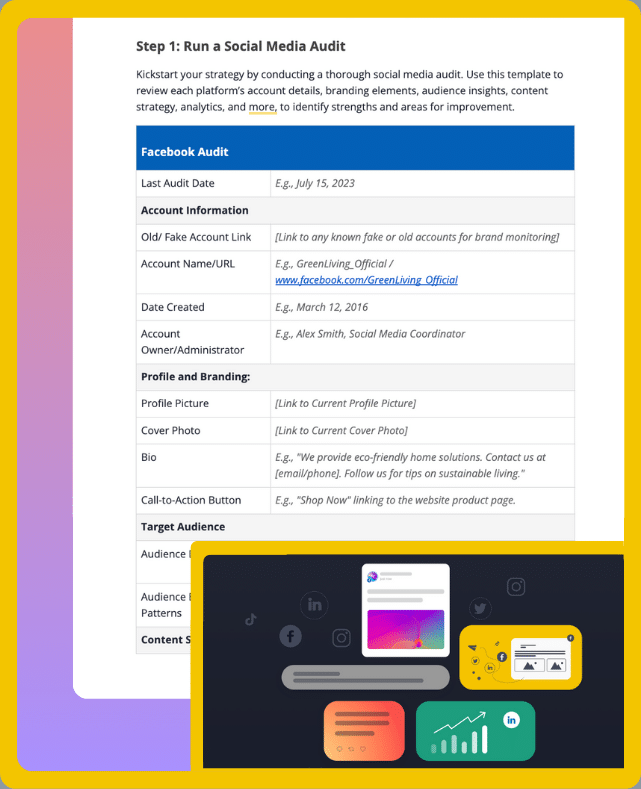
Social Media Strategy Template
Streamline your marketing with an efficient social media strategy template.

We’re SocialBee LABS SRL, part of WebPros. We use the information you provide to share relevant content and product updates, as outlined in our Privacy Policy. You can opt out anytime.

Short summary

  • Link your Facebook and Instagram accounts in Meta Accounts Center to unlock cross-posting in both directions.
  • Turn on “Sharing across profiles” to automatically share posts, Stories, and Reels when publishing.
  • Don’t duplicate everything. Cross-post important, high-performing, or visual content, not every single update.
  • Always adjust captions, links, hashtags, and image sizes for Instagram (remove URLs, shorten text, optimize for vertical formats).
  • Review performance separately on each platform. What works on Facebook may underperform on Instagram.
  • Remember Meta’s limits: you can’t retroactively share posts, and some formats (text posts, certain video types) won’t cross-post.
  • If you want to post to both platforms at once without switching apps, use third-party tools like SocialBee to customize each version, schedule in advance, and track performance from one dashboard.

Why should you share your Facebook posts on Instagram?

In case you’re already putting time into creating and writing Facebook posts, it makes sense to extend the life of that content. Sharing your best posts on Instagram gives your message a second chance to be seen, especially if your audiences overlap but aren’t identical.

Some people check Facebook daily. Others rarely open it but scroll through Instagram constantly. When you show up on both, you reduce the chances of being missed.

There’s also consistency. Posting on multiple platforms regularly builds familiarity. If someone sees your brand in more than one place, you stay top of mind longer.

That said, this isn’t about copying everything over automatically. It works best when you choose strong posts and adjust them for Instagram’s format and style.

Think of it as smart distribution. You’ve already created the content. Sharing it strategically helps you get more value from the work you’ve already done.

How to link Facebook to Instagram

Before you can cross-post or plan future Instagram posts directly from Facebook, you need to link your accounts.

There are two different ways to link Facebook and Instagram: through the Facebook app or the Instagram app. If you manage multiple Pages inside a business portfolio, make sure you select the correct Facebook Page when linking accounts.

How to link Facebook to Instagram from the Instagram app:

  1. Open your profile on the Instagram app and click on the three lines at the top right corner of your screen.
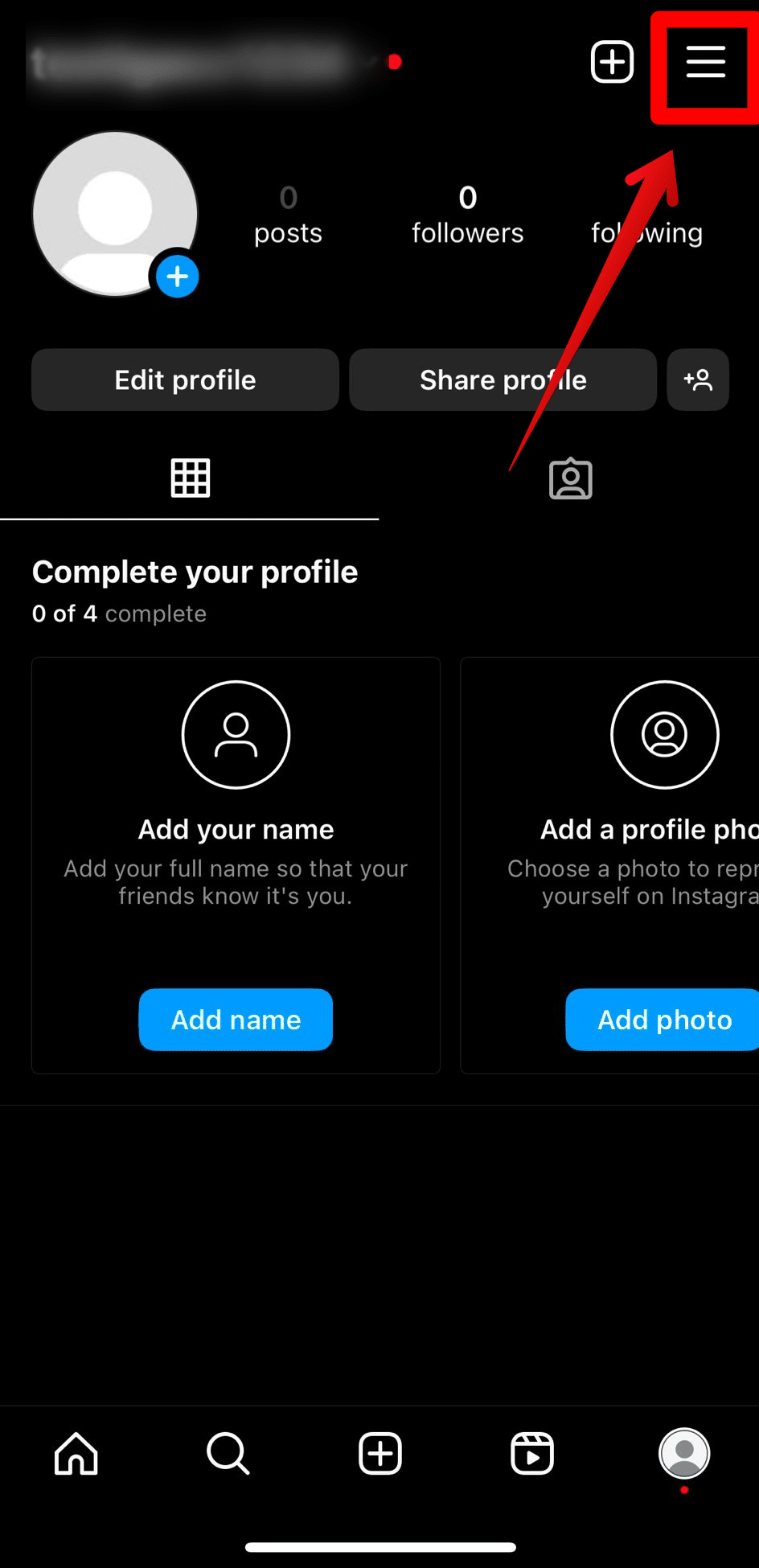
  2. Then, tap “Accounts Center.”
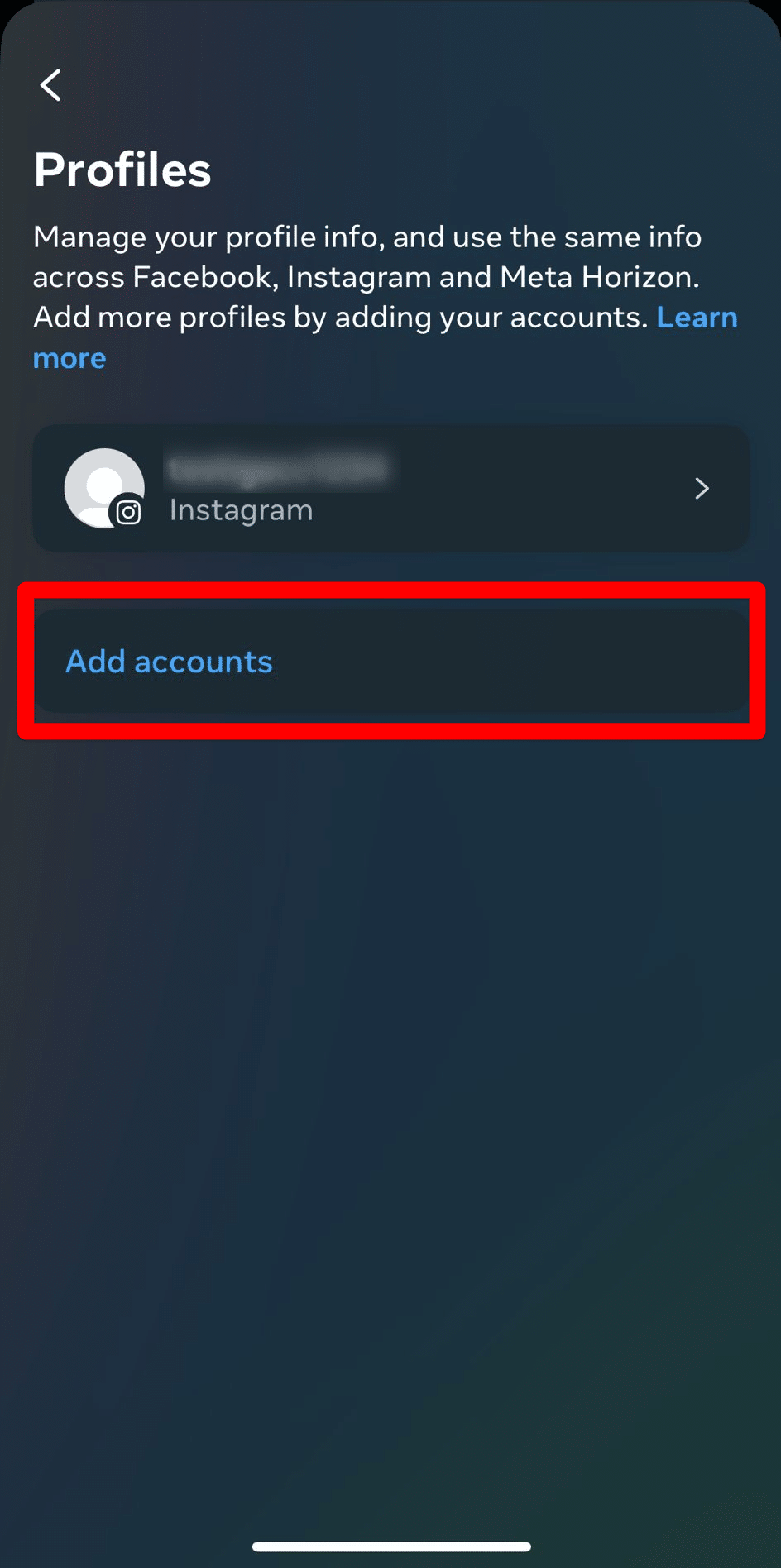
  3. From here, go to “Profiles”.
  4. Select “Add accounts” and tap add Facebook account.
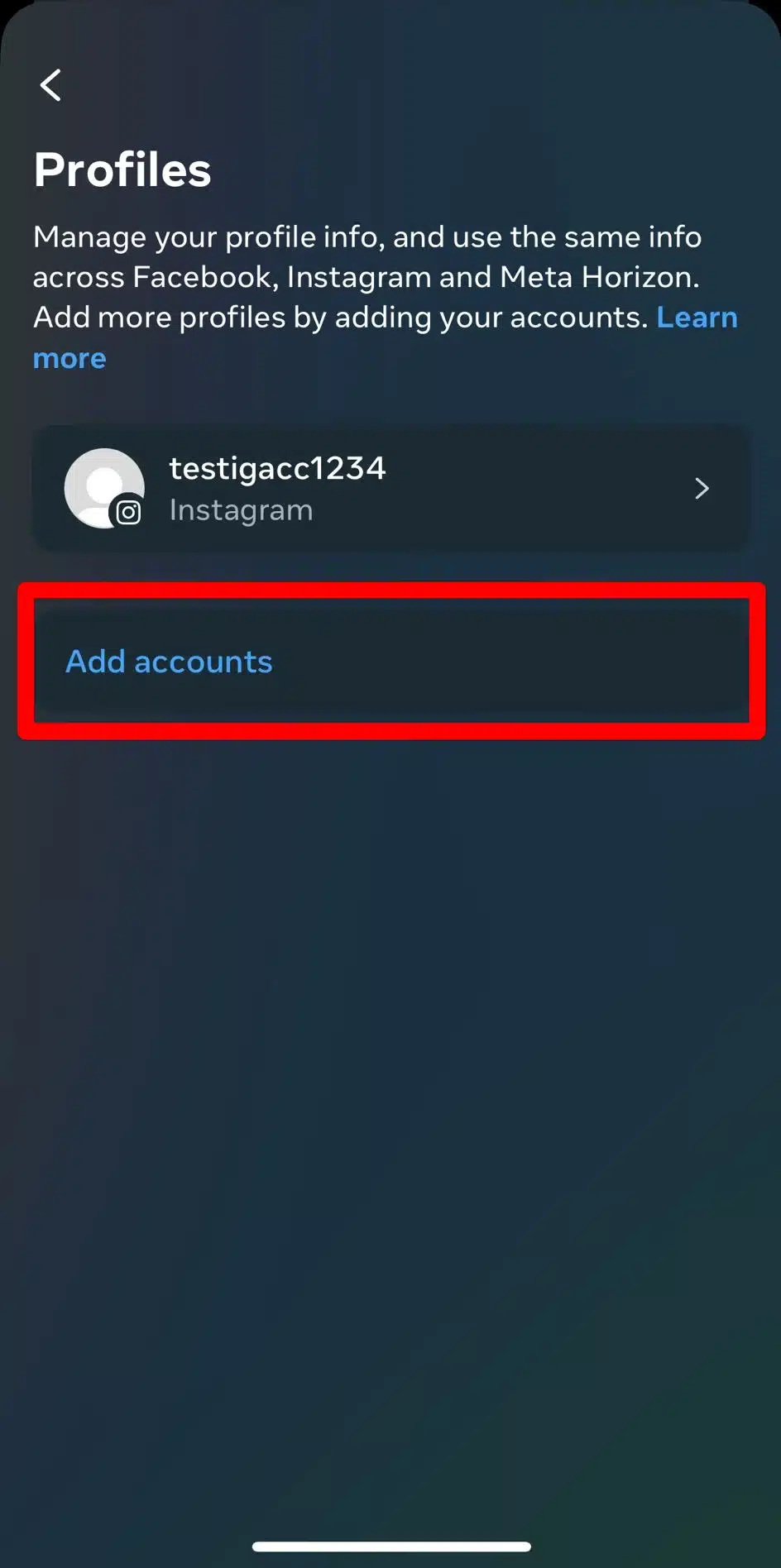
This is usually the fastest method if you’re already logged into your professional Instagram account. It will link the two Meta accounts, and you will now be able to cross-post. You can link multiple Instagram accounts and Facebook pages.

How to link Facebook to Instagram from the Facebook app:

  1. Open the Facebook app on your mobile device.
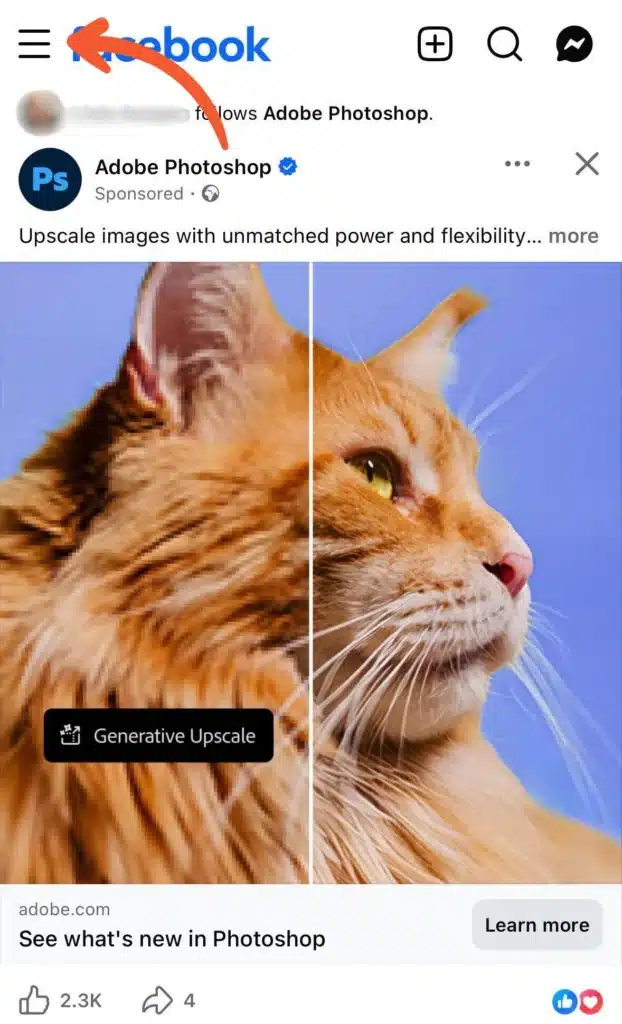
  2. Tap the Menu icon (☰) in the top-right corner.Facebook home feed screen with an arrow pointing to the three-line menu icon in the top left corner, above a sponsored Adobe Photoshop post featuring a cat image.
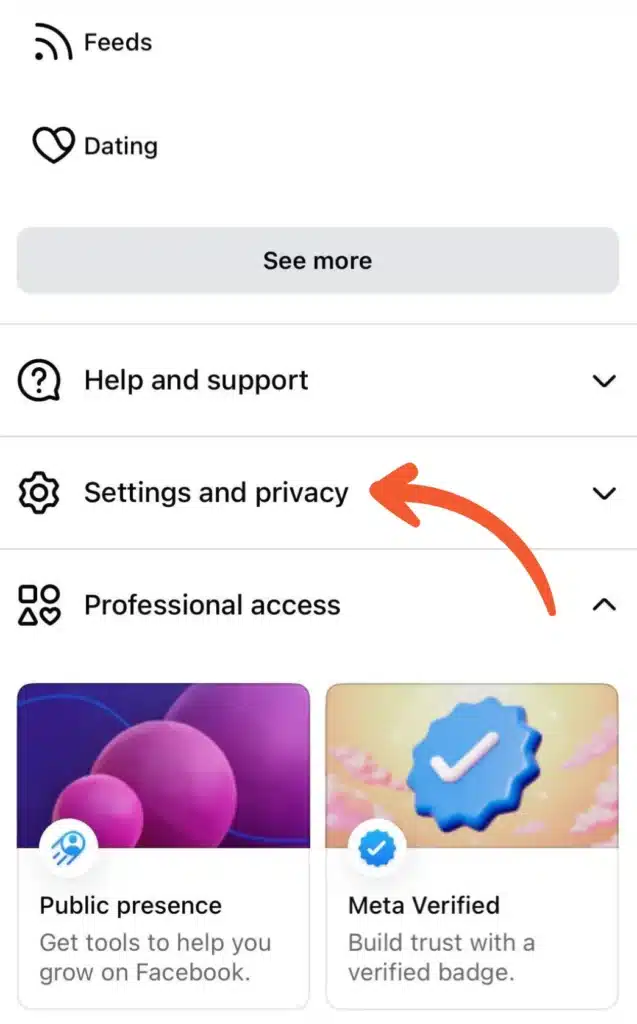
  3. Scroll down and click “Settings & Privacy.”Facebook menu screen showing “Settings and privacy” highlighted with an arrow, along with options like Professional access, Public presence, and Meta Verified.
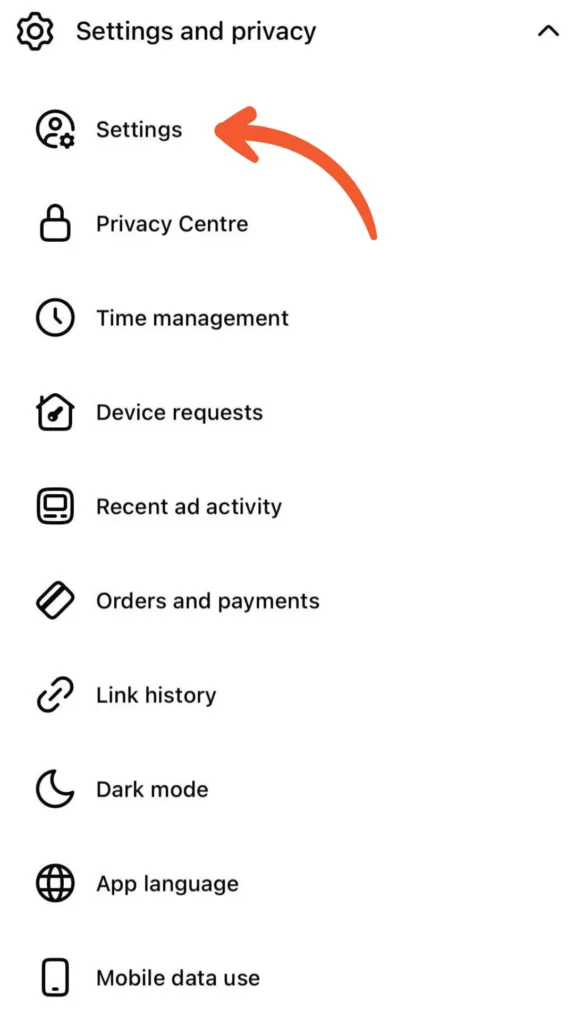
  4. Then tap “Settings.”Facebook “Settings and privacy” screen with an arrow pointing to the “Settings” option in the menu list.
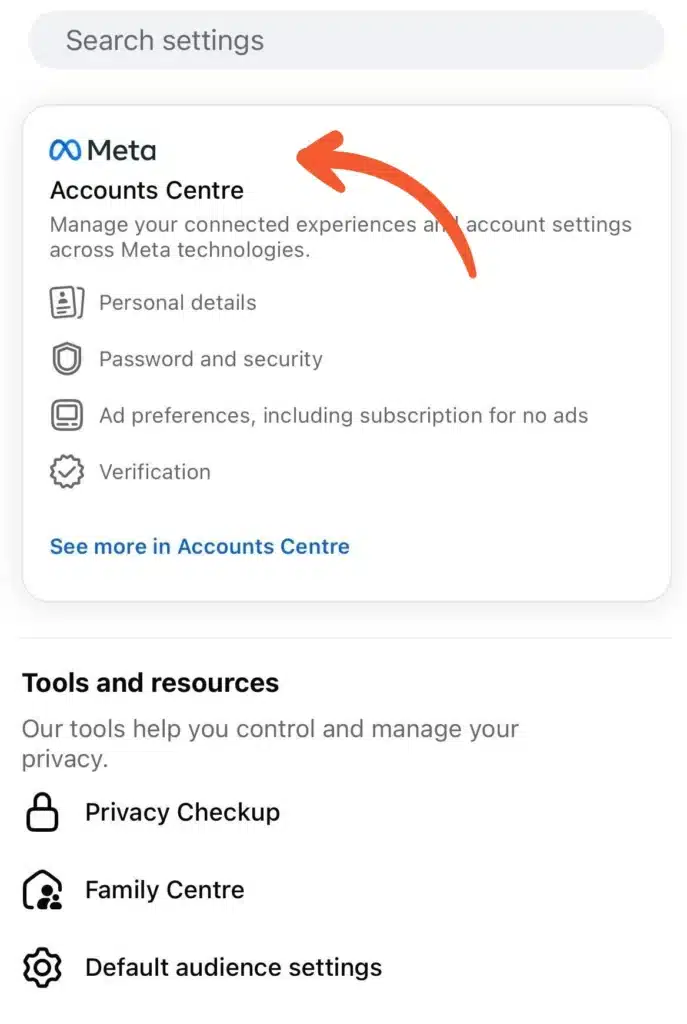
  5. Tap on “Meta Accounts Center.”Facebook Settings page showing the Meta “Accounts Centre” section with an arrow pointing to it, along with options for Personal details, Password and security, and Verification.
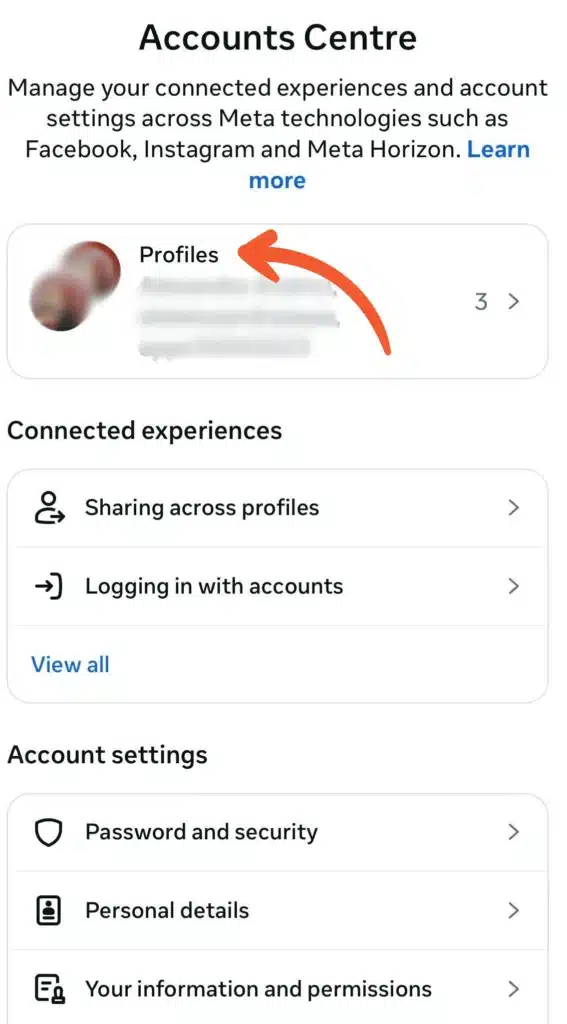
  6. Select “Profiles.”Facebook Accounts Centre screen with an arrow pointing to “Profiles,” displaying connected accounts and options like Sharing across profiles and Password and security.
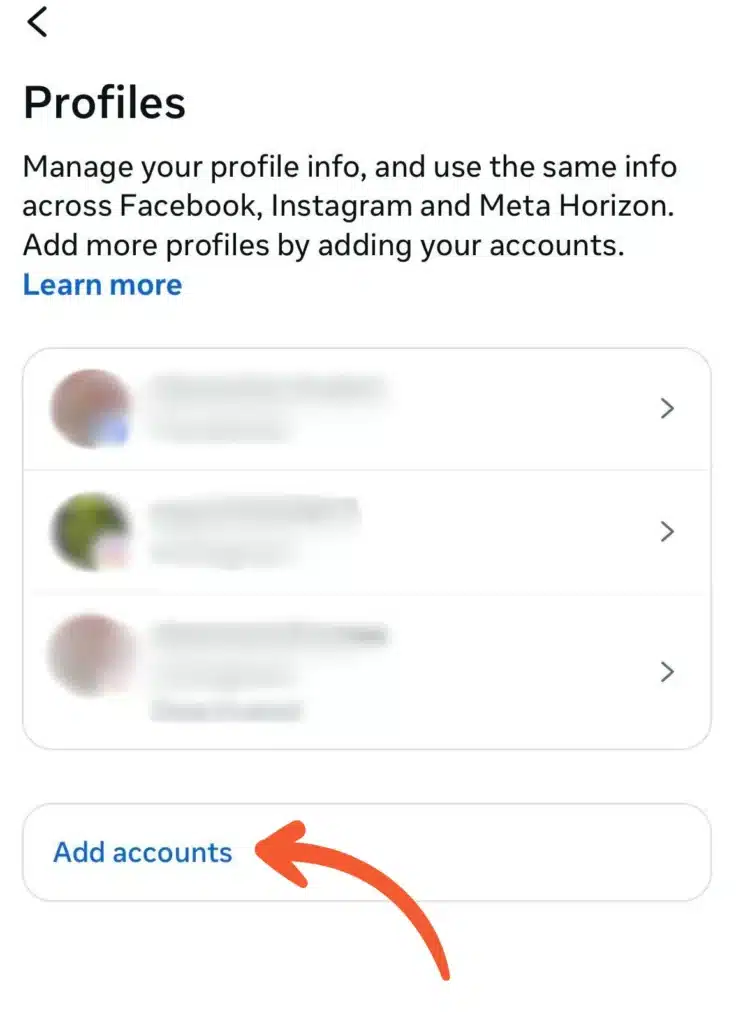
  7. Tap “Add accounts.”Facebook Profiles screen showing multiple connected profiles with an arrow pointing to the “Add accounts” button at the bottom.
  8. Choose “Add Instagram account” to connect Instagram and log in.
  9. Follow the on-screen instructions to complete the linking process.

Now you can use the cross-posting feature on the linked accounts.

After connecting your accounts, it’s a good idea to double-check everything is set up correctly. You can easily manage linked accounts inside Meta Accounts Center if you need to make changes later.

How to turn on automatic sharing between Facebook and Instagram

To automatically share your Instagram posts, Stories, and Reels to Facebook, you need to connect both accounts through Meta Accounts Center.

You can enable this setting from either the Facebook or Instagram app.

How to turn on automatic sharing from the Facebook app (iPhone or Android):

  1. Open the Facebook app on your mobile device.
  2. Tap the Menu icon (☰) in the top-right corner.Facebook home feed screen with an arrow pointing to the three-line menu icon in the top left corner, above a sponsored Adobe Photoshop post featuring a cat image.
  3. Scroll down and tap “Settings & Privacy,” then select “Settings.”Facebook menu screen showing “Settings and privacy” highlighted with an arrow, along with options like Professional access, Public presence, and Meta Verified.
  4. Tap “Meta Accounts Center.”Facebook “Settings and privacy” screen with an arrow pointing to the “Settings” option in the menu list.
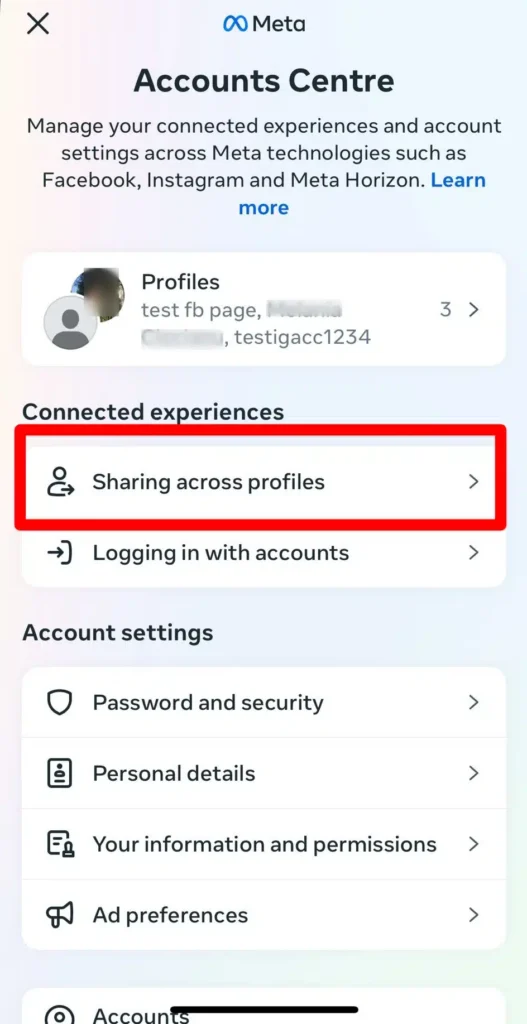
  5. Select “Sharing across profiles.”
  6. Choose your Facebook profile.
  7. Under “Share to,” turn on the toggles for posts, Stories, and Reels.
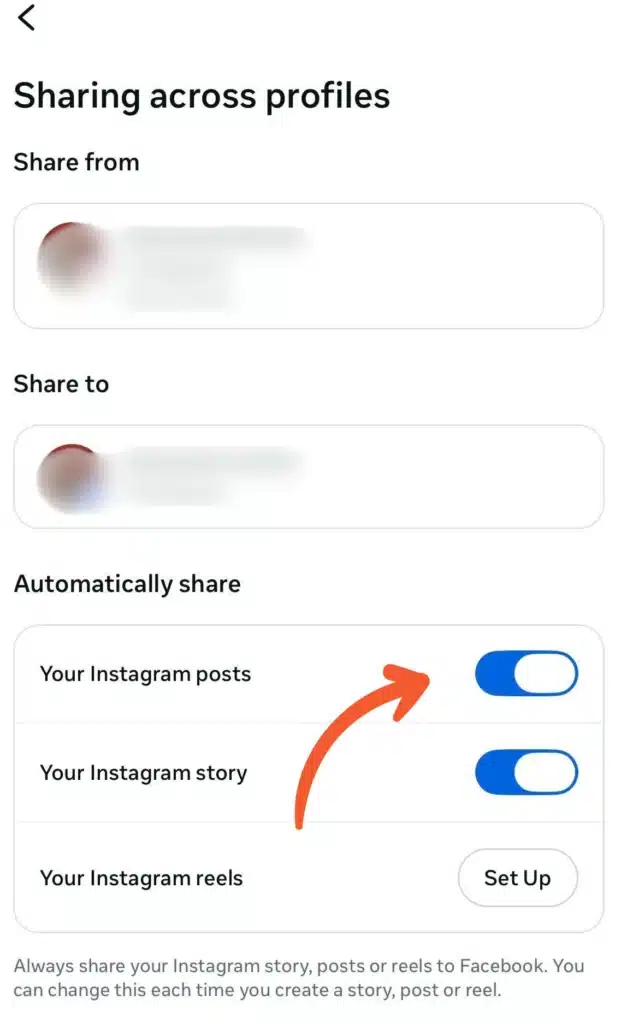
How to turn on automatic sharing from the Instagram App (iPhone or Android):

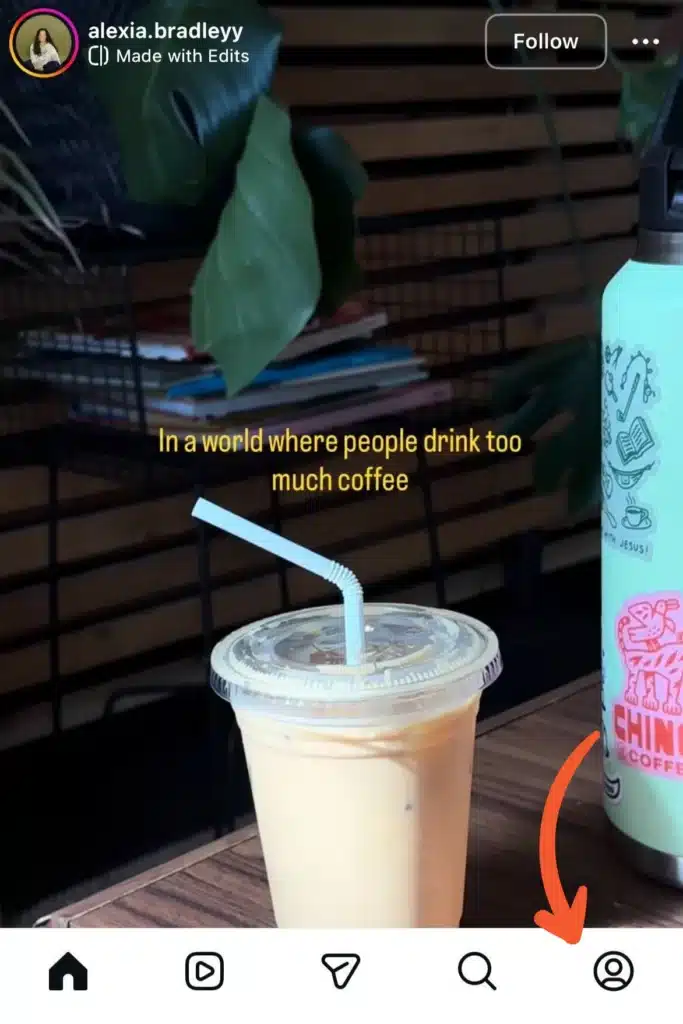
  1. Open the Instagram app and go to your profile.Instagram home feed screen with an arrow pointing to the profile icon in the bottom right corner.
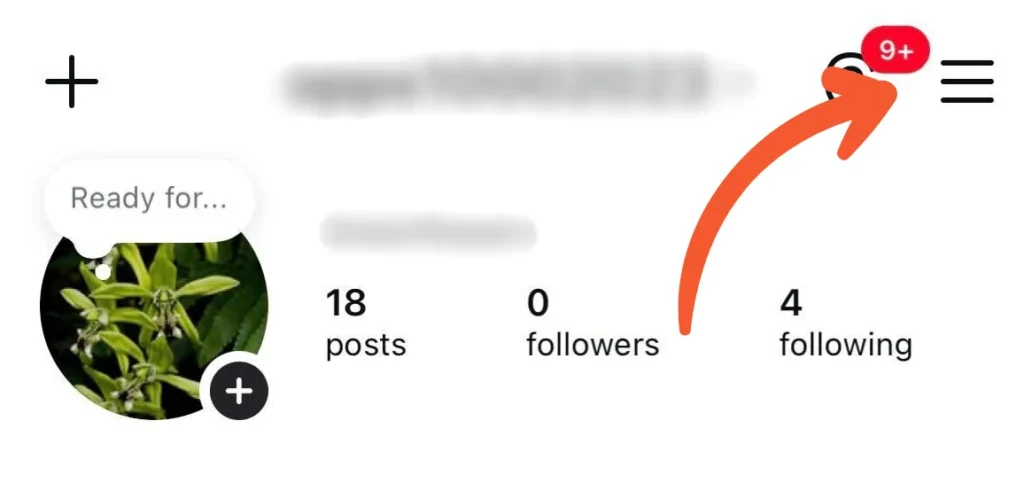
  2. Tap the three lines (☰) in the top-right corner.Instagram profile page with an arrow pointing to the three-line menu icon in the top right corner.
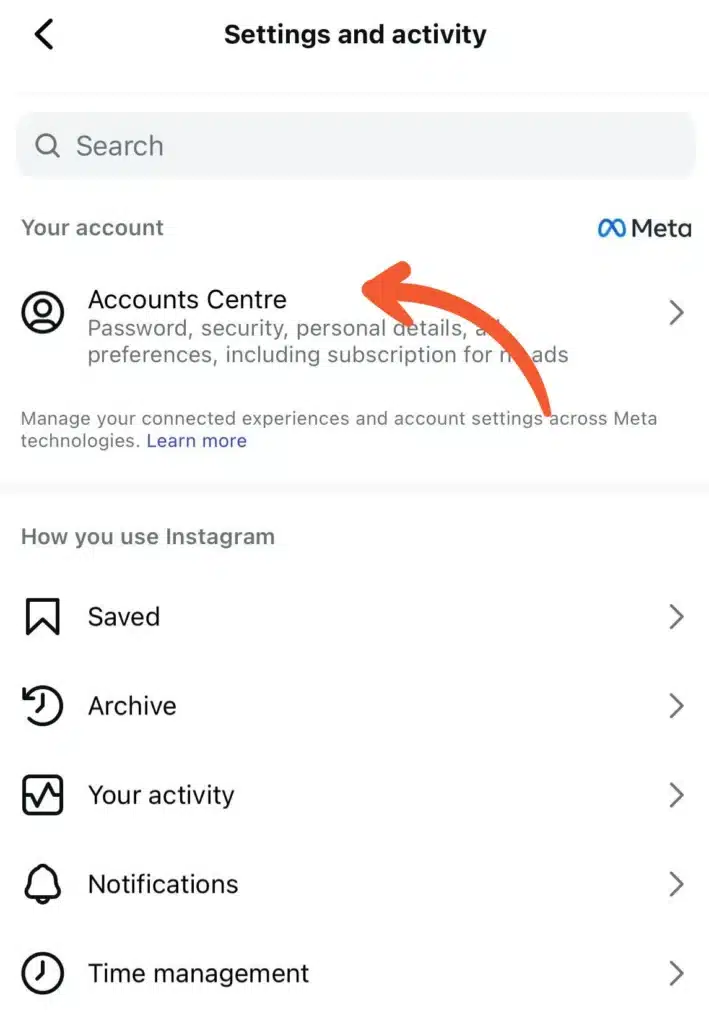
  3. Tap “Accounts Center.”Instagram “Settings and activity” screen with an arrow pointing to “Accounts Centre” under the Meta section.
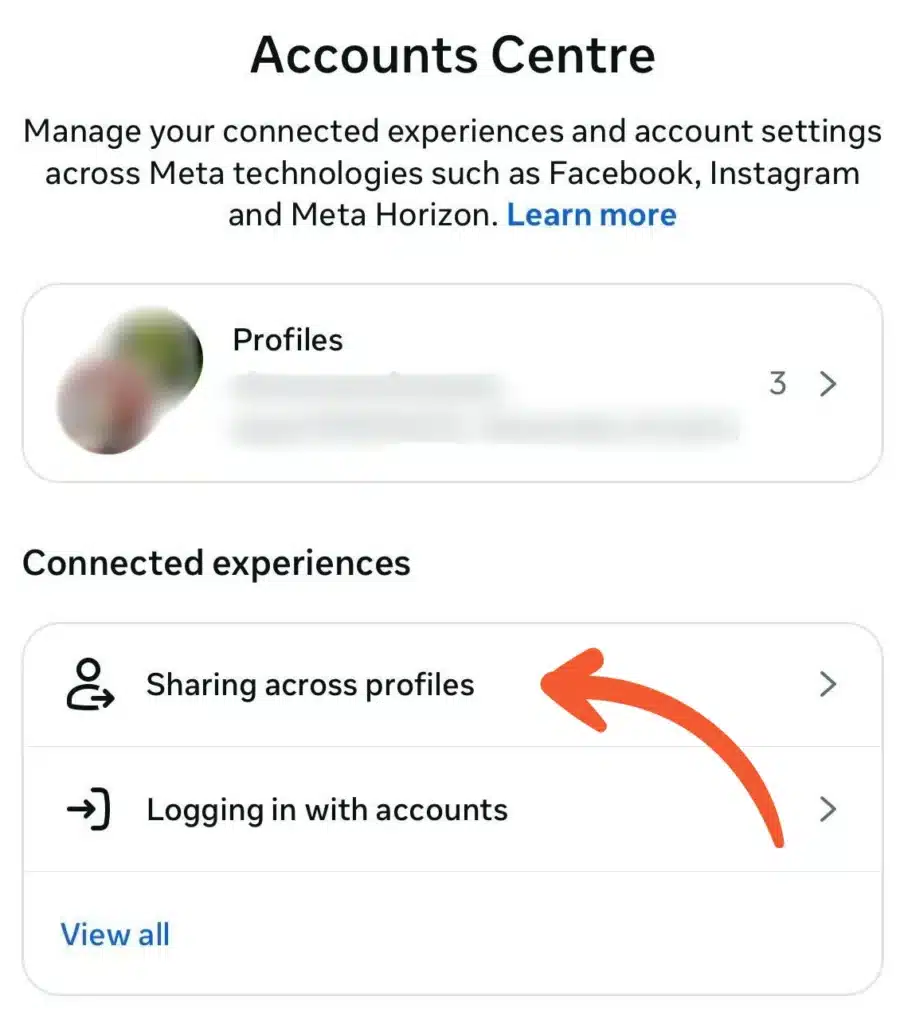
  4. Select “Sharing across profiles.”Meta Accounts Centre screen in Instagram settings showing “Profiles” and “Sharing across profiles” under Connected experiences, with an arrow pointing to the sharing option.
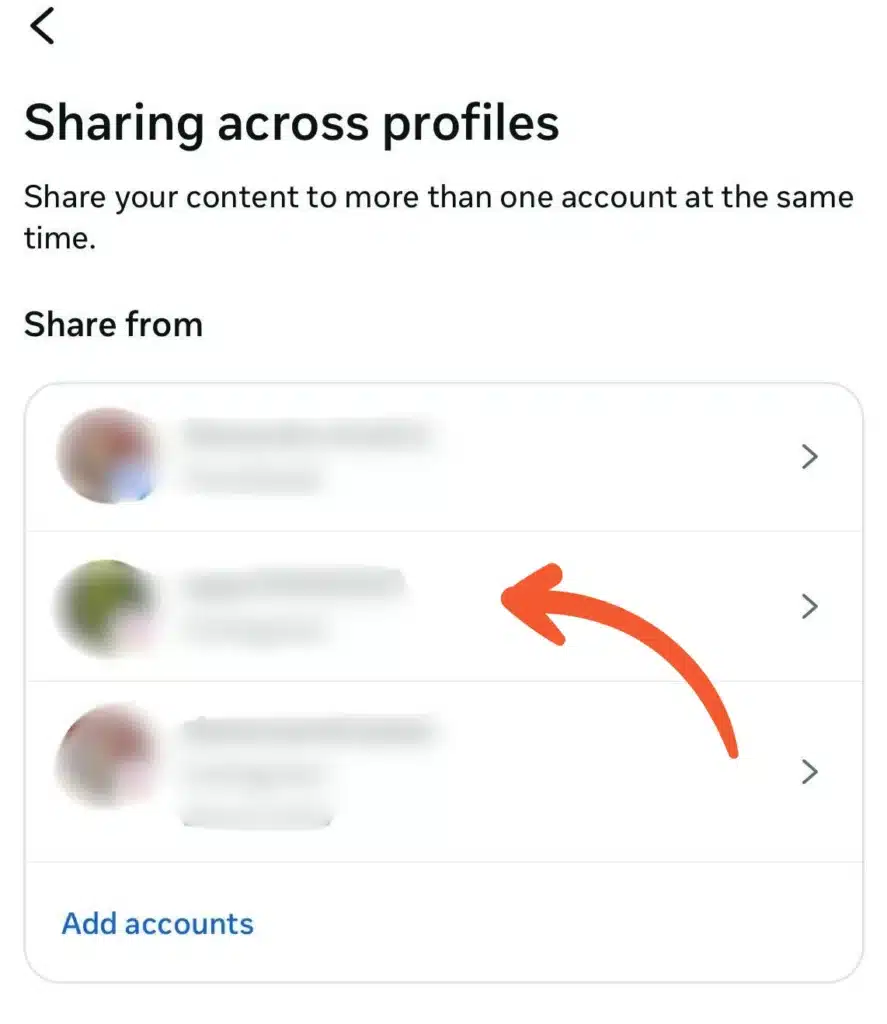
  5. Under “Share from,” choose your Instagram profile.Instagram “Sharing across profiles” page listing connected accounts under “Share from,” with an arrow highlighting a selected profile and an “Add accounts” option at the bottom.
  6. Turn on the toggles for posts, Stories, and Reels.Instagram “Sharing across profiles” settings screen showing automatic sharing toggles for posts and Stories turned on, with an option to set up sharing for Reels.

Once this is turned on, Instagram automatically shares eligible posts, Stories, and Reels to Facebook when you publish.

Meta’s limitations with cross-posting Facebook posts to Instagram

Meta makes it possible to cross-post between Facebook and Instagram, but the feature isn’t as flexible as it seems. 

Here’s what you need to know about Meta’s limitations regarding cross-posting Facebook and Instagram posts:

  • Both accounts must be linked through the Meta Accounts Center before cross-posting is possible.
  • You can’t retroactively share a Facebook post to Instagram after it’s already published.
  • Automatic scheduling is limited to basic toggles. Advanced automation, structured scheduling, or performance-based boosting isn’t available natively.
  • The same post often needs edits. Long captions, links, and formatting that work on Facebook may underperform on Instagram, which means you may need to adjust content on Instagram manually before publishing.
  • Some Facebook posts can’t be shared to Instagram due to format or feature limits, including:
    • Posts with multiple videos or more than 10 photos;
    • Posts with photos of different sizes;
    • Photos that are too tall or too wide for Instagram (some may be cropped);
    • Text-only posts;
    • Live videos;
    • Reshares;
    • Certain Facebook-specific creative tools.

How to share posts from Facebook to Instagram

There are three types of posts that you can share on your Instagram and Facebook profiles: feed posts, Reels, and Stories. Let’s look at how to cross-post each of them.

How to share Facebook feed posts to Instagram:

  1. Open the Facebook mobile app.
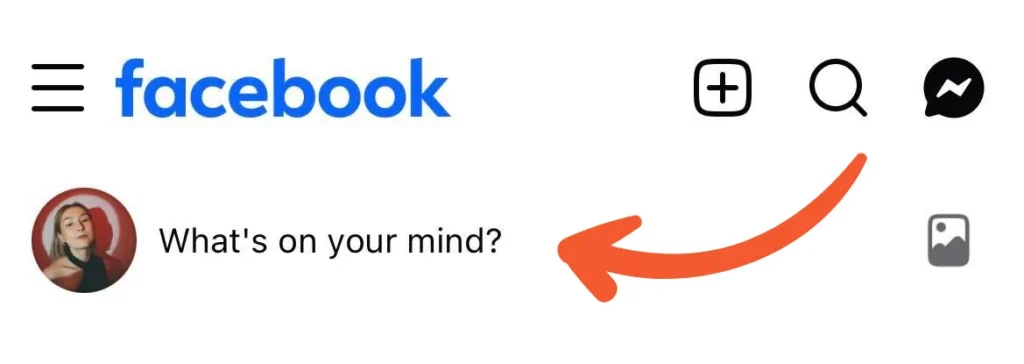
  2. At the top of your Feed, tap “What’s on your mind?” next to your profile picture.Facebook home screen with the “What’s on your mind?” post creation field highlighted.
  3. Create your post by adding your caption and media (photo or video).
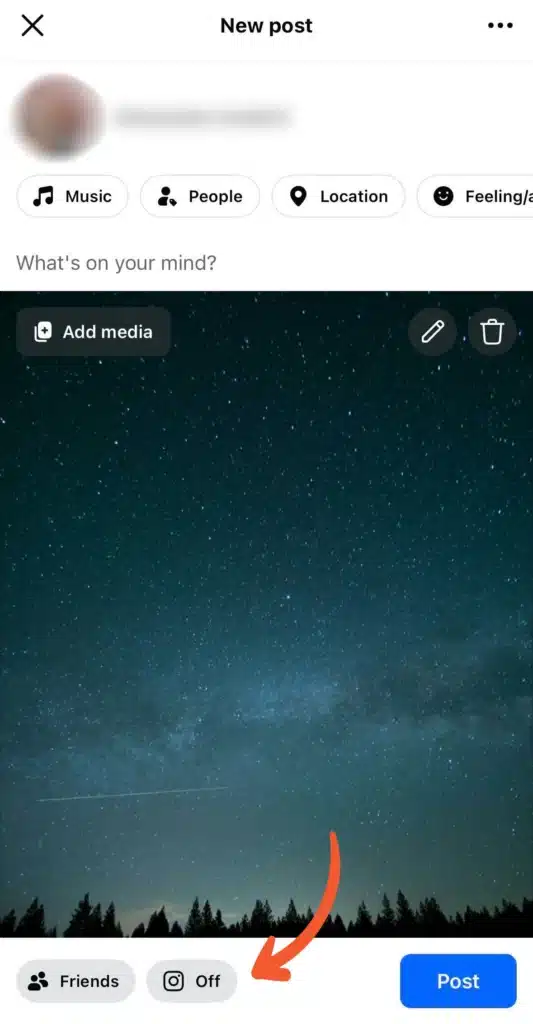
  4. Tap the Instagram sharing option to choose where your post will be posted. The Instagram button will show whether sharing is “On” or “Off.”Facebook new post screen with an Instagram sharing toggle set to “Off” before publishing.
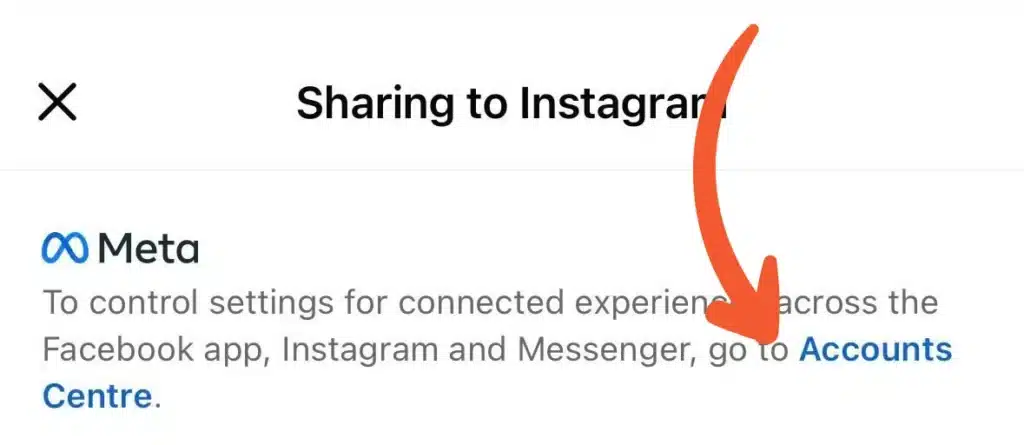
  5. If it shows “Off,” tap the Instagram icon, then select “Accounts Center.”“Sharing to Instagram” screen with a message directing users to Meta Accounts Centre to manage connected experience settings.
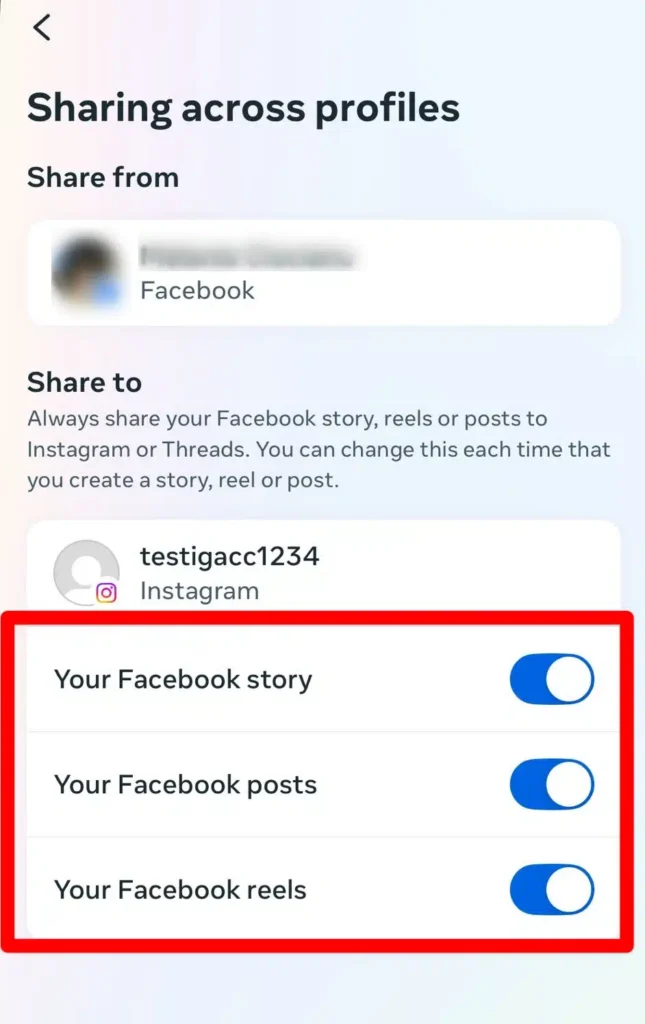
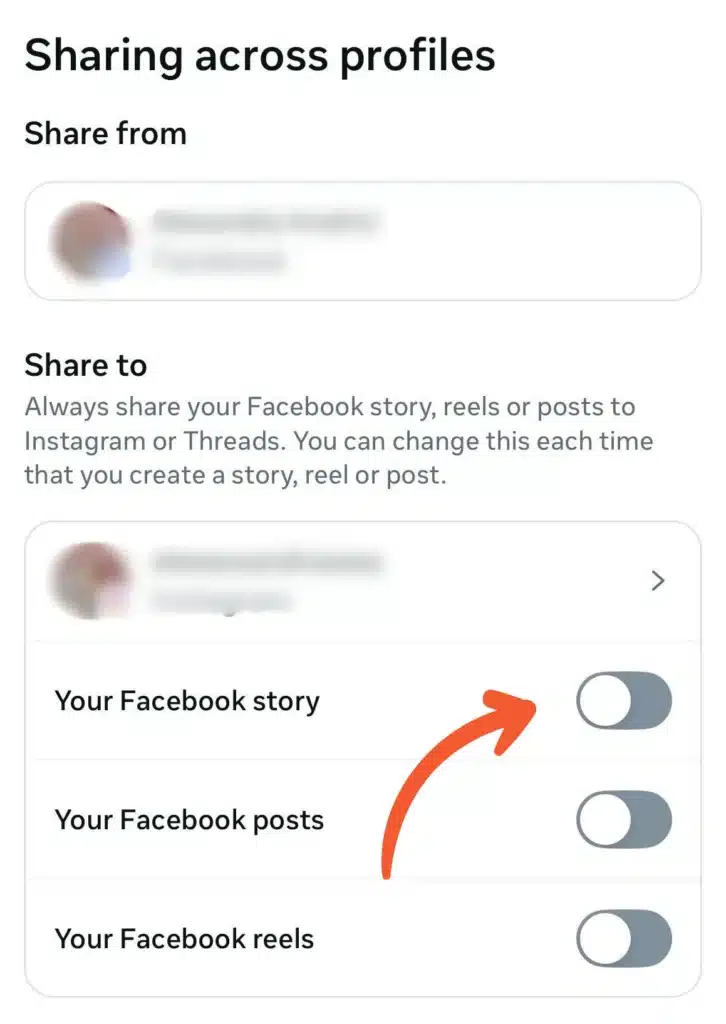
  6. Turn on the toggles for Facebook posts, Stories, and Reels to share them to Instagram.Instagram “Sharing across profiles” screen showing Facebook story, posts, and reels toggles for automatic sharing to Instagram.
  7. Tap “Done” to save your settings.
  8. Tap “Post” to publish your content to Facebook and Instagram.

This way, you will share individual Facebook posts to Instagram.

How to share Reels from Facebook to Instagram:

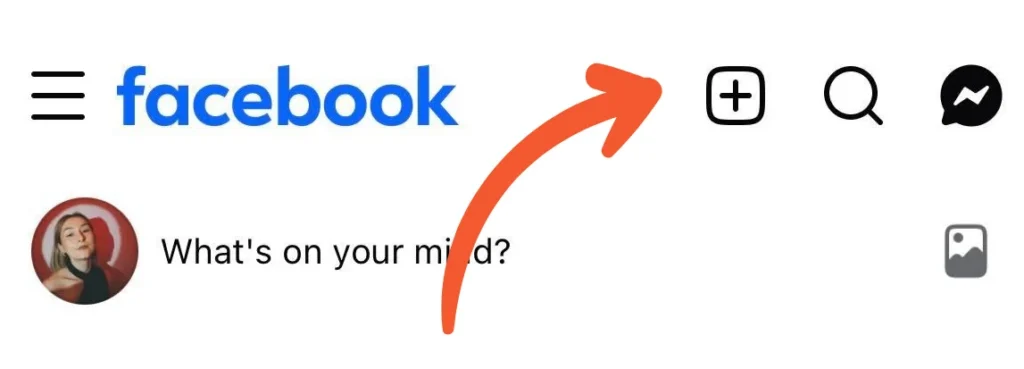
  1. To create a Reel, open Facebook from your mobile app and tap the plus (+) sign at the top right of your screen. Then select “Reel” from the dropdown menu.Facebook home screen with the plus (+) create button highlighted, showing where to start creating a new Reel.
  2. Tap the camera icon in the top right to film a video or upload media from your camera roll.
  3. Edit your Reel by adding audio, text, effects, and stickers.
  4. Once your Reel is ready, tap “Next.”Facebook Reel editing screen with nature video preview, text “Feel the nature,” editing tools (audio, text, effects, stickers), and “Next” button highlighted.
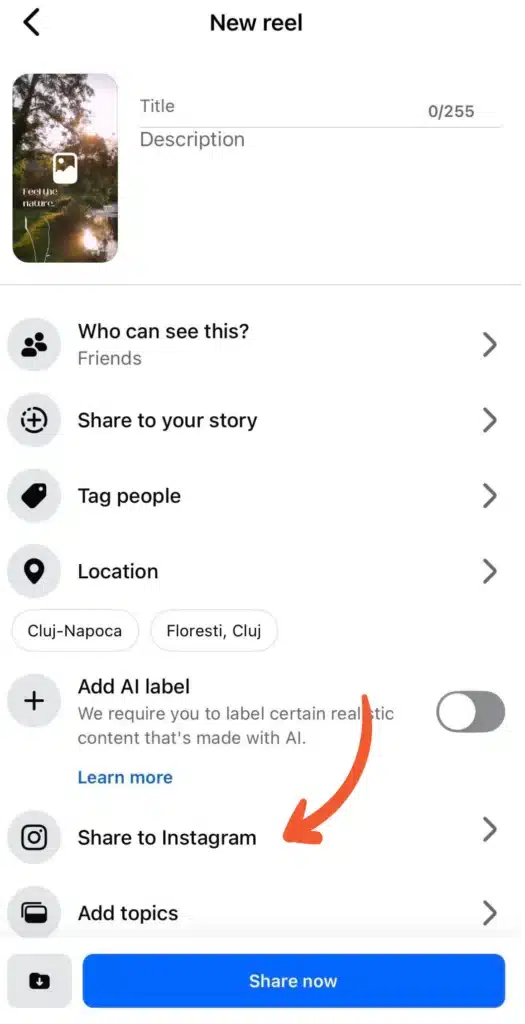
  5. Add your caption, choose who can see your post, select whether to share it as a Story, tag people, add a location, and adjust other settings.Facebook “New reel” screen showing title and description fields, privacy options, AI label toggle, and “Share to Instagram” option highlighted with an arrow.
  6. Tap “Share to Instagram”, then select “Accounts Center.”“Sharing to Instagram” screen with a message directing users to Meta Accounts Centre to manage connected experience settings.
  7. Turn on the toggles for Facebook posts, Stories, and Reels to share them to Instagram.Instagram “Sharing across profiles” screen showing Facebook story, posts, and reels toggles for automatic sharing to Instagram.
  8. Tap “Done” to save your settings.
  9. Finally, tap “Share Now.”

And you’re done! Your video will appear as a Reel and Instagram feed post.

How to share Facebook Stories to Instagram:

  1. To create a Story, open the Facebook mobile app and tap the plus (+) sign at the top right of your screen. Then select “Story” from the dropdown menu.Facebook home screen with the plus (+) create button highlighted, showing where to start creating a new Reel.
  2. Tap the camera icon in the top right to film a video or upload media from your camera roll.
  3. Edit your Story by adding audio, text, effects, and stickers.
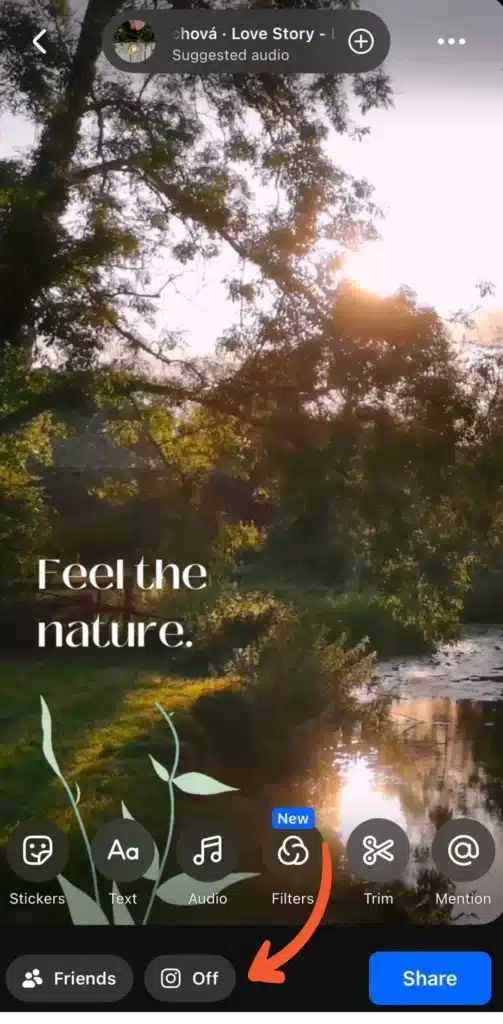
  4. Tap on the Instagram icon, then select “Accounts Center.”Facebook Story editing screen showing a nature video with the text “Feel the nature,” editing options (Stickers, Text, Audio, Filters, Trim, Mention), an Instagram sharing toggle set to “Off,” and the blue “Share” button highlighted.
  5. Turn on the toggles for Facebook posts, Stories, and Reels to share them to Instagram.Instagram “Sharing across profiles” screen showing Facebook story, posts, and reels toggles for automatic sharing to Instagram.
  6. Tap “Done” to save your settings.
  7. Finally, tap “Share.”

How to share posts from Instagram to Facebook

You can also share content the other way around. Instagram allows you to publish feed posts, Reels, and Stories to Facebook at the same time.

How to share feed posts from Instagram to Facebook:

  1. Open the Instagram mobile app.
  2. Tap the plus (+) icon in the top left corner of your screen.Instagram home feed screen with the plus (+) create button highlighted at the top, showing where to start creating a new post.
  3. Upload media from your gallery or use the camera to take a photo or record a video, then tap “Next.”
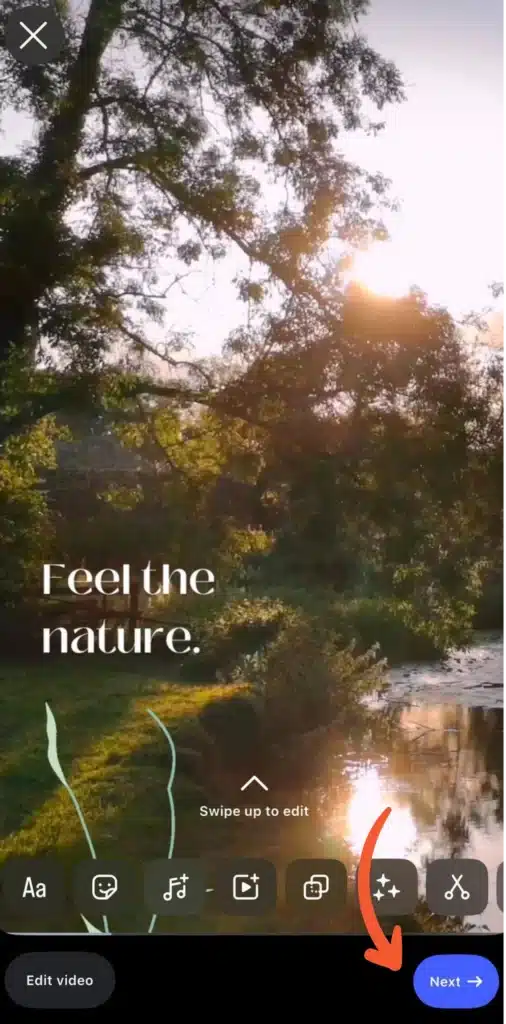
  4. Edit your content by adding music, effects, stickers, and more. Then tap “Next.”Instagram Reel editing screen with a nature video preview reading “Feel the nature,” editing tools at the bottom, and the “Next” button highlighted.
  5. Add your caption, tag people, add a location, and adjust other settings.
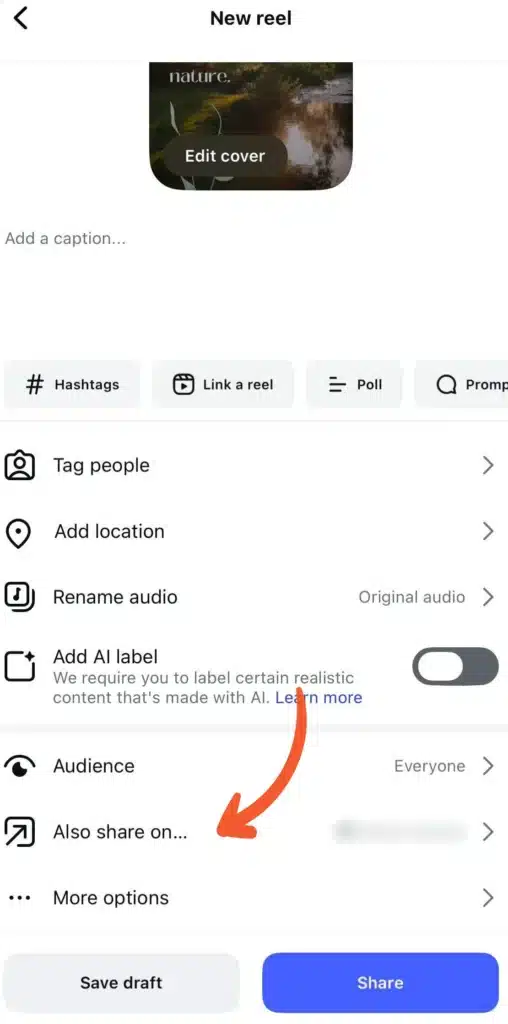
  6. Before sharing your post, scroll down and tap on the “Also share to…” option.Instagram “New reel” sharing screen showing caption field, tagging and location options, AI label toggle, and “Also share on…” option highlighted with an arrow.
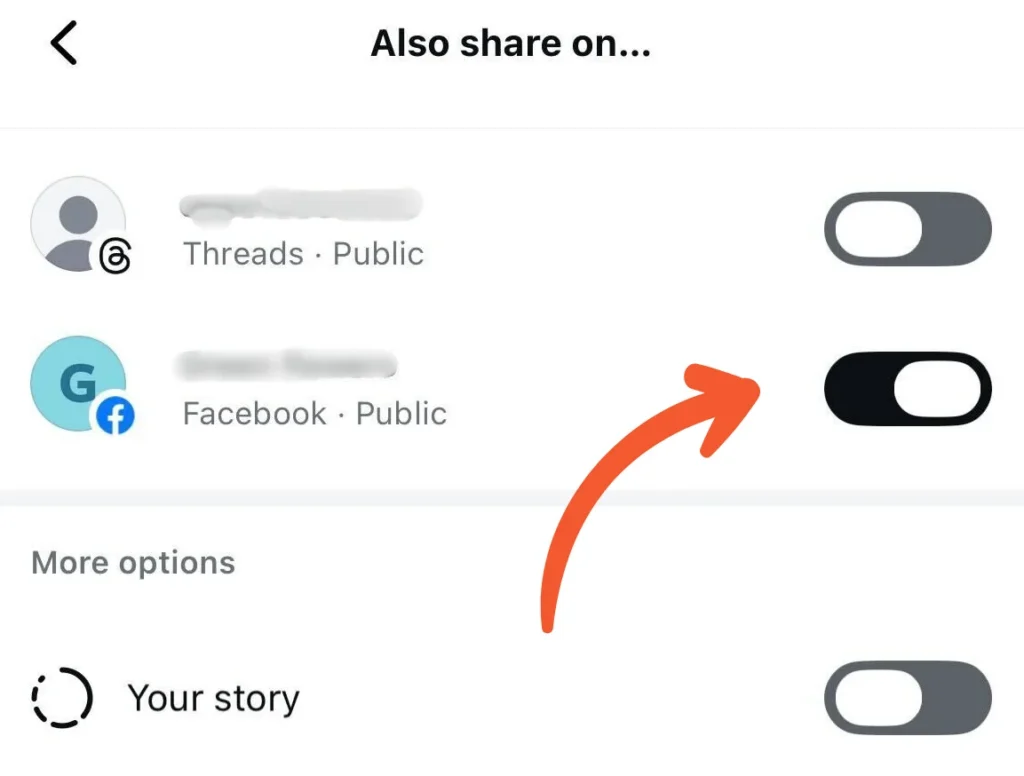
  7. Toggle the switch to on next to your Facebook Page’s name.Instagram “Also share on…” screen displaying sharing toggles for Threads and Facebook, with the Facebook toggle turned on and highlighted.
  8. Tap the back arrow in the top left corner, then tap “Share.”

How to share Reels from Instagram to Facebook:

  1. Open the Instagram mobile app and switch to the Reels tab.
  2. Tap the plus (+) icon in the top left corner of your screen.Instagram home feed screen with the plus (+) create button highlighted at the top, showing where to start creating a new post.
  3. Upload media from your gallery or use the camera to take an Instagram photo or record a video, then tap “Next.”
  4. Edit your content by adding music, effects, stickers, and more. Then tap “Next.”Instagram Reel editing screen with a nature video preview reading “Feel the nature,” editing tools at the bottom, and the “Next” button highlighted.
  5. Add your caption, tag people, add a location, and adjust other settings.
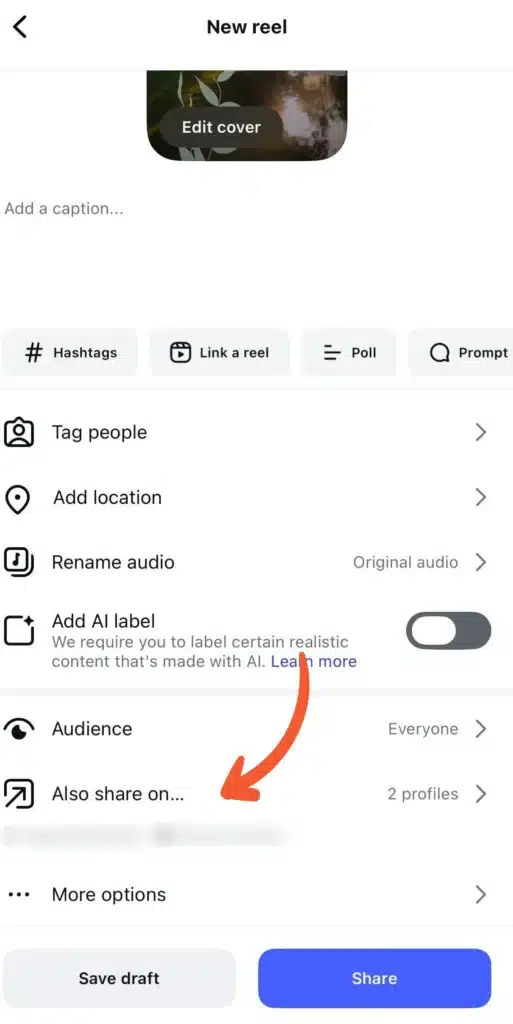
  6. Before sharing your post, scroll down and tap “Also share to…”.Instagram “New reel” sharing screen showing caption field, tagging and location options, AI label toggle, and “Also share on…” set to 2 profiles, highlighted with an arrow.
  7. Toggle the switch to on next to your Facebook Page’s name.Instagram “Also share on…” screen displaying sharing toggles for Threads and Facebook, with the Facebook toggle turned on and highlighted.
  8. Tap the back arrow in the top left corner, then tap “Share.”

How to share Stories from Instagram to Facebook:

  1. Open the Instagram mobile app.
  2. Tap the plus (+) icon at the top of your screen and select “Story” from the content options at the bottom.Instagram home feed screen with the plus (+) create button highlighted at the top, showing where to start creating a new post.
  3. Upload media from your gallery or use the camera to take a photo or record a video.
  4. Edit your content by adding music, effects, stickers, and more.
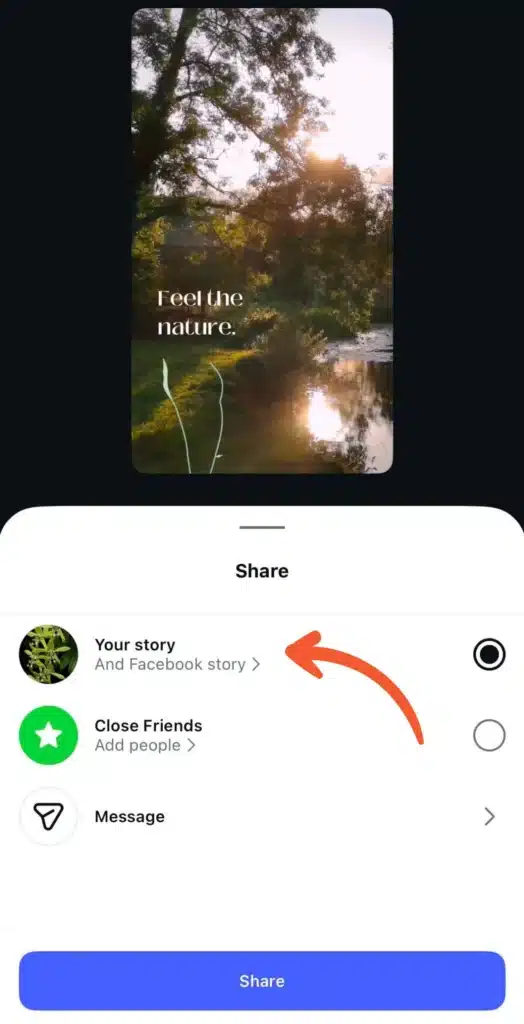
  5. If your Facebook and Instagram accounts are connected and cross-sharing is enabled, you will see a button in the bottom left corner with your Facebook profile and “Your Story,” which means it will also be shared on Facebook. Then, tap the arrow in the bottom right corner to post.Instagram Story sharing screen showing “Your story (And Facebook story)” selected, with additional options for Close Friends and Message, and the blue “Share” button at the bottom.
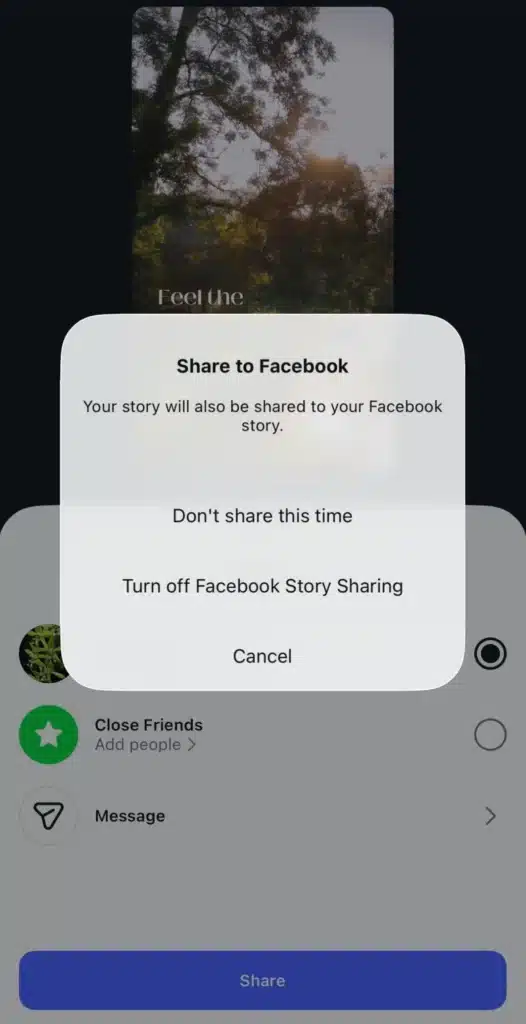
  6. If you don’t want to post on Facebook, tap “And Facebook Story” under “Your Story,” choose “Don’t share this time,” and then tap “Share.”Instagram pop-up titled “Share to Facebook” explaining that the story will also be shared to Facebook, with options: “Don’t share this time,” “Turn off Facebook Story Sharing,” and “Cancel.”

How to post to Facebook and Instagram at once

If you’re posting natively through Facebook or Instagram, you’re constantly switching between apps, rewriting captions, and manually publishing in real time.

Not to mention that if you work with a team, you need to be careful with your Facebook and Instagram credentials and avoid sharing login details unnecessarily.

With SocialBee, you can schedule feed posts, Reels, Stories, carousels, and even collaborative posts for Instagram, while publishing to Facebook at the same time from one dashboard.

You can plan posts for your personal Facebook profile, Facebook Pages, and both personal and business Instagram accounts, so everything stays organized without switching between platforms or accounts.
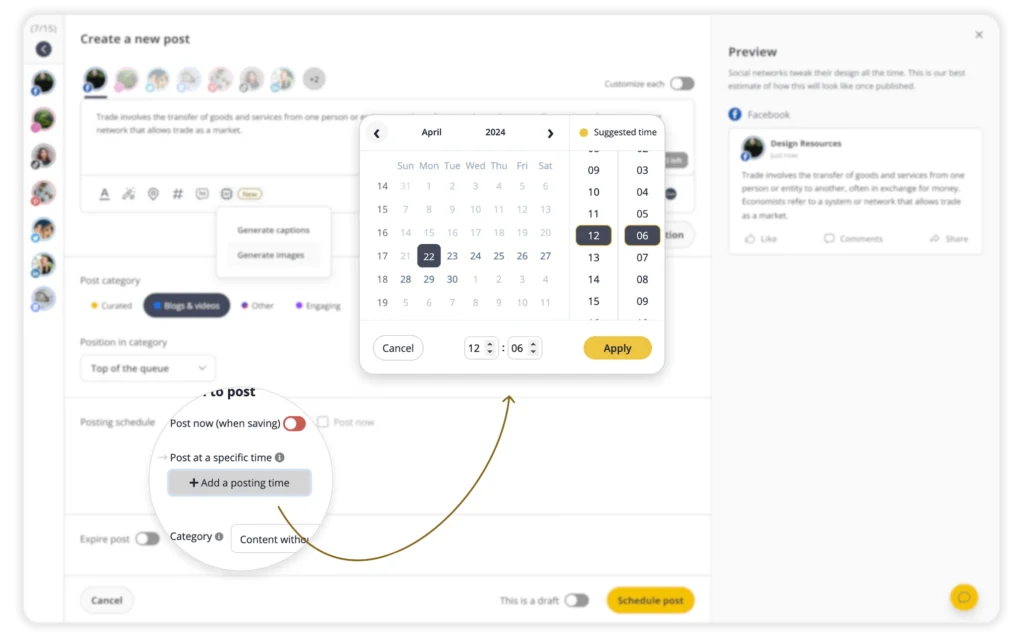
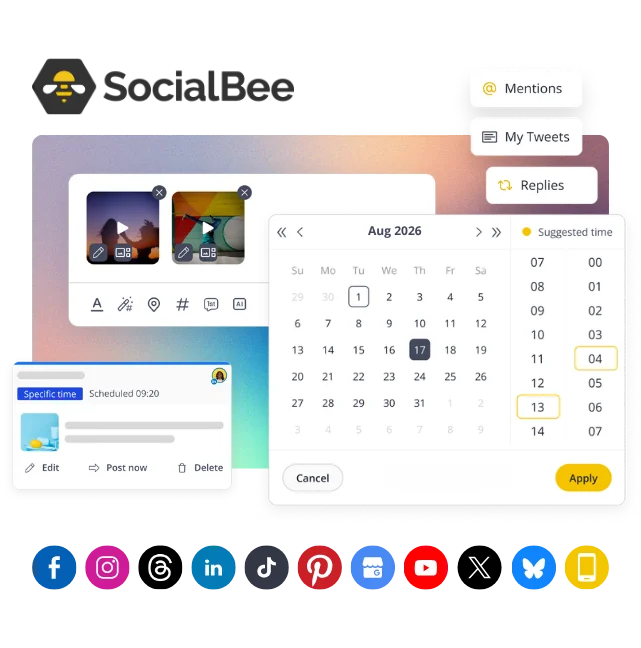
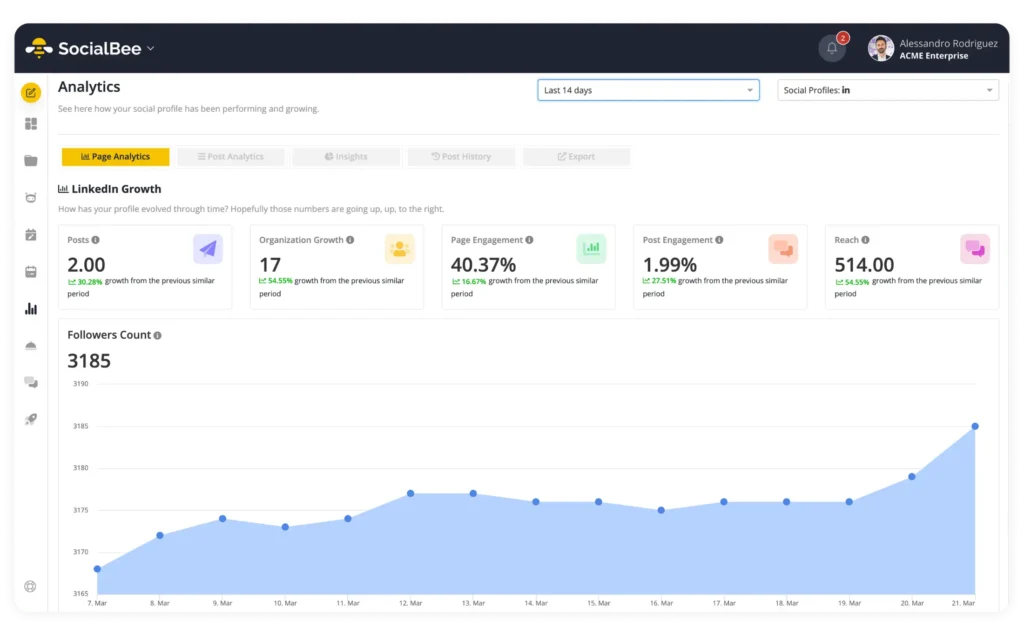
You can customize each version of the post without starting over, set up approvals if you work with a team, and track performance across both platforms in a single analytics view. 

Moreover, you can also manage comments, mentions, and DMs from one place, so engagement doesn’t get scattered across notifications. 

If you want to post on Instagram and Facebook at the same time without relying on Meta’s built-in cross-posting, SocialBee gives you more control and better visibility into results.

Here’s how to post to Facebook and Instagram at once from SocialBee:

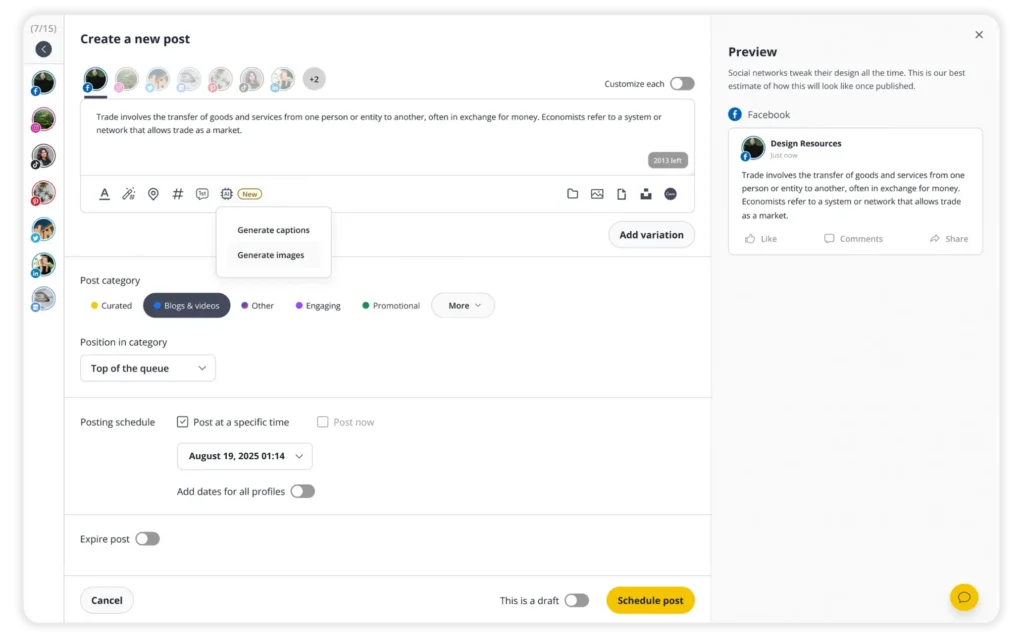
  1. Click “Create post” at the top of your SocialBee dashboard.
  2. Choose both your Facebook Page and Instagram account from the left menu.
  3. Turn on “Customize each” to tailor captions, hashtags, and formatting separately for Facebook and Instagram.
  4. Select your post type (Feed post, Reel, or Story) from the dropdown menu.
  5. Upload one or multiple images and videos using the media icon.
  6. If you’re sharing video posts, click the thumbnail icon in the bottom-right corner of the small video preview to select or upload a custom thumbnail.
  7. (Facebook Page only) If you’ve added images, click the text icon on top of each image to add alt text for accessibility.
  8. Write your captions in the post editor. Adjust the Instagram version to remove links and add relevant hashtags. Click “AI” if you want help generating captions and images.
  9. Use the Hashtag Generator (wand + # icon) to generate Instagram hashtags, or click the # icon to insert saved hashtag collections.
  10. Format your captions with bold, italic, emojis, or spacing to improve readability.
  11. Mention Instagram profiles directly in the caption by typing @username.
  12. To tag a Facebook Page, make sure “Customize each” is activated, type “@” in your caption, and paste the Page handle. If a Page has no @handle, check its URL (e.g., facebook.com/page-name-1234567891234567) and use the numbers at the end as the identifier by adding @1234567891234567.
  13. (Instagram Page only) Click the “Tag” icon on the post preview, enter your collaborator’s Instagram handle, then click “Add collaborator.” Lastly, click “I’m done tagging” to save.
  14. (Instagram only) Click the location icon and select the place you want to tag.
  15. Click “1st comment” if you want to schedule a first comment (for example, to place hashtags separately).
  16. Add your post to a Post category to organize content and automate scheduling.
  17. Choose when to publish:
    1. Select “Post now” to publish immediately.
    2. Select “Post at a specific time” to schedule in advance (SocialBee may suggest optimal posting times).
    3. Optionally enable “Re-queue after posting” to reshare later or “Expire post” to remove it after a set date.
  18. Review the real-time preview for both Facebook and Instagram on the right side.
  19. Set your post status to “This is approved” to schedule it or mark it as “This is a draft.”
  20. Lastly, click on the post button. SocialBee will automatically publish your content to both platforms at the scheduled time.
SocialBee blog CTA box visual with the supported platforms
Post to Facebook and Instagram at the same time with SocialBee!
Create posts, publish, analyze, engage and collaborate, all from SocialBee.

Best practices for cross-posting Facebook and Instagram posts

Now that you know how to set up cross-posting from Facebook to Instagram, let’s dive into a few best practices. 

Cross-posting can save time, but only if you do it with intention. If you simply duplicate every post, results usually drop. 

Here are three tips for successfully cross-posting between Facebook and Instagram:

  1. Adjust the caption, visuals, and links for each platform.
  2. Check performance separately on Facebook and Instagram.
  3. Share important posts, not every single one.

1. Adjust the caption, image, and links before you share

If you’re sharing a Facebook post to Instagram, take a minute to tweak three things: the caption, the image, and the links.

First, shorten and clean up the caption. Facebook posts can be long and detailed. On Instagram, people usually see only the first couple of lines before tapping “more.” Make sure your first sentence grabs attention. Break the text into short lines so it’s easy to read. Cut anything that feels extra.

Next, check the image size. A wide image that looks fine on Facebook can look small or awkward on Instagram. Instagram posts usually perform better in square (1:1) or vertical (4:5) format because they take up more space on the screen. If needed, resize the image so it fits naturally in the feed.

Finally, fix the links and hashtags. Links in Instagram captions aren’t clickable, so remove full URLs. Use “link in bio” instead. And don’t copy Facebook hashtags. Add a few relevant ones that actually fit Instagram.

Create once, customize for every platform with SocialBee!

If you’re using SocialBee, this part is much easier. You can create one post and then turn on “Customize each” to write a slightly different version for Instagram right there on the same screen. 

You can shorten the caption, remove links, add hashtags, and even crop your image if needed. If you’re stuck, you can use the AI option to rewrite the caption so it sounds more natural for Instagram. It saves time and helps you post smarter instead of just posting the same thing everywhere.

2. Check performance on both platforms

Just because a post works on Facebook doesn’t mean it will work on Instagram.

People use these platforms differently. What gets comments and shares on Facebook might get ignored on Instagram. That’s why you shouldn’t assume cross-posting automatically equals results.

After you share a post, look at the numbers on each platform separately. Pay attention to:

  • Likes, comments, and shares;
  • Saves (especially important on Instagram);
  • Reach and impressions.

If you notice that cross-posted content consistently underperforms on Instagram, that’s a sign you need to adjust the format, caption, or visuals.

From what I’ve seen, the posts that do best on Instagram are usually more visual, more direct, and easier to scan. Facebook can handle more context and longer explanations.

Track Facebook and Instagram performance from one dashboard!

If you’re managing both platforms often, checking performance inside one dashboard makes this much simpler.

With SocialBee, you can see how the same post performed on Facebook and Instagram without switching between apps. That makes it easier to spot patterns and improve your next post instead of guessing what went wrong.

3. Share important posts, not every post

You don’t need to share every Facebook post to Instagram, even if you don’t think you’re speaking to the same audience. 

It might feel efficient to turn on automatic cross-posting and forget about it. But when everything gets duplicated, your Instagram feed can start to feel repetitive or out of place.

Instead, be selective.

Share Facebook posts to Instagram when:

  • It’s a major update or announcement;
  • You’re promoting an event, launch, or offer;
  • The post is visual and easy to understand;
  • It’s educational content that works on both platforms.

Skip posts that are long, link-heavy, or very Facebook-specific.

In my experience, cross-posting works best as a boost for important content, not as a daily habit. Think of it as amplifying your strongest posts, not copying your entire feed.

When you’re intentional about what you share, your Instagram stays clean, focused, and aligned with how people actually use the platform.

Frequently asked questions

How can I share an Instagram Reel to Instagram Stories?

Sharing a Reel to your Instagram Story takes less than a minute and helps you give it extra visibility without reposting it manually. 

Here’s how to share an Instagram Reel as a Story:

  • Open the Instagram app on your phone.
  • Find the Reel you want to share someone’s post from. You can share someone’s post as a Reel if their account is public and sharing is enabled, or choose one of your own Reels to repost.
  • Tap the Share icon (the paper airplane) below the Reel.
  • Select “Add to story.”
  • Instagram will open the Story editor with a preview of the Reel.
  • Customize your Story by adding text, stickers, effects, or a short CTA like “Tap to watch.” 
  • Tap “Your story” to share it publicly, or choose “Close Friends” if you want to limit who sees it.

Once posted, your Story will show a tappable preview of the Reel. When someone taps it, they’ll see a “Watch full reel” prompt. If they tap again, they’ll be taken to the full Reel to watch it.

Is it better to cross-post or create separate posts?

It depends on how often you do it. Cross-posting is helpful, but it shouldn’t become a habit where every Facebook post automatically shows up on Instagram. If people follow you on both platforms, they don’t want to see the exact same post twice. That can make your content feel repetitive. 

It’s usually smarter to save cross-posting for important announcements, major updates, or high-value content worth repeating. The rest of the time, focus on creating posts that fit each platform’s style.

Your Facebook audience and your Instagram followers often overlap, but they don’t behave the same way. What works in a longer, link-heavy Facebook post can feel cluttered or out of place on Instagram.

Why won’t Instagram let me share my post on Facebook?

If Instagram won’t let you share your Reel to Facebook, try these steps:

  • Make sure Instagram and Facebook are updated to the latest version.
  • Open your profile, tap the menu in the top right, go to “Accounts Centre,” then “Sharing across profiles.” Select your account and make sure the toggle next to “Your Instagram reels” is turned on.
  • In “Accounts Centre,” tap “Accounts” at the bottom and confirm your Facebook account is listed.
  • In “Sharing across profiles,” switch off the toggle for “Your Instagram reels,” then turn it back on to refresh the connection.
  • Go to your profile, open the menu, tap “Account Status,” and see if there are any limitations.
  • Close Instagram and Facebook completely, then reopen them and try again.

Does a Facebook post automatically save to Instagram?

No, a Facebook post does not automatically save to Instagram unless you actively share it. 

If you want the same content on both platforms, connect your accounts in “Accounts Centre” and turn on sharing before you post. Otherwise, Instagram won’t receive anything.

Why can’t I link my Instagram account to my Facebook page?

You usually can’t link your Instagram account to your Facebook Page because of a permissions or connection issue. Most of the time, you either don’t have admin access to the Facebook Page, you’re logged into the wrong Facebook profile, or your accounts aren’t properly connected in “Accounts Centre.”

In some cases, using a personal Instagram account instead of a professional account can also cause problems. Start by checking your Page role, confirming both accounts appear in “Accounts Centre,” and making sure you’re logged into the correct profile.

How do I know if my Facebook and Instagram are linked?

Open Instagram and check in “Accounts Centre.”

Go to your profile, tap the menu in the top right, then tap “Accounts Centre.” If your Facebook account appears under “Accounts,” your accounts are linked. You should see both your Instagram and Facebook profiles listed there.

You can also tap “Sharing across profiles” inside “Accounts Centre” to confirm that sharing is available between the two. If you don’t see your Facebook account listed, it isn’t connected yet, and you’ll need to add it.

What is the difference between Meta Accounts Center and Meta Business Suite?

Meta Accounts Center is the place where you connect Instagram and Facebook so they can share settings and enable features like cross-posting, while Meta Business Suite is a broader management dashboard you use after linking to create, schedule, publish, and track content, manage engagement, and see analytics across both platforms.

Start sharing your Facebook posts to Instagram

With your Facebook and Instagram accounts now linked and your settings adjusted, it’s time to start cross-posting your Facebook content on Instagram.

Gone are the days when you needed a separate social media strategy for each platform. With Meta bringing its networks together through the Accounts Center, cross-posting has never been easier. 

To create content that performs well on both Facebook and Instagram, SocialBee helps you monitor results and adjust your schedules, captions, and formats as needed, all from one place. You can customize each post for both platforms, schedule in advance, and track performance from a single dashboard.

Start your 14-day free trial today!

SocialBee blog CTA box visual with the supported platforms
Post to Facebook and Instagram at the same time with SocialBee!
Create posts, publish, analyze, engage and collaborate, all from SocialBee.
Summarize this post

Manage your social media with SocialBee: publishing, AI assistance, Canva magic, analytics, unified inbox, and more.

14-day free trial, no credit card required

Related articles

Level up your social media marketing with exclusive resources delivered straight to your inbox

Somos SocialBee LABS SRL, parte de WebPros. Utilizamos la información que nos proporcionas para compartir contenido relevante y actualizaciones de productos, como se indica en nuestra Política de privacidad. Puedes darte de baja en cualquier momento.

Out of post ideas? Get our FREE social media calendar!

Access 500+ content ideas, post examples, and Canva templates.
We’re SocialBee LABS SRL, part of WebPros. We use the information you provide to share relevant content and product updates, as outlined in our Privacy Policy. You can opt out anytime.

... and turn your ideas in ready-to-share posts in seconds

Use SocialBee’s Free AI Post Generator to create content for your social media profiles.
SocialBee free AI generator