

Learning how to use Threads starts with understanding one thing: Threads is no longer just Instagram’s companion app. It has evolved into a standalone platform for public conversations, text updates, community building, and real-time engagement.
When Mark Zuckerberg announced the new app Threads in 2023, many people saw it as a Twitter alternative. Fast forward to 2026, and the platform has now reached 500 million monthly users. Today, Threads users use the app to share ideas, discuss industry trends, discover new creators, and build communities around shared interests.
If you’ve been ignoring Threads until now, I think that’s a mistake. In my experience, Threads offers one of the easiest ways to grow your visibility online thanks to how easy it is to create content and join conversations.
In this beginner’s guide, I’ll show you how to use the Threads app from start to finish. You’ll learn how to create a Threads account, customize your profile, understand how the feed works, publish your first posts, manage privacy and safety settings, and use the platform strategically to grow your presence.

1. What is Threads?
1.1. Overview of the platform
Threads is Meta’s text-first social media platform, designed around short-form posts, conversations, and community building. While users can share photos and videos, the platform’s primary focus is helping people exchange ideas, opinions, and updates.
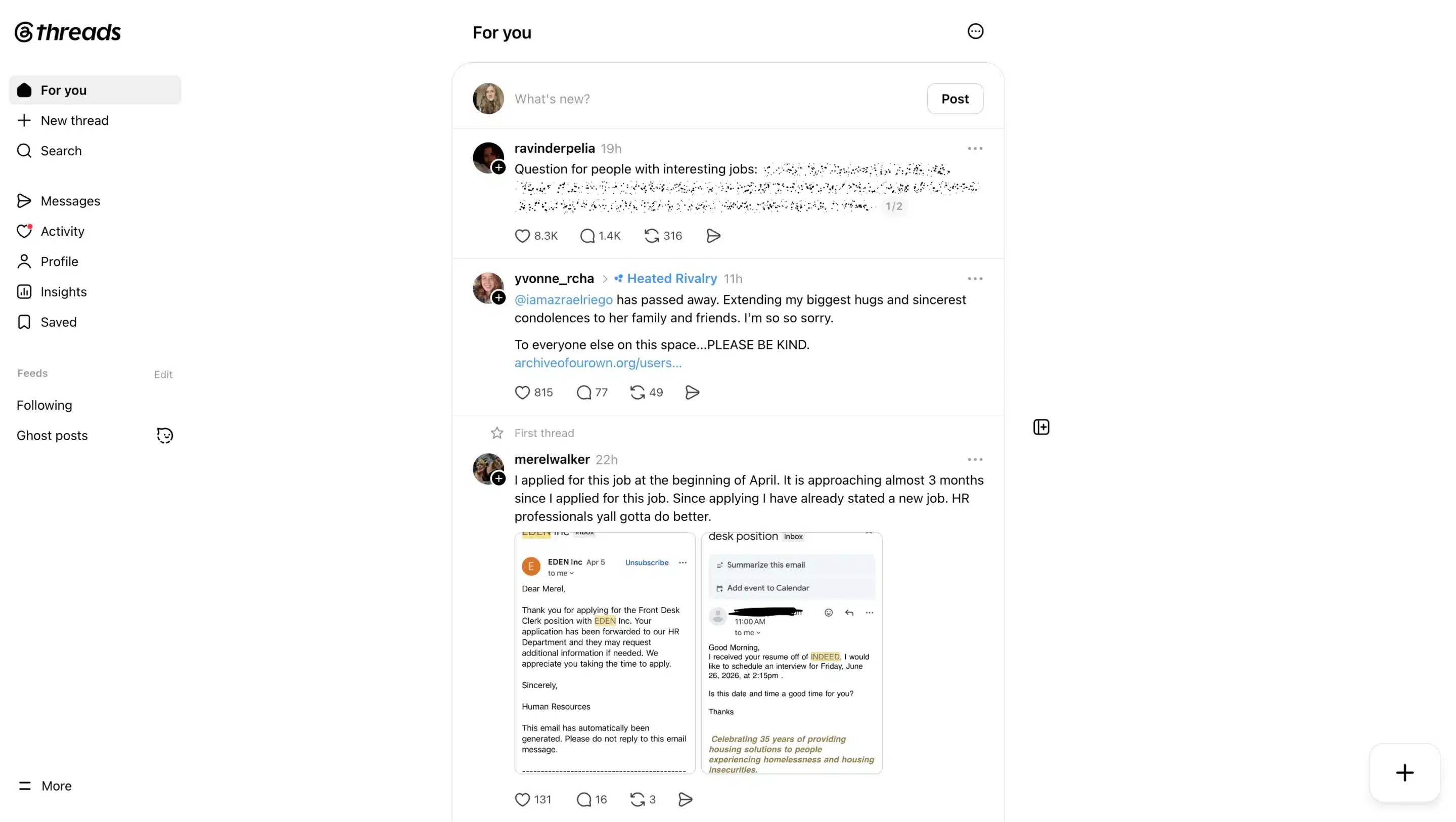
The app launched in July 2023 after Mark Zuckerberg announced a new platform built to compete with X (formerly Twitter). Threads got off to an explosive start, reaching 100 million users in less than a week and becoming the fastest-growing consumer app in history at the time.
After an initial surge and subsequent drop in activity, Meta continued investing in the platform by adding a web app, fediverse integration, analytics, topic tags, direct messaging features, and other tools designed to improve user retention and discovery.
That long-term investment has paid off. In June 2026, Meta announced that Threads had surpassed 500 million monthly active users, nearly doubling its audience from the previous year and establishing itself as one of the largest conversation-focused social networks in the world.
Today, Threads has evolved far beyond its original reputation as a Twitter alternative. The platform has developed its own culture, communities, and content formats. Creators use it to build authority, businesses use it to connect with customers, and journalists use it to share breaking news.
As for Threads’ future, here is what Etienne Blanc, Product Marketing Manager at Threads, has to say:
“We believe everyone has something worth saying, and with Threads, we want to create a welcoming place where they feel comfortable sharing it; a place where users can connect with people over shared interests, voice opinions and different points of view, and engage in conversations with others – ultimately building communities. Our mission is to inspire ideas that bring people together.”
1.2. How Threads connects to Instagram
One of the biggest advantages Threads has over other text-based platforms is that it doesn’t exist in isolation. Initially, users were only able to create an account on Threads with their Instagram account, but as of 2025, Meta has moved away from that and rolled out the possibility to create separate accounts.
Because Threads and Instagram are part of the same ecosystem, it’s much easier to move content and audiences between the two platforms. For example, as of 2026, you can share Threads posts directly to Instagram Stories and share Instagram posts to Threads, giving your content additional visibility without creating something entirely new each time. Meta has continued expanding these cross-posting options as Threads has evolved.
I’ve found this particularly useful for creators and brands that already have an established Instagram presence. Instead of building awareness from scratch on a new platform, you can use Instagram to introduce people to your Threads content and vice versa.
The two platforms also complement each other well because they’re built for different types of content. Instagram is still the better place for polished visuals, Reels, and creator content. Threads, on the other hand, is often where the conversations happen. Many brands use Instagram to showcase their products and Threads to share opinions, industry observations, behind-the-scenes updates, and quick reactions to what’s happening in their niche.
What’s interesting is that Threads has become increasingly independent over time. Features like analytics, topic tags, fediverse integration, and dedicated messaging tools have helped it develop its own identity rather than simply functioning as Instagram’s text app.
That’s why I think it’s helpful to view Threads and Instagram as complementary platforms rather than competitors.
1.3. Threads and the fediverse (what it means in practice)
One of the more unique aspects of Threads is its connection to the fediverse, a network of interoperable social networks that can communicate with one another.
The fediverse includes platforms such as Mastodon and other decentralized social networks. Rather than operating as isolated platforms, fediverse-compatible apps allow users to follow, view, and interact with content across different services.
You don’t need to understand the underlying technology to benefit from it. In practical terms, the fediverse makes it possible for content and communities to extend beyond a single platform.
Meta has been steadily expanding Threads’ fediverse integration. In June 2025, the company introduced a dedicated fediverse feed and the ability to search for fediverse users directly within Threads. As Meta explained, these features help users “see more perspectives from people outside of Threads” and make it easier to discover content from creators who publish on other platforms.
1.4. Why people use Threads today
People use Threads for a variety of reasons, but most of them come back to one thing: conversation.
Instead of spending a lot of time creating visuals and videos, Threads is all about spontaneous interactions.
Many people use Threads to:
- It’s super easy to join if you already use Instagram.
- You can instantly connect with people you already follow.
- It’s a place for sharing opinions, updates, and starting conversations.
- There’s less pressure to create polished, picture-perfect content.
- Some people prefer it because it feels calmer than X (Twitter).
- Creators and brands use it to build an audience while the platform is still growing.
- Many users are simply curious to see what the hype is about.
Meta has also positioned the platform as a positive and creative space focused on productive conversations. Features such as Hidden Words, moderation controls, and systems that enforce Instagram’s Community Guidelines are designed to help users maintain healthier interactions than those found on some other social networks.
1.5. How Threads is different from other social media platforms
At first glance, Threads might resemble Twitter/X, but the experience feels noticeably different.
The biggest difference is the platform’s relationship with Instagram. Because Threads leverages existing Instagram followers and connects directly to your Instagram account, building an audience often feels more accessible than starting on a completely separate platform.
Threads also places greater emphasis on discovery. The Threads feed regularly surfaces content from people you don’t follow, helping new accounts gain visibility more quickly than on some other platforms.
Other key differences include:
Threads | Other social platforms |
Best for thoughts, opinions, and discussions | Often better for visual content and entertainment |
Connected to Instagram | Usually standalone platforms |
Easier to get started if you already have an audience | Audience growth often starts from zero |
Strong focus on conversations | Strong focus on content consumption |
Quick to create content for | Often require more production effort |
For many users, that’s what makes Threads appealing. You can show up, share an idea, join a conversation, and connect with people without feeling pressure to create polished content every day.
2. Setting up a Threads account
2.1. How to create a Threads account
Getting started with Threads is straightforward. As of 2026, you can create a Threads account in two different ways: by using your Instagram account or by signing up with an email address or mobile number.
How to join Threads using Instagram
If you already use Instagram, the first option is usually the easiest. Your Instagram username can automatically become your Threads username, and Meta can use your Instagram profile information to personalize recommendations and help you discover relevant content and communities.
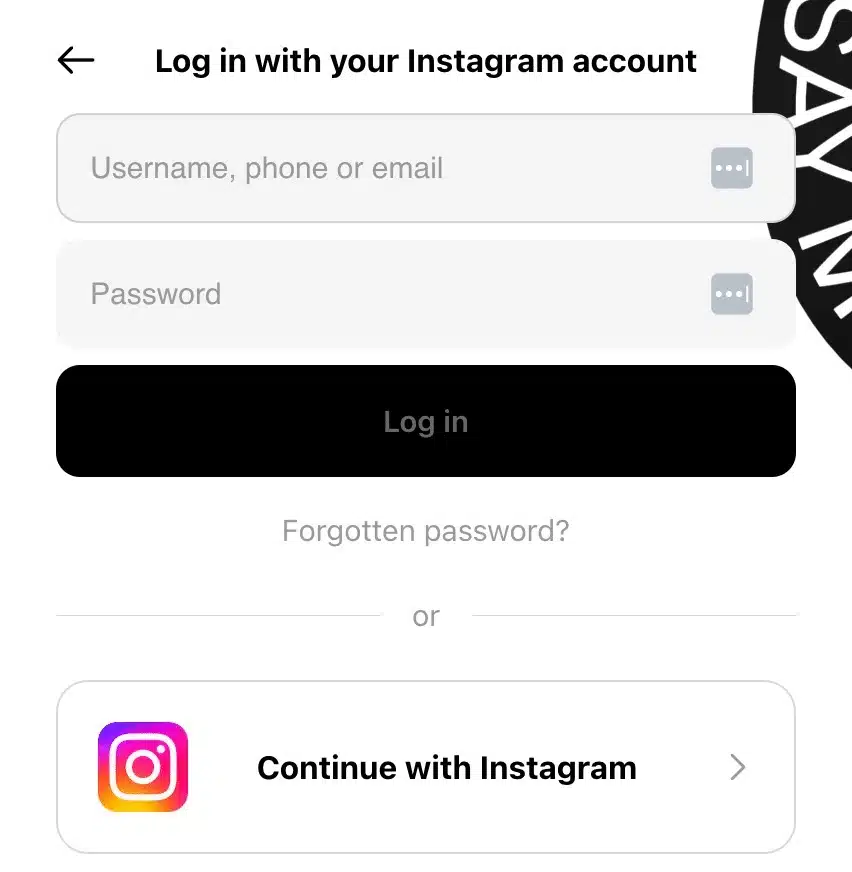
To create a Threads account with Instagram:
- Visit Threads.com or download the Threads app.
- Click “Continue with Instagram.”
- Sign in to your Instagram account.
- Review the setup information provided by Threads.
- Choose whether you want a public profile or private profile.
- Follow suggested accounts or skip this step.
- Review the information about content visibility and the fediverse.
- Click “Join Threads.” Once you do, you have the option to automatically follow the people you already follow on Instagram who are also on Threads, so they can find out you’ve joined. Your Threads profile can also show up in your Instagram bio.
How to join Threads without using Instagram
If you don’t want to connect Threads to Instagram, you can create a new account using an email address or mobile number instead. In that case, you’ll create a separate username and your Instagram profile information won’t be used to personalize your experience.
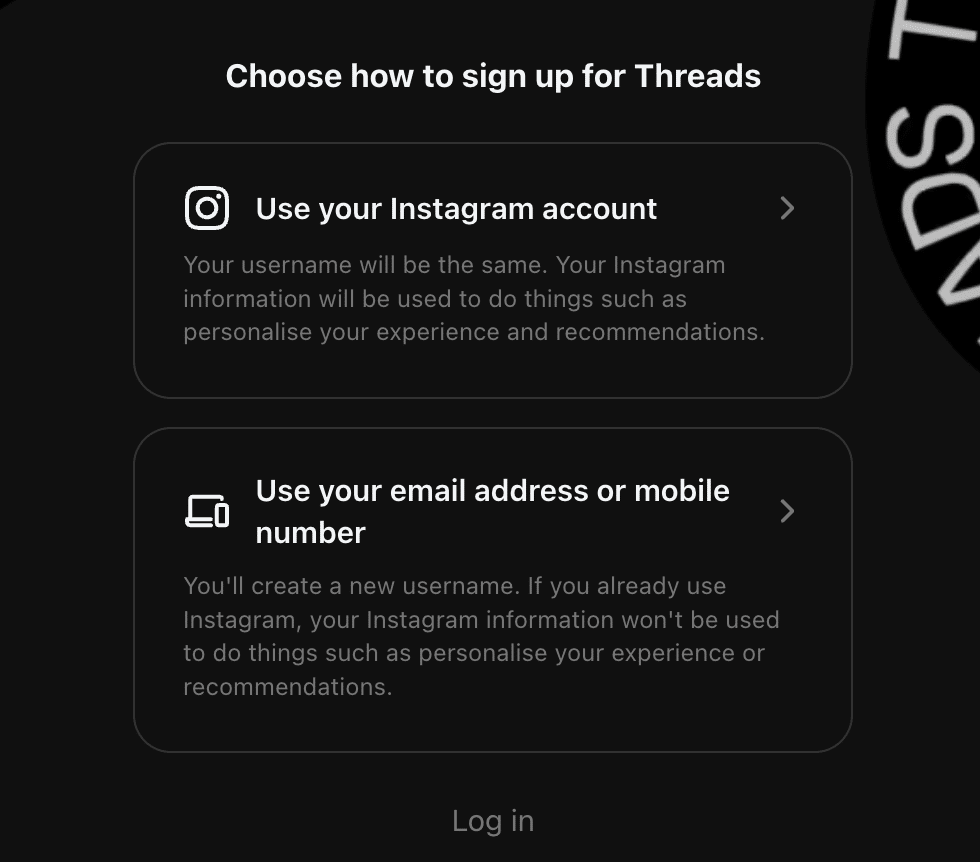
One thing many new users don’t realize is that your Threads profile and Instagram profile remain connected, but they’re not identical. You can customize your Threads presence without changing how your Instagram account looks.
2.2. Profile setup basics
Before you start posting, take a few minutes to optimize your profile. A complete Threads profile makes it easier for other users to understand who you are and decide whether to follow you.
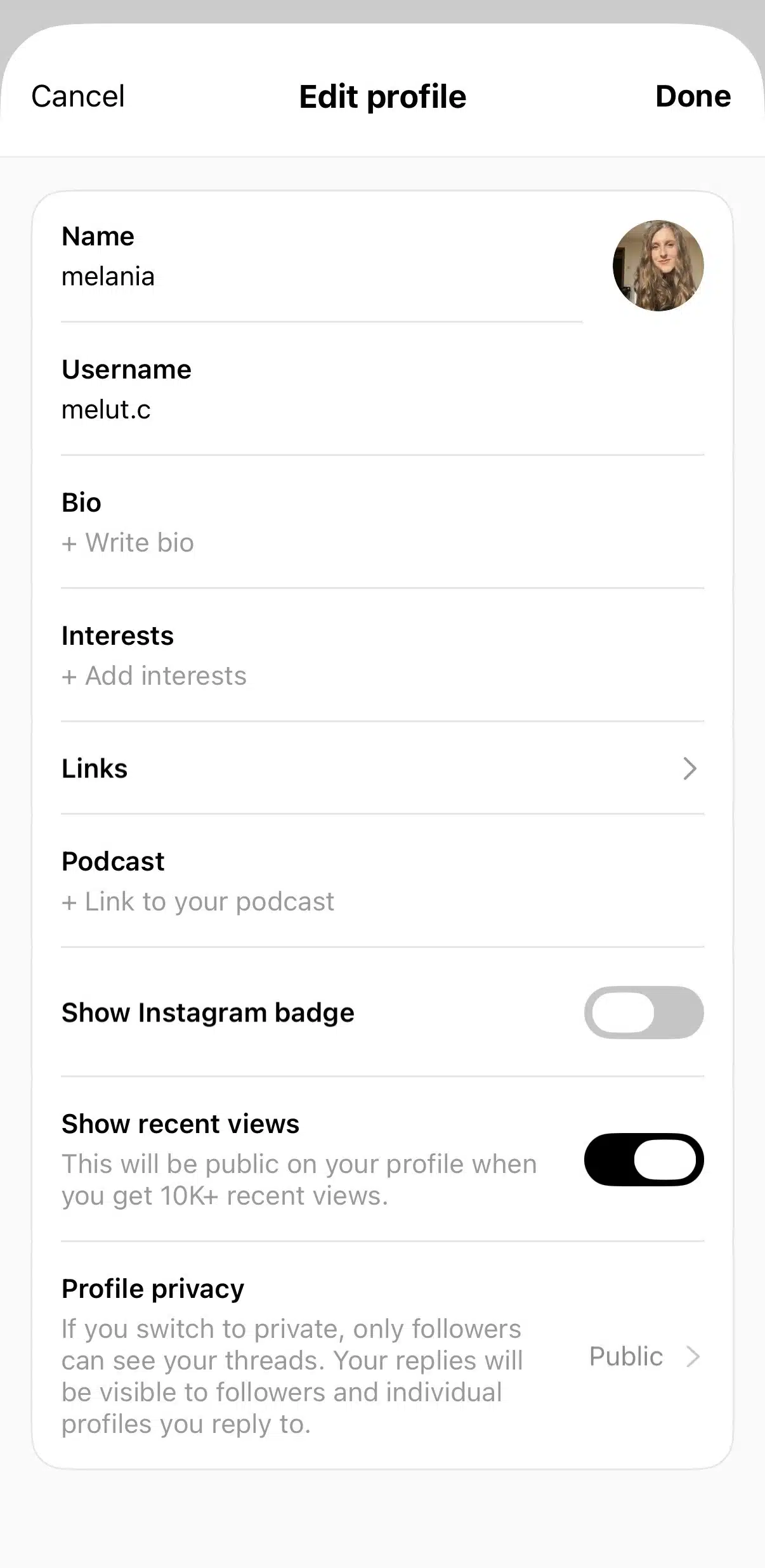
I recommend focusing on four elements:
Profile picture
Use a recognizable profile picture, especially if you’re a creator, business owner, or professional. If you’re using Threads with your Instagram account, you can import your existing profile picture automatically.
Username
If you signed up through Instagram, your Threads username will match your Instagram username. While you can customize elements such as your bio, profile picture, and links directly on Threads, your username remains tied to Instagram.
The good news is that you can change it later if needed. However, you’ll need to update your username on Instagram rather than inside the Threads app, and the change will automatically carry over to Threads.
Bio
Your bio should quickly explain who you are and what people can expect from your content. Since Threads revolves around conversations and ideas, concise descriptions tend to work best.
For example:
- Social media manager sharing marketing insights
- Small business owner documenting growth lessons
- Tech enthusiast discussing AI and productivity
Link
Add a website, portfolio, newsletter, or other destination you want visitors to discover.
It’s also worth knowing that changing your profile picture, bio, or link on Threads won’t automatically change them on Instagram. Likewise, the people you follow on Threads won’t affect who you follow on Instagram, and vice versa.
2.3. Privacy and account settings overview
One of the first decisions you’ll make is whether to create a public or private profile.
A public profile allows anyone on Threads to discover your content, interact with your posts, and participate in conversations. This is generally the best option if your goal is to grow an audience, build a personal brand, or promote a business.
A private profile limits visibility to approved followers, giving you more control over who can see your content and engage with your account.
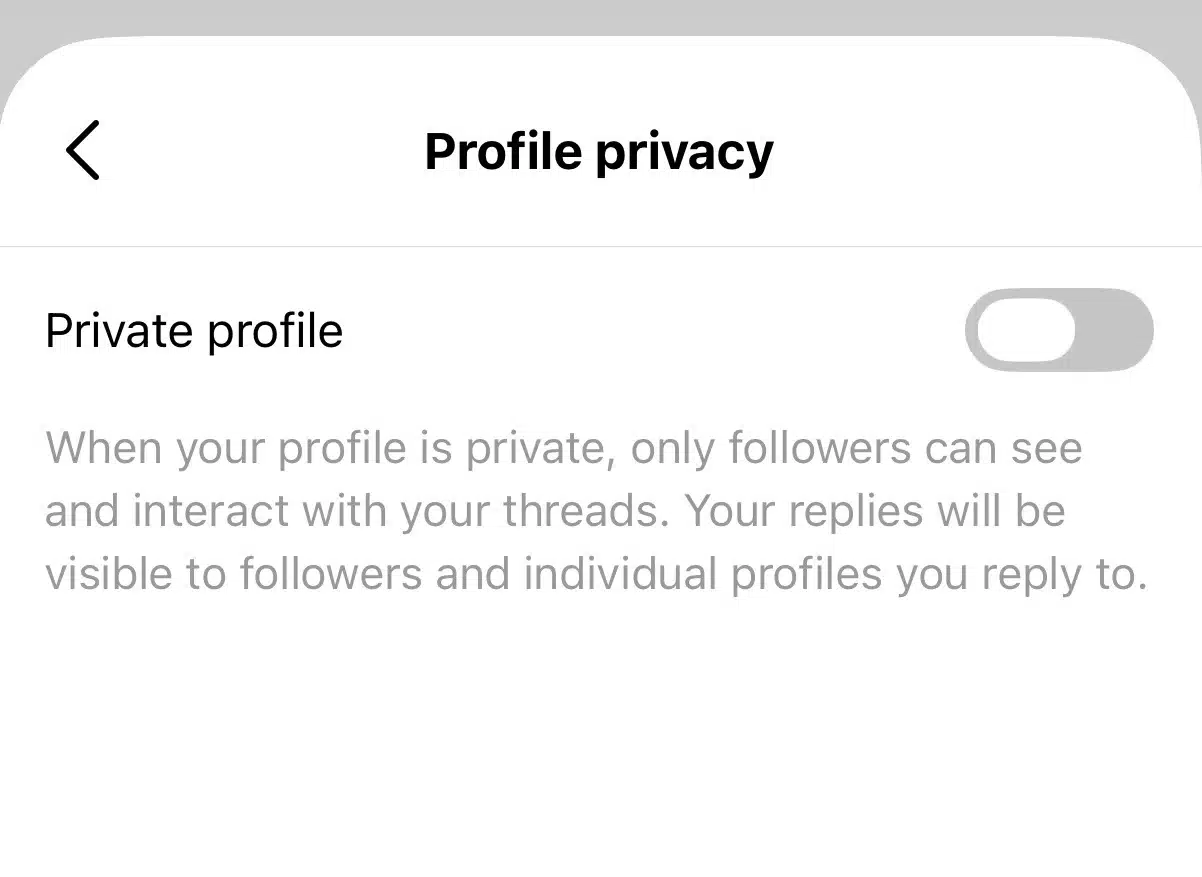
Beyond profile visibility, Threads includes several settings that help you control your experience on the platform:
- Manage who can reply to your posts
- Control mentions and tags
- Filter unwanted interactions
- Customize notifications
- Manage blocked accounts
- Review content visibility settings
- Adjust fediverse participation options
I also recommend exploring the platform’s safety features early. Threads includes moderation tools such as Hidden Words, which allow you to automatically filter specific words, phrases, or emojis from replies and conversations. You can add hidden words manually or use preset filters to reduce unwanted interactions.
Combined with systems that enforce Instagram’s Community Guidelines, these settings help create the positive and creative space that Meta has been working toward since the platform launched.
Once your profile is set up and your preferences are configured, you’re ready to start exploring the Threads feed and publishing your first posts.
2.4. Threads verification
You can be verified on Threads, but verification isn’t managed separately from the rest of Meta’s ecosystem.
If your Threads profile is connected to a verified Instagram account, your verified badge will automatically appear on Threads as well. Likewise, users who subscribe to Meta Verified receive verification benefits across their connected Meta profiles rather than having to apply separately for each platform.
This means there’s no dedicated Threads verification process to complete. Instead, verification is tied to your broader Meta identity, making it one more way that Threads remains connected to the wider Instagram and Meta ecosystem.
3. Understanding the Threads interface
3.1. Home feed (following vs for you)
The Threads feed is where you’ll discover content, join conversations, and keep up with people you follow.
Threads currently offers two main feed options:
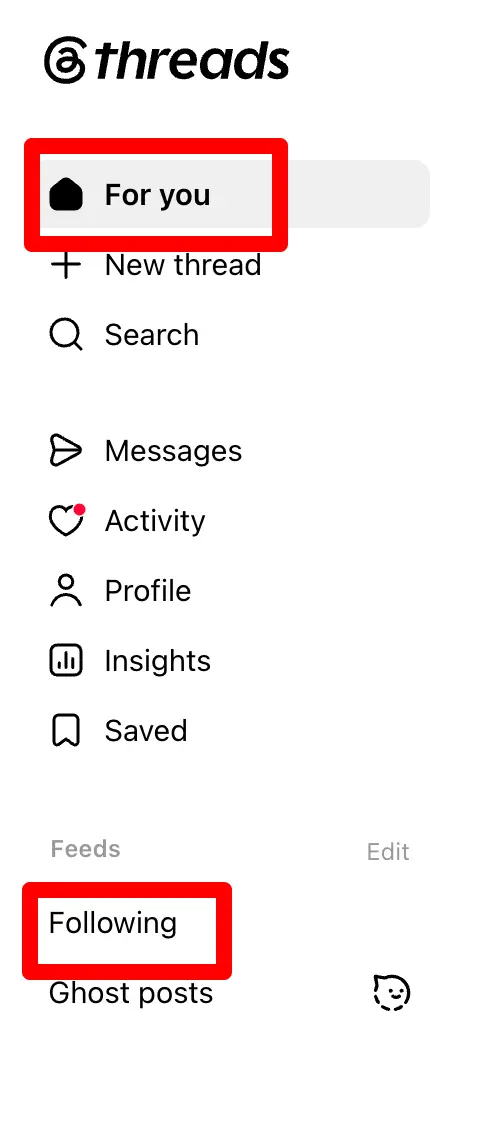
Following feed
The Following feed shows content from accounts you follow. If you’re primarily interested in hearing from specific creators, brands, friends, or industry experts, this is usually the most useful view. It’s also a chronological feed, unlike the For You.
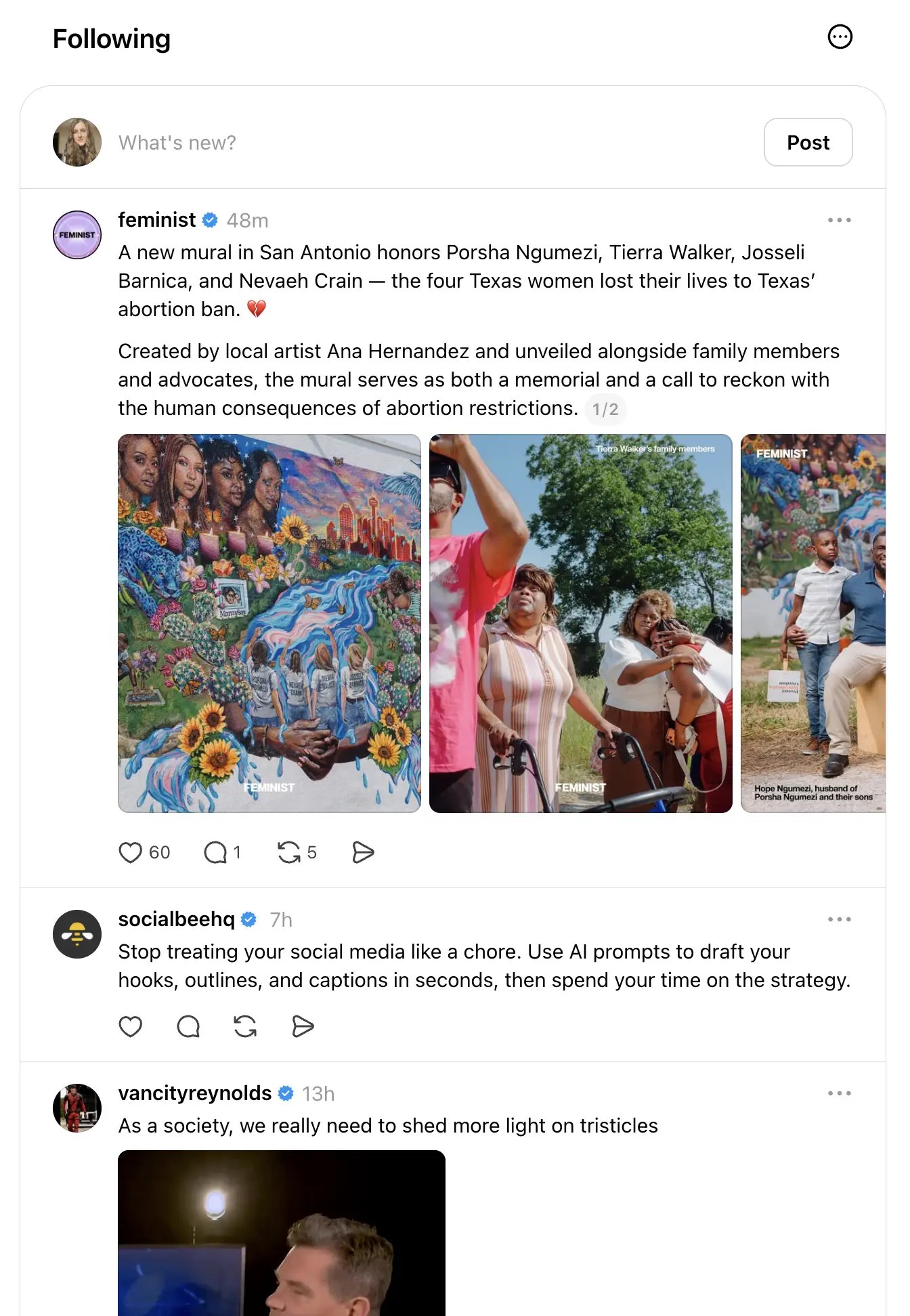
Many users prefer the Following feed because it creates a more predictable experience and helps them remain focused on the accounts they’ve intentionally chosen to follow.
For You feed
The For You feed uses recommendations to surface content from both people you follow and new accounts the algorithm believes you’ll find interesting.
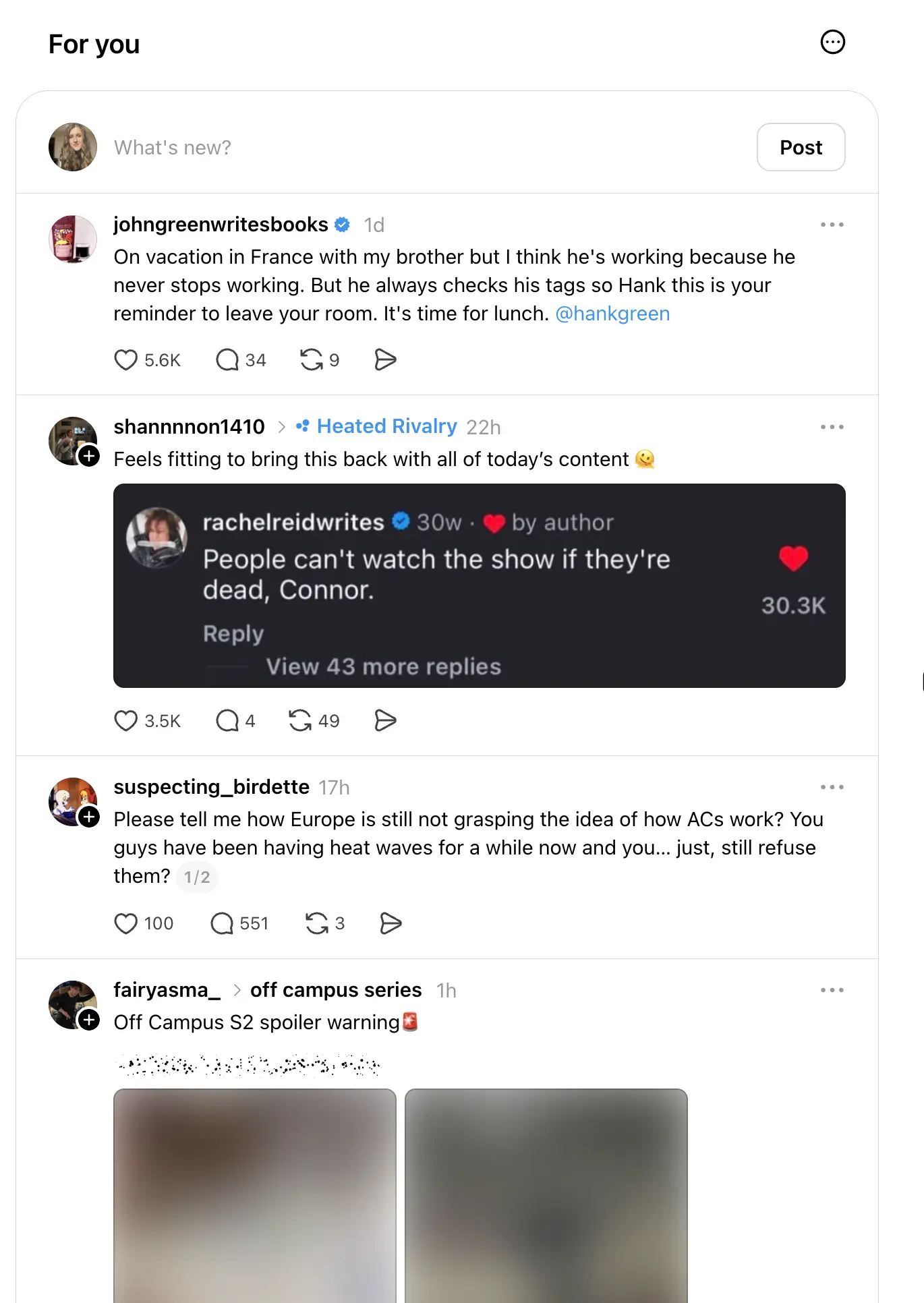
This feed is designed for discovery. It’s often where you’ll encounter new creators, trending discussions, and other people’s Threads that you wouldn’t have found otherwise.
If your goal is growth, understanding the For You feed matters because this is where your Threads posts can reach people beyond your existing audience.
3.2. Search and discovery
The search tab helps you find people, topics, and conversations across the platform.
You can use search to:
- Find specific Threads users
- Discover new creators in your niche
- Browse content around topics that interest you
- Follow relevant accounts
- Explore trending discussions
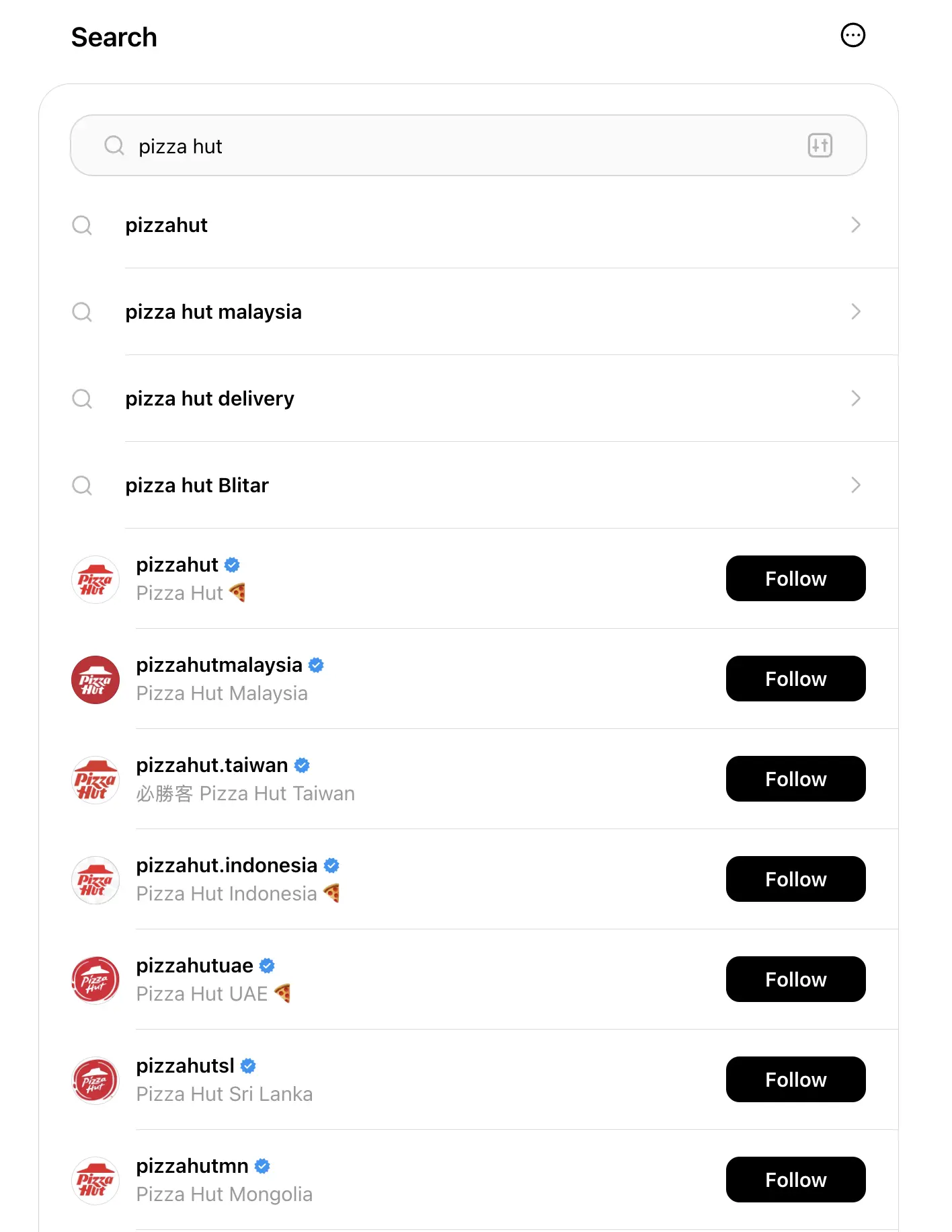
One of the easiest ways to grow on Threads is by regularly discovering and engaging with new communities. Instead of only posting your own content, spend time participating in conversations started by other users.
I’ve found that thoughtful replies often generate more profile visits than publishing a standalone post.
3.3. Post composer
The create post button is represented by the plus (+) icon located in the navigation menu.
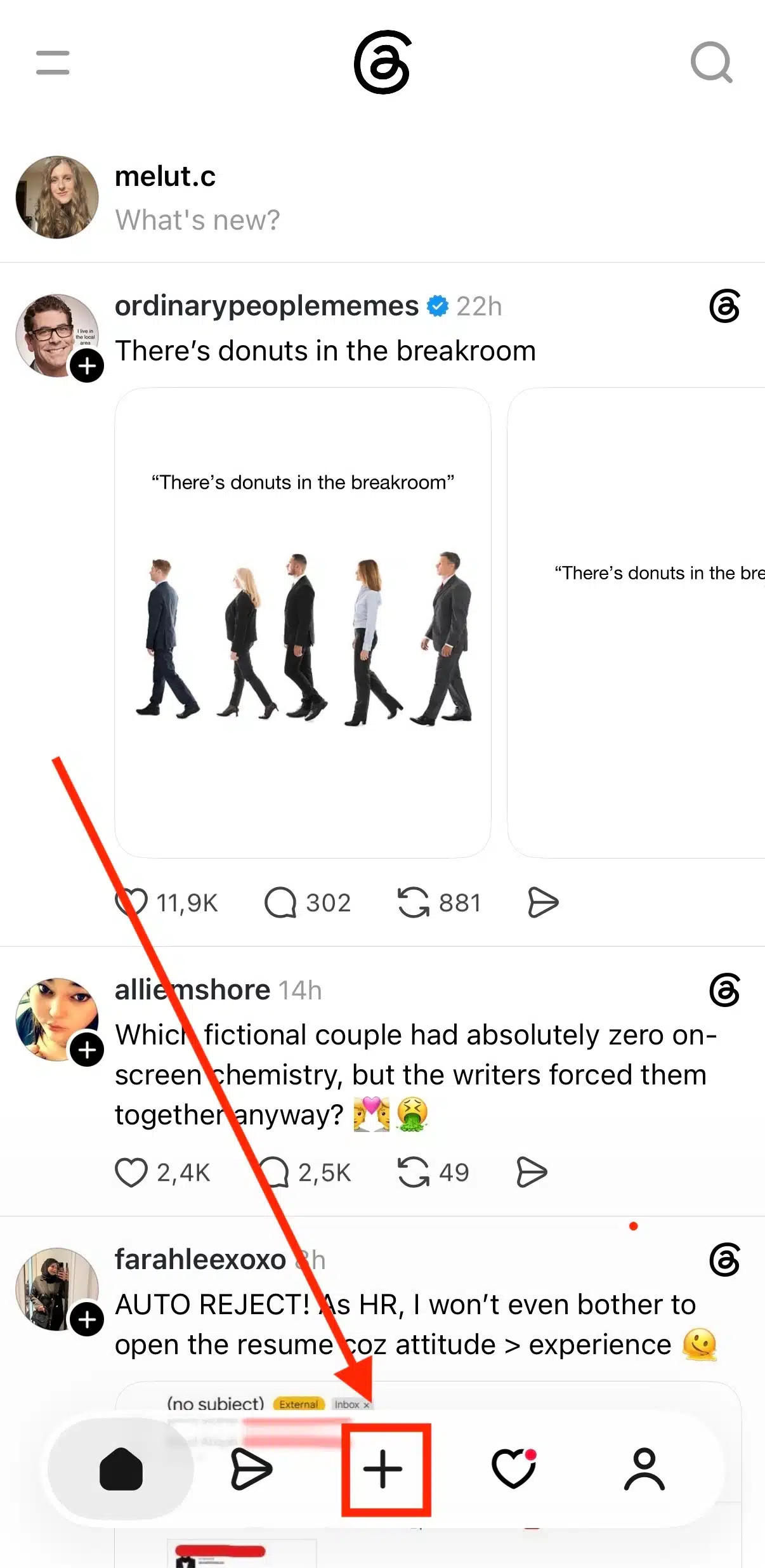
Tapping it opens the post composer, where you can create new Threads posts.
From here, you can publish:
- Text posts
- Photos and videos
- GIFs
- Polls
- Multi-post threads
- Voice posts (where available)
You can also control who can interact with your content before publishing.
For example, you may allow replies from everyone, only people you follow, or only people you mention in the post.
The post composer is intentionally lightweight, making it easy to share ideas quickly without the complexity found on some other apps.
3.4. Activity and notifications
The Activity tab functions as your notifications center.
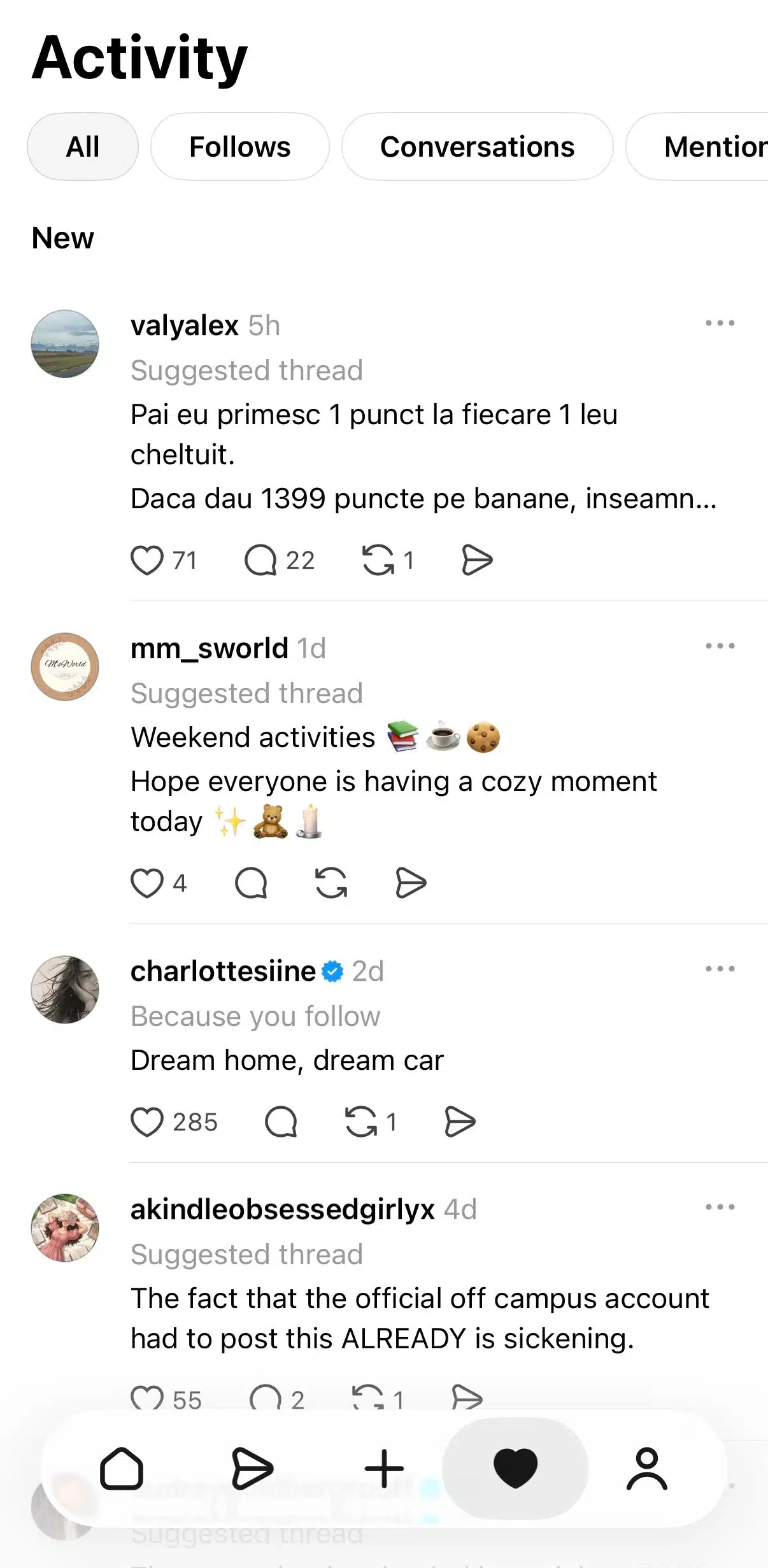
This section shows:
- Likes on your posts
- Replies to your content
- Reposts and quotes
- New followers
- Mentions
- Account recommendations
- Other engagement activity
Checking your notifications regularly helps you identify conversations worth joining and respond while discussions are still active.
For creators and businesses, this is often where the strongest relationship-building opportunities happen because people are actively engaging with your content.
3.5. Profile page
Your Threads profile acts as your public homepage on the platform.
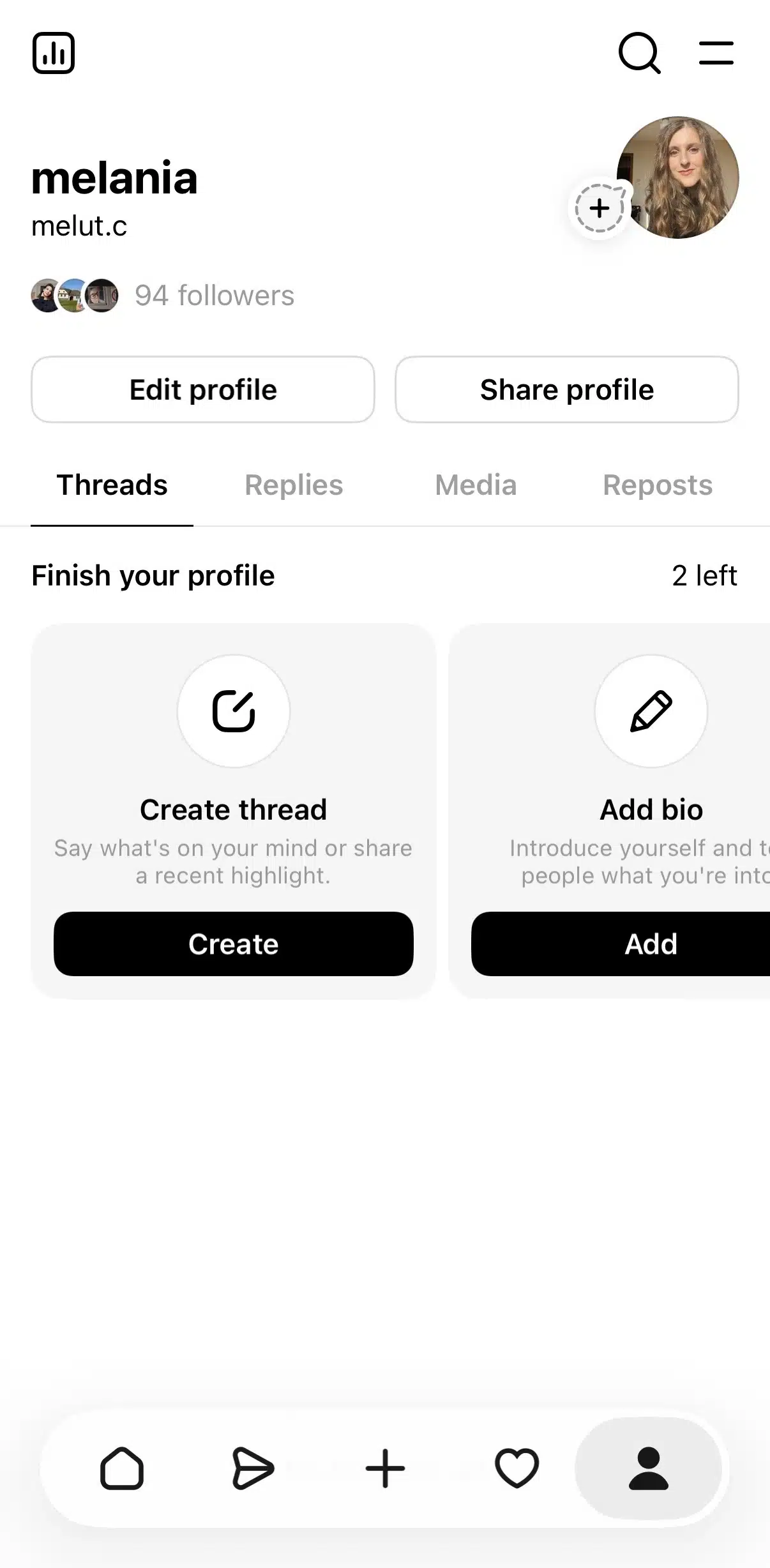
Visitors can quickly learn who you are, what you post about, and whether they want to follow you.
Your profile page includes:
- Profile picture
- Username
- Bio
- Link
- Follower count
- Threads posts
- Replies
- Reposts
- Saved posts
This is also where you can edit your profile, review your content, and manage account settings.
Unlike Instagram, where visual aesthetics often dominate profile optimization, successful Threads profiles tend to focus more on clearly communicating expertise, interests, and personality.
3.6. Threads post interactions
Conversations are the foundation of how Threads works, so understanding post interactions is essential.
Every post includes several ways to engage:
Reply
Replies allow you to respond directly to a post and join the conversation. Many users grow their accounts by contributing thoughtful replies to popular discussions rather than focusing exclusively on publishing original content.
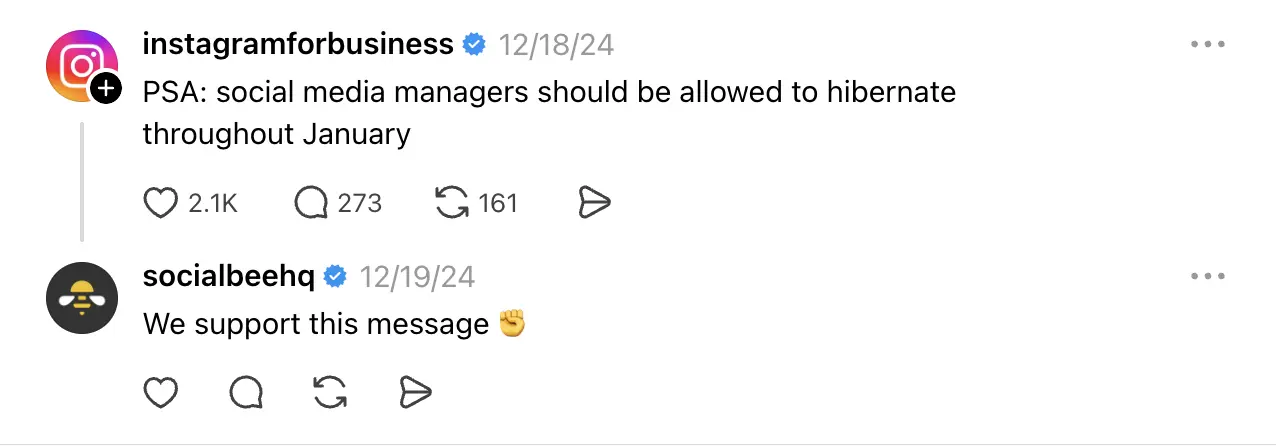
To reply to a post, tap or click the speech bubble icon below it, type your response, and select Post.
Repost
A repost shares someone else’s content with your audience, similar to a retweet on X. This is useful when you want to amplify a valuable idea without adding additional commentary.
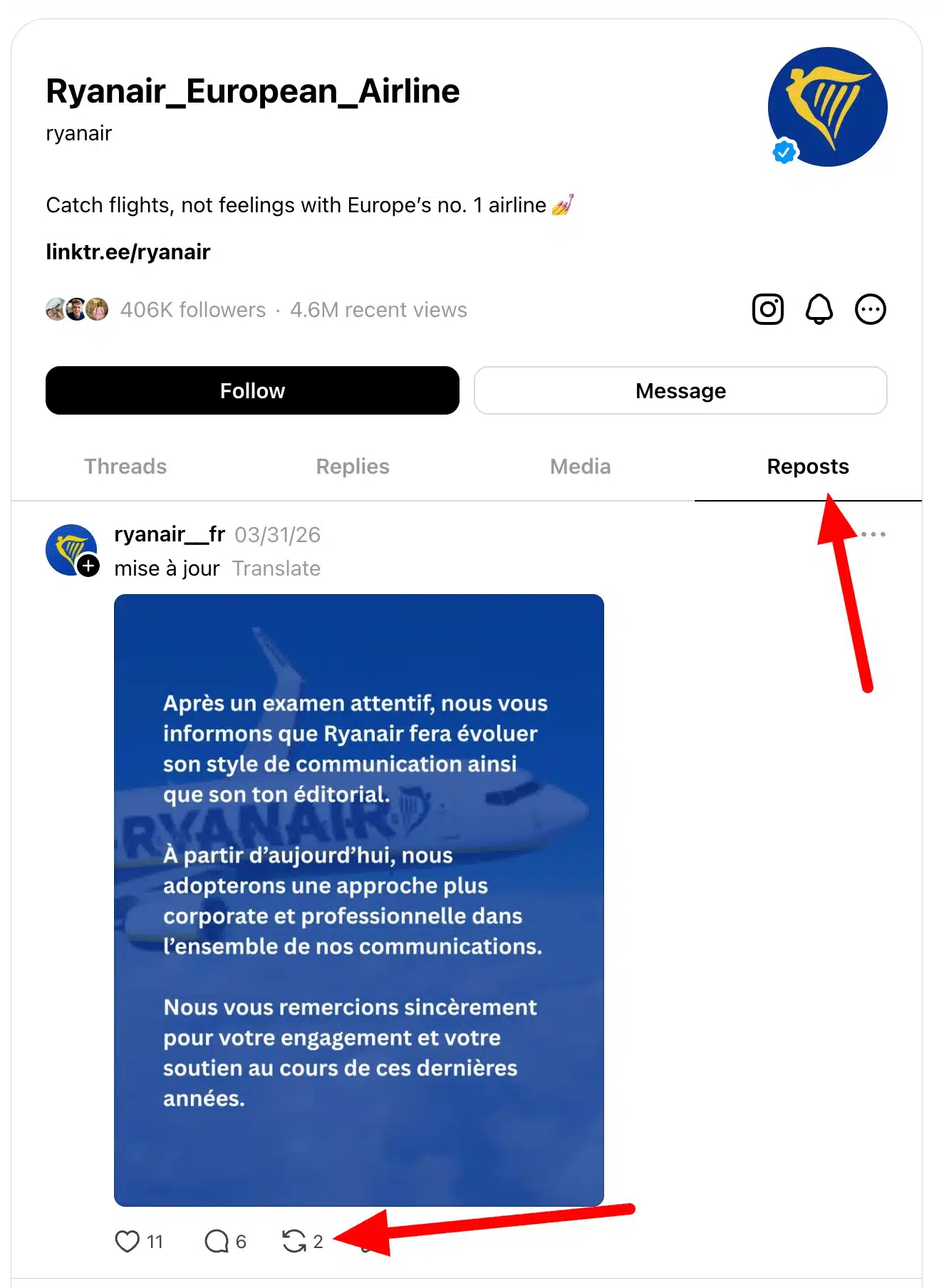
To repost content, tap the repost icon (the two arrows beneath the post) and select Repost. The post will then appear on your profile and can be shown to your followers.
Quote
Quote posts let you share another person’s post while adding your own perspective. This format is especially popular for responding to industry news, adding context to a discussion, or sharing a different point of view.

To create a quote post, tap the repost icon, select Quote, write your commentary, and publish the post. Your text will appear above the original content.
Like
Likes are the simplest way to engage with content. They signal appreciation and help the platform understand which posts resonate with users.
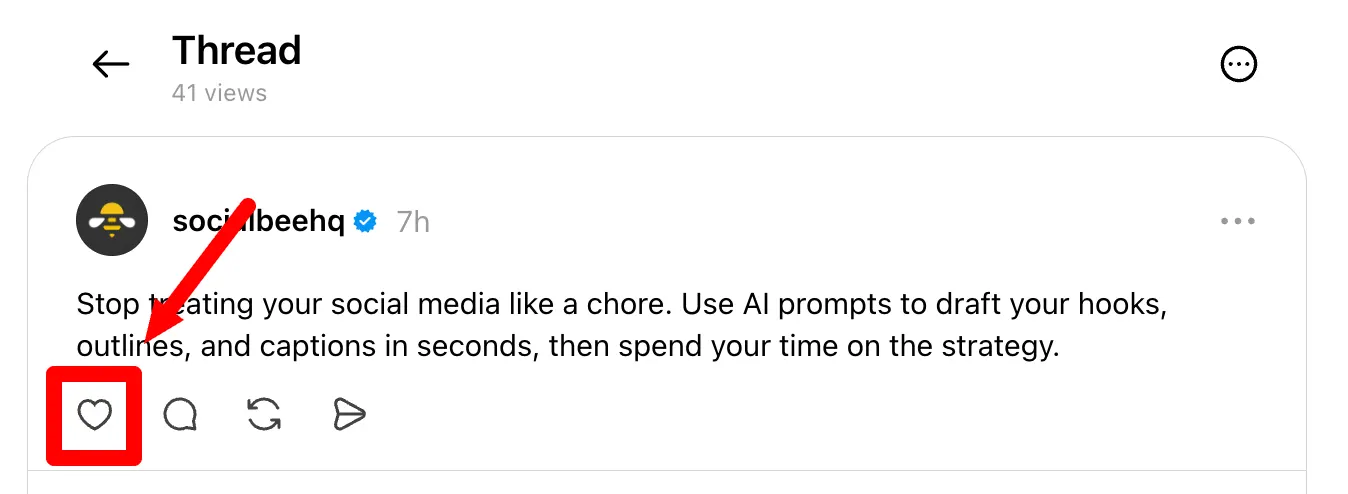
To like a post, tap the heart icon below it. Tapping it again will remove your like.
Share
The share button allows you to distribute content beyond Threads. For example, you can send a post through direct messages, copy its link, or share it to other platforms such as Instagram Stories.

To access these options, tap the share icon below a post and choose how you’d like to share it.
4. How the Threads algorithm works
The Threads algorithm determines which posts appear in users’ feeds and how widely content gets distributed across the platform. While Meta doesn’t reveal every ranking factor, we know that Threads uses a recommendation system similar to Instagram’s, evaluating thousands of signals to decide which content people are most likely to engage with.
4.1. How content ranking works
Every time you publish a post, Threads begins testing it with a small group of users.
The platform analyzes how people respond and uses that information to decide whether the content deserves broader distribution.
For example, if users stop scrolling to read your post, like it, reply to it, repost it, or share it, the algorithm receives positive signals. If enough people engage, Threads may continue showing the post to larger groups of users.
I’ve found that Threads behaves less like a traditional follower-based network and more like a discovery platform. Even relatively small accounts can earn significant visibility if their content generates strong engagement.
This creates opportunities for new creators and businesses that might struggle to gain traction on more established platforms.
4.2. Following vs. For You feed differences
To understand how the algorithm works, it’s important to distinguish between Threads’ two primary feeds.
Following feed
The Following feed is largely focused on accounts you already follow. Posts typically appear in a more chronological order, making it easier to keep up with people you’ve chosen to follow.
While ranking still plays a role, discovery is not the primary objective here.
For You feed
The For You feed is where the recommendation system becomes much more influential.
Instead of only showing content from followed accounts, Threads recommends posts from across the platform based on user behavior, interests, interactions, and engagement patterns.
This is often where people discover new creators, join new communities, and encounter content from users they’ve never followed before.
For most creators and brands, appearing in the For You feed is one of the biggest opportunities for growth because it allows content to reach audiences beyond existing followers.
4.3. Key ranking signals
Threads evaluates a wide range of signals when deciding what content to recommend.
Some of the most important include:
- How many people engage with the post
- How quickly engagement happens
- Whether users reply to the conversation
- Whether users repost or quote the content
- How long users spend viewing the post
- Previous interactions between users
- Topics users frequently engage with
- Account activity and consistency
No single factor determines success. Instead, Threads combines many signals to predict what users are most likely to find valuable.
A very interesting new feature is that Meta wants to let people run their own algorithm on the platform. Dear Algo is a Threads feature that lets you temporarily influence what appears in your feed. To use it, create a public post that starts with “Dear Algo,” followed by a request such as “show me more posts about podcasts” or “show me less content about this TV show.”
Threads will then adjust your recommendations for the next three days based on your request. You can also repost someone else’s Dear Algo post to apply their preferences to your own feed, making it a unique way to discover new topics and communities.
Engagement signals
Engagement remains one of the strongest indicators of content quality on Threads.
The platform pays close attention to actions such as:
- Replies
- Reposts
- Quotes
- Likes
- Shares
- Profile visits
- Follows generated by a post
Not all engagement signals carry equal weight.
In my experience, replies and quotes tend to be especially valuable because they indicate that users are actively participating in the conversation rather than passively consuming content.
This aligns with Threads’ goal of encouraging public conversations and productive discussions across the platform.
Early post performance
The first few hours after publishing can significantly influence how far a post travels.
When a new post receives immediate engagement, the algorithm gains confidence that the content is relevant and worth recommending to more users.
This doesn’t mean every post must go viral instantly. However, strong early performance often creates a positive feedback loop where increased visibility generates more engagement, which then generates even more visibility.
That’s one reason why many successful Threads creators spend time responding to comments shortly after posting. Active participation can help sustain momentum while conversations are still developing.
Recency and momentum
Fresh content generally receives priority on Threads.
The platform wants users to see current discussions, recent opinions, and active conversations rather than outdated posts from days or weeks ago.
However, recency alone isn’t enough.
Threads also considers momentum. If a post continues generating replies, reposts, and discussions several hours after publication, it may remain visible longer than newer posts that receive little engagement.
I’ve seen posts gain traction many hours after being published because a few influential users joined the discussion and reignited interest.
For that reason, don’t judge a post’s success solely by its performance during the first few minutes.
Topic-based recommendations
One of the most important developments in Threads is its growing focus on topic-based discovery.
The platform increasingly recommends content based on subjects users regularly engage with rather than simply who they follow.

For example, if someone frequently interacts with posts about social media marketing, artificial intelligence, fitness, or entrepreneurship, Threads may recommend similar content from accounts they’ve never encountered before.
This creates a major opportunity for creators and businesses.
Instead of trying to appeal to everyone, it’s often more effective to remain focused on a handful of related topics. Over time, the algorithm learns what your content is about and becomes better at recommending it to people interested in those subjects.
5. Creating content on Threads
5.1. Types of posts you can create
Threads supports several content formats, giving you flexibility depending on what you’re trying to communicate.
Text posts
Text posts remain the foundation of Threads.
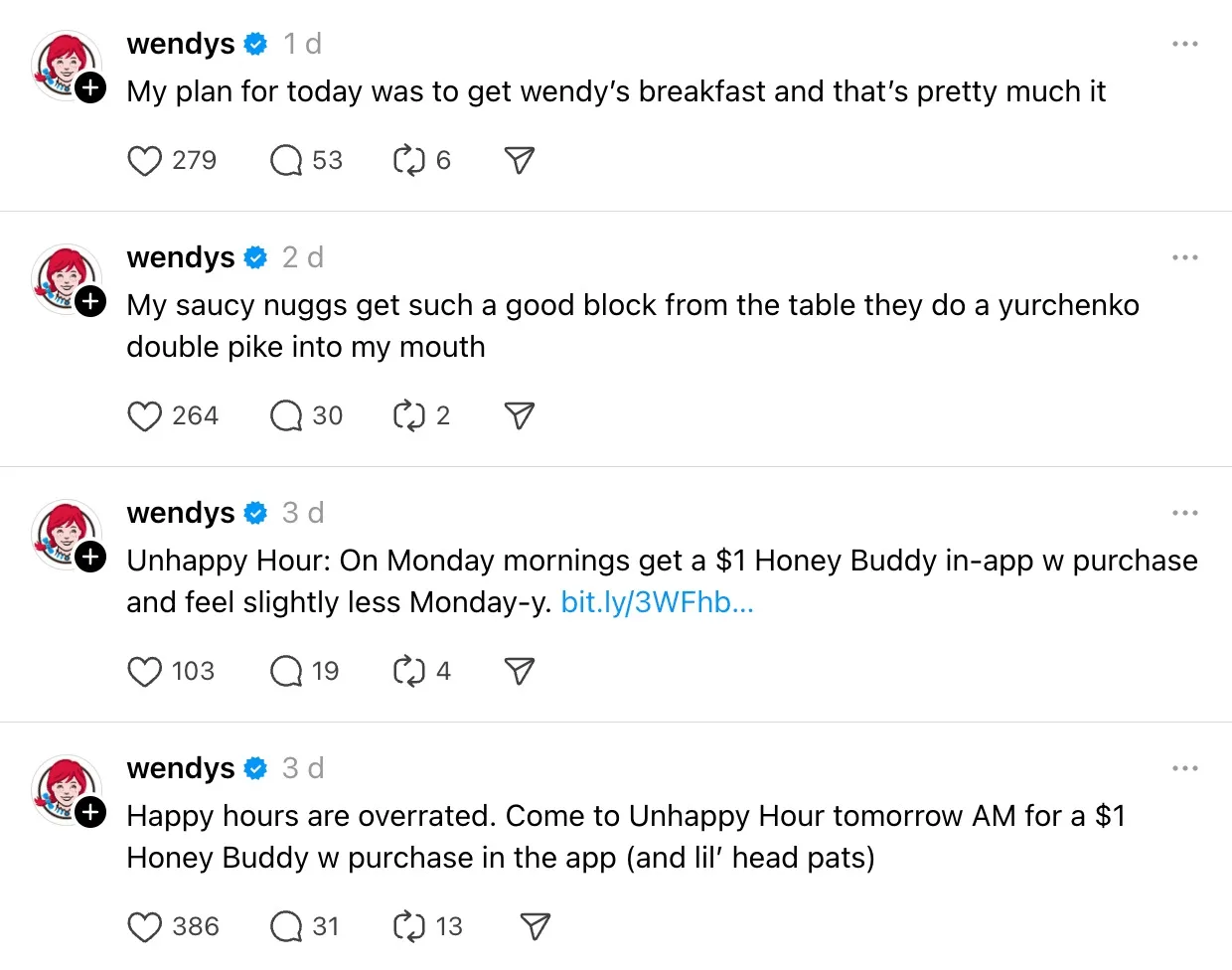
They’re ideal for:
- Sharing opinions
- Asking questions
- Starting discussions
- Telling stories
- Sharing industry insights
- Posting quick updates
Many of the platform’s highest-performing posts contain nothing more than a few lines of text and a strong idea.
You can also create threads of text posts. To create a thread on Threads, start a new post and click or tap Add to thread before publishing. This lets you connect multiple posts into a single thread, making it easier to share longer thoughts, tell a story, or break down a complex topic into smaller, easier-to-read updates. If a post exceeds the character limit, Threads can also automatically create an additional post in the thread for you.
Image posts
Threads also allows you to add images to your posts. You can share a single image or up to 20 images at once. Posts with 2 or more images are displayed as a carousel or swipeable gallery.

The first image serves as the cover slide, so it is usually the one people see in the feed before swiping.
Video posts
Threads supports videos up to 5 minutes long. You can upload videos directly from your device when creating a post, either on their own or alongside text. Videos autoplay in the feed and can be viewed in full-screen mode by tapping on them.
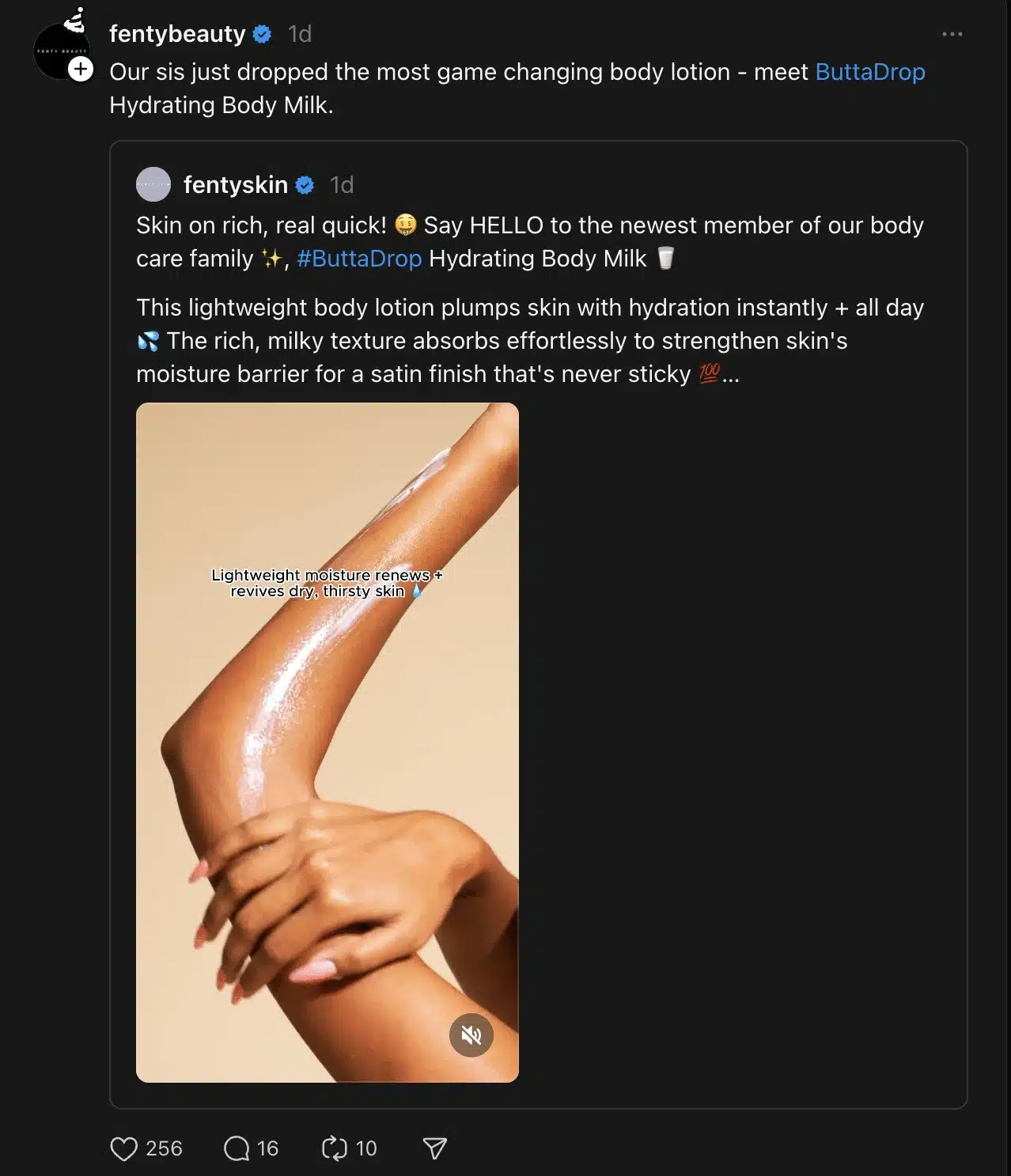
Like image posts, videos appear directly within the feed rather than in a separate video tab. This makes them useful for sharing quick updates, product demos, behind-the-scenes clips, reactions, or additional context that might be difficult to explain with text alone.
Link posts
Link posts direct users to content outside the platform.
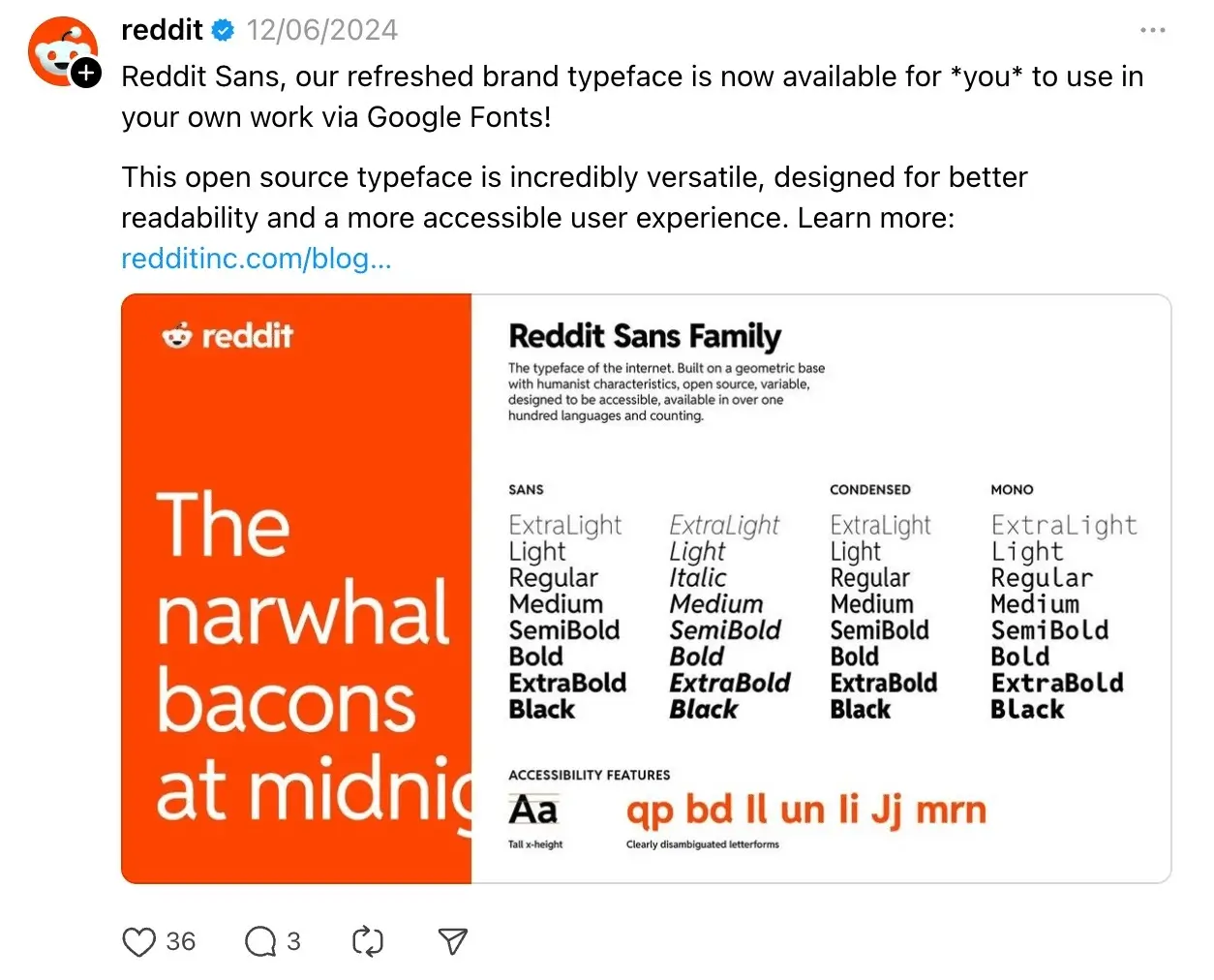
You can use them to promote:
- Blog posts
- News articles
- Product pages
- Podcasts
- Newsletters
- YouTube videos
That said, I recommend leading with value before dropping a link. Posts that include context, insights, or an opinion tend to generate more engagement than simply posting a URL.
Reposts and quote posts
Reposts allow you to share someone else’s content with your audience, while quote posts let you add your own thoughts to an existing discussion.
Quote posts are especially powerful because they help you join conversations that are already gaining momentum.
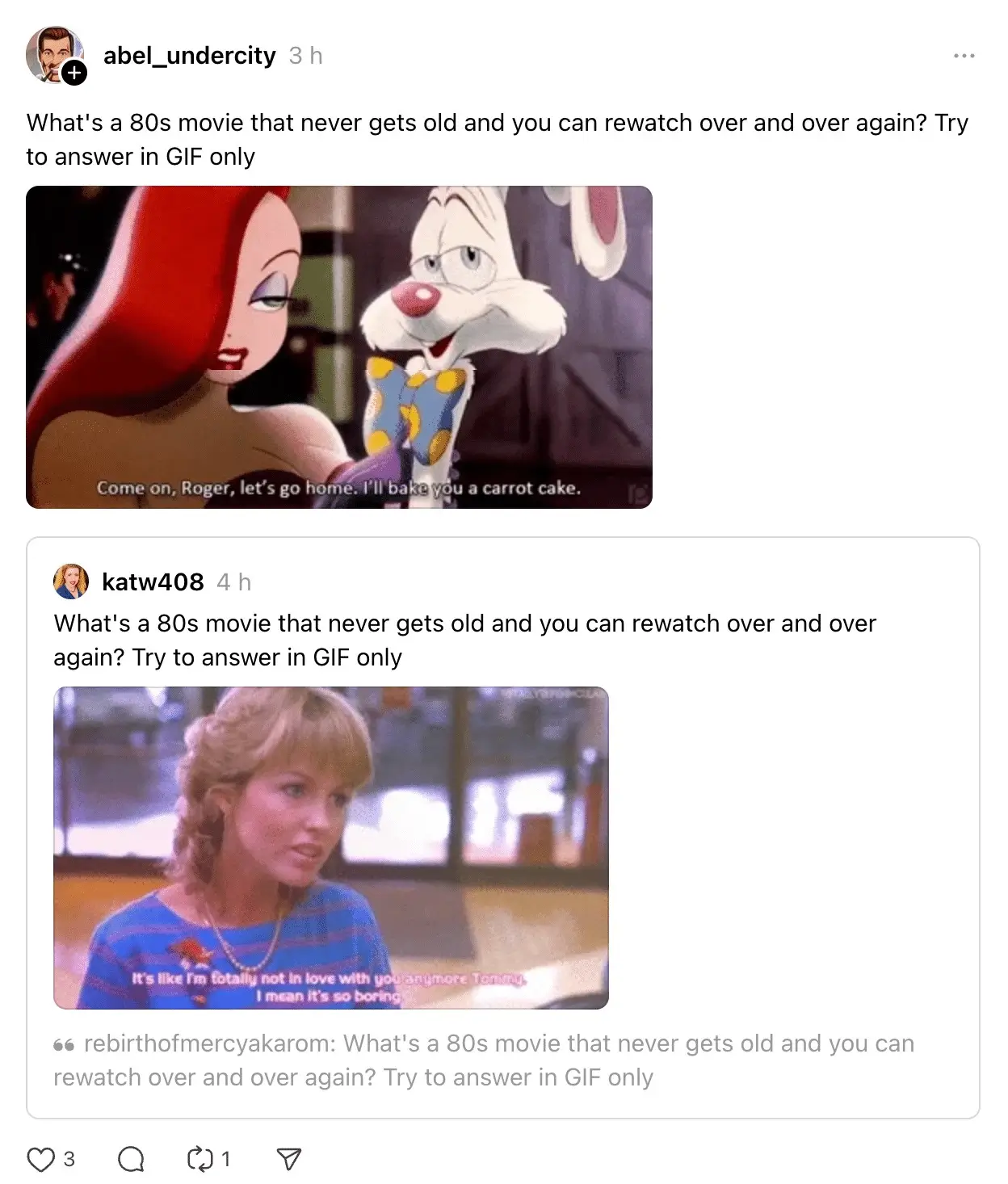
In my experience, some of the easiest engagement opportunities on Threads come from adding a useful perspective to another creator’s post rather than starting a conversation from scratch.
Poll posts
Polls allow you to ask your audience a question and collect votes directly within a Threads post. They’re useful for gathering feedback, researching audience preferences, or sparking discussions around a topic.
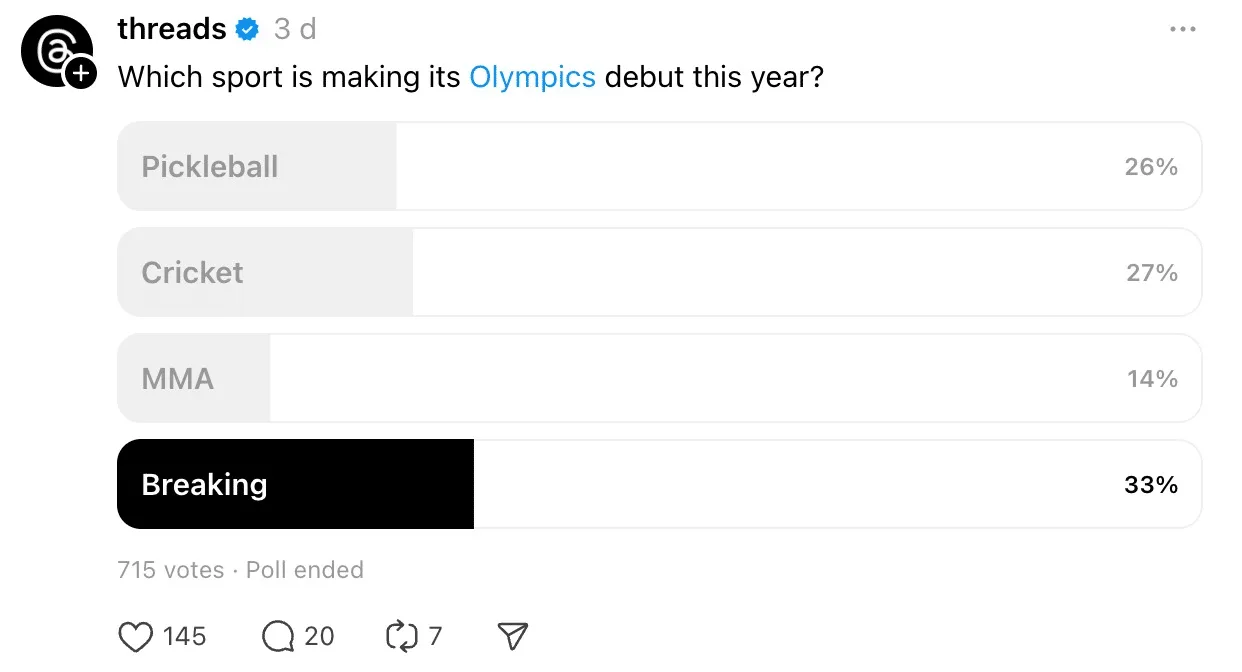
To create a poll, start a new post and click or tap the Poll icon. You can add up to four answer options and choose how long the poll remains active before publishing it. Once users vote, they can see the results update in real time.
5.2. How to structure effective Threads posts
The best Threads posts are surprisingly simple.
Rather than trying to cover multiple topics at once, focus on making a single idea as clear and compelling as possible.
Strong hook (first line matters most)
The first line determines whether people stop scrolling.
Your opening should create enough curiosity for someone to continue reading.

Some effective hook styles include:
- A surprising opinion
- A bold observation
- A lesson learned
- A common mistake
- A direct question
One idea per post
One of the biggest mistakes I see on Threads is trying to squeeze several ideas into one post.
Instead, focus on a single topic.
A post about audience growth should stay focused on audience growth. A post about content creation should stay focused on content creation.
When readers immediately understand the point you’re making, they’re more likely to engage.
Clarity and readability
Threads is a fast-moving platform.
People scan content quickly, so readability matters.
To improve readability:
- Use short paragraphs
- Break up long blocks of text
- Remove unnecessary words
- Use simple language
- Get to the point quickly
A clear post almost always outperforms a complicated one.
Good formatting also helps users consume your content more easily.
Simple formatting techniques include:
- Using line breaks between thoughts
- Writing shorter sentences
- Adding bullet points when appropriate
- Keeping posts visually clean
Many successful Threads creators write the way they speak. The platform tends to reward natural communication over corporate-style messaging.
5.4. Threads post sizes and requirements
Threads is fairly flexible when it comes to content formats, but there are still a few requirements worth knowing before you post.
- Threads character limit for text posts: Up to 500 characters per post.
- Threads image sizes:
- Square image: 1080 × 1080 px (1:1)
- Portrait image: 1080 × 1350 px (4:5)
- Landscape image: 1080 × 566 px (1.91:1)
- Supported formats: JPG, PNG
- Threads video sizes:
- Vertical video: 1080 × 1920 px (9:16)
- Portrait video: 1080 × 1350 px (4:5)
- Square video: 1080 × 1080 px (1:1)
- Maximum video length: 5 minutes
- Maximum file size: 1 GB
- Supported video formats: MP4, MOV
5.6. Hashtag usage on Threads
Threads doesn’t use hashtags the same way Instagram, TikTok, or X do. Instead, it uses topic tags, which work like searchable conversation labels.
You can add one topic tag per post by tapping the # icon in the post composer. Once added, the tag appears as clickable text rather than a traditional hashtag with the # symbol.
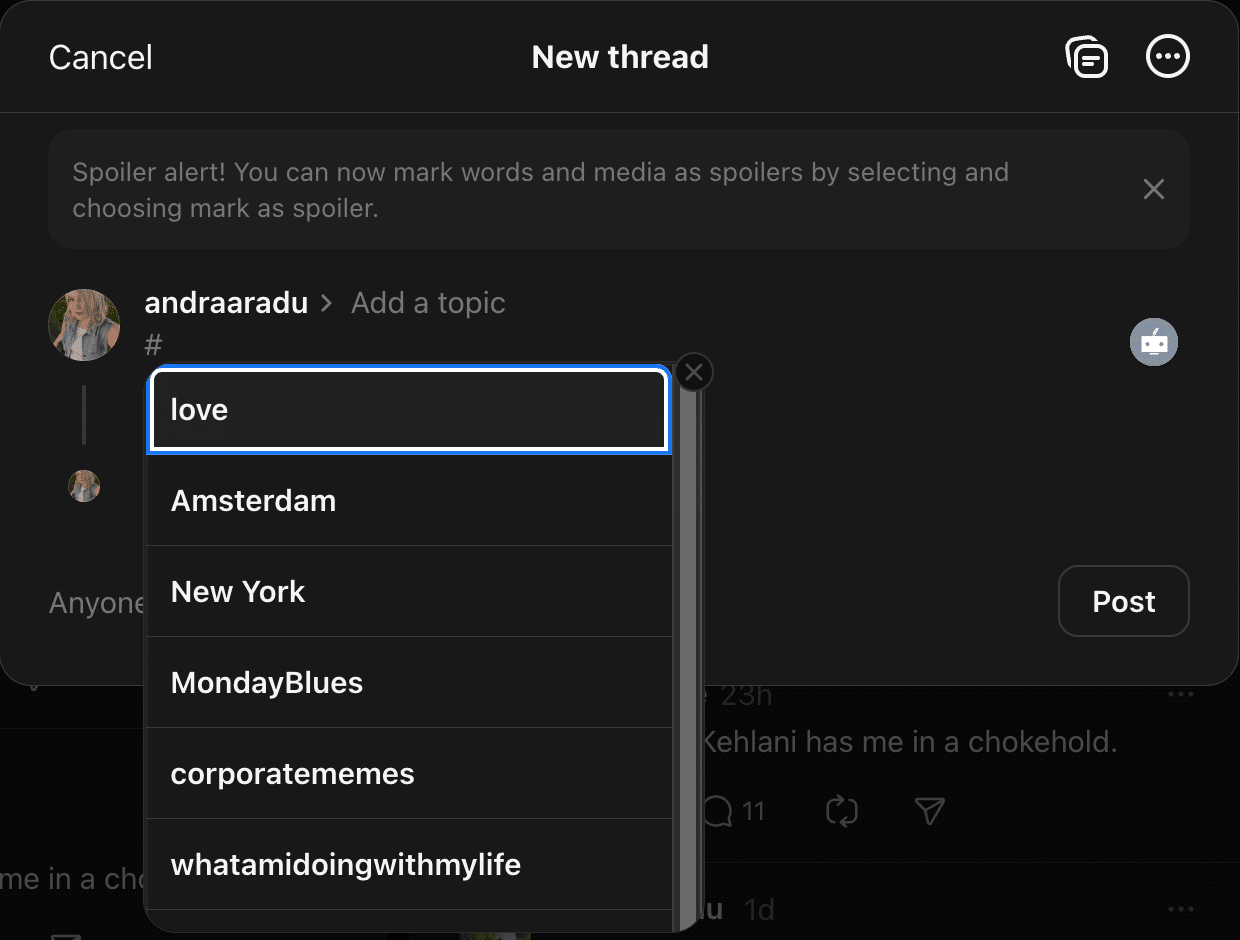
This matters because Threads is trying to prevent hashtag stuffing. You can’t add a long list of trending tags to force your post into unrelated conversations. You have to choose the one topic that best represents your post.
Use topic tags when they help place your post inside a relevant discussion. For example, a post about a vegan pasta recipe could use a tag like “pasta recipe” or “vegan food” to reach people who are actually interested in cooking this type of meal.
I recommend choosing tags based on audience intent, not volume alone. A broad tag may get more visibility, but a specific tag can attract people who are more likely to reply, follow, or save the post.
Here is what the Threads Product and Marketing Manager says: “Tags link to search results showing posts that contain the same tag (only one tag can be added to a post on Threads). Adding a tag that is relevant to the content in your post may help you reach more people who are interested in that topic specifically, for example, people who tap the tag or use keyword search could discover your content.
However, do not add an irrelevant tag to your post, because engagement with the post and consequently distribution may suffer if your content is shown to audiences who aren’t interested.”
6. How to post on Threads (step by step)
6.1. Posting from mobile
Most Threads users access the platform through the mobile app, which gives you access to every content format and feature.
To create a post on Threads from mobile:
- Tap the “New post” button at the bottom of the screen.
- Enter the text you want to publish.
- Optionally add:
- Photos or videos from your gallery
- GIFs
- Topic tags
- Polls
- A location
- To create a multi-post thread, tap “Add to thread.”
- Choose who can reply and quote your post.
- Tap “Post.”
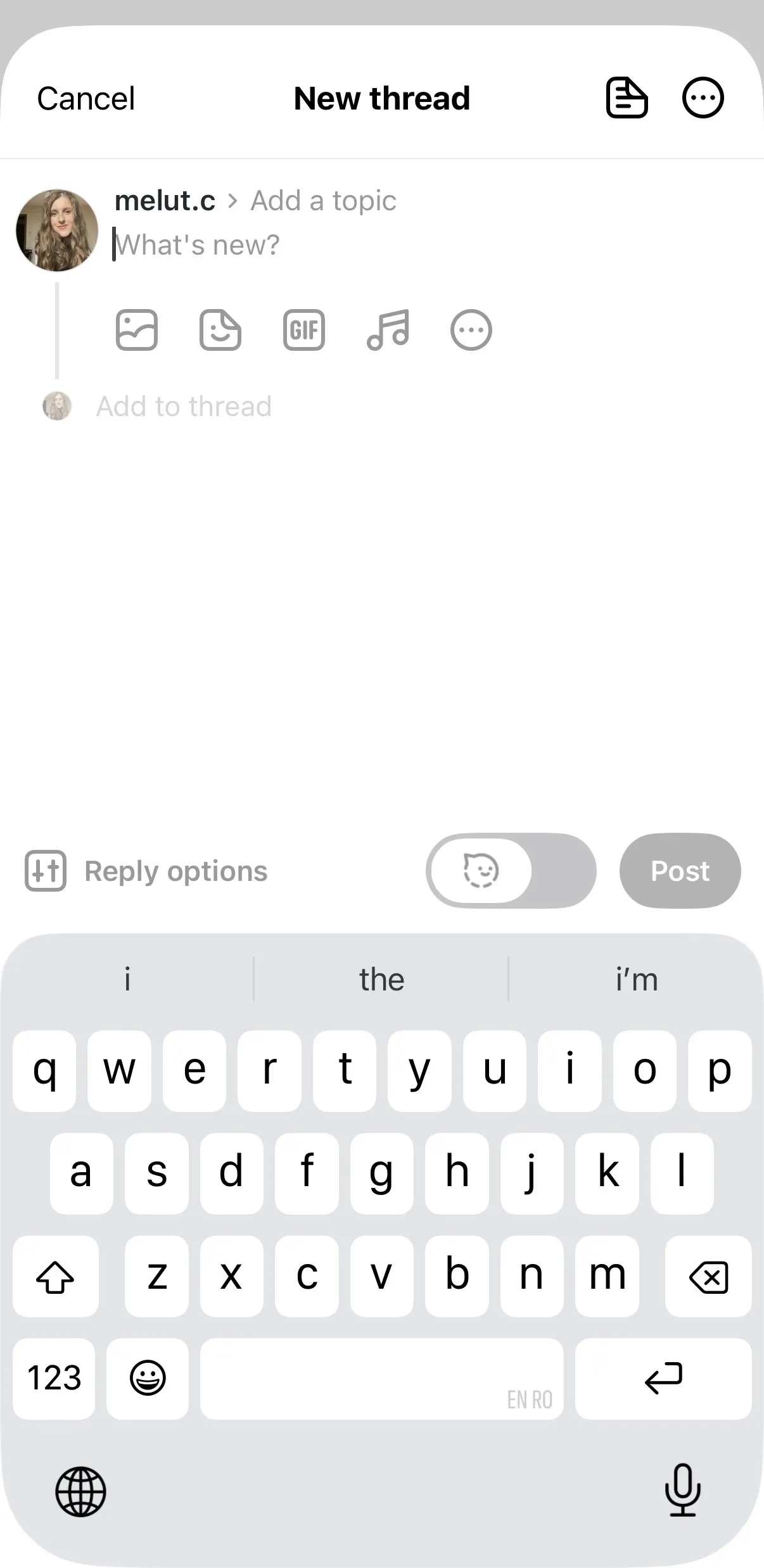
You can attach up to 10 photos or videos to a single post. If your content exceeds the platform’s 500-character limit, Threads can automatically continue your post in a new thread.
6.2. Posting from desktop
If you spend most of your day working on a computer, posting from desktop can make content creation much faster.
To publish on Threads from desktop:
- Visit Threads.net and log into your account.
- Click “New post” in the bottom-right corner.
- Enter your text.
- Add optional content such as:
- Photos and videos
- GIFs
- Topic tags
- Polls
- Select who can reply or quote your post.
- Click “Post.”
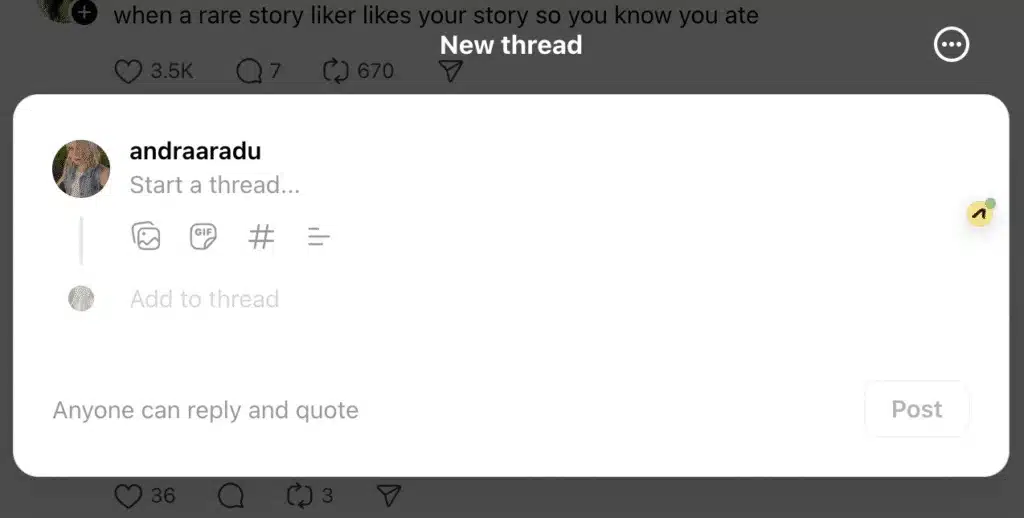
Desktop posting is particularly useful when creating longer text posts, participating in industry discussions, or managing a content strategy for your business.
6.3. Cross-posting from Instagram
Because Threads and Instagram are closely connected, Meta allows users to share content between the two platforms in multiple ways.
You can share Instagram feed posts directly to Threads while publishing them, which can help extend the reach of your content without creating a separate post. You can choose to share a single post or enable automatic sharing for future Instagram posts.
The connection also works in the opposite direction. Threads posts can be shared to Instagram Stories, making it easy to bring ongoing discussions to your Instagram audience. This is one of the most common ways creators and brands promote their Threads content and encourage followers to join the conversation.
However, not every content format transfers seamlessly between the two platforms. For example, a Threads post can be shared to Instagram Stories, but it doesn’t automatically become a regular Instagram feed post or Reel. Likewise, Instagram Stories themselves aren’t automatically published to Threads.
To share an Instagram post to Threads:
- Create your Instagram post as usual.
- Before publishing, tap “Also share on.”
- Locate your Threads account.
- Choose one of the following:
- “Share this post” to publish only the current post to Threads.
- “Always share posts” to automatically share future Instagram posts to Threads.
- Tap “Share.”
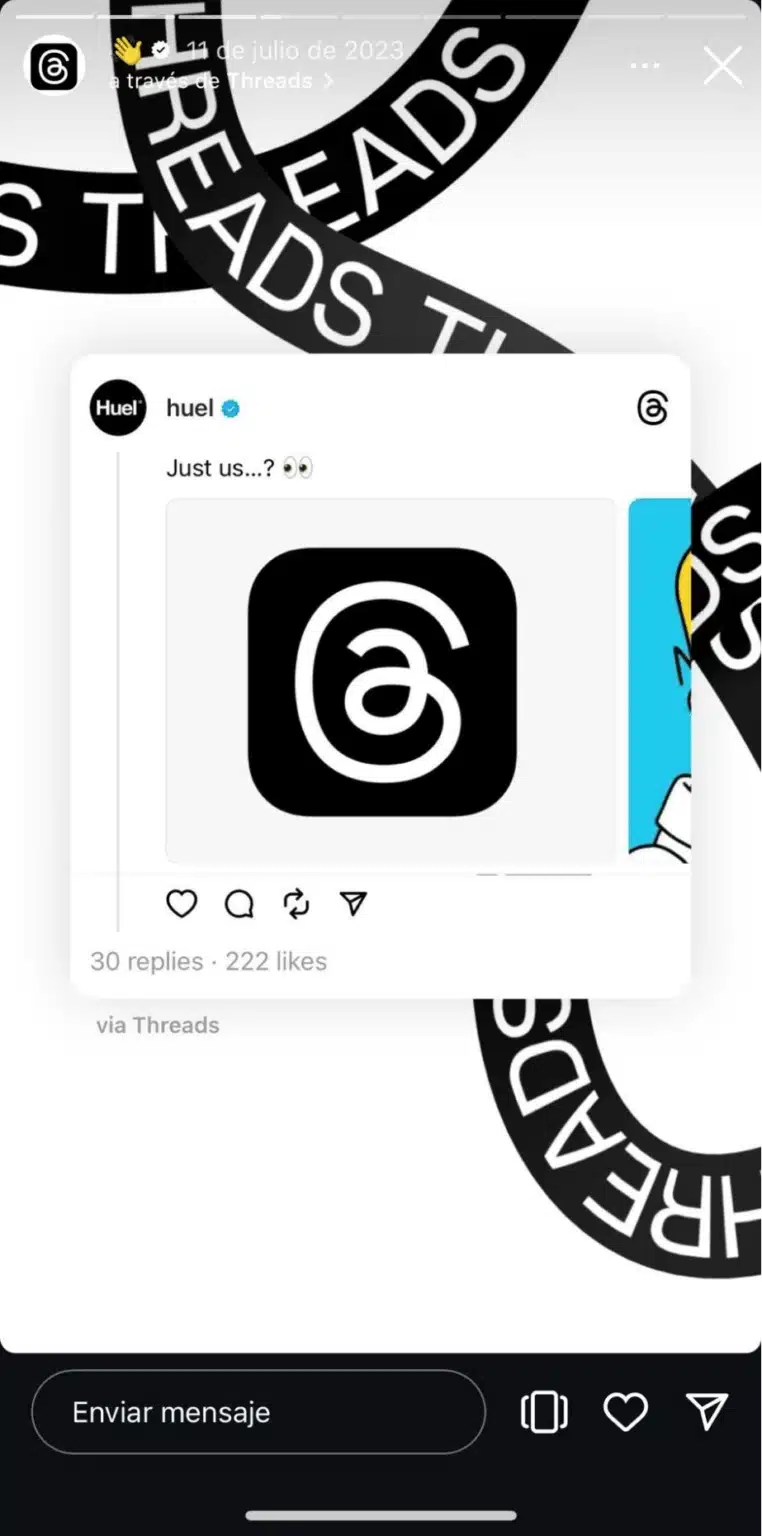
This feature can help you introduce your Threads account to your existing Instagram followers while reducing the amount of manual publishing required.
However, I wouldn’t rely exclusively on cross-posting. Threads users generally respond best to content created specifically for conversations rather than content copied directly from other platforms.
6.4. Editing and deleting posts
One advantage Threads has over some competing platforms is the ability to edit posts after publication.
If you notice a typo, want to clarify a point, or need to make a minor correction, you can edit your content without deleting and reposting it.
To edit a post:
- Open the published post.
- Tap or click the three-dot menu.
- Select Edit.
- Make your changes.
- Save the updated version.
If you want to remove content entirely:
- Open the post.
- Tap or click the three-dot menu.
- Select Delete.
- Confirm the deletion.

While editing can be useful, I recommend avoiding major revisions after publication. If the post changes significantly, the people who already engaged with it may no longer be responding to the same message.
In October 2024, Adam Mosseri announced that Threads was extending its edit window from 5 minutes to 15 minutes. Multiple outlets reported the change based on Meta’s announcement, and the 15-minute limit remains the widely documented restriction today.
7. How to plan and schedule your Threads content
7.1. Define content pillars
Content pillars can help you determine the main topics you’ll consistently discuss on Threads.
They help you stay focused, attract the right audience, and make content planning much easier. Instead of wondering what to post every day, you can pull ideas from a small set of categories that support your goals. They can also help Threads understand your niche and recommend your content to people who are looking for this type of content.
For example, if you’re a fitness coach, your content pillars might be:
- Workout advice
- Nutrition tips
- Client success stories
- Mindset lessons
- Behind-the-scenes content
I recommend choosing three to five pillars. Any more than that and your content can start to feel scattered.
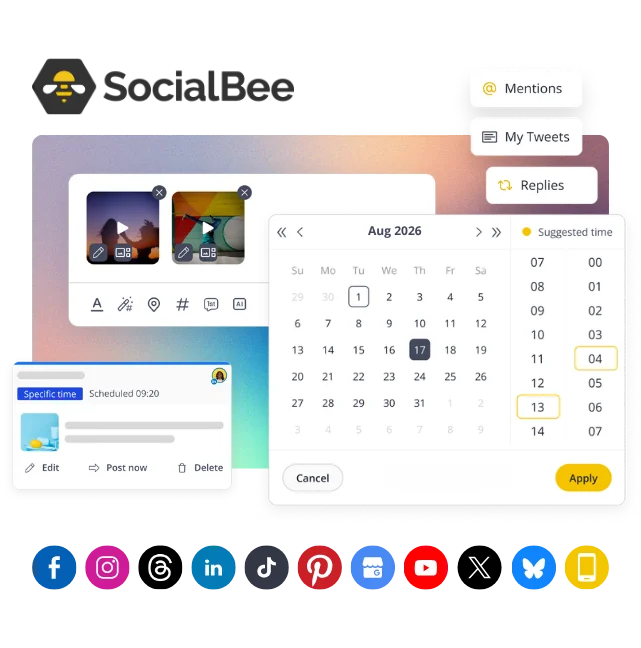
This is where SocialBee can be particularly useful. SocialBee allows you to organize content into categories, which are similar to post folders and function as content pillars inside the platform.
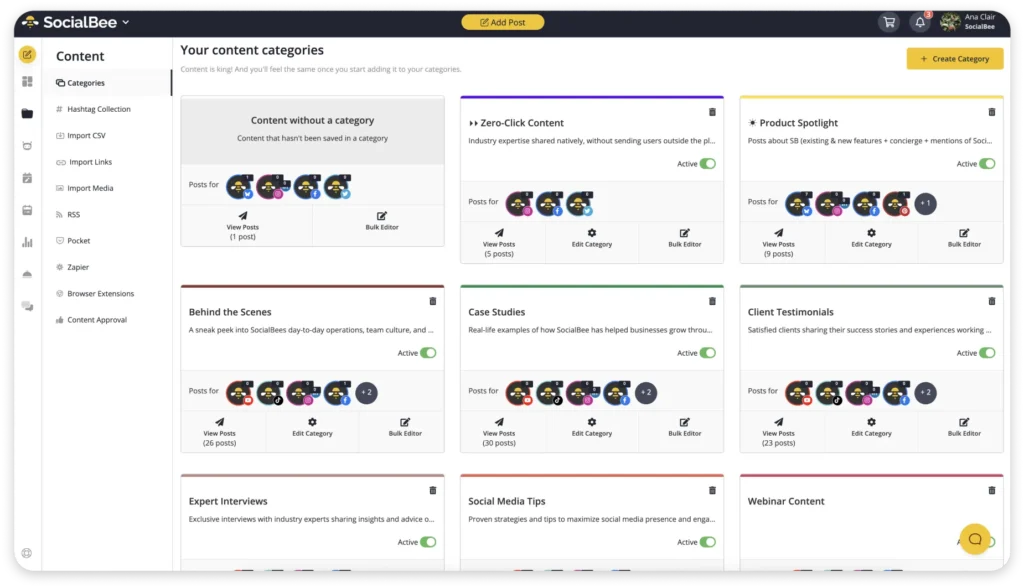
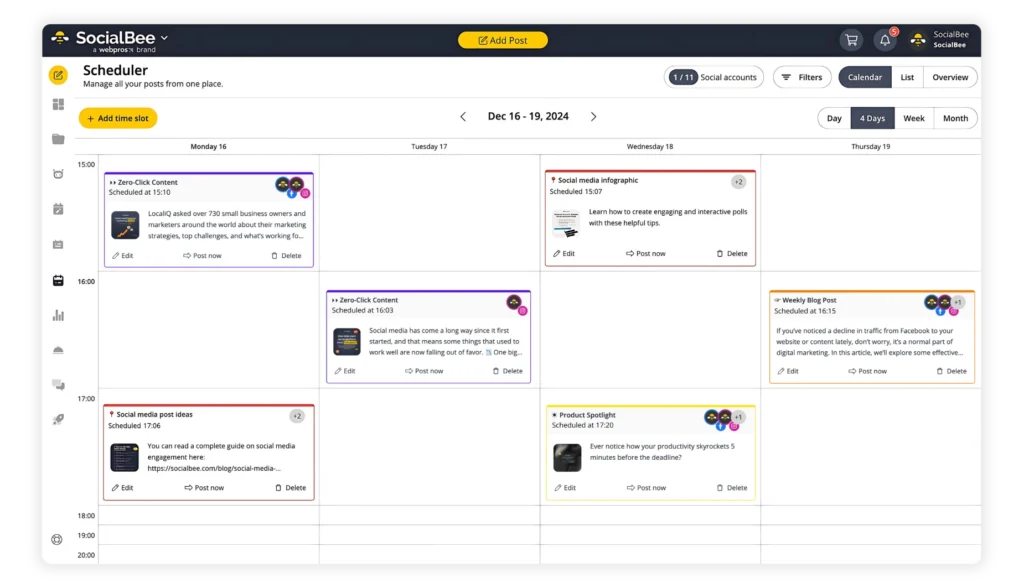
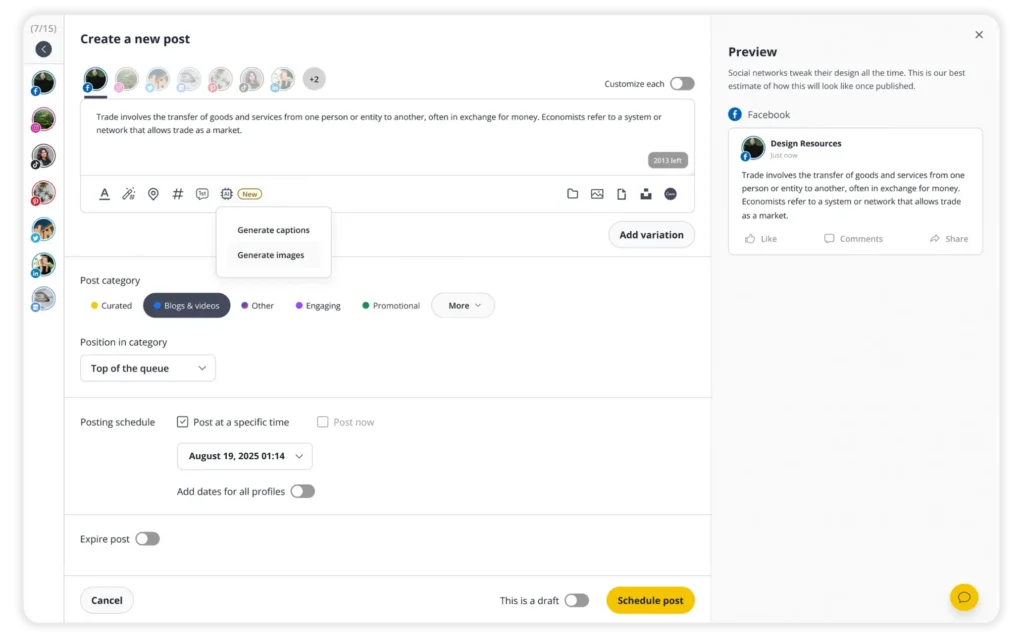
Beyond scheduling, SocialBee can help you build an entire Threads content strategy. You can organize posts into categories based on your content pillars, collaborate with team members, manage approvals, track performance, and even generate AI-powered content recommendations tailored to your business.
8. Engagement and conversations on Threads
Unlike platforms where comments often feel secondary, conversations are central to the Threads experience.
This means that your replies matter just as much as your original content.
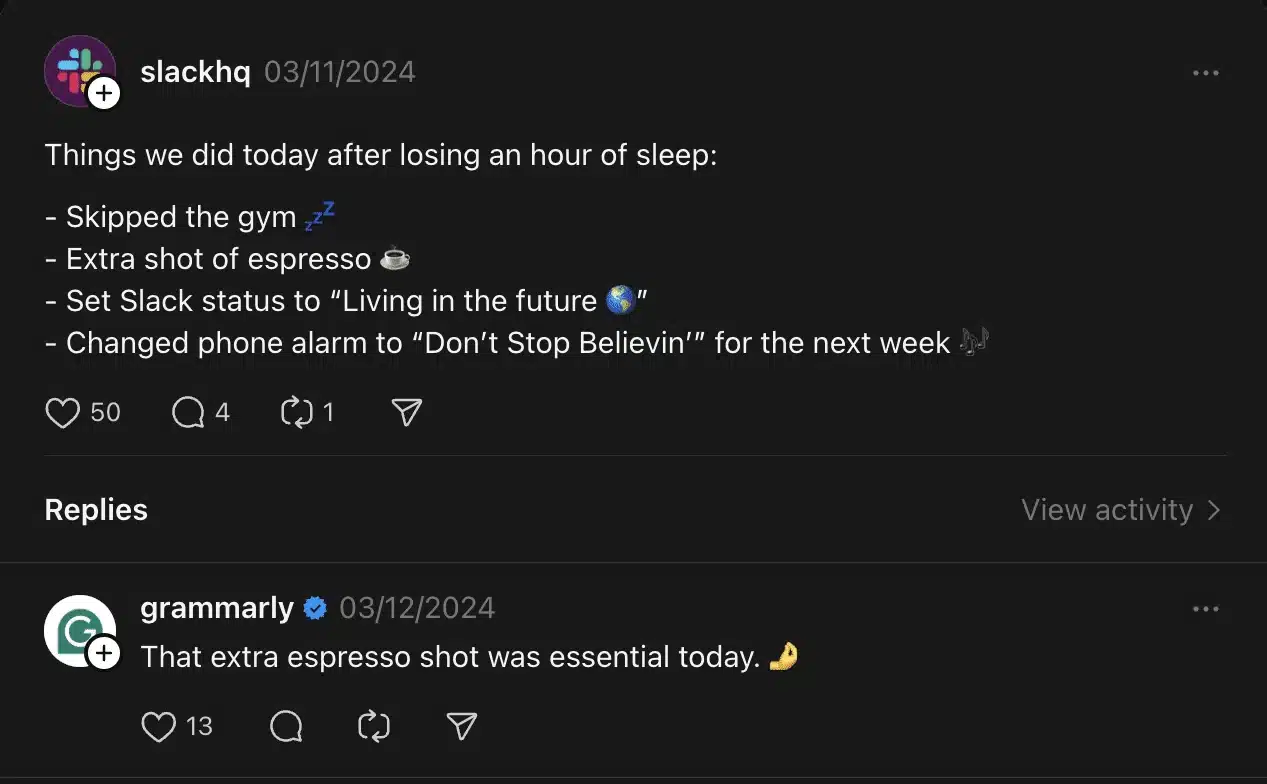
A post can start a conversation, but it’s the replies, quote posts, and back-and-forth discussions that keep it going and help more people discover it.
That’s why engagement on Threads isn’t just about responding to comments on your own posts. It’s also about joining conversations started by other people.
A thoughtful reply can put your profile in front of people who would have never found you otherwise. If someone likes what you have to say, they can visit your profile, read your posts, and decide to follow you. In that sense, replies are not just interactions. They’re another way to contribute content to the platform.
The same idea applies to reposts and quote posts.
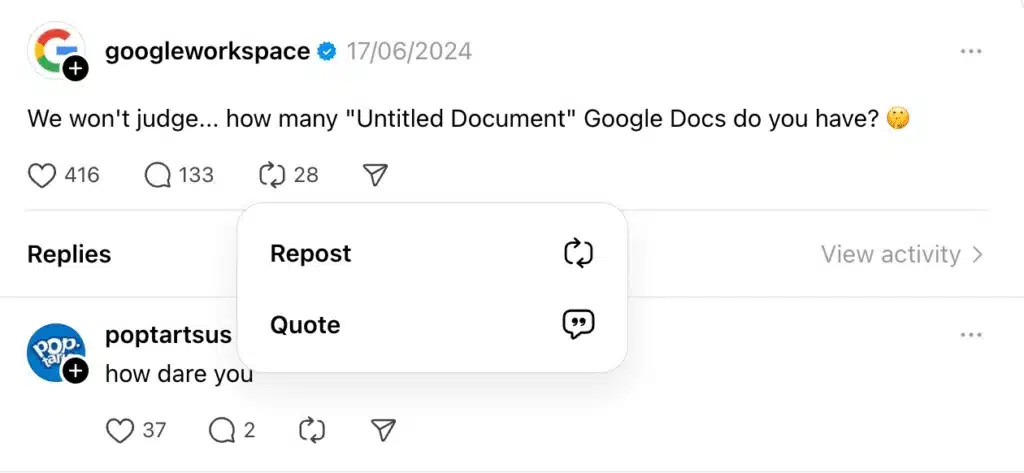
A repost shares someone else’s content with your audience, while a quote post lets you add your own perspective.
In many cases, quote posts create more discussion because they give people something new to react to. Instead of responding only to the original post, they’re responding to your perspective as well.
This is why some of the most successful Threads users don’t focus only on publishing. They spend time participating in conversations, replying to people, and sharing their thoughts on discussions happening in their niche.
If you want to get more value from Threads, don’t think of engagement as something that happens after you post.
Think of it as part of the platform itself.
The more you contribute to conversations, the more opportunities you create for people to discover you, interact with you, and become part of your community.
For brands and businesses managing larger communities, SocialBee’s social inbox helps you monitor and reply to Threads comments and mentions. This way, you can always be up to date without losing valuable interactions in notifications.
9. How to grow on Threads
9.1. Post consistently and engage in conversations
When new users start researching growth strategies, they often become obsessed with posting frequency. They’ll ask whether they should publish three posts a day, five posts a day, or ten posts a day. In reality, consistency has a much bigger impact than volume.
A creator who publishes one thoughtful post every day will usually outperform someone who posts ten times on Monday and then disappears for the rest of the week. For most people, one to three posts per day is more than enough. Focus on creating a schedule you can realistically maintain for months rather than chasing an arbitrary posting target.
That said, publishing is only half the equation.
If I could give new Threads users only one growth tip, it would be to spend as much time engaging as posting. The creators who grow fastest don’t just publish content. They actively participate in conversations happening across the platform.
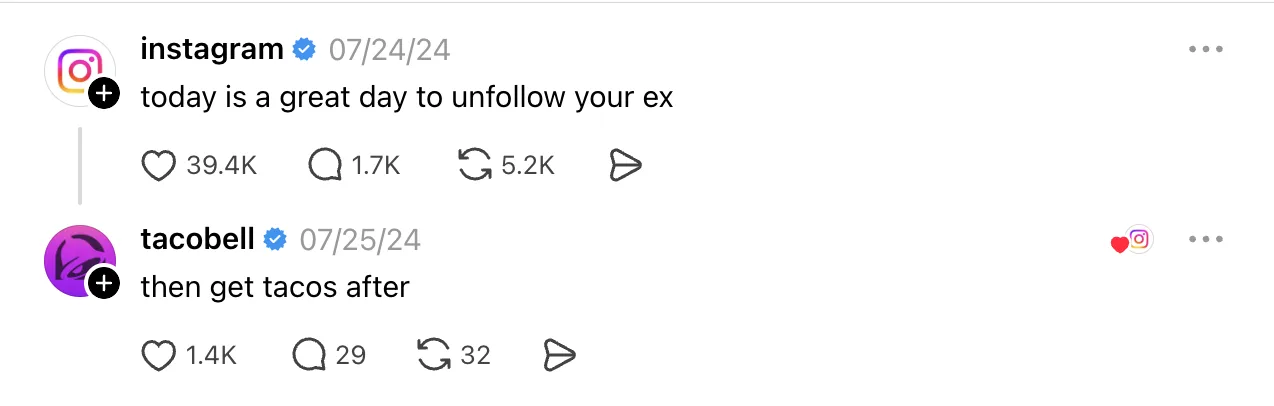
For example, imagine you’re a fitness creator. Instead of only publishing workout tips on your own profile, you could reply to discussions about nutrition, recovery, training mistakes, or fitness trends. Every thoughtful contribution puts you in front of people who are already interested in your niche.
The keyword here is thoughtful. A reply like “Great post!” won’t do much for your visibility. A reply that adds an example, shares a personal experience, or offers a different perspective is far more likely to attract profile visits and followers.
Here is what Etienne Blanc has to say about this: “Threads is all about maintaining a dynamic conversation. Users should aim to share content regularly while also engaging with their community through replies, quote posts, and tagging topics. It’s not just about posting frequently, but also about being present and responsive to your audience.”
9.2. Write short, focused posts
One thing that makes Threads different from many other social platforms is that brevity often wins.
Some of the highest-performing posts on the platform aren’t long thought leadership essays. They’re concise observations that communicate a single idea clearly. Users scroll quickly, and the faster they understand your point, the more likely they are to engage with it.

I usually recommend focusing on one idea per post. If you’re talking about content strategy, stay on content strategy. If you’re sharing a lesson about entrepreneurship, don’t turn the post into a broader discussion about marketing, leadership, and productivity.
9.3. Start with a strong hook
The first line of your post has one job: convince someone to keep reading.
Because Threads is a fast-moving feed, users make split-second decisions about whether content deserves their attention. If the opening feels generic, they’ll keep scrolling. If it creates curiosity, surprise, or recognition, they’ll stop.
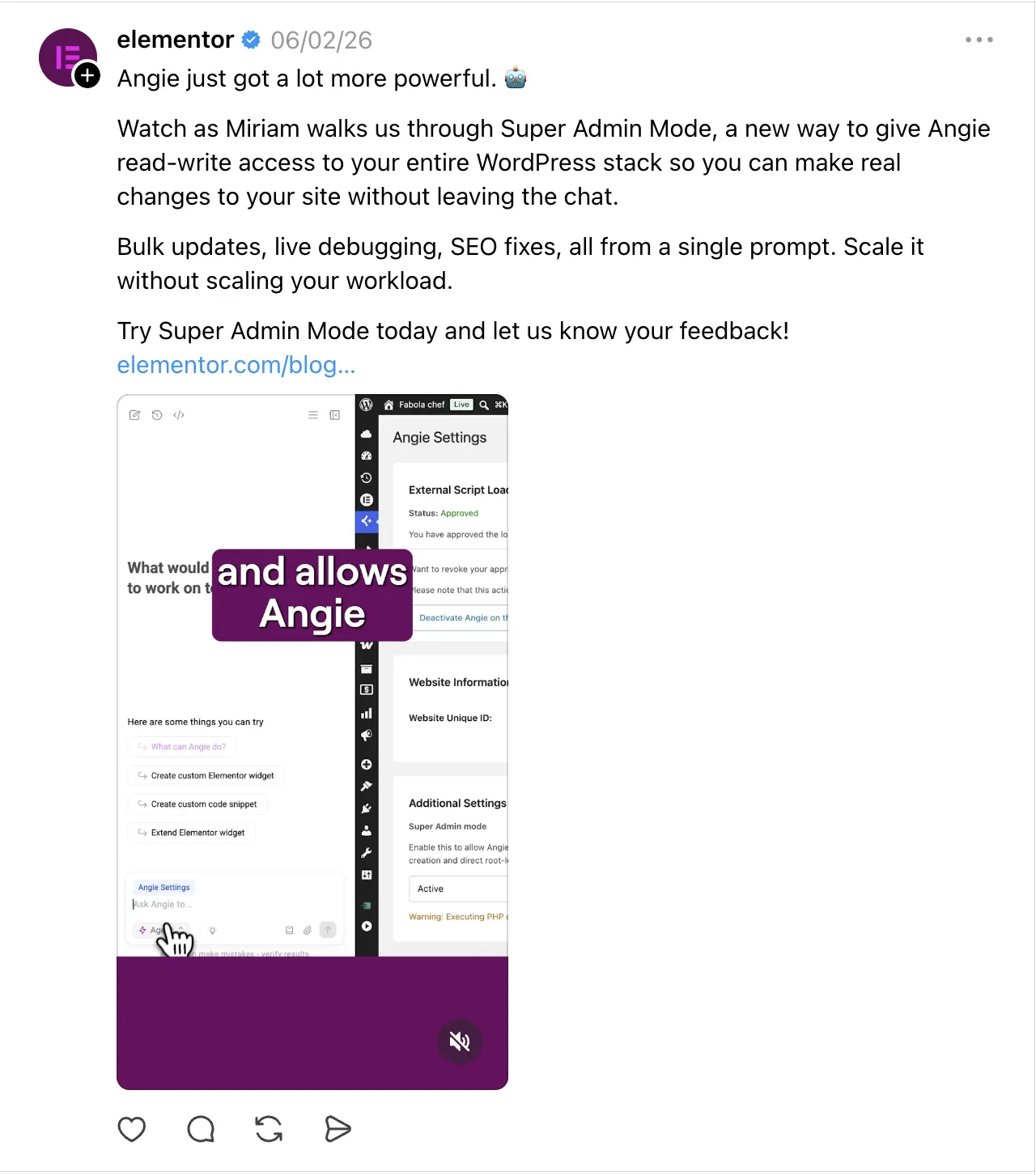
The strongest hooks usually follow a recognizable pattern. You don’t need to copy these templates exactly, but they can help you structure your posts:
Challenge a common belief
You don’t need to wake up at 5 a.m. to be productive.
Share a surprising lesson
I learned more from one bad manager than five great ones.
Make a bold observation
Most people quit too early to find out if something works.
Call out a mistake
The biggest mistake I made while learning a new language was focusing on grammar first.
Create curiosity
One small habit completely changed how I approach difficult conversations.
Start with a strong opinion
Unpopular opinion: not every hobby needs to become a side hustle.
You don’t need clickbait, but you do need a reason for people to pause.
9.4. Ask questions to drive engagement
One of the easiest ways to increase engagement on Threads is to stop treating every post like a finished statement.
Threads was designed for conversation. Unlike platforms where users mostly consume content passively, people come to Threads expecting to share opinions, answer questions, and participate in discussions. The more opportunities you give them to contribute, the more likely they are to engage.

That doesn’t mean every post needs to end with “What do you think?” In fact, generic engagement bait rarely leads to interesting discussions.
Instead, ask questions that are specific enough to spark opinions:
What’s something everyone seems to enjoy that you just can’t get into?
Which app do you open first every morning?
What’s an opinion you have that would get you kicked out of the group chat?
What’s a small purchase that improved your life more than expected?
What’s a skill everyone should learn before turning 30?
Questions like these give people something concrete to respond to. They also make it easier for other users to join the conversation later, which can extend a post’s lifespan well beyond the first few hours after publishing.
9.5. Stick to a clear niche
One of the reasons some accounts grow quickly while others struggle is that people know exactly what to expect from them.
A good example is Duolingo. While the brand has millions of followers across social media, its Threads strategy remains remarkably focused on a handful of topics: language learning, education, internet culture, and the antics of its mascot, Duo the Owl.
Instead of trying to comment on every trending topic, Duolingo consistently ties conversations back to its niche. This focus helps users understand exactly what to expect from the account, which is one reason it’s been able to build a strong community across multiple platforms, including Threads.
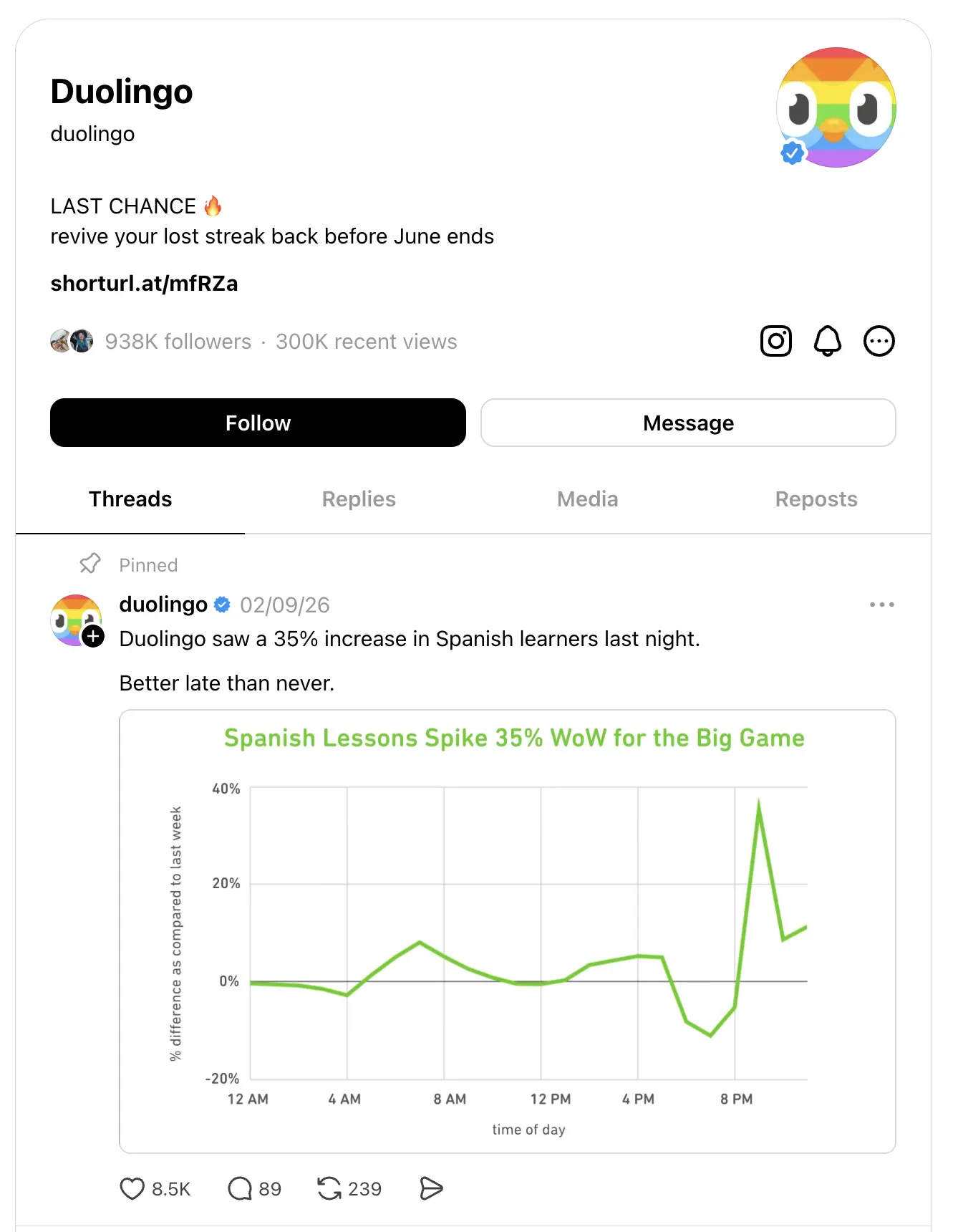
When someone visits your profile, they should immediately understand why they might want to follow you.
That doesn’t mean posting about only one thing forever. It means having a consistent set of topics that connect your content together.
For example, a creator might focus on social media marketing, content creation, and personal branding. A fitness coach might focus on training, nutrition, and healthy habits. A founder might discuss entrepreneurship, leadership, and startup growth.
These topics are different, but they still belong to the same broader conversation.
This consistency also helps the algorithm. Threads increasingly relies on topic-based recommendations, so remaining focused on related subjects makes it easier for the platform to understand who should see your content.
Trying to appeal to everyone often results in attracting no one. A clear niche makes your account easier to follow, easier to recommend, and easier to remember.
9.6. Double down on what performs well
One mistake I see often is creators constantly chasing new ideas while ignoring the content that’s already working.
Growth becomes much easier when you pay attention to patterns.
If a particular topic consistently generates replies, that’s a signal. If a certain format repeatedly drives profile visits or follows, that’s another signal. Rather than reinventing your content strategy every week, look for opportunities to expand on those successes.
Here is what Etienne Blanc recommends:
“Brands should approach Threads with a similar mindset as creators, focusing on unique and original content that is authentic, timely, and drives conversation. There is more than one winning strategy, so it’s important for brands to experiment and see what resonates with their audience.
By leveraging insights and measuring success, brands can adapt their approach and optimize their content and community-building strategy over time.”
9.7. Build a recognizable voice or opinion style
Most people can teach social media marketing. Most people can share productivity advice. Most people can talk about business growth.
What makes someone memorable is how they communicate those ideas.
The fastest-growing creators on Threads, like Matt Navarra or Lennox Saint, usually have a recognizable voice. Some are analytical and data-driven. Others are humorous and self-deprecating. Some challenge conventional wisdom, while others focus on simplifying complicated topics.
You don’t need to invent a personality that doesn’t exist. In fact, audiences are surprisingly good at spotting that.
Instead, pay attention to the perspectives you naturally bring to conversations. Maybe you’re skeptical of common advice. Maybe you’re known for detailed breakdowns. Maybe you have a habit of turning complicated ideas into simple examples.
Those tendencies are often the foundation of a strong voice.
Over time, consistency creates familiarity. People begin recognizing your posts before they even notice your username. That’s when growth becomes easier because followers aren’t just returning for information anymore. They’re returning for your perspective.
And on a platform built around conversations, perspective is often the most valuable thing you can offer.
10. Analytics and performance tracking
10.1. How to access Threads analytics
Threads provides built-in analytics through its Insights dashboard, allowing you to track how your content and audience are growing over time.
One important requirement to know upfront: you need at least 100 followers before Insights become available on Threads.
Once you’ve reached that threshold, you can access your analytics from both mobile and desktop.

On mobile:
- Open the Threads app.
- Tap your profile picture in the bottom-right corner.
- Tap the Insights icon (the chart symbol) at the top of the screen.
On desktop:
- Visit Threads.com and log into your account.
- Click More in the bottom-left corner.
- Select Insights.
The dashboard provides both account-level and post-level performance data, making it easier to understand how people discover and interact with your content.
10.2. Key metrics to track
Threads provides a variety of metrics, but you don’t need to monitor every number obsessively.
Focus on the metrics that help you understand whether people are discovering your content and engaging with it:
- Views: How many people saw your posts and where they discovered them, such as the Home feed, Search, your profile, or cross-platform recommendations.
- Interactions: Likes, replies, reposts, and quote posts. Since Threads is built around conversations, replies and quotes are often the strongest indicators of engagement.
- Follower growth: Tracks whether your content is attracting new followers over time.
- Follower demographics: Provides information about your audience, including age ranges, genders, and top cities and countries.
Rather than looking at these metrics in isolation, pay attention to patterns. The goal is to identify which topics, formats, and conversations consistently generate the strongest response from your audience.
How to use insights to improve content
Collecting analytics is easy. Using them effectively is where most growth happens.
When reviewing your performance, look for recurring patterns rather than obsessing over individual posts.
Ask yourself:
- Which topics consistently generate the most replies?
- What type of content drives the most profile visits?
- Which posts attract new followers?
- Are opinion posts outperforming educational content?
- Do image posts generate more engagement than text-only posts?
- Which posting times produce the strongest results?
I’ve found that growth often comes from small adjustments rather than dramatic changes.
For example, if your audience consistently engages with industry commentary but ignores promotional content, that’s valuable information. If shorter posts generate more discussion than longer ones, that’s another useful signal.
The goal is to identify what your audience already enjoys and give them more of it.
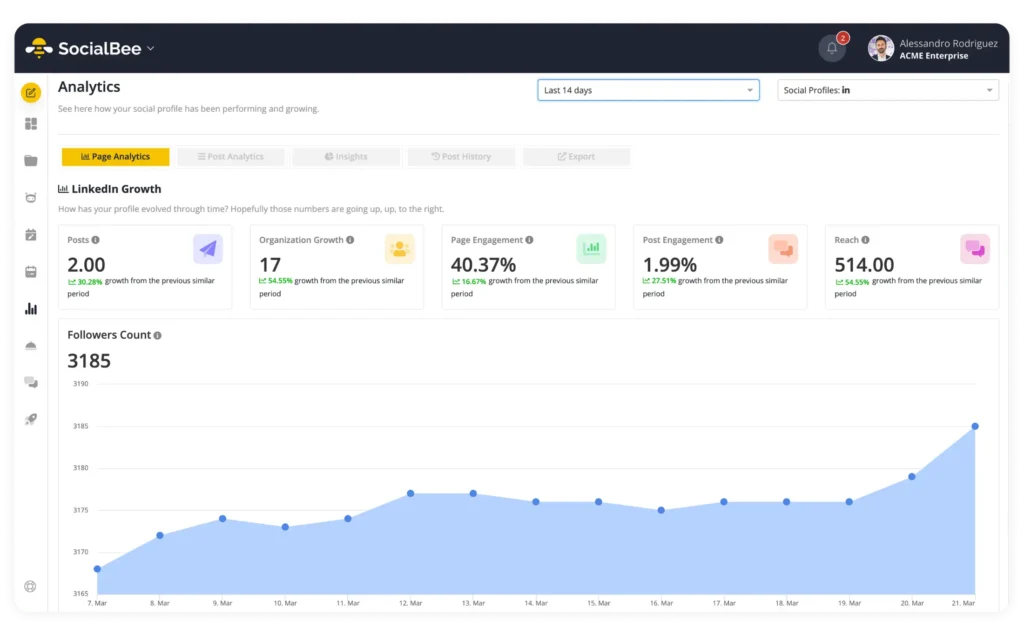
SocialBee makes this process easier by bringing your analytics into the same platform where you create and schedule content. Instead of jumping between multiple tools, you can monitor performance, identify trends, and adjust your content strategy from a single dashboard.