Content Writer at SocialBee
Ever promised yourself you’d post a new YouTube video this week… and then suddenly it’s Friday and you’re staring at an unedited file? Same. Between filming, editing, and keeping up with other social media platforms, actually hitting “publish” on time becomes the hardest part.
Once I started scheduling my YouTube videos in advance, everything changed: my uploads were consistent, my audience stopped wondering where I disappeared to, and I finally felt like I was running my channel instead of chasing it.
In this guide, we’ll look at what matters in a YouTube scheduler and which tools make planning ahead feel effortless.
Plan your posts in no time with hundreds of post ideas and Canva templates. We’re SocialBee LABS SRL, part of WebPros. We use the information you provide to share relevant content and product updates, as outlined in our Privacy Policy. You can opt out anytime.
Short summary
- SocialBee: best for creators who want an easy planner for YouTube and socials, with AI support, a comment inbox, approvals, and posting time insights. Pricing starts at $29/month.
- YouTube Studio: best for YouTubers who want a free, built-in scheduler with strong analytics. Pricing is free.
- TubeBuddy: best for creators focused on YouTube SEO, optimization, and channel growth. Pricing starts at $4.99/month.
- Sprout Social: best for larger teams and organizations that need workflows, approvals, and detailed reporting. Pricing starts at $199/month.
- Sendible: best for freelancers and agencies managing multiple clients. Pricing starts at $29/month.
What to look for in a YouTube scheduler?
When choosing a YouTube scheduling tool, the most important things to look for are ease of use, support for both long-form videos and Shorts, reliable publishing, and the ability to manage uploads without friction.
Later on, when I started scheduling my own YouTube videos, I realized pretty quickly that not all tools handle these basics equally well. Some make the whole process super simple (upload, set a date, done), while others make you feel like you’re fighting the interface just to publish a single video.
Over time, I narrowed down the things that actually matter to me when choosing a YouTube scheduling tool.
Here’s what to look for in a YouTube scheduler:
- Easy video scheduling for both long-form and Shorts
- Support for multiple YouTube channels
- Cross-platform scheduling
- Built-in analytics to track video performance
- Collaboration features for teams or clients
1. Easy video scheduling for both long-form and Shorts
A good YouTube scheduler should let you upload, schedule, and finalize everything in one place: titles, video details, thumbnails, and publish dates. Jumping between multiple windows just to publish a YouTube Short or long-form video slows everything down.
2. Support for multiple YouTube channels
Creators and brands often manage more than one YouTube account. A scheduler that allows quick switching between channels without constant log-ins keeps the workflow smooth and efficient.
3. Cross-platform scheduling
YouTube rarely exists in a vacuum. Most creators also publish on Instagram, Facebook, LinkedIn, Pinterest, or X. A scheduler that covers multiple platforms makes it easier to plan content in one unified calendar rather than juggling tools.
4. Built-in analytics to track video performance
I like seeing how my scheduled videos perform (views, comments, engagement spikes), so I know what type of content to create next. Good analytics help me understand my audience instead of guessing.
5. Collaboration features for teams or clients
When working with editors, clients, or other creators, shared calendars, approvals, and comment features become essential. Collaboration tools keep everyone aligned and reduce unnecessary back-and-forth.
Top 5 YouTube schedulers in 2026
YouTube scheduling tools have evolved fast, and some now offer far better workflows than others. After testing different platforms, looking at real reviews, and seeing what creators use to stay consistent, I’ve made a list with the YouTube schedulers that stood out the most.
As a result of my research, here are the top 5 YouTube schedulers to use in 2026:
- SocialBee
- YouTube Studio
- TubeBuddy
- Sprout Social
- Sendible
1. SocialBee
I know. It makes total sense that SocialBee shows up first in an article… on the SocialBee blog. But honestly, it really does earn the spot.
Why is SocialBee the best YouTube scheduler?
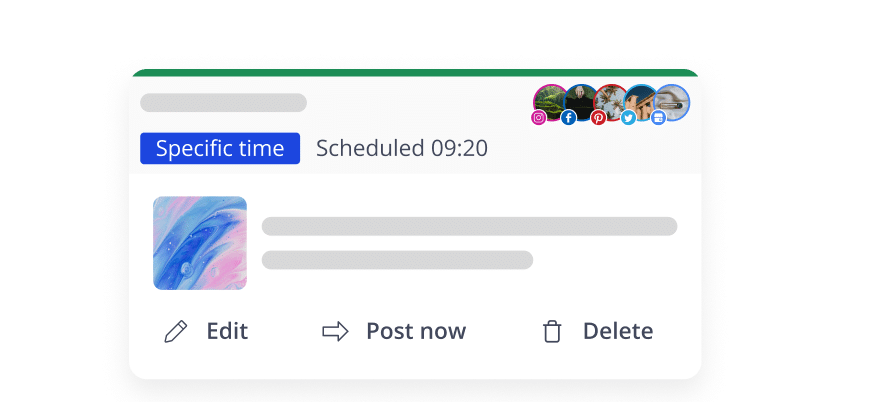
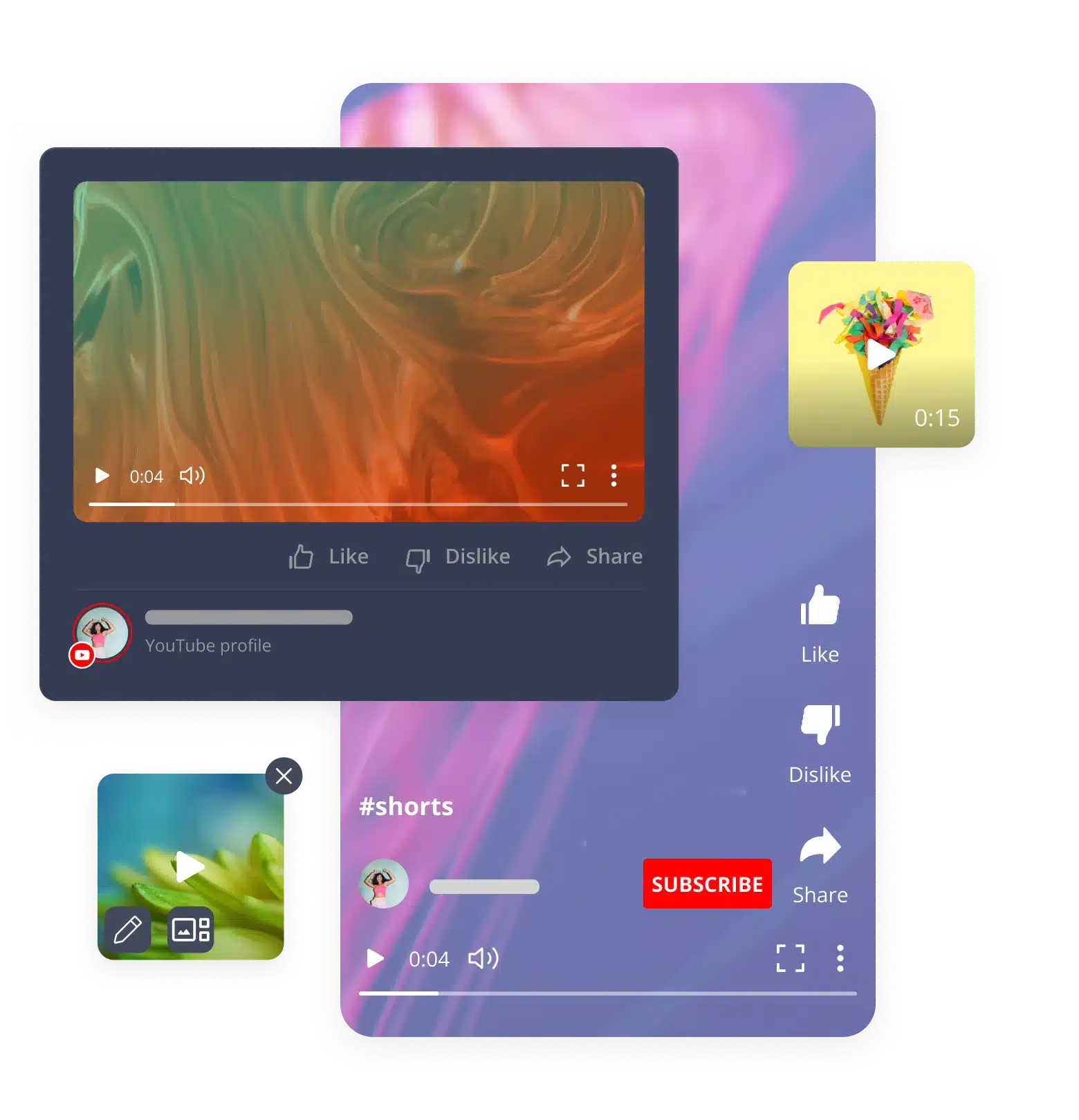
What I like most about SocialBee is how simple it is toschedule videos. I can upload my YouTube content, set a specific date, tweak the title, add my description and link, and schedule everything in one go. It also works for YouTube Shorts, which is a lifesaver when I’m trying to post consistently without babysitting my channel.
For me, SocialBee is more than a YouTube scheduler. It helps me plan and organize posts across various platforms (Instagram, Facebook, LinkedIn, Pinterest, Twitter/X), so my content calendar finally makes sense. Everything is clean, visual, and super easy to manage, and when the tool automatically publishes my videos at the exact time I set, it genuinely feels like magic.
Who is SocialBee best for?
SocialBee is great for creators, social media managers, small businesses, and agencies that need to manage multiple YouTube accounts. It offers features to schedule posts in advance, approve content from team members, monitor comments, and analyze performance without relying on multiple tools.
SocialBee feature overview
I’ve tried a lot of scheduling tools over the years, and SocialBee is one of those platforms that quietly solves a lot of small workflow problems. T.
Being able to map out YouTube videos, Shorts, and social posts in one calendar makes planning much smoother. I can see the whole week at once, which helps avoid overlaps or gaps.
Where SocialBee really helps is with the planning part. Their Copilot feature pulls key details from your website and uses that to build a full content strategy for you. It recommends which platforms to focus on, suggests content ideas, and even generates ready-to-edit post drafts that match your brand. It’s a quick way to go from “I don’t know what to post next” to having a clear plan.
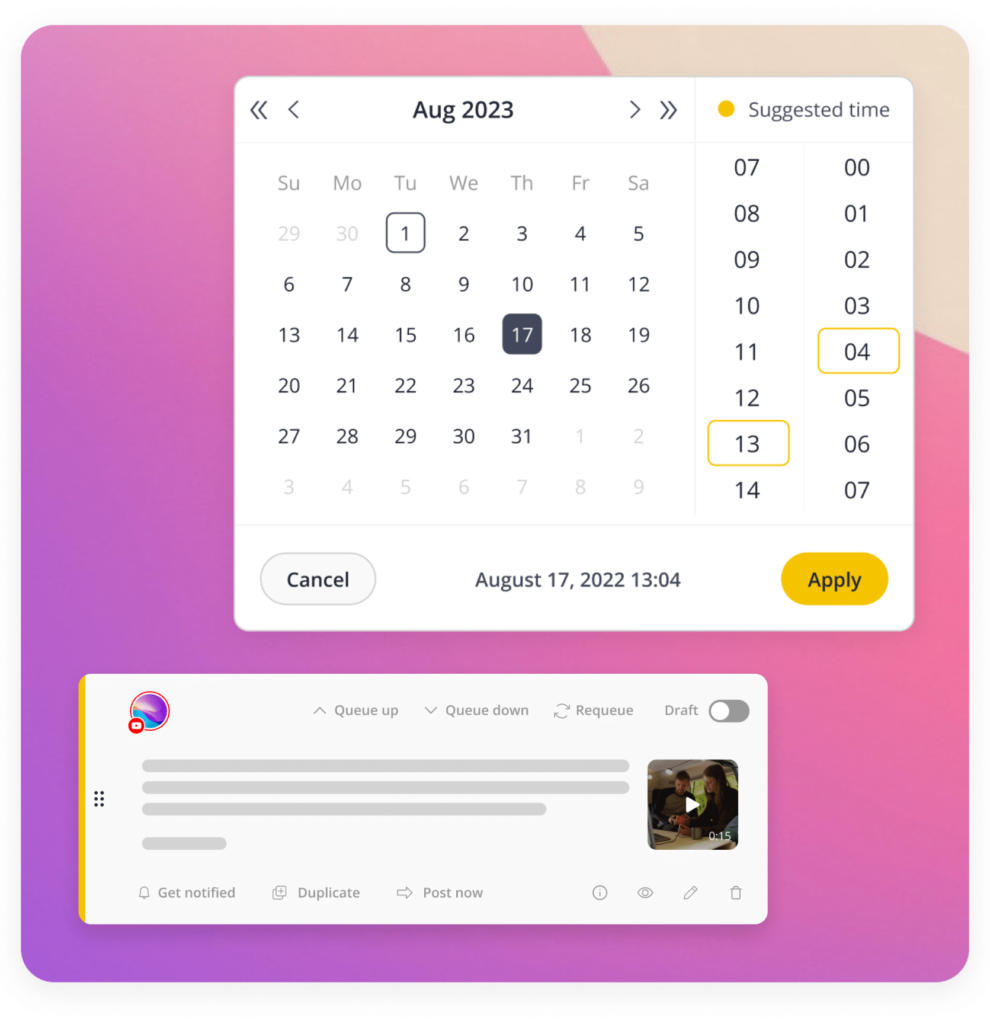
A feature I find genuinely useful for YouTube is the comments inbox. Being able to answer YouTube comments from the same place where I plan posts saves a lot of tab-switching. The approval flow also helps when someone else needs to look at a title or description before it goes live. And the posting time suggestions are a nice extra touch as they take the guesswork out of when to schedule new videos or Shorts.
And then there are the categories, which keep everything organized. I can separate YouTube videos, Shorts, teasers, behind-the-scenes posts, and general updates, then schedule each category on its own rhythm. It removes so much mental clutter.
Here are some of the standout SocialBee features I personally find useful:
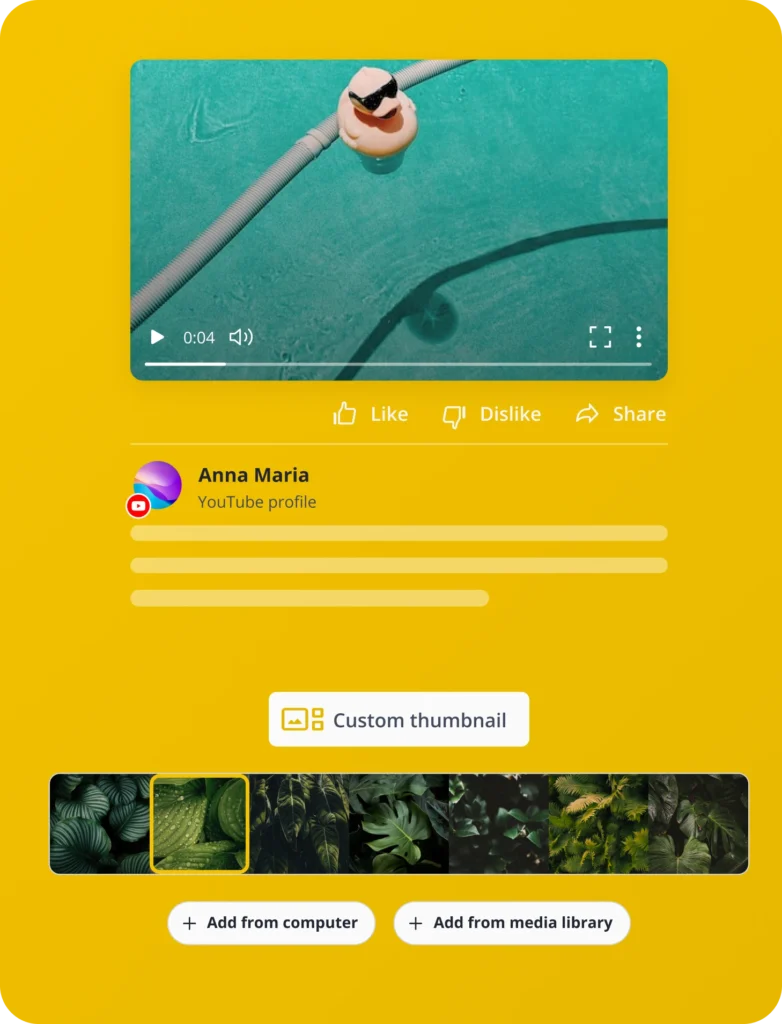
- Schedule YouTube videos and Shorts with your title, description, links, and thumbnail.
- Plan everything in a visual content calendar so you can actually see what’s coming up.
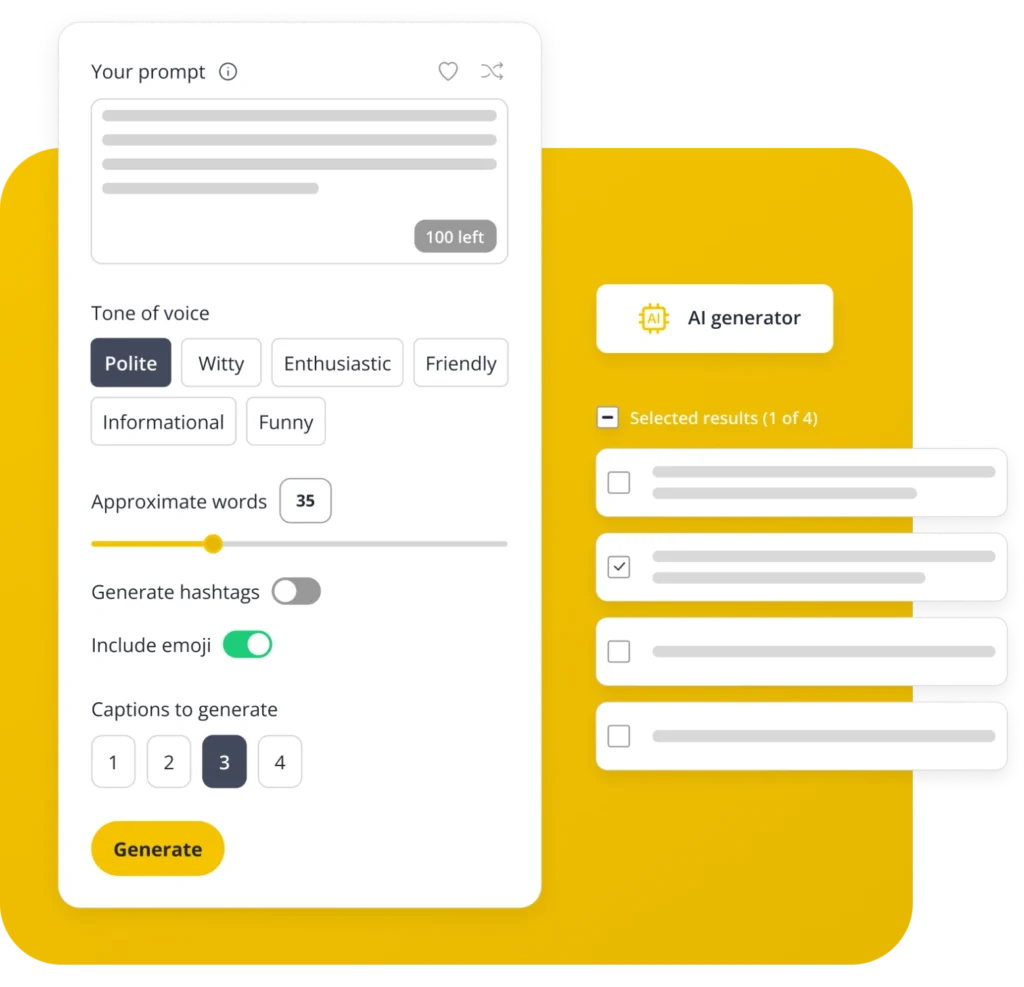
- Use the AI Post Editor to generate caption ideas, variations, or hashtags for individual YouTube posts.
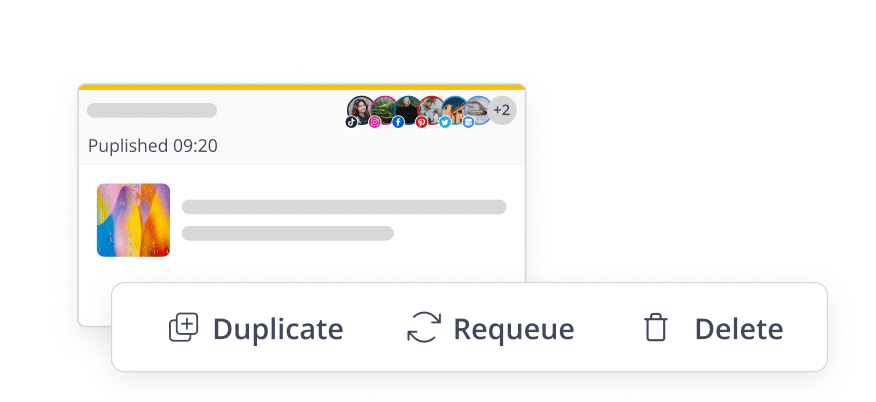
- Reuse YouTube Shorts as TikToks or Reels and schedule that same clip across platforms in one go.
- Save hashtag groups and reuse them whenever you need.
- Get best posting time suggestions based on your past content performance
- Edit multiple posts at once with the bulk editor (a huge time-saver).
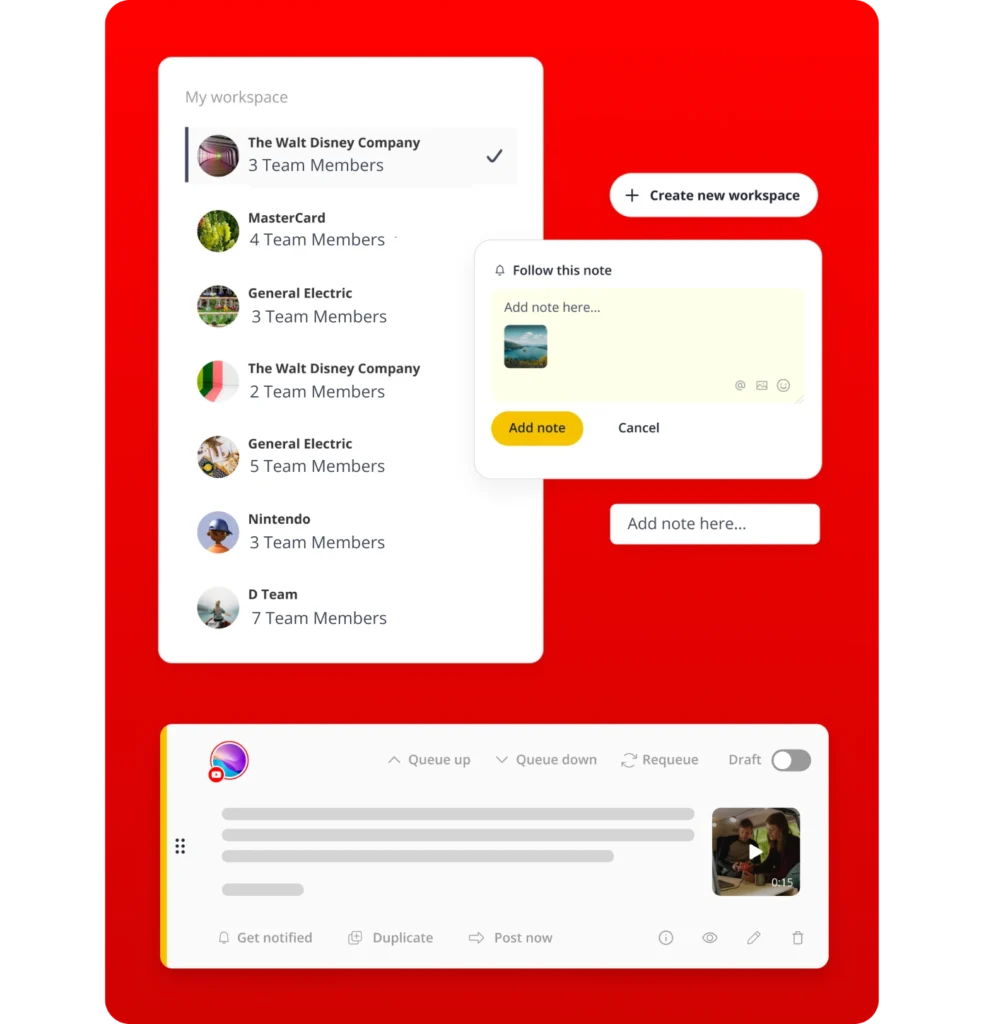
- Collaborate with teammates using notes, approvals, and shared workspaces.
- Keep clients or channels separate with dedicated workspaces.
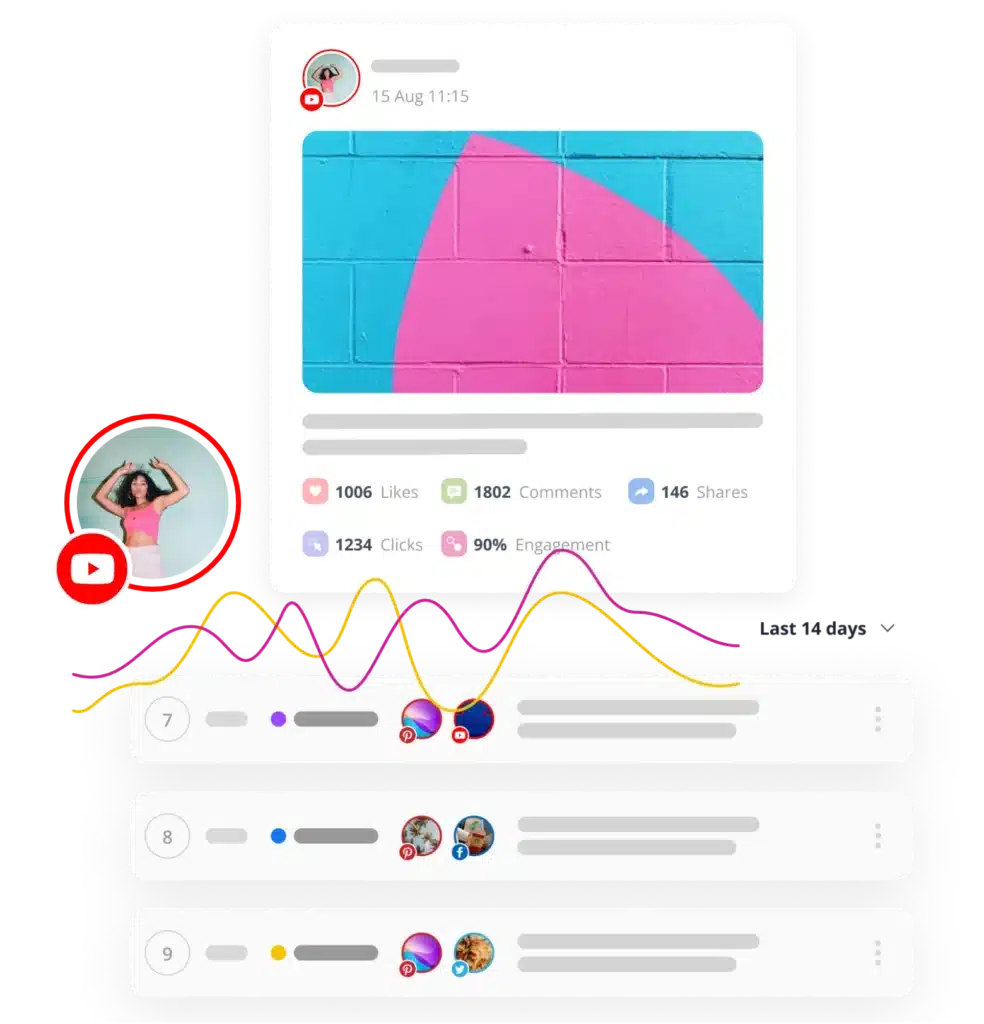
- Track core YouTube metrics like views, comments, likes, and watch performance trends.
- Reply to comments through the unified inbox
- Shorten links with several built-in integrations.
SocialBee pros
I really like how practical SocialBee feels day-to-day. It helps me stay on top of multiple social accounts, plan content ahead of time, and check how everything is performing without bouncing between platforms. The AI tools save me a lot of time when I need quick ideas for YouTube videos, Shorts, or other social posts, and having a social inbox built into the same dashboard makes it way easier to keep up with comments and messages.
From what I’ve found in my research, other users call out the same strengths. People appreciate that it’s easy to learn, the support team is genuinely fast and helpful, and the overall value is strong compared to many other scheduling tools.
What users highlight about SocialBee’s pros:
- “SocialBee is the easiest social media scheduling tool ever! It’s good value for money and, even if you’re technically challenged, they offer a free teaching class too! I’ve been using SocialBee for over 4 years now and don’t plan on moving.” – Rachael R., Psychic Medium & Reiki Master, Source
- “We have been using SocialBee for number of years now, and it has significantly improved our social media management process. The platform is incredibly user friendly and offers a wide range of features that make scheduling and posting content a breeze.” – Ben O., Network Manager, Source
- “Comprehensive social media management platform with all features including AI content generation, detailed analytics, and social inbox.” – Uli K., Director, Online Media, Source
- “If you’re a small business owner struggling with social media, SocialBee is a game-changer! I had no idea where to start with posting consistently, and hiring a social media manager just wasn’t an option. SocialBee made everything simple and manageable, and the support team went above and beyond to help me get set up and running. I never expected such hands-on assistance from a scheduling tool, but they genuinely care about their users’ success. Can’t recommend it highly enough!” – Dr. Michelle D., Small Business Owner, Source
SocialBee cons
If all you want is a super basic YouTube-only scheduler, SocialBee might feel like more tool than you need. And because it offers a lot of features, it can take a little time to get comfortable with everything, so the learning curve can be a con. The analytics are helpful for planning, but they’re not as detailed as what you get directly inside YouTube.
What users mention about SocialBee’s cons:
- “I wish it was easier to remove chunks of proposed content from RSS feeds that generate content at a much faster rate than I might schedule posts. Sometimes I discover that my RSS schedule fills up for this reason.” – Jason B., Marketing Systems Manager, Source
- “It takes 1-2 hours to set up but totally worth it and will save you time!” – Rachael R., Psychic Medium & Reiki Master, Source
SocialBee pricing
- Offers a 14-day free trial
- Paid plans start at $29
2. YouTube Studio
Who is YouTube Studio best for?
YouTube Studio is best for creators who just want a simple, free way to upload and schedule YouTube videos or Shorts without needing extra planning tools.
YouTube Studio feature overview
If you’ve ever uploaded a video to YouTube (and I’ve definitely been through this process myself), then you’ve already used YouTube Studio. It’s the default space where most creators start, and it covers all the basics you need to upload, schedule videos, edit details, and keep your channel running. Even though it’s simple, it does give you a solid set of tools to manage your YouTube content without needing an external scheduling tool.
Here are some of the YouTube studio features that stand out:
- Schedule YouTube videos and YouTube Shorts for a specific date and time.
- Set up Premieres when you want a more event-style release.
- In-depth analytics showing views, audience engagement, retention, and subscriber activity.
- Easy comment management so you can respond, filter, and stay connected with your audience.
- Basic editing options like trimming, adding music, and blurring sensitive areas.
- Tools to update your video descriptions, titles, playlists, and bio page.
- Monetization and channel growth resources built right into the dashboard.
- Ability to manage multiple channels under the same Google account.
YouTube Studio pros
From what I’ve noticed (and from what other creators often mention), YouTube Studio handles the basics really well and gives you the clearest picture of how your channel is performing.
Here are some of the standout YouTube Studio pros:
- It’s free and already built into YouTube, so there’s nothing extra to download or learn.
- Scheduling videos and Shorts is quick, which makes it easy to stay consistent.
- The analytics are a big highlight (creators love how much detail they get about retention, traffic sources, and watch time).
- Managing your channel is simple: playlists, descriptions, video titles, your bio page, and comments are all in one place.
- The small editing tools help when you just need to trim something or blur a section without reopening your editing software.
- Switching between multiple channels works smoothly, something creators with more than one account often point out.
- Real-time performance stats give you immediate insight into how your audience responds after you publish.
YouTube Studio cons
Even though YouTube Studio does a lot of things well, there are a few limits you notice once you start posting regularly or managing more than one social platform. It’s great for uploads and analytics, but it doesn’t cover everything a creator might need day-to-day.
Here are the main downsides of YouTube Studio:
- You can only schedule videos from YouTube Studio on desktop. The mobile app doesn’t support reliable scheduling.
- Each video must be scheduled individually, with no way to batch-upload and schedule multiple posts at once.
- There’s no way for teams to review or approve posts before publishing.
- YouTube doesn’t suggest the best times to post, so you have to choose dates and times on your own without guidance from audience data.
YouTube Studio pricing
- Free
3. TubeBuddy
Who is TubeBuddy best for?
Based on my research, TubeBuddy is best for YouTube creators who care about optimization. If you want help with titles, keywords, tags, thumbnails, and all the little things that help a video get discovered, this is the kind of tool that makes a difference.
TubeBuddy feature overview
While researching TubeBuddy, a few features consistently stood out as the ones creators rely on the most. It has a mix of optimization tools, quick edits, and batch actions that save a lot of time when you’re handling YouTube videos regularly.
Here are the TubeBuddy features that caught my attention:
- Keyword and SEO tools that help you find better titles, tags, and topics for your videos.
- Thumbnail and title testing, which lets you A/B test different versions to see what gets more clicks.
- Video scheduling, so you can set your uploads to go live at the right time for your audience.
- Bulk updates, which are extremely helpful when you need to edit tags, descriptions, or end screens across multiple videos.
- Best-time-to-publish insights, based on when your viewers are most active.
- Checklist reminders that make it easier to follow a consistent upload workflow.
- Channel health reports to help you understand what’s performing well and what might need adjusting.
TubeBuddy pros
User feedback around TubeBuddy tends to focus on its ability to save time, simplify keyword research, and offer clear direction when growing a channel. Many appreciate how much support it provides during the optimization process.
What users highlight about TubeBuddy’s pros:
- “I recently found TubeBuddy, and I’m not exaggerating when I say that this tool and their influential community have made my experience that much better. The immediacy of these engagements and the support I have received from others have been truly remarkable.” – Anastasia M, Emergency Management Consultant (Source)
- “One of the underappreciated tools is the keyword research tool. Here you can find topics on your channel’s niche. It is a great way to bolster your SEO and find keywords to utilize with your video.” – James L, Senior Project Manager (Source)
- “Great variety of tools provided compared to other platforms, amazing prices, and consistent discount sales offered! I’ve seen much more growth and improvement in my channel since using TubeBuddy compared to other channel helping platforms.” – Mikayla F, Small Business Owner (Source)
- “I realized that I could discover all the trending keywords, measure the competitive score, and rank probability score for each and every title and keyword that I target for my new as well as already uploaded videos with the help of TubeBuddy.“ – Tarunabh, Film Production and Direction (Source)
- “TubeBuddy is the complete YouTube tool that you must have. TubeBuddy help me see in-depth statistic and have many tools that help me with keyword, statistic, thumbnail and much more stuff with the pro version that save a lot of my time in many areas.” – Taufik, Website Consultant (Source)
TubeBuddy cons
TubeBuddy does come with a few drawbacks, and these showed up often in user reviews. Some creators mentioned a learning curve because of the number of tools available, and others pointed out technical hiccups or limits depending on the plan you’re on.
What users highlight about TubeBuddy’s cons:
- “There are sooo many tools… this isn’t a bad thing but there can be a learning curve when it comes to the shear quantity of features available with TubeBuddy’s software.” – Verified User (Source)
- “Every so often this tool stops running. It is usually happens when you add more than one channels with this tool. While switching among different channels this extension stops working for a while”. – Abhishek, Tester (Source)
- “The Suggested keywords feature needs work. It sometimes suggests content that is completely irrelevant. Possibly more machine learning in this area would be great.” – Jon L, Manager (Source)
- “I have the star plan and I feel it’s pretty limited. I get most of what I need to be successful, but of course, I would love to have features like retention level and competitors scorecard.” – Paige, Freelance Writer (Source)
TubeBuddy pricing
- Starts at $4.99 per month
4. Sprout Social
Who is Sprout Social best for?
Given its enterprise-level features and structured workflows, I can safely say Sprout Social is clearly positioned for bigger teams and organizations. It’s ideal for managing multiple accounts, coordinating approvals, and overseeing detailed reporting across channels.
Sprout Social feature overview
Sprout Social feels like a tool designed for bigger teams with structured workflows, especially when multiple people are involved in planning or reviewing content. For YouTube, the platform is more limited than on Instagram or Facebook, but it still offers a few useful features if your team already works inside Sprout.
The content calendar is clean and easy to use, and the approval workflows help teams stay aligned when scheduling YouTube posts. You can also reply to YouTube comments directly from Sprout, which is helpful if you manage multiple channels or want everything handled from one place. The reporting is solid too, giving you a clearer picture of how your published videos perform.
Here are some SproutSocial features that stood out during my research:
- Connect Sprout with CRMs like Salesforce or support tools like Zendesk to sync data.
- Manage all your social messages and mentions from one unified inbox.
- Use labels to sort replies: helpful when you’re managing comments across multiple platforms.
- Plan and schedule content across channels with a drag-and-drop calendar.
- Keep everything organized with approval workflows for teams.
- Boost Instagram and Facebook posts directly from the platform.
- Track hashtags and discover new ones.
- Build custom reports with the metrics your team cares about.
- Monitor conversations about your brand or industry, even when you’re not tagged.
- Learn more about your audience (demographics, behavior, and interests).
- Measure sentiment in conversations to fine-tune messaging.
- Discover influencers and creators who fit your brand.
- Share pre-approved content with internal teams to expand reach.
Sprout Social pros
From what other users tend to say, Sprout Social’s biggest strengths are its clean reporting, easy-to-use interface, and team-friendly setup. The unified inbox saves a lot of time, especially when you’re managing content across multiple platforms, including YouTube. The approval workflows also help keep projects organized, which is valuable when more than one person is involved in promoting or publishing video content.
What users highlight about Sprout Social’s pros:
- “Ease of use! All is just plug and play. Fully automated for agencies with multiple clients like us.” – Verified User in Marketing and Advertising (Source)
- “The unified inbox is a game-changer. I’m able to see all mentions, comments, and messages across all of our platforms and it saves hours.” – Verified User in Health, Wellness and Fitness (Source)
- “I appreciate the approval workflows, internal notes, and shared content calendar, which really help our team stay aligned.” – Verified User in Sports (Source)
- “The analytics and reporting features are especially powerful-providing actionable insights that help us refine our campaigns and demonstrate ROI to stakeholders with confidence.” – Sara S., Executive Marketing Director (Source)
- “We love the tagging capabilities to see what campaigns worked, what content to create, and what our community wants to see.” – Lauren D., Social Media Manager (Source)
Sprout Social cons
Something I see other users mention a lot as a drawback is the price. Sprout is definitely on the expensive side, and some of the more advanced features are locked behind higher-tier plans. It also doesn’t support every platform you might want, and a few areas like AI tools and publishing still feel like they could be stronger. If you’re mainly focused on YouTube and don’t need enterprise-level structure, it might be more tool than you actually need.
What users highlight about Sprout Social’s cons:
- “The base cost is already on the higher end, and then crucial features like social listening are locked behind an even more expensive add-on. This is frustrating, because listening is essential for proactive strategy, but it feels like it’s priced for enterprise budgets only.” – Verified User in Health, Wellness and Fitness (Source)
- “Sprout Social can be quite expensive, especially for smaller teams or businesses. The cost increases significantly as you add more users or need access to premium features, which can be a barrier for scaling.” – Sara S., Executive Marketing Director (Source)
- “You can’t connect to Reddit, Bluesky, and all the new social media.” – Alexia B., Digital Marketing Specialist (Source)
- “I dislike that I am not able to publish Instagram Stories from Sprout. This would help immensely as each time stories are posted now, it is natively through the app.” – Abby T., Senior Social Media Manager (Source)
- “AI tools lacking in performance analysis.” – Verified User in Hospital & Health Care (Source)
Sprout Social pricing
- Offers a 30-day free trial
- Paid plans start at $249/month
5. Sendible
Who is Sendible best for?
Based on what I found while researching the tool, Sendible is best for agencies and freelancers who manage a lot of client accounts.
Sendible feature overview
While looking into Sendible, what stood out to me is how much you can handle from one place. You can customize posts for each platform, schedule everything in a drag-and-drop calendar, design visuals directly inside the dashboard, and even let AI help you clean up or rewrite captions.
It’s also very agency-friendly. The client dashboards, approvals, and white-label option make it easy to manage accounts without showing all your internal tools in the background. The shared inbox is also helpful when you’re keeping track of conversations across platforms.
Here are some of the Sendible features that caught my attention:
- Publish to YouTube along with Instagram, Facebook, TikTok, Twitter/X, LinkedIn, Google Business, WordPress, Threads, and Bluesky.
- Customize each post without leaving the dashboard.
- Plan campaigns using a drag-and-drop content calendar.
- Set evergreen posts to recycle automatically with start and end dates.
- Use AI to draft, rephrase, or proofread captions.
- Edit images or design graphics with Canva inside Sendible.
- Save templates, hashtags, and reusable content in your library.
- Import posts from RSS feeds to share new blog updates.
- Access free stock photos and GIFs from Pexels, GIPHY, and Flickr.
- Add a browser share button to send content directly into Sendible.
- Give clients dashboards that only show their own content.
- Assign posts for review and set approval rules.
- White-label the tool with your brand (paid add-on).
- Manage comments and messages in a unified inbox.
- Track performance with built-in reports, including Google Analytics data.
- Export reports as PDFs, email them, or send live links.
Sendible pros
What I saw other users mention repeatedly is how much time Sendible saves. It’s easy to batch content, organize visuals, manage approvals, and keep everything for each client neatly separated. Agencies also really like the white-label option because it lets them run everything under their own brand.
What users highlight about Sendible’s pros:
- “I like that I can batch schedule content for myself and my clients.” – Jen B., Owner (Source)
- “Ease of use and reliability. We use it daily.” – Wendy Y., Editor (Source)
- “It is one of the most cost-effective ways to schedule posts to multiple platforms. Much more reasonably priced than some competitors.” – Freya R., Marketing & Content Creation (Source)
- “I love the fact that I can plan out my campaigns on a spreadsheet then import them into Sendible. Then I can work with Canva right inside each post in Sendible to create my graphics to match the captions. Huge time saver!” – Melissa I., Admin Assistant and Digital Marketer (Source)
- “I chose Sendible because I could white label it. It was essential for me to maintain my brand. It is a game-changer for my company, allowing me to offer an added layer of social media expertise that extends beyond just creative content.” – Kristin K., Creative Director (Source)
Sendible cons
The downsides I noticed (and these came up often in user reviews), mostly revolve around flexibility and features. Some scheduling views feel limited, some Instagram features aren’t as strong as competitors, and a few tools (like hashtag research) simply aren’t built in. Pricing also comes up a lot, especially for users who feel the lower plans don’t offer enough.
What users highlight about Sendible’s cons:
- “I would like to be able to drag posts around on any view, not just the monthly. We should be able to change date, time easily without having to edit each post.” – Wendy Y., Editor (Source)
- “There are some odd quirks and things that you learn to work your way around.” – Freya R., Marketing & Content Creation (Source)
- “I wish Sendible had a hashtag finder (research) tool. I love the one that is built-in Later.” – Melissa I., Admin Assistant and Digital Marketer (Source)
- “The platform’s focus on organic alone makes the price point a bit high. If you are looking to handle both organic and paid social from one platform, it falls short.” – Kristin K., Creative Director (Source)
Sendible pricing
- Offers a 14-day free trial
- Paid plans start at $29/month
Frequently asked questions
What is the best YouTube scheduler?
It depends on what you need. If you want a full social media tool that lets you schedule YouTube videos and plan content across multiple platforms, SocialBee is the most flexible option. If you only need basic scheduling inside your YouTube account, YouTube Studio does the job.
What is the best YouTube Shorts scheduler?
You can schedule YouTube Shorts directly in YouTube Studio, but if you prefer a more in-depth content calendar and the ability to schedule Shorts alongside your other social media posts, tools like SocialBee or Sprout Social make the process much easier.
Can I schedule an instant premiere on YouTube?
Yes, YouTube Studio lets you schedule a video as a Premiere. You can set the date and time, customize the countdown, and your audience will get a notification when it’s about to start. Just upload your video, choose “Schedule,” and enable the Premiere option before publishing.
Schedule YouTube videos using the best tools
At the end of the day, the best YouTube scheduler is the one that actually makes your workflow easier. Some tools focus on optimization, some are built for big teams, and some help you stay consistent across every platform you use. Once you find the right fit, planning your videos and keeping your channel active becomes so much simpler.
If you want a tool that keeps everything in one place and doesn’t complicate your workflow, SocialBee is the one that fits that balance well. It gives you a simple way to plan content across platforms (including YouTube) and its light AI helpers are there when you need a quick caption or image, not as a distraction. It’s straightforward, organized, and easy to stick with long-term.