Person holding a smartphone displaying a TikTok grid of scheduled or drafted videos, shown alongside chat-style icons to illustrate social media planning and communication.

How to schedule TikTok posts in 2026 (mobile & desktop)

Posting whenever you remember to open the TikTok app might work at the beginning, but it quickly breaks down when you are managing a brand, a small business, or several clients at once. This is why learning how to schedule TikTok posts quickly becomes a necessity.

The TikTok accounts that stay consistent over time are almost always the ones that plan ahead. Instead of rushing to post whenever they remember, they batch their content, schedule it for the right moments, and use tools that reduce day-to-day stress.

In this guide, I will walk you through the different ways to easily schedule TikTok posts on desktop and mobile, what TikTok’s native scheduler can and cannot do, and how tools like SocialBee can help you plan, schedule, and analyze your TikTok content from one place.
Social Media Strategy Template
Streamline your marketing with an efficient social media strategy template.

We’re SocialBee LABS SRL, part of WebPros. We use the information you provide to share relevant content and product updates, as outlined in our Privacy Policy. You can opt out anytime.

Short summary

  • Scheduling TikTok posts helps you stay consistent, publish at optimal times, and reduce the stress of having content manually posted each day.
  • TikTok’s native scheduler works only through a web browser and supports basic features like adding captions, hashtags, a cover image, and selecting a scheduled time.
  • You cannot schedule TikTok posts directly from the mobile app, but you can schedule from a mobile browser by accessing the web uploader.
  • Desktop scheduling offers the most complete version of TikTok’s native scheduler, but scheduled posts cannot be edited; you must re-upload to make changes.
  • SocialBee lets you upload TikTok videos, write captions, customize platform-specific settings, organize posts into categories, schedule content ahead, and track performance in one unified dashboard.
  • Optimizing your posting schedule requires posting at times your audience is active, staying flexible for trends, reviewing past performance, balancing content types, and maintaining a realistic weekly frequency.

Can I schedule TikTok posts?

Yes. TikTok business and creator accounts can schedule posts using TikTok’s native scheduler on desktop. Alternatively, you can also plan and schedule your TikTok content months in advance with SocialBee.

You can set a scheduled time, upload your video from your desktop, adjust your caption, add hashtags, choose a cover image, and let TikTok auto-publish it for you.

The bigger question most new users have isn’t “can I schedule?” but “why should I bother scheduling TikTok posts at all?” Based on what I’ve seen working with creators and small business owners, scheduling helps solve some of the most common problems people face on the platform:

  • You stay consistent without forcing it. Most people batch-create TikTok content when inspiration hits, but forget to post consistently. A regular posting schedule keeps your TikTok presence active even on days you’re not filming or editing.
  • You can post at optimal times. Your TikTok audience might be most active during hours when you’re busy or offline. Scheduling helps you publish at peak times without having to be on your phone.
  • You save time by planning content ahead. Instead of posting manually every day, you can upload several TikTok videos at once, assign posting times, and focus on other parts of your workflow.
  • You avoid time zone problems. If your audience spans different time zones, scheduling ensures your videos reach viewers when they’re actually online.
  • You build a more stable TikTok posting schedule. TikTok’s algorithm favors creators who post consistently. Scheduling makes that easier, whether you’re managing one TikTok account or multiple accounts for different platforms.

Below, you’ll find step-by-step instructions for every available method, including mobile, desktop, and third-party scheduling tools.

How to schedule TikTok posts on mobile

You can’t schedule TikTok posts directly inside the TikTok mobile app. The app only supports real-time uploads, so if you want to schedule TikTok posts, you need to use a mobile browser or a scheduling tool.

You can, however, access TikTok’s native web scheduler from a mobile device. Here’s how it works:

  1. Open Safari or Chrome and go to tiktok.com/tiktokstudio, then log in to your TikTok account.
  2. Tap the + in the top left-hand corner of your TikTok profile.
  3. Choose a video from your camera roll, then add captions, your cover image, and any hashtags you want to use.
  4. Adjust privacy settings, including whether to allow comments, duets, or stitches.
  5. Tap the Schedule button and select your preferred time.
  6. Tap Schedule. TikTok will publish the video automatically at that time.

This method gives you access to TikTok’s native video scheduler, but it will be hard to use as it wasn’t designed for mobile.

How to schedule TikTok posts on desktop

Desktop is the only place where you can fully access TikTok’s native scheduler without workarounds. It’s the most reliable option if you want to control your TikTok posting schedule directly through TikTok.

Here’s how to schedule TikTok videos on desktop:

1. Go to tiktok.com and log in. TikTok scheduling is only available for creator or business accounts.

2. Click the three dots in the menu on the left side and select TikTok Studio.
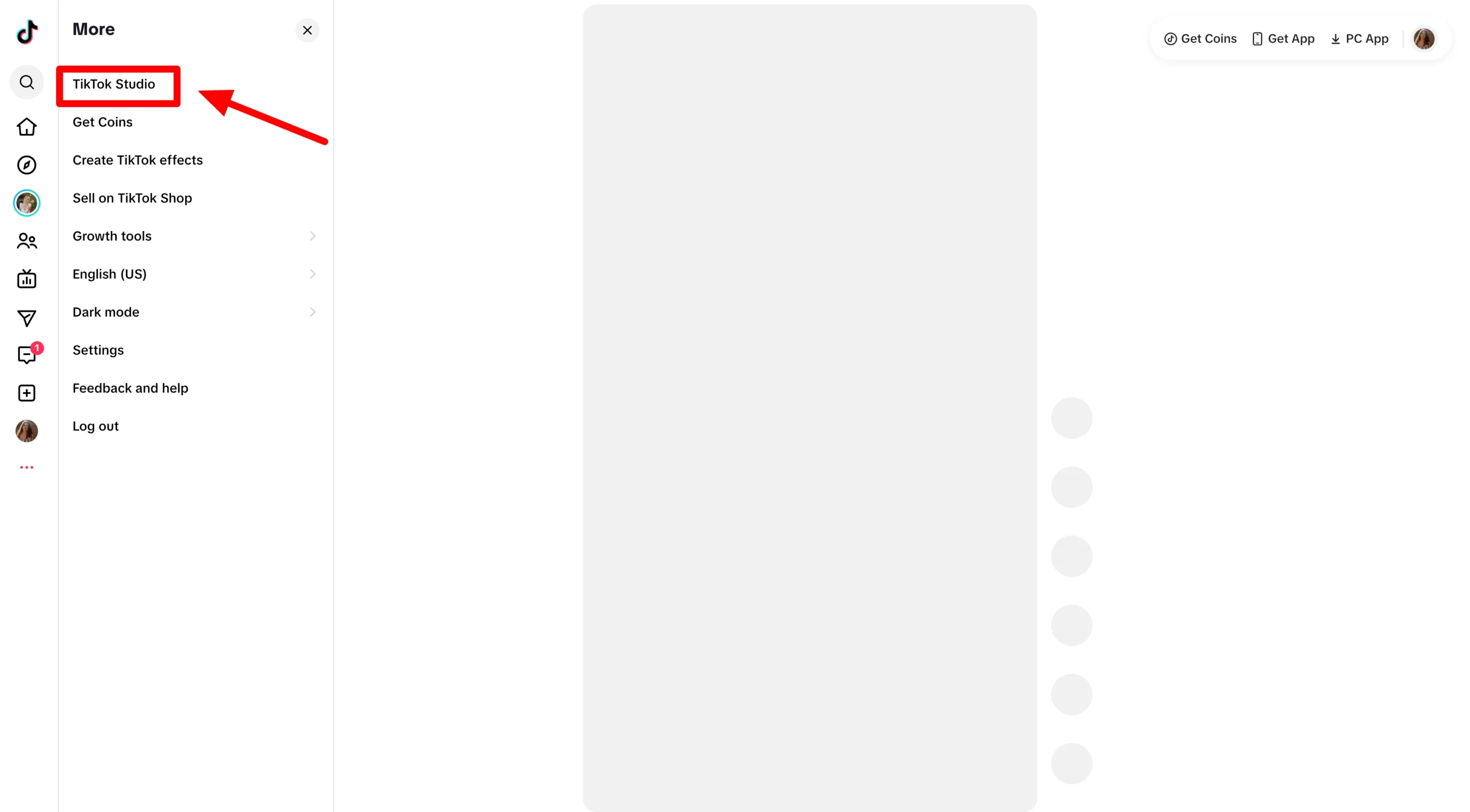
TikTok desktop sidebar menu with an arrow pointing to the “TikTok Studio” option, showing where to access creator tools.

3. Once in TikTok Studio, tap Upload on the left-hand side.
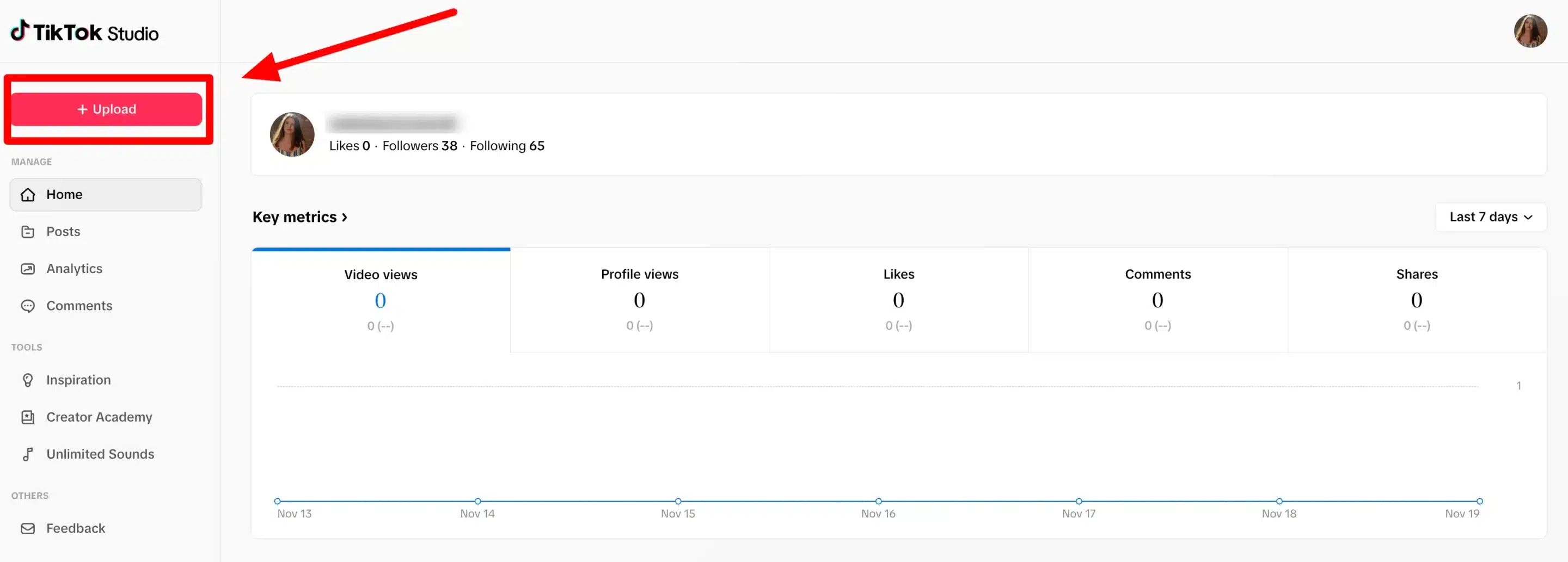
TikTok Studio dashboard showing the “Upload” button highlighted in red, with account stats and key metrics like video views, profile views, likes, comments, and shares displayed below.

4. Upload your video and fill in all details, including captions, hashtags, your cover image, visibility settings, and whether to allow comments, duets, or stitches.

5. Tap the Schedule button and choose your posting time. Consider your audience’s behavior and peak times here.
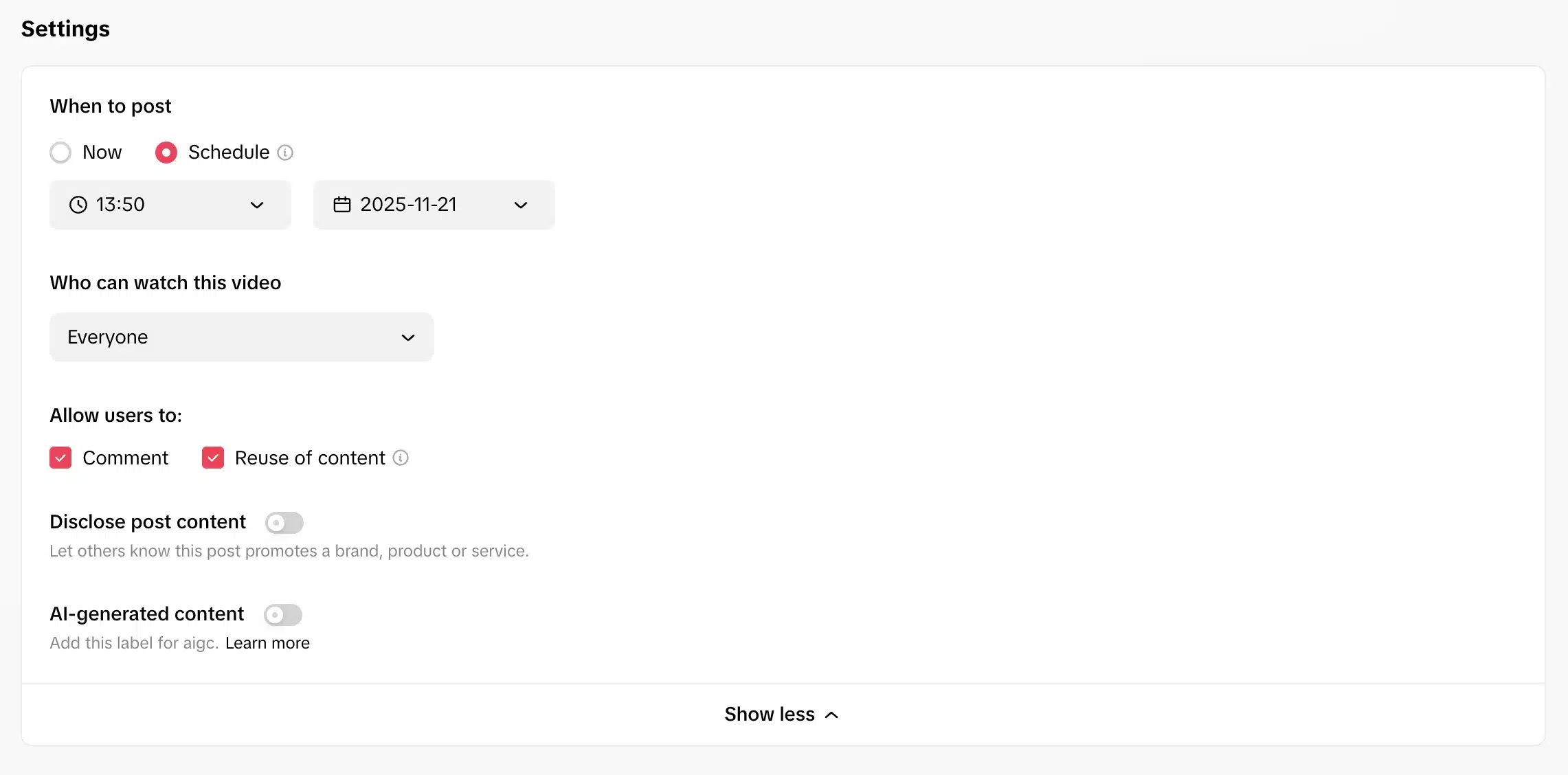
TikTok post settings screen showing scheduled publishing for November 21, 2025, with options for audience visibility, comments, content reuse, and disclosure toggles.

6. Confirm the scheduled time. TikTok will auto-publish your video at the moment you selected.

Once a video is scheduled, you can’t edit it. If you need to make changes, you must delete it and re-upload a new version.

How to schedule TikTok posts with SocialBee

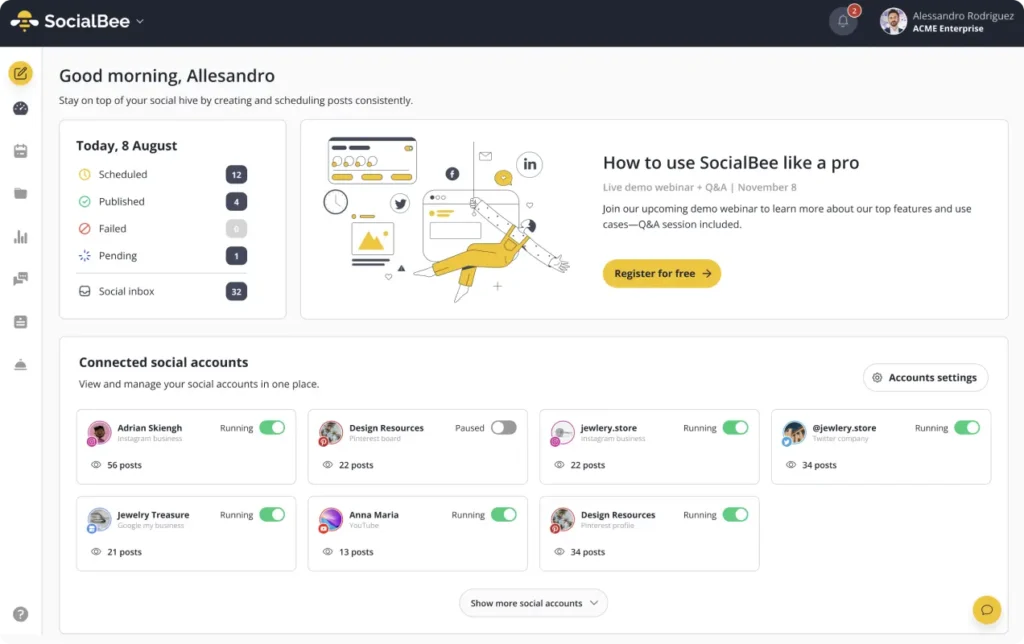
If you want to manage your TikTok content in a more organized way, you can schedule TikTok posts using SocialBee. This gives you a centralized place to plan content, check upcoming posts, adjust posting times across multiple platforms, and work months ahead if needed.

Here’s how to schedule TikTok posts with SocialBee:

1. Click “Create post” at the top of your dashboard to open the Post Editor and start a new TikTok post.
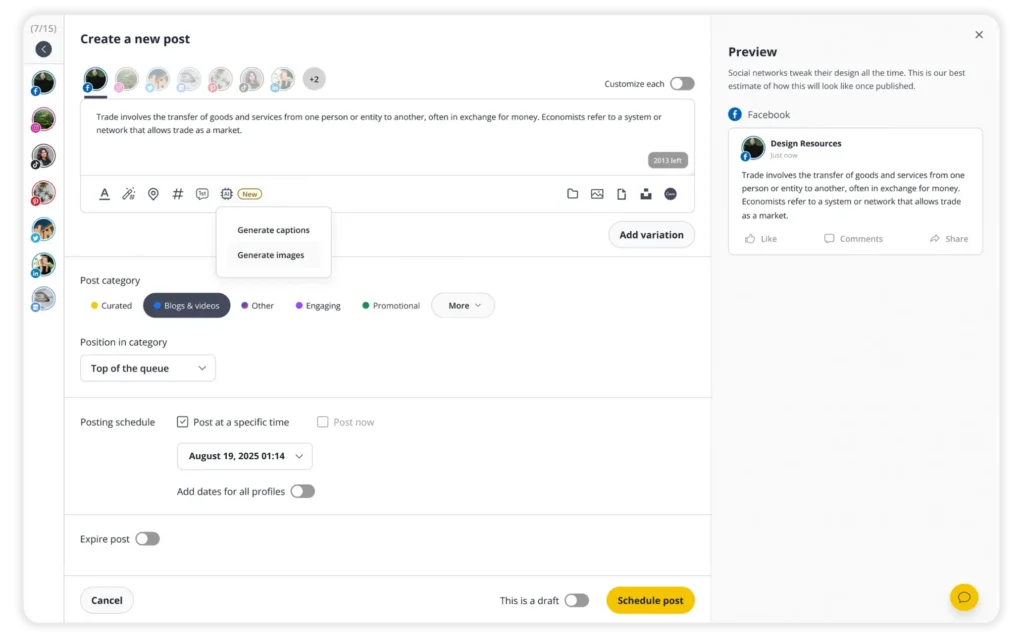
2. Select your TikTok profile from the left sidebar. This loads TikTok-specific settings automatically.

3. Review TikTok-specific options under “Customize each.” Here, you can set privacy controls (Public, Mutual Follow Friends, or Only me).

4. Choose interaction settings. Allow users to comment, duet, or stitch your video by checking the appropriate boxes.

5. (Optional) Add a content disclosure. Turn on the “Content disclosure” toggle and select the correct label (“Your brand,” “Branded content,” or both). SocialBee will apply the appropriate disclosure such as “Promotional content” or “Paid partnership.”

6. Upload your videos or photos. Drag and drop files or upload directly from your device.

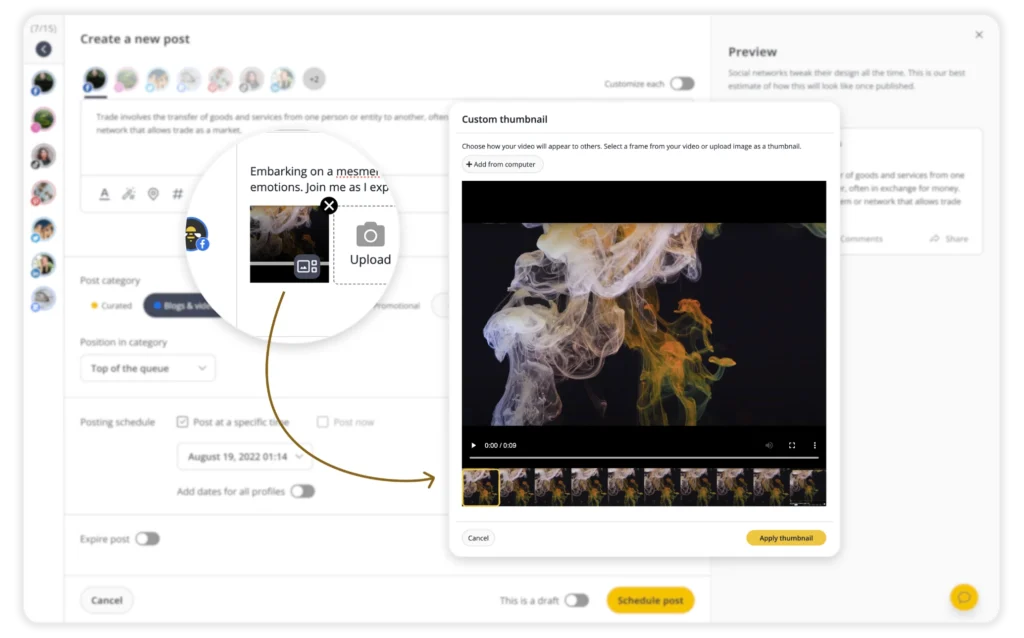
7. Select a thumbnail. Pick a frame from your video to control how it appears on your TikTok profile.

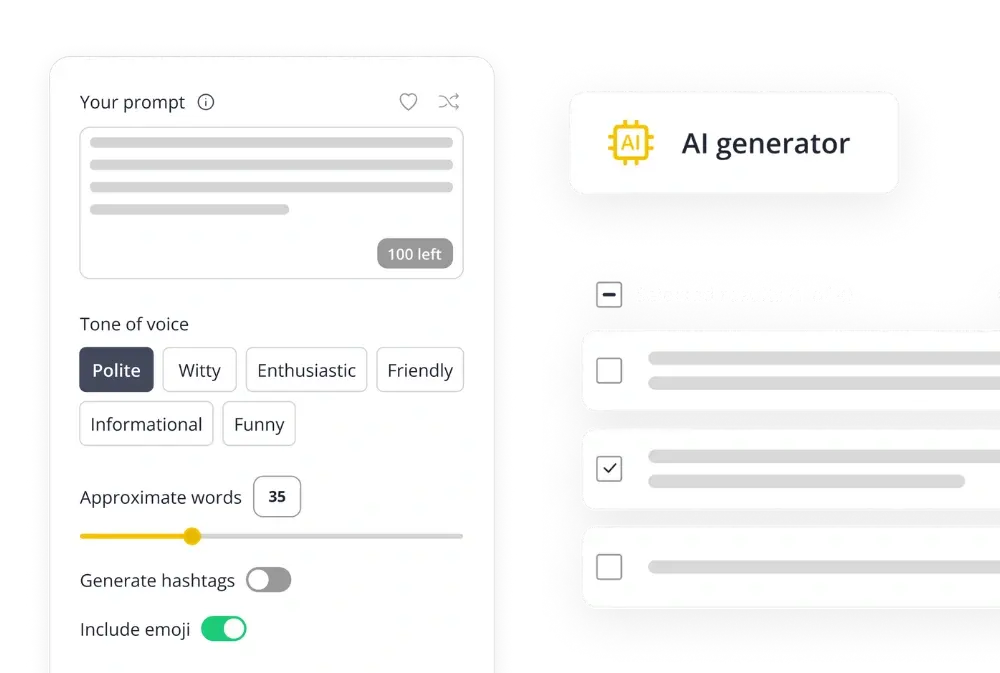
8. Write your caption. Type your description in the text box or click the AI button to generate a TikTok-ready caption automatically.

9. Add hashtags. Use the Hashtag Generator (wand + hashtag icon) to find relevant tags. If you frequently use the same hashtags, save them as a set using the “#” icon.

10. Format your text. Apply bold, italic, or strikethrough and add emojis to match your brand voice.

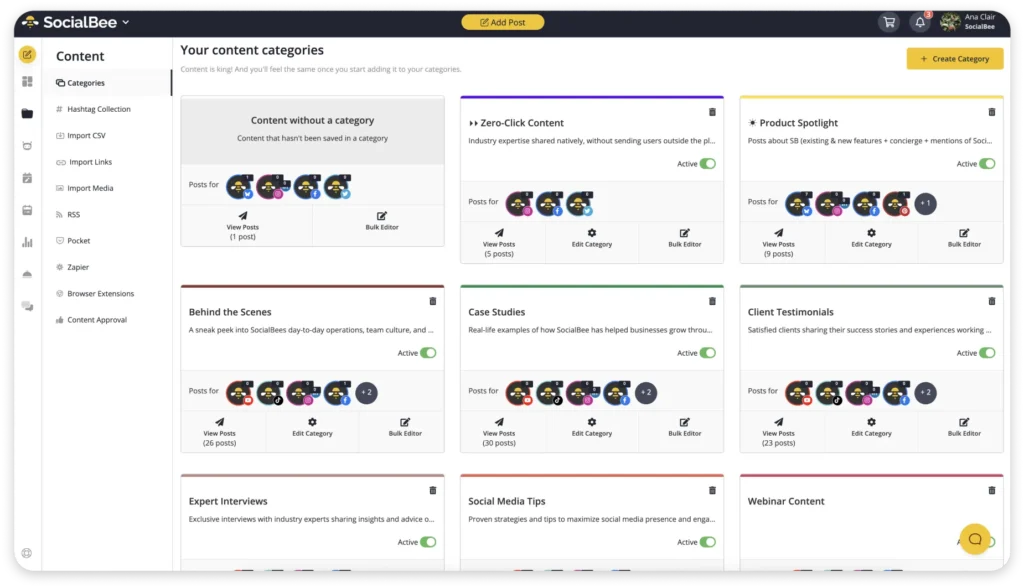
11. Organize your post. Add it to a post category (folder). Creating categories for different TikTok formats (tutorials, product demos, trends) keeps your content mix balanced.

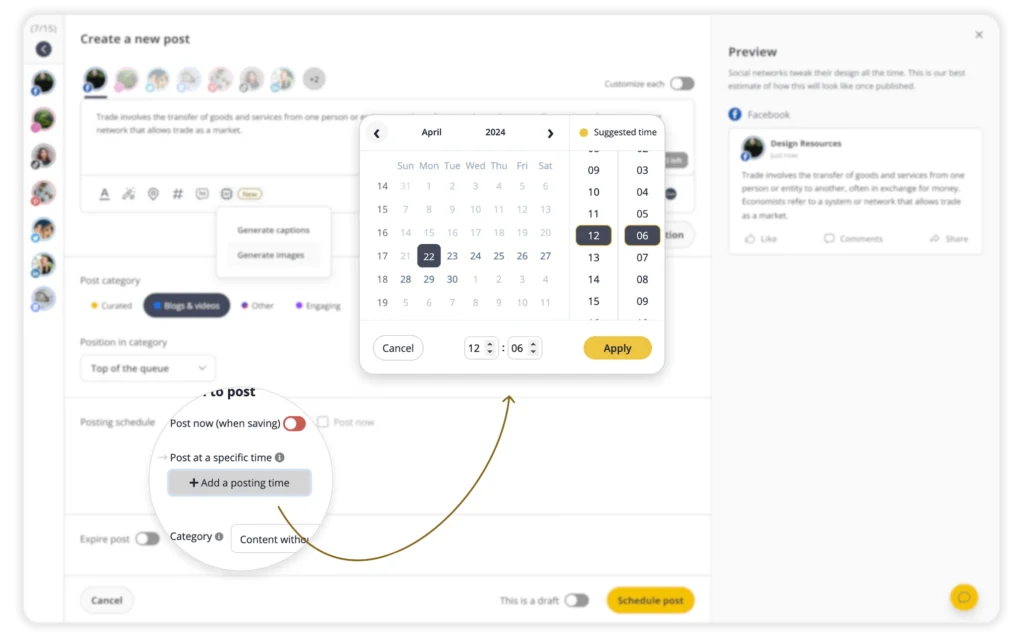
  1. Choose when to publish.
  • Select Post now to publish immediately
  • Or pick Post at a specific time to schedule it.

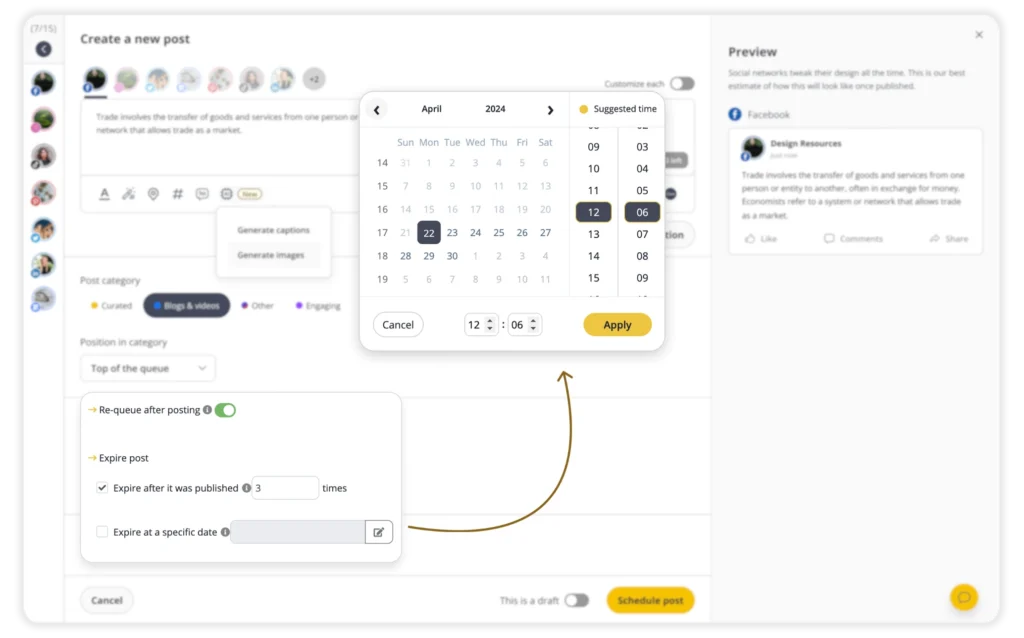
If you choose to schedule, SocialBee will suggest the best posting times based on your TikTok performance data.

11. Set queue options. Turn on Re-queue after posting if you want the content to recycle automatically. You can also set an expiration date.

12. Preview your TikTok post. Review how your video will appear in the main feed and make final edits.

13. Choose approval status.

  • This is approved → SocialBee will auto-publish at the scheduled time
  • This is a draft → The post stays in Drafts until your team approves it

14. Click “Save Post.” Your TikTok video will publish automatically at the selected date and time.

Native TikTok scheduling vs. scheduling with SocialBee

If you only post on TikTok once in a while, TikTok’s native scheduler works fine. You upload a video, pick a time, and you are done. But when you need a predictable workflow, or when you manage content for a brand or multiple clients, the native tool starts to feel limiting. Based on what I’ve seen in day-to-day use, the biggest gaps appear in planning, collaboration, and the ability to work across platforms without jumping between tabs.

TikTok’s native scheduler is functional but limited. It covers the basics, but the workflow is narrow and forces you to work in a very specific way. Some of the biggest constraints include:

  • No full calendar view. You cannot see TikTok posts next to the rest of your content, so planning themes and frequency becomes harder.
  • No collaboration features. There is no built-in way to manage drafts, approvals, or internal feedback.
  • Slow batching. You can only create and schedule one post at a time.
  • No unified analytics. You cannot compare TikTok performance to your other channels in one place.

These issues are small for one account with light posting. They become real bottlenecks when you have deadlines to meet or multiple profiles to manage.

SocialBee gives you a smoother workflow that fits into your larger content system. When you schedule TikTok posts inside SocialBee, you work from one dashboard that already contains your other platforms, your categories, your drafts, and your calendar. This makes the process much more efficient.

Here are the advantages you get with SocialBee:

  • You see everything in one calendar. TikTok content appears alongside your Instagram, Facebook, LinkedIn, Pinterest, and Threads posts, so planning becomes easier and more strategic.
  • Category-based scheduling. Assign your TikTok posts to categories such as tutorials, trends, product demos, or behind the scenes. This helps you maintain variety without rebuilding a schedule every week.
  • Stronger content creation tools. Use AI to generate TikTok captions, apply text formatting, and build hashtag sets.
  • Drafts and team approvals. Switch posts between draft and approved status, leave comments, and collaborate without separate chats or screenshots.
  • Posting time recommendations. SocialBee suggests the best times to publish based on your past TikTok performance.
  • Centralized analytics and PDF reporting. Review TikTok results alongside your other channels and export clean client-ready reports.

TikTok’s native scheduler is a basic tool for publishing later. SocialBee is a full scheduling system that supports real planning, collaboration, and performance tracking. If you need a reliable workflow for a business account or multiple brands, SocialBee is the more efficient long-term solution.

How to optimize your TikTok posting schedule

Once you know how to schedule TikTok posts, the next step is making sure your schedule actually helps your videos perform better. Scheduling TikTok videos is useful, but the results depend on what you post, when you post, and how your audience responds.

Here are a few tips that consistently help creators and small business owners improve their TikTok posting schedule.

1. Stay flexible for trends

A consistent TikTok posting schedule helps you stay present, but leave room in your content calendar for trending sounds, quick reactions, or new ideas. TikTok trends move fast.

If you schedule everything too far in advance, you may miss opportunities tied to trending sounds or quick transitions that are popular that week.

Your schedule should support consistency, not prevent you from joining trends when they matter.

2. Use past posts to inform your timing

Your best-performing TikTok videos reveal a lot about your audience’s behavior. Look at when those videos were posted, how quickly they gained views, and whether certain days or hours led to stronger retention.

78% of TikTokers discover new brands they hadn’t heard of before through TikTok, so making sure your content shows up on your target audience’s For You page can mean an increase in revenue.

Inside TikTok analytics, open the Content tab to check posting times and compare your top videos. Use this information to refine your schedule over weeks or months. You can also get best TikTok posting time suggestions directly from SocialBee’s Post Editor based on past content performance.

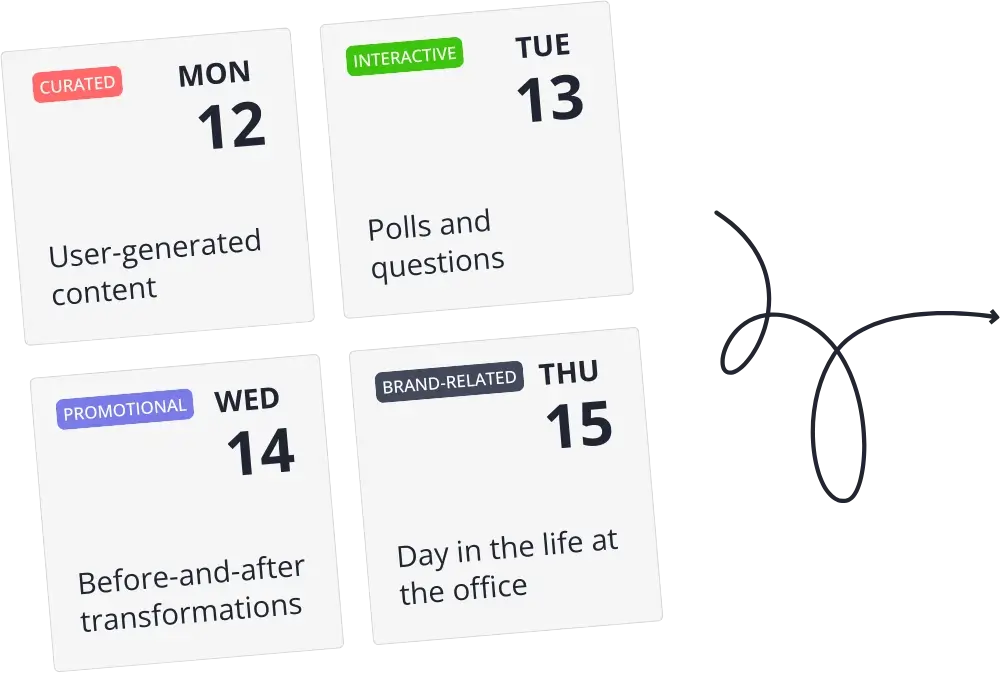
3. Maintain a simple content calendar

A TikTok content calendar helps you see your upcoming posts, track frequency, and avoid posting the same type of content too often. Planning ahead also reduces errors and keeps your social channels aligned, especially if you repurpose TikTok posts for other platforms like Instagram Reels or YouTube Shorts.

If you’re managing multiple TikTok accounts or posting several times per week, having your schedule in a centralized place is essential.

4. Balance the types of TikTok content you post

Your TikTok audience responds better when your content varies. Mix educational clips, product demos, behind-the-scenes content, storytelling, and videos that use trending sounds. Variety helps maintain engagement and improves how the algorithm categorizes your TikTok account.

Balancing categories also keeps your scheduled posts from feeling repetitive.

If you’re unsure how to determine what content types to choose, here is what Millie, online educator and YouTuber, advises: 

“All you have to do is go to your competitor or a niche neighbor or creator that you aspire to be like. Look at their recent videos, see what recent videos are performing well, and then of their top performing videos, go to the comment section. If you want to be a creator like them, their audience is likely your target audience, too. Look to see what comments they’re getting, what sort of questions that audience is asking, and then you could create your own videos based off of feedback you see on other creators’ content.”

5. Consider your posting frequency

Posting consistently matters more than posting constantly. If you’re new, start with three to five posts per week. As your workflow improves, build toward a routine that fits your audience and capacity.

A realistic schedule helps you stay consistent without burning out or lowering quality just to fill a time slot.

6. Constantly engage with your audience

A consistent posting schedule works best when you pair it with active engagement. Responding to comments, answering questions, and showing up in conversations signals to TikTok that your content is worth pushing to more viewers. 

It also strengthens your relationship with your audience. In fact, 79% of TikTok users feel that their brand loyalty increases when they can communicate with it through social media comments.

Frequently asked questions

1. Can you schedule TikTok posts directly in the mobile app?

No, you cannot schedule TikTok posts directly inside the native mobile app. The built-in scheduler is only available when you log into TikTok from a browser, either on desktop or on your phone. If you want to schedule from your phone without opening a browser every time, you will need a third-party tool that supports direct TikTok scheduling.

2. How far in advance can you schedule TikTok posts?

With TikTok’s native scheduler in a browser, you can usually schedule videos up to 10 days in advance. Third-party tools like SocialBee tend to be more flexible, so you can plan weeks or even months ahead. 

3. Can you edit a TikTok after you schedule it?

If you schedule a TikTok directly in TikTok’s own scheduler, you cannot edit the video or caption once it is scheduled. The only way to change it is to delete the scheduled post and upload it again with your updates. Other TikTok scheduling tools make it easier to update the caption or posting time before it goes live, so if you often tweak content last minute, a third-party scheduler is usually more forgiving.

4. Why do I not see the scheduling option on my TikTok account?

If you do not see a scheduling option, there are a few common reasons. You might be using the mobile app instead of a browser, your account might not be set up as a business or creator account, or you may be in a region where TikTok’s scheduler is not fully rolled out. In those cases, scheduling through a social media management tool that supports TikTok can be a simpler solution.

5. Is a business account required to schedule TikTok posts?

Most scheduling options, including TikTok’s own tools and third-party schedulers, work best with a business or creator account. If you are still using a personal profile, switching to a business or creator account usually unlocks more features, including analytics and scheduling, without changing your existing content.

Start scheduling your TikTok posts

Learning how to schedule TikTok posts properly is one of the simplest ways to make your content more consistent without adding more work to your day. Once you set up a workflow that fits you, TikTok becomes a planned channel that runs on a schedule instead of a constant source of pressure.

You can use TikTok’s own scheduler in your browser when you only need the basics, or you can rely on a social media management tool when you want more control over your posting times, analytics, and approvals. From what I have seen, creators and teams get the best results when they combine a clear posting schedule with tools that save them time.

If you want to handle TikTok along with your other social channels, SocialBee lets you create posts, organize them into categories, schedule them at the best times based on past performance, and review detailed analytics in one place. That way, you keep TikTok consistent without living inside the app all day. 

Start your 14-day free trial today and manage all your social media posting in one place.

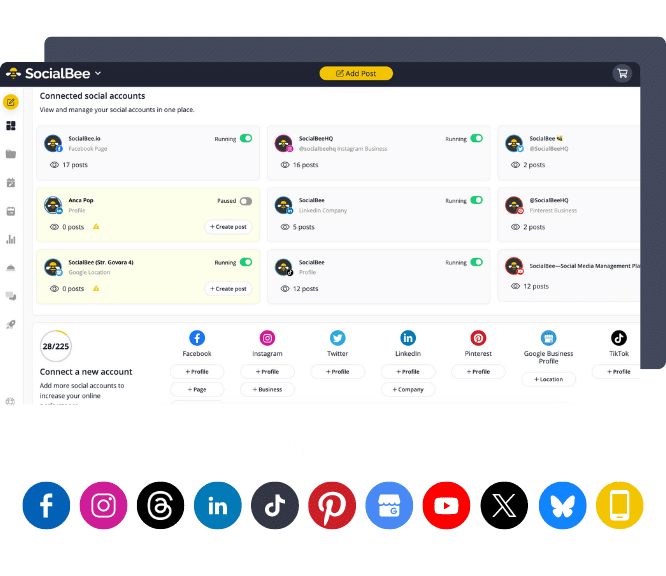
SocialBee blog CTA box visual with the supported platforms
SocialBee: Your AI-powered TikTok scheduler
Create posts, publish, analyze, engage and collaborate, all from SocialBee.
Summarize this post

Manage your social media with SocialBee: publishing, AI assistance, Canva magic, analytics, unified inbox, and more.

SocialBee Supported Social Platforms with Round Logos
14-day free trial, no credit card required

Related articles

Level up your social media marketing with exclusive resources delivered straight to your inbox

We’re SocialBee LABS SRL, part of WebPros. We use the information you provide to share relevant content and product updates, as outlined in our Privacy Policy. You can opt out anytime.

Out of post ideas? Get our FREE social media calendar!

Access 500+ content ideas, post examples, and Canva templates.
We’re SocialBee LABS SRL, part of WebPros. We use the information you provide to share relevant content and product updates, as outlined in our Privacy Policy. You can opt out anytime.

... and turn your ideas in ready-to-share posts in seconds

Use SocialBee’s Free AI Post Generator to create content for your social media profiles.
SocialBee free AI generator