
LinkedIn carousels look different from how they used to. Since LinkedIn removed the old multi-image carousel feature and only kept it for ad creation, the only way to create a swipeable post now is by uploading a multi-page document like a PDF or PPTX.
The good news is that this format still performs extremely well. Carousels keep people swiping longer, increase saves and shares, and give you plenty of space to teach something clearly.
In this guide, I’ll show you how to create, schedule, and post LinkedIn carousels step by step, what tools make the process easier, and the best practices that help your carousels stand out in the feed.

Can you still post carousels on LinkedIn?
Yes, you can still post organic carousel posts on LinkedIn, but not in the way most people remember. LinkedIn removed the native multi-image carousel feature for organic posts, so the only way to create a swipeable carousel in 2026 is by uploading a multi-page document (PDF, PPTX, or DOCX). Once you upload it, LinkedIn automatically displays each page as a slide users can swipe through.
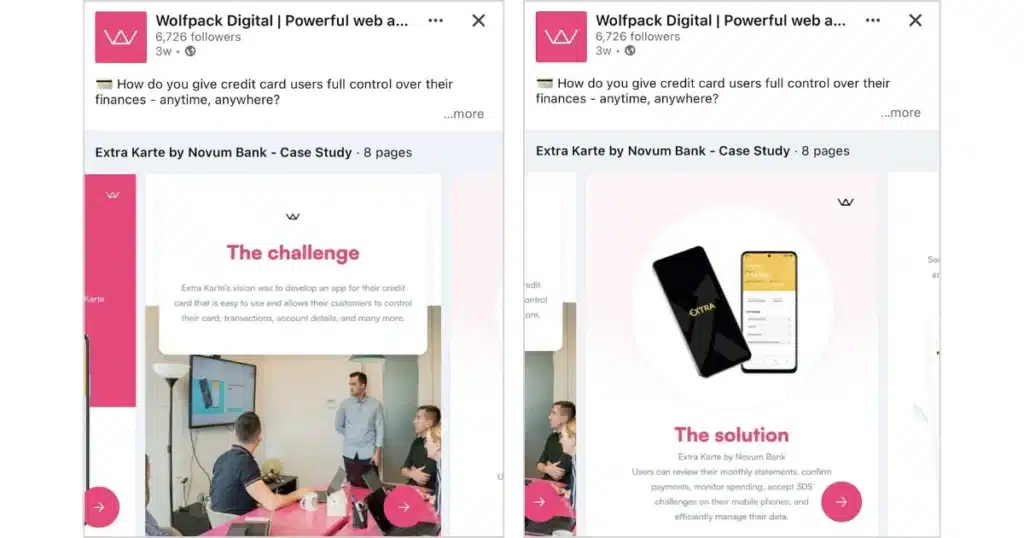
LinkedIn still supports carousel ads with multiple image cards, but that format is only available inside Campaign Manager. If you’re running a LinkedIn carousel ad campaign, this is what your carousel slide will look like.

For everyday organic posting, a multi-page document is the only supported option.
Can you schedule LinkedIn carousels?
Yes, LinkedIn lets you schedule carousel posts as long as you upload them as a multi-page PDF, PPTX, or DOCX. You just add your document, click the clock icon, and pick the time you want it to go live.
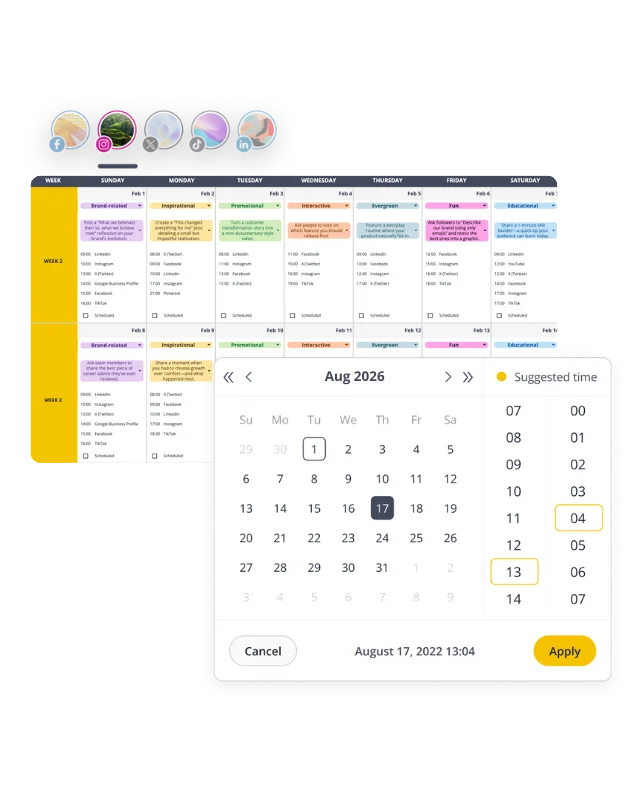
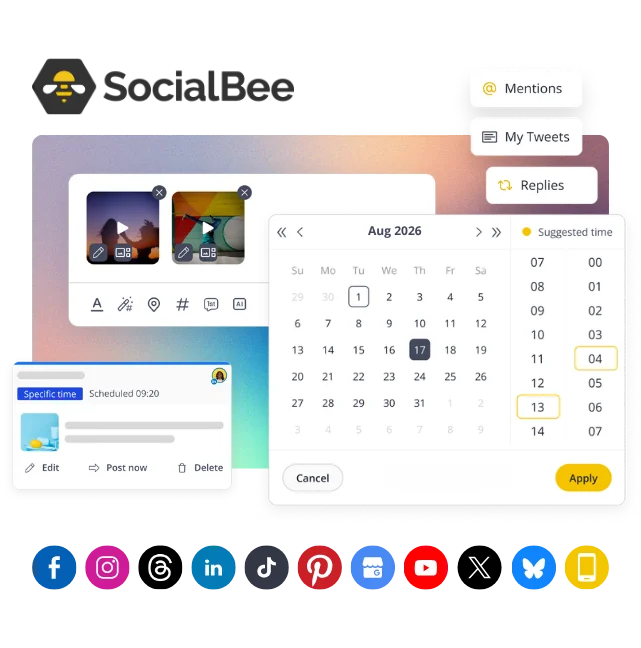
If you need something more flexible, you can schedule carousels in SocialBee. It’s faster when you manage several accounts because you can plan everything in one calendar, use best-time posting suggestions, and keep your workflow organized with categories and approvals.
| 👉 If you want to test SocialBee, you can start a 14-day free trial now and schedule your first LinkedIn carousel today. |
How do I put multiple photos on a LinkedIn post?
To add multiple photos to a LinkedIn post, follow these steps:
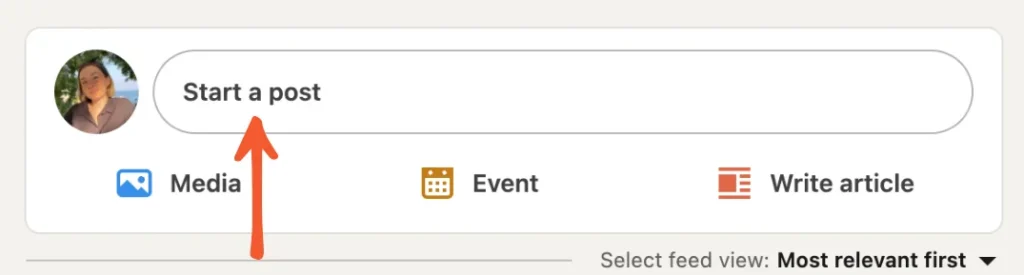
- Log in and click “Start a post” at the top of your LinkedIn feed.
- Click the image icon to upload your photos. LinkedIn lets you crop, filter, zoom, flip, adjust the aspect ratio, and add alt text to each image.
- When you are finished editing, click “Next.”
- Add your caption in the text box.
- Click “Post.”
LinkedIn will then display them together as a simple multi-image grid. This layout works well, but it is not treated as a true interactive carousel.
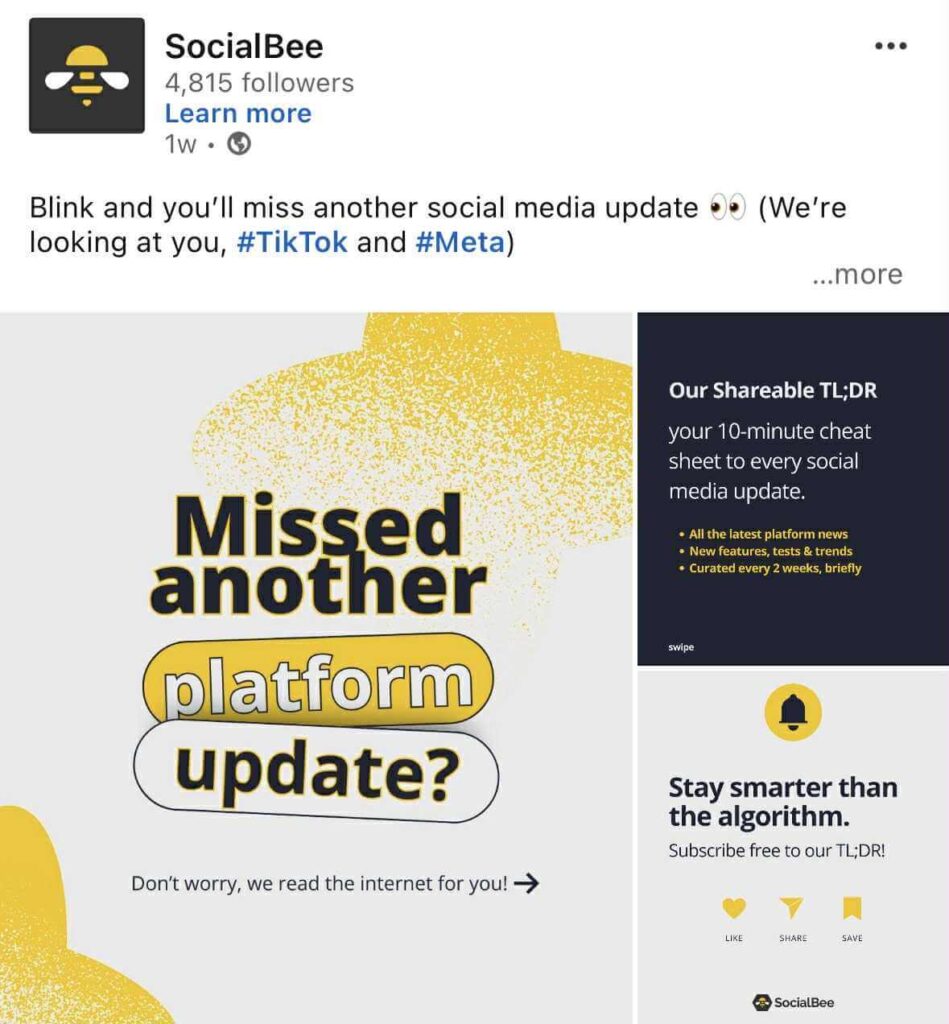
A real LinkedIn carousel is only created when you upload a multi-page PDF or document. Multi-photo posts show images side by side in a static collage, while a document upload lets people swipe through individual slides. If your goal is step-by-step storytelling, education, or breaking down a framework, the document method is the format you should choose.
How many pictures can you post on LinkedIn carousel?
LinkedIn allows up to 300 pages, so in theory, you can create LinkedIn carousel posts with 300 slides. In practice, most people will never need that many.
From what I have seen across high-performing LinkedIn accounts, the ideal length is 6 to 10 slides. This range gives you enough space to teach something or walk through a framework while still keeping people engaged until the end. Anything longer risks drop-off unless every slide delivers clear value.
For LinkedIn carousel ads, the limits are different. Campaign Manager only supports two to ten image cards.
Are carousel posts effective on LinkedIn?
Yes, carousel-style posts are very effective on LinkedIn. Socialinsider’s 2025 LinkedIn Benchmark study, which analyzed 1 million posts from 9,000 business pages published throughout 2024, found that multi-image posts had an average engagement rate of 6.60 percent. Document carousels followed closely at 6.10 percent. Both formats perform better than videos, single images, polls, or text-only posts.
From my experience reviewing LinkedIn analytics for clients, carousels work because they keep people on the post longer. Swiping naturally increases dwell time, and LinkedIn pushes posts that hold attention. A strong carousel also teaches something quickly, which increases saves and shares. These signals tell the algorithm that the content is useful, which leads to even more reach.
What kind of LinkedIn carousels perform well?
The best LinkedIn carousels deliver value quickly and make it easy for people to keep swiping. A strong carousel usually opens with a hook on slide one, follows with proof or insight on slide two, and then moves through a simple problem, insight, and outcome flow. Most strong carousels use 6 to 10 slides, large readable text, and one idea per slide.
These LinkedIn carousel formats consistently work on the platform:
- Step-by-step guides that break a process into simple actions
- Checklists that people can screenshot and use later
- Tips or frameworks that explain a concept clearly
- Mini case studies or data breakdowns that spark curiosity
- Short story arcs with a problem, insight, and outcome
LinkedIn also encourages creators to use carousels for educational content: “We recommend that you share documents that include topics such as career advice, culture stories, insights and trends, event content, and knowledge sharing.” (Source)
What are the requirements for a LinkedIn carousel post?
According to LinkedIn, these are the requirements you need to meet to make your carousel display correctly:
- Use a multi-page file (PDF recommended; PPTX or DOCX also work)
- Keep the file under 100 MB
- Include up to 300 pages/slides
- Use consistent LinkedIn carousel sizes (1080×1080 or 1080×1350 recommended)
- Ensure text is legible with good contrast and padding
How to create a LinkedIn carousel
To create a LinkedIn carousel, design your slides, export them as a PDF, and upload the document to LinkedIn. The platform will display each page as a swipeable slide.
Here’s the step-by-step for creating a LinkedIn document carousel:
- Plan your content and outline what each slide will cover.
- Create your slides in a design tool such as Canva, Adobe, or Figma.
- Set your slide dimensions to 1080 x 1080 or 1080 x 1350.
- Keep every slide clean, readable, and visually consistent.
- Export all slides as one multi-page PDF, PPT, or DOC file.
- Check that your file is under 100 MB and under 300 pages.
- Go to LinkedIn and click “Start a post.”
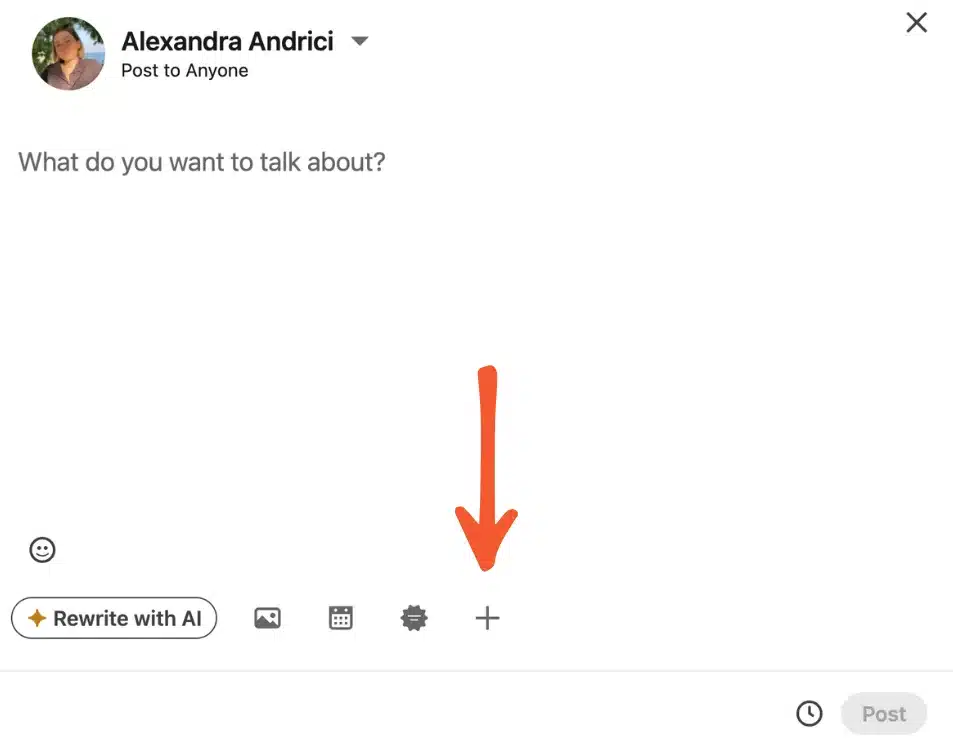
- Click “More”, then select “Add a document”.
- Choose your PDF or document from your computer or cloud storage.
- Add a title for the document. This appears above your carousel.
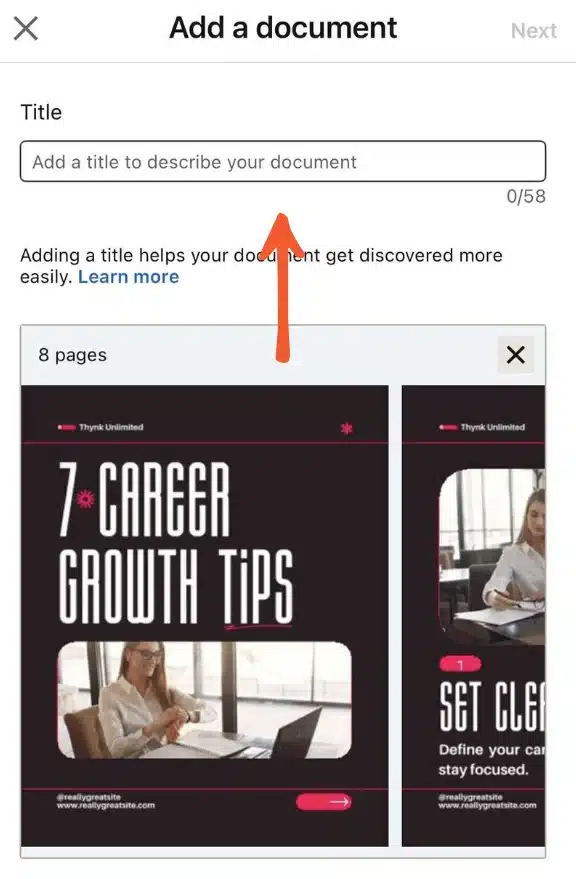
- Write your post caption and add hashtags or mentions if needed.
- Click “Post” to publish your carousel.
Now that you know how to create a carousel post on LinkedIn, let’s look at the tools you should be using.
Top 3 design tools to create LinkedIn carousels
You can design an engaging LinkedIn carousel in almost any graphic tool, but some make the process faster and more reliable. Canva, Figma, and Adobe are the three options I see creators and teams use most often.
1. Canva
Canva is the easiest place to build a LinkedIn carousel.
You can start with a blank canvas or use one of Canva’s ready-made carousel templates, which gives you a head start on layout and structure. From there, you can set your slide size, apply your personal brand kit, and use simple blocks for text and visuals.
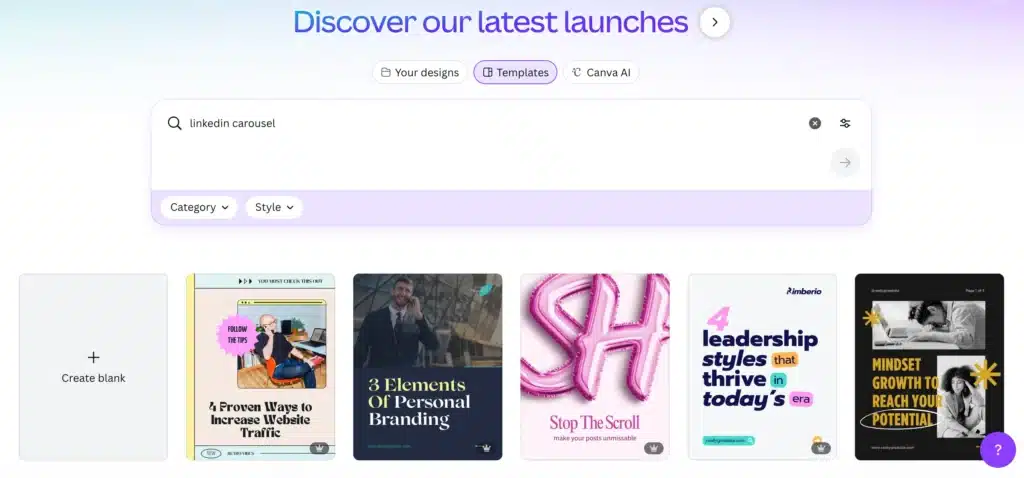
Canva also has built-in icons, charts, shapes, and photo tools that help you explain ideas without needing design experience.
2. Figma
Figma is great when you want a bit more control. You can lay out every slide on one canvas, see the full story at a glance, and fine-tune spacing or typography with ease.
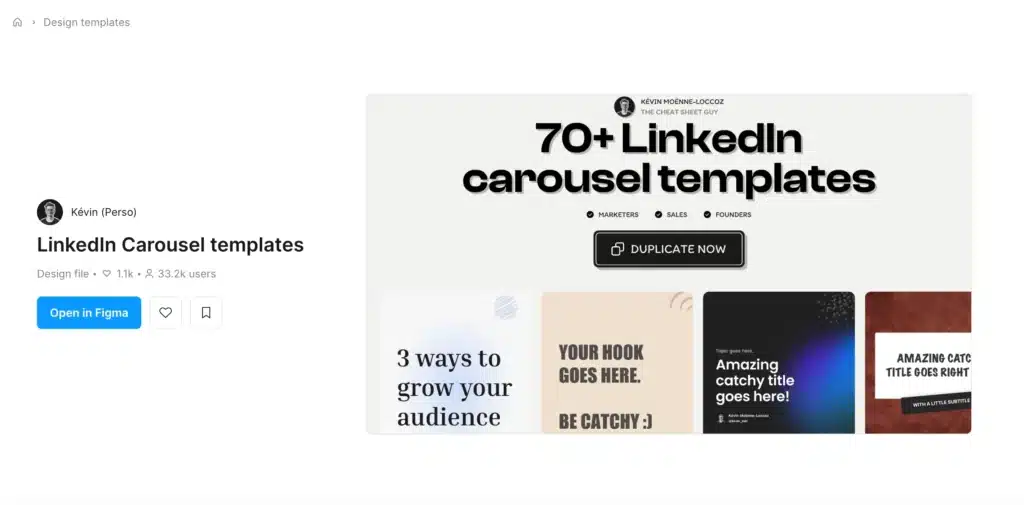
You can copy and paste elements from one slide to another and adjust colors or fonts across your whole project at once.
Figma also makes working with visuals straightforward. You can drag in screenshots, charts, icons, and carousel images, then resize or crop them without losing quality.
If you work with someone else, Figma is great because you can both open the same file at the same time. You can leave comments, suggest edits, or review slides together without sending files back and forth.
3. Adobe
Adobe tools work well for carousels that are more design-heavy.
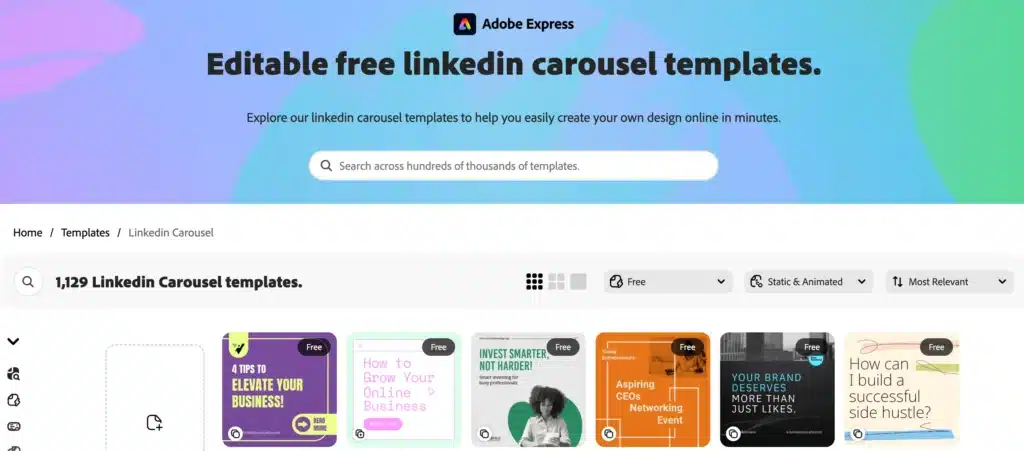
Illustrator and Photoshop are best for custom graphics or illustrations, while InDesign is made for multi-page layouts. You get more control over fonts, color, and visuals, so your slides have a more polished, editorial feel.
How to schedule LinkedIn carousel posts
Scheduling a LinkedIn carousel works differently depending on whether you use LinkedIn or a third-party LinkedIn scheduler like SocialBee.
Posting natively on LinkedIn vs with a third-party scheduler
LinkedIn’s built-in scheduler works well if you only need to plan the occasional post. You can schedule text, images, videos, and PDF carousels, choose a future date and time, and manage everything from desktop or mobile. You can also view, edit, reschedule, or delete your scheduled posts from the scheduler dashboard.
Where the LinkedIn native scheduler becomes limiting:
- You can only schedule up to 3 months ahead.
- No bulk scheduling: every post must be scheduled manually.
- You cannot switch between multiple LinkedIn Pages or profiles and schedule them from one place.
- There are no approval workflows, shared drafts, internal notes, or role-based permissions.
Using a third-party scheduler makes posting easier, especially when you manage more than one account or publish often. SocialBee keeps everything in one place, so you do not have to switch between tools or repeat the same steps over and over.
SocialBee helps you manage your LinkedIn posts alongside content for Facebook, Instagram, X (Twitter), Pinterest, Threads, Bluesky, TikTok, YouTube, and Google Business Profile.
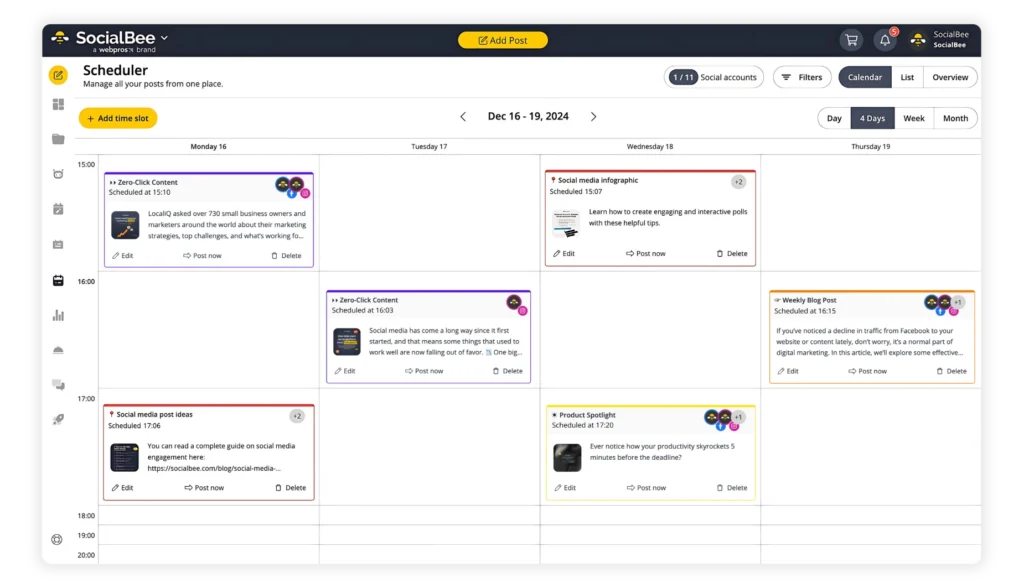
It suggests the best times to post based on your past LinkedIn performance, organizes your content with categories, and makes teamwork easier with notes, approvals, and role-based permissions.
You can plan everything in a visual calendar, schedule posts in bulk, and create faster using AI tools for captions, images, and hashtags. SocialBee also gives you analytics, PDF reports, and an easy way to reuse your top-performing posts.
| 👉 If you want to test this process directly, you can start a free trial of SocialBee and schedule your first LinkedIn carousel today. |
How to schedule LinkedIn carousel posts natively
If you prefer using LinkedIn’s built-in scheduler, the process is simple on both desktop and mobile. The steps are slightly different depending on the device you are using, but the workflow is the same: write your post, upload your PDF carousel, choose a future date and time, and confirm the schedule.
How to schedule a LinkedIn carousel natively on desktop:
- Click “Start a post” at the top of your LinkedIn homepage.
- Add your caption in the “What do you want to talk about?” box.
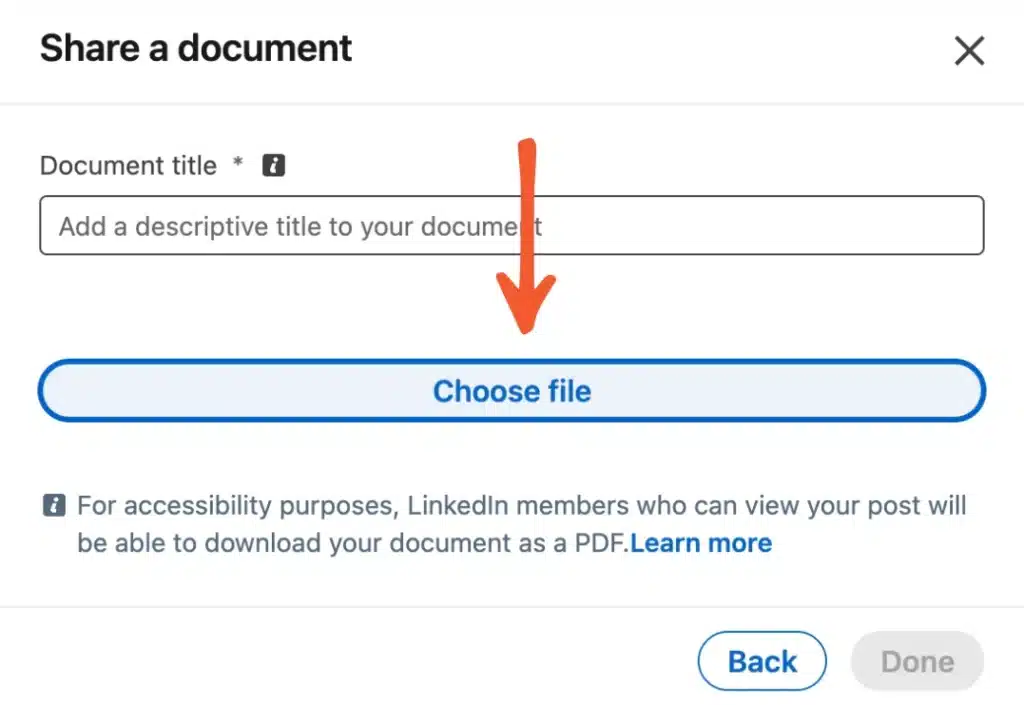
- Add your document carousel by clicking “+” and selecting “Add a document.”
- Upload your PDF file or document and add a title.
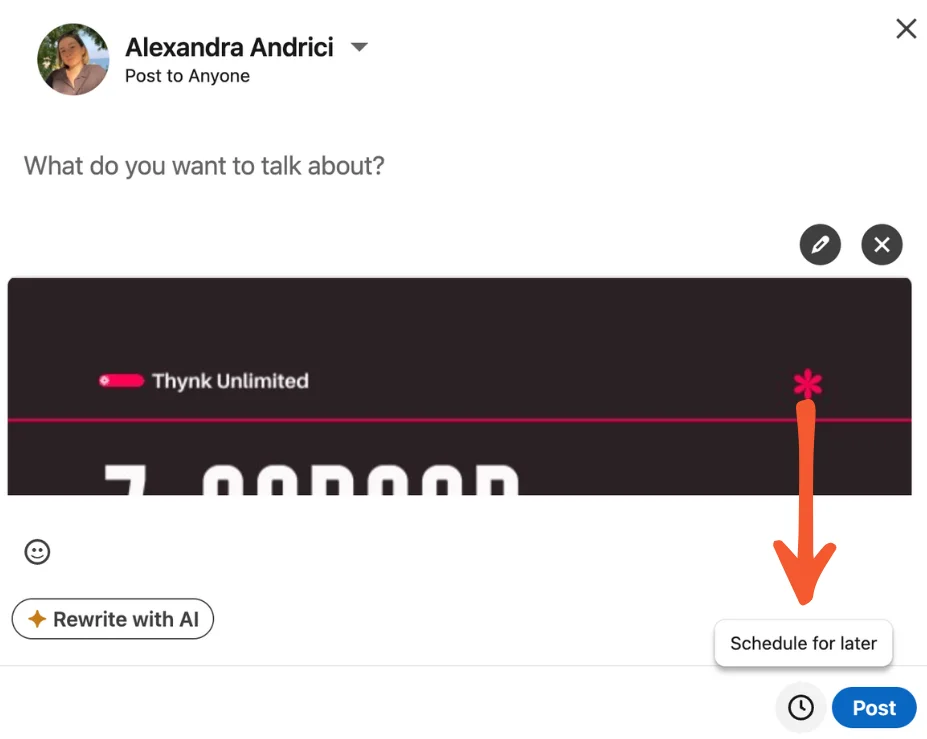
- Click the clock icon in the lower right corner to open the scheduler.
- Choose your publish date and time. LinkedIn lets you schedule up to 3 months ahead.
- Click “Next” to confirm your choice.
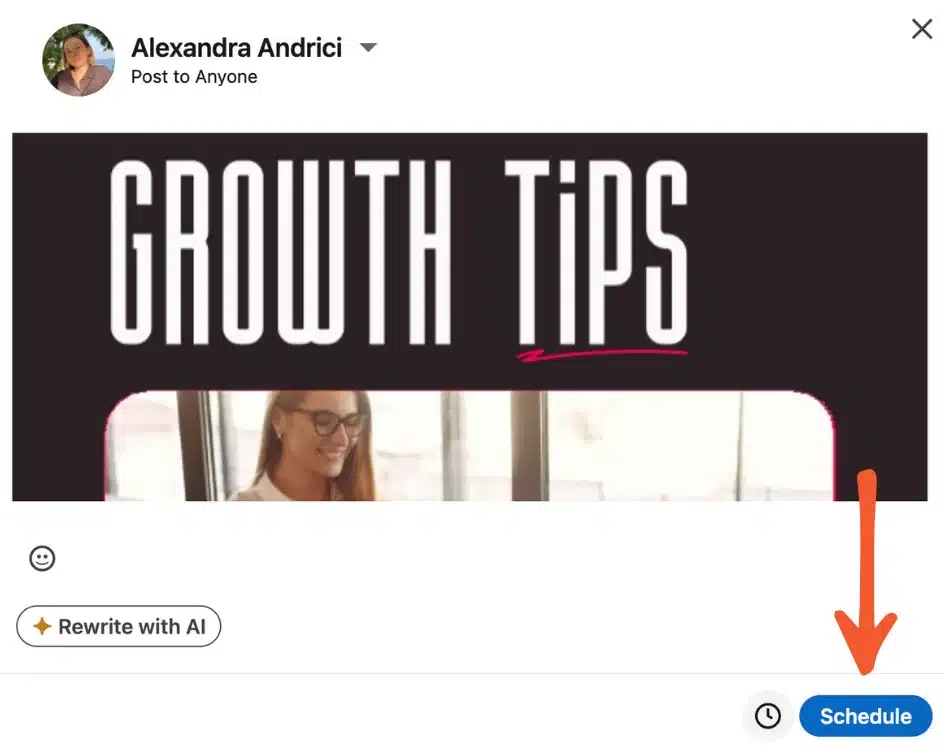
- Click “Schedule” to finalize it.
How to schedule a LinkedIn carousel natively on mobile:
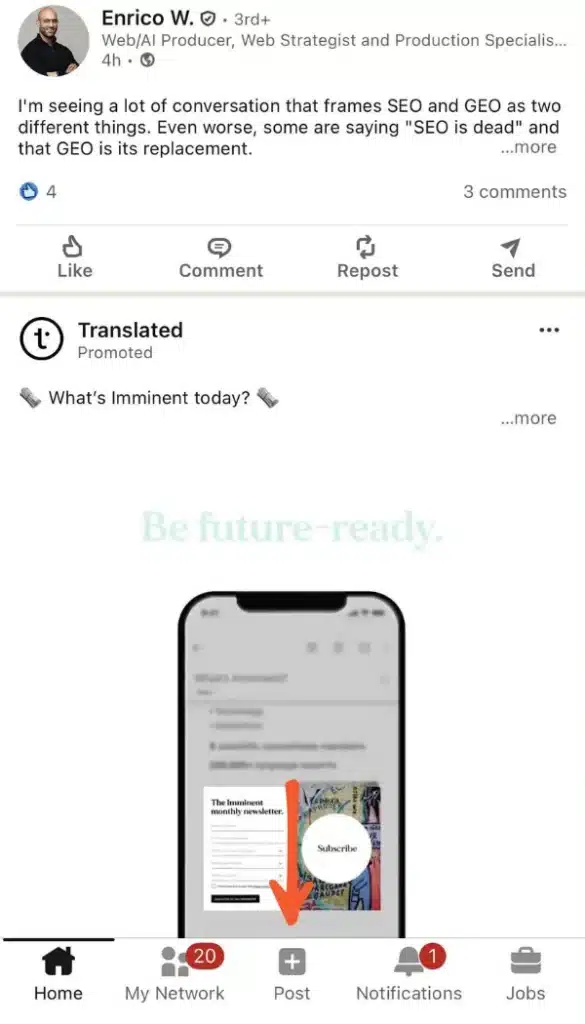
- Tap “Post” from the bottom bar of your screen.
- Type your caption in the “What do you want to talk about?” box.
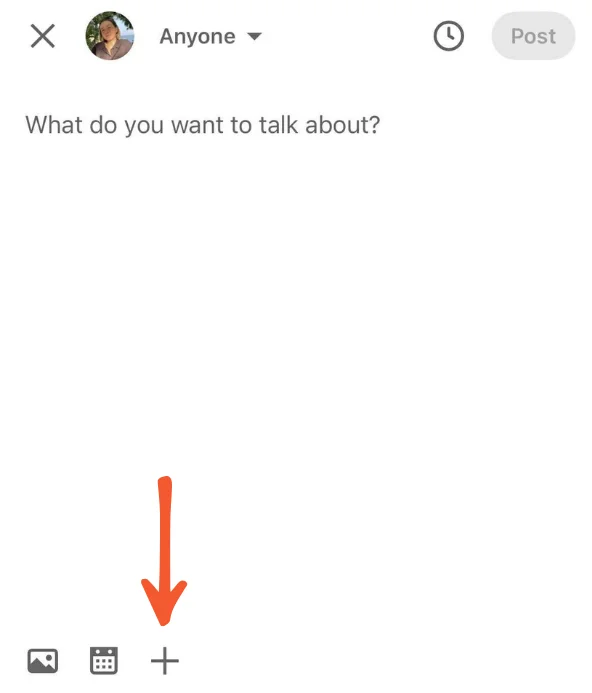
- Add your PDF carousel by tapping “+” and selecting “Document.”
- Upload your file and add a title.
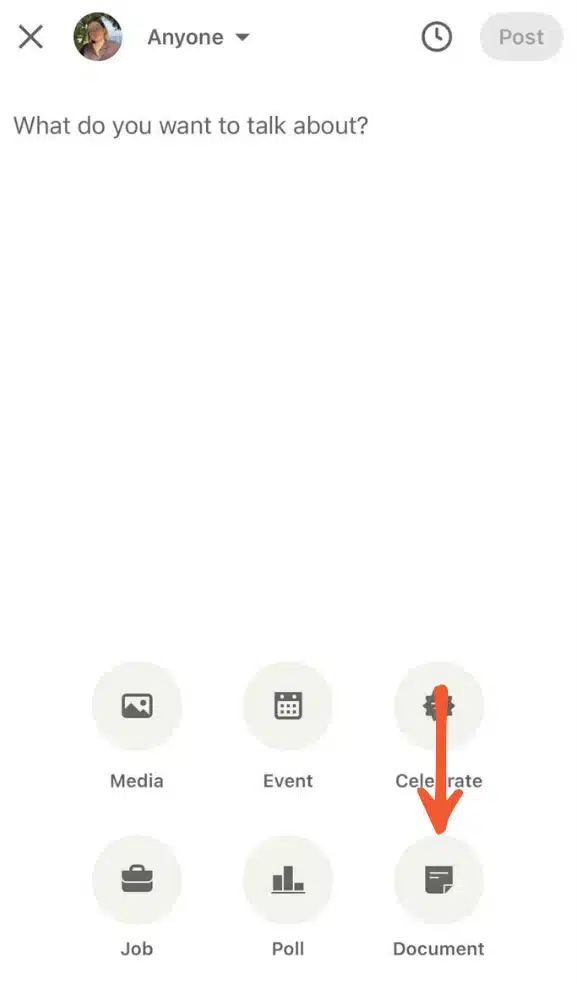
- Tap the clock icon in the upper-right corner.
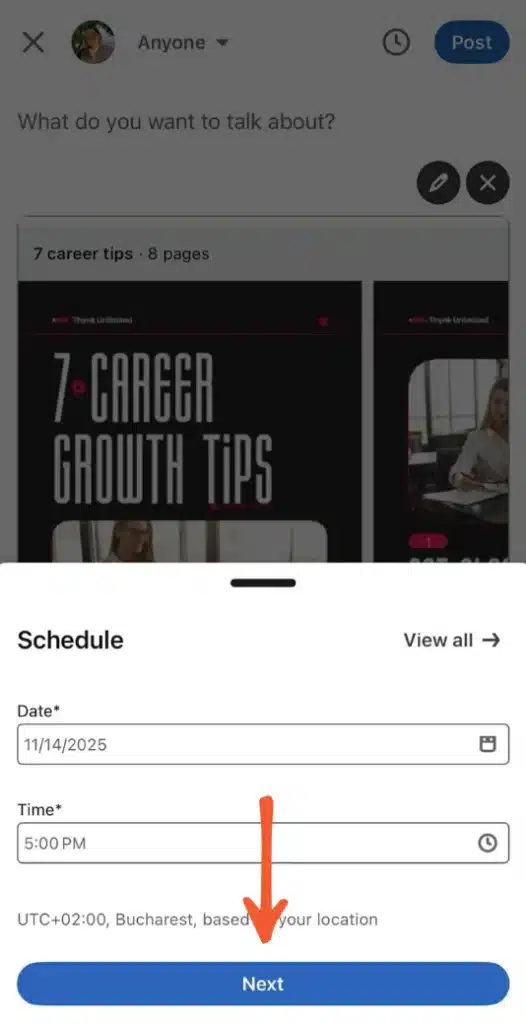
- Choose your date and time.
- Tap “Next” to confirm.
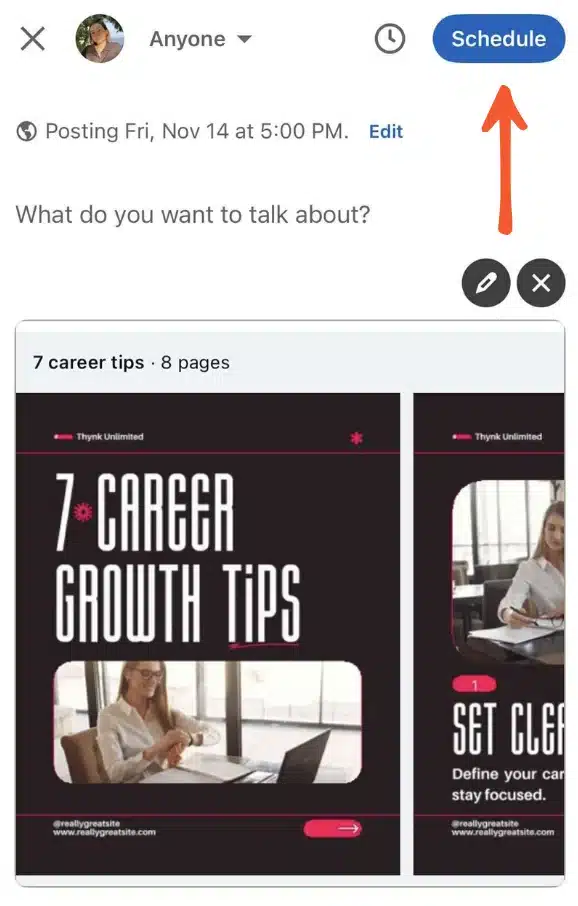
- Tap “Schedule” in the upper-right corner.
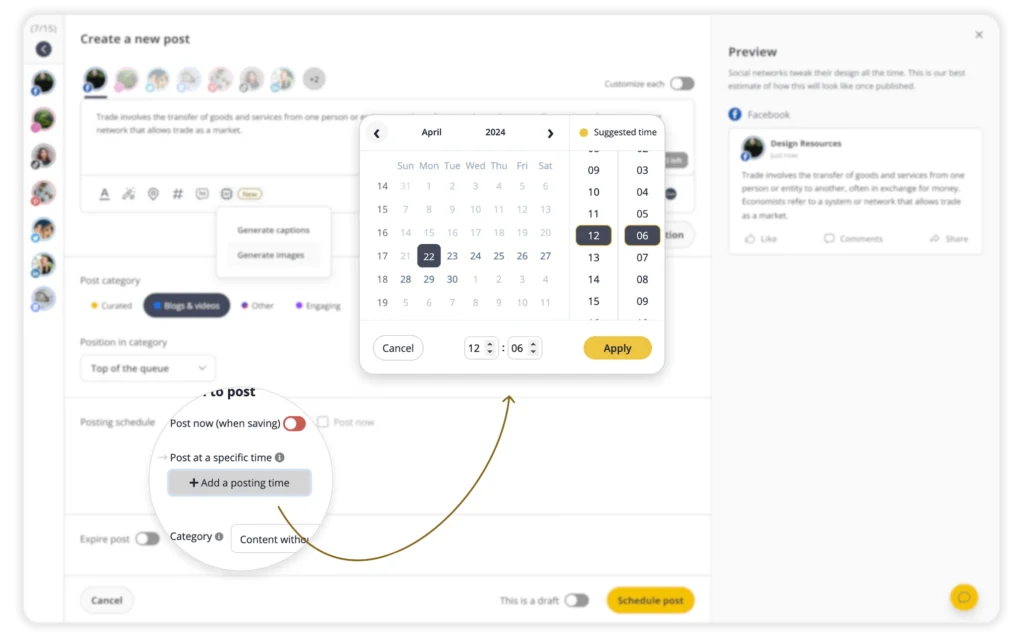
How to schedule LinkedIn posts with SocialBee:
If you want more control, especially when you publish often or manage several accounts, scheduling your LinkedIn carousels in SocialBee gives you a smoother workflow. Everything happens in one place, from writing your caption to choosing the best posting time.
How to post a carousel on LinkedIn (mobile and desktop)
You can upload a PDF carousel directly to LinkedIn from your homepage, a LinkedIn Page, or a Group. The process is almost the same on desktop and mobile.
How to upload a carousel on desktop:
- Click “Start a post” at the top of your LinkedIn homepage.
- Click “More”, then select “Add a document”.
- Click “Choose file” and upload your PDF, PPT, PPTX, DOC, or DOCX file.
- If you prefer, you can also select a file from Dropbox or Google Drive.
- Add a title for your document. This title appears above your carousel.
- Add your caption in the text box.
- Use “@” to mention people or pages, and add hashtags if needed.
- Click “Post” to publish your carousel.
How to upload a carousel on mobile
- Tap “Post” in the bottom navigation bar.
- Type your caption in the “What do you want to talk about?” field.
- Tap “More” (the three dots), then select “Add a document”.
- Choose your PPT, PPTX, DOC, DOCX, or PDF document from your phone or cloud storage.
- Add a title for your document.
- Add hashtags or mentions using “@” if needed.
- Tap “Post” to publish your carousel.
LinkedIn carousel examples and best practices
1. Design the first slide to stop the scroll
Slide one is the most important part of your carousel because it decides whether people swipe or keep scrolling. Think of it as a headline. It should make a clear promise, spark curiosity, or address a specific problem your target audience cares about.

Here’s what slide one should include (with examples):
- A clear, specific headline – “5 LinkedIn mistakes hurting your reach”
- A direct value promise so people know why they should swipe – “A simple framework to write better carousel hooks”
- A fact or statistic that triggers curiosity – “Document posts get 6.10 percent engagement. Here’s why.”
- A surprising take or opinion that sparks conversation – Your carousel problem isn’t the design. It’s slide two.”
- A small cue to swipe, like an arrow in the corner
2. Keep one idea per slide
The fastest way to ruin a LinkedIn carousel is to cram too much into each slide. When people have to work hard to understand what they are reading, they stop swiping. One clear idea per slide keeps the story easy to follow and makes your content feel “light” even if the topic is complex.

Here is what that looks like in practice:
- Slide 1: The main promise or hook
- Slide 2: The key context or proof
- Slide 3: Step 1
- Slide 4: Step 2
- Slide 5: Step 3
- Slide 6: Summary or takeaway
3. Use a clean, readable design
Clean design does not mean boring. It means intentional. When your layout supports your message instead of competing with it, the reader stays engaged through multiple slides.
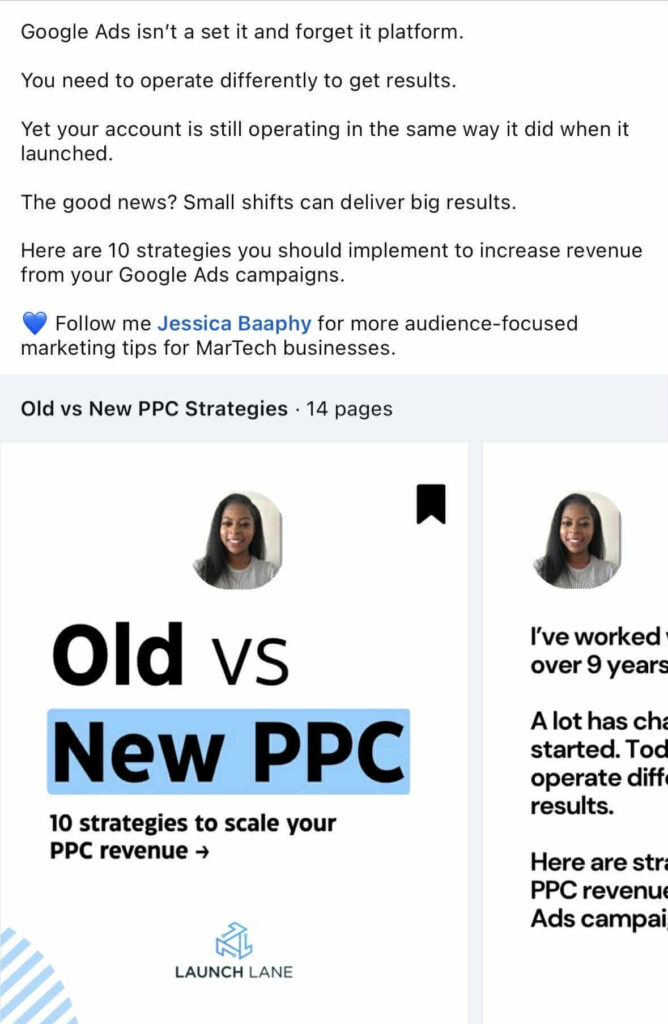
Here is how to keep your design clean:
- Use large, simple fonts.
- Two to three colors keep your slides consistent and help important elements stand out.
- Keep your backgrounds simple; busy textures distract from your message.
- Use icons or shapes instead of long explanations.
- More space around your text makes the slide feel lighter and easier to digest.
4. Tell a simple story
A strong LinkedIn carousel follows a clear path from start to finish. You do not need a complex narrative.
What works best is a simple story that leads the reader through each slide without confusion. A reliable structure looks like this: problem → insight → steps → takeaway → CTA.
5. Use “breadcrumbs” to keep people swiping
Once someone makes it past slide two, your goal is to keep them moving. “Breadcrumbs” are tiny cues that hint that more value is coming, which keeps the reader curious enough to continue swiping. These cues work because they create momentum.
For example, a small phrase at the bottom, like “Next: The step that matters most” or a teaser that previews the next slide, such as “The real mistake is coming up.”
Breadcrumbs work best when they feel natural and do not distract from your main point. Their only job is to create gentle forward motion. If you give readers clear reasons to swipe, they are much more likely to reach your final slide.
Ready to post your first swipeable carousel post?
LinkedIn carousels may work differently now, but they’re still one of the easiest ways to share clear, useful content on the platform. Once you get comfortable creating a simple multi-page PDF, posting a carousel becomes a straightforward part of your workflow.
If you want a simpler way to plan and schedule your LinkedIn carousels, SocialBee can help. It lets you organize your posts, choose the best posting times, and schedule everything from one place, which is especially helpful when you publish often or manage multiple accounts.
👉 If you want to test this process directly, you can start a free trial of SocialBee and schedule your first LinkedIn carousel today.