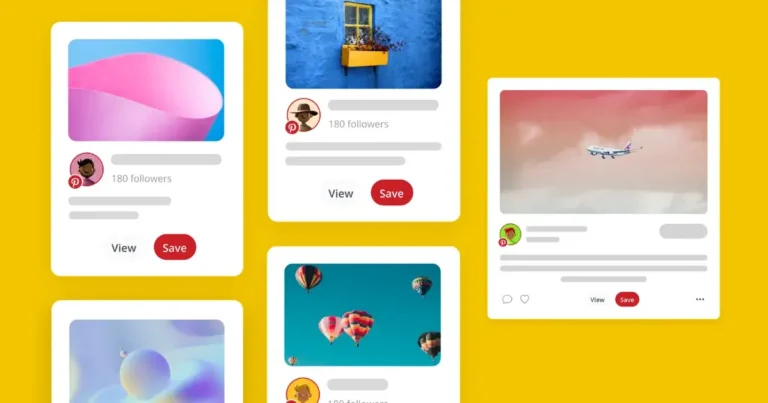


Learning how to use Pinterest in 2026 is a little different from learning how to use Instagram, TikTok, or Facebook. While most social platforms focus on real-time content and conversations, Pinterest functions more like a visual search engine where people actively look for ideas, solutions, products, and inspiration.
That’s what makes Pinterest so valuable for creators and businesses. A single pin can continue appearing in search results, generating saves, outbound clicks, and website traffic months after it’s published. Instead of competing for attention in a fast-moving feed, your content can keep working long after you create it.
In this guide, I’ll show you exactly how Pinterest works, how to set up your Pinterest account, create and organize boards, find ideas through Pinterest search, publish content that gets discovered, and use Pinterest for business growth.

1. Understanding Pinterest as a social media platform
1.1. What is Pinterest?
Pinterest is a social media platform that is used like a visual search engine where people search for ideas, save content, and plan future projects. You can think of it as a collection of digital pin boards where users organize images, videos, products, articles, recipes, and inspiration around specific topics.
People use Pinterest to find ideas for almost anything:
- Home decor projects
- Fashion and style inspiration
- Travel planning
- DIY projects
- Recipes and meal planning
- Business and marketing ideas
When users find something useful, they save it to their own boards so they can revisit it later. The platform is designed to help people discover, save, and organize ideas rather than keep up with friends or influencers.
1.2. What makes Pinterest different from other social media platforms?
Pinterest looks like a social media platform, but it behaves much more like a search engine.
On Instagram, TikTok, and Facebook, users typically scroll through a home feed filled with recent content. Most posts receive the majority of their engagement within a few hours or days before disappearing.
Pinterest works differently. Users open the platform with a goal in mind and use the search bar to find specific ideas, products, tutorials, or inspiration. The Pinterest algorithm then shows the most relevant pins based on keywords, relevance, and user behavior rather than simply showing the newest content.
That’s why a blog post, product page, or tutorial pinned today can continue appearing in search results months or even years later.
Some of the biggest differences include:
Other social platforms | |
Functions as a visual search engine | Functions as a social feed |
Users actively search for ideas | Users passively browse content |
Content is organized into pin boards | Content is organized by timelines |
SEO and keywords matter heavily | Recency and engagement matter more |
Pins can drive traffic for years | Most posts have a short lifespan |
For creators and businesses, this makes Pinterest one of the few platforms where content can continue generating website visits, outbound clicks, and sales long after it was published.
Pinterest’s focus on visual discovery aligns with how many people actually shop. In a survey conducted by Pinterest and Retail Week, 52% of UK consumers said they struggle to describe what they’re looking for in words, while one in three already discover new brands through visual platforms, highlighting why image-led content can be so effective for reaching potential customers.
1.3. How do people use Pinterest?
Most people use Pinterest to plan, research, and collect ideas.
Some users arrive with a specific search in mind. Others browse to spark inspiration for future projects. Either way, they’re usually looking for something useful. 80% of the people that use Pinterest weekly feel inspired by their experience shopping on there, so it’s a great opportunity to reach buyers.
For example, someone might use Pinterest to:
- Create a mood board for a home renovation
- Save images from different boards before a vacation
- Find recipes for an upcoming event
- Discover products before making a purchase
- Collect style inspiration for a new wardrobe
- Research ideas for an Etsy shop
- Learn how to complete DIY projects through step-by-step tutorials
One thing I’ve always found interesting about Pinterest is how intentional the platform feels. People aren’t usually scrolling because they’re bored. They’re searching because they want an answer, a solution, or new ideas.
That intent is a big reason why Pinterest works so well for businesses and creators. When someone discovers your content, they’re often already interested in the topic, product, or problem you’re helping them solve.
2. Navigating the Pinterest interface
Pinterest is fairly easy to learn once you understand the purpose of each section. Most of your activity will revolve around discovering pins, saving ideas, organizing boards, and creating your own content.
Here’s what each part of the platform does.
2.1. Home feed
The home feed is the first thing you’ll see when you open Pinterest.
This page contains a personalized stream of suggested pins based on your interests, searches, saved pins, and activity. The more you use Pinterest, the better the recommendations become.
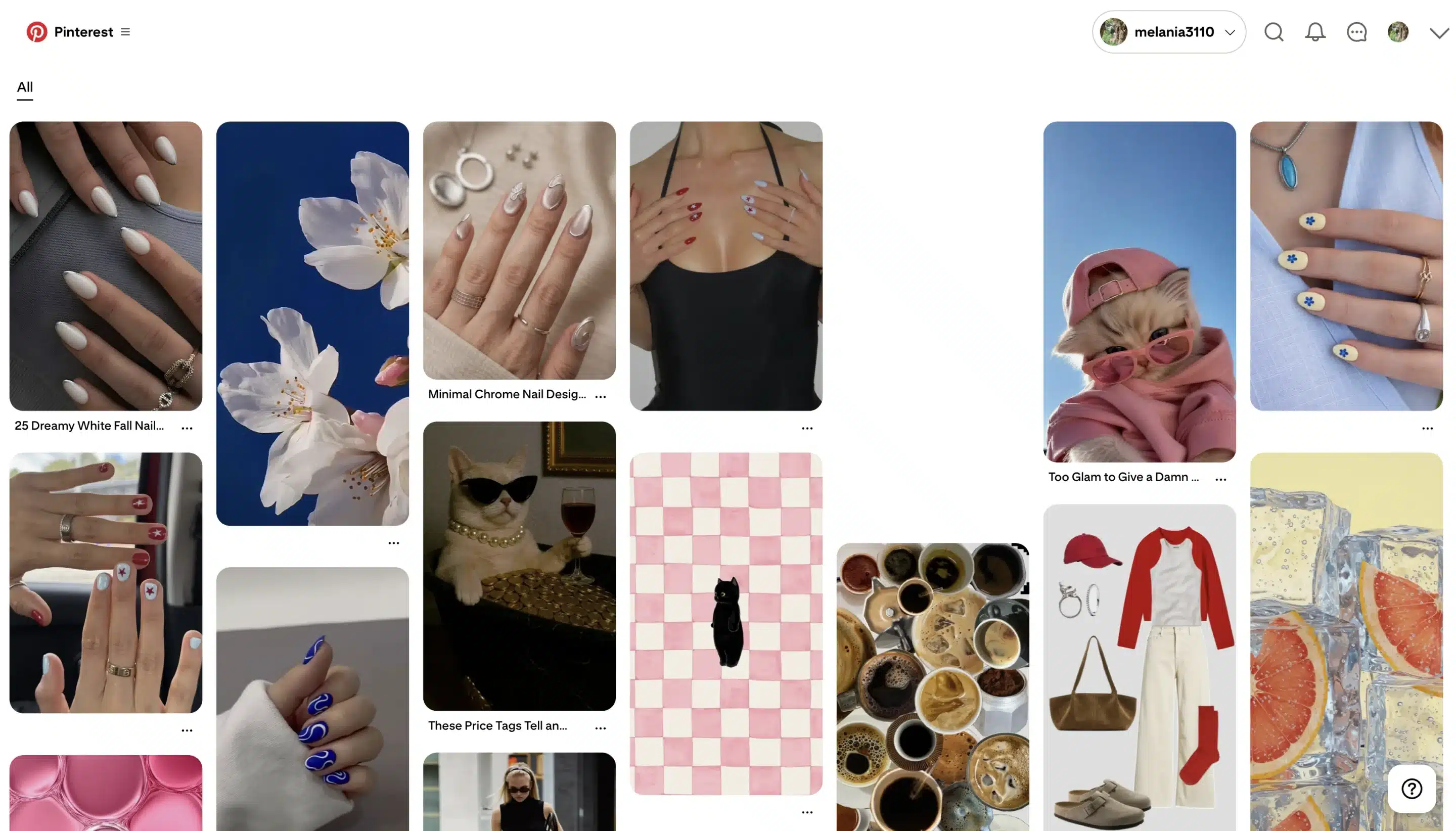
For example, if you regularly save home decor ideas and DIY projects, your home feed will start showing more related content. If you’re interested in recipes, you’ll see more cooking content and dessert recipes.
Think of the home feed as Pinterest’s way of helping you discover new ideas you might not have searched for yet.
2.2. Search bar
The search bar is one of the most important parts of Pinterest.
Located at the top of the platform, it allows you to search Pinterest for specific topics, products, tutorials, and inspiration. As you type, Pinterest automatically generates search suggestions based on popular searches and related keywords.
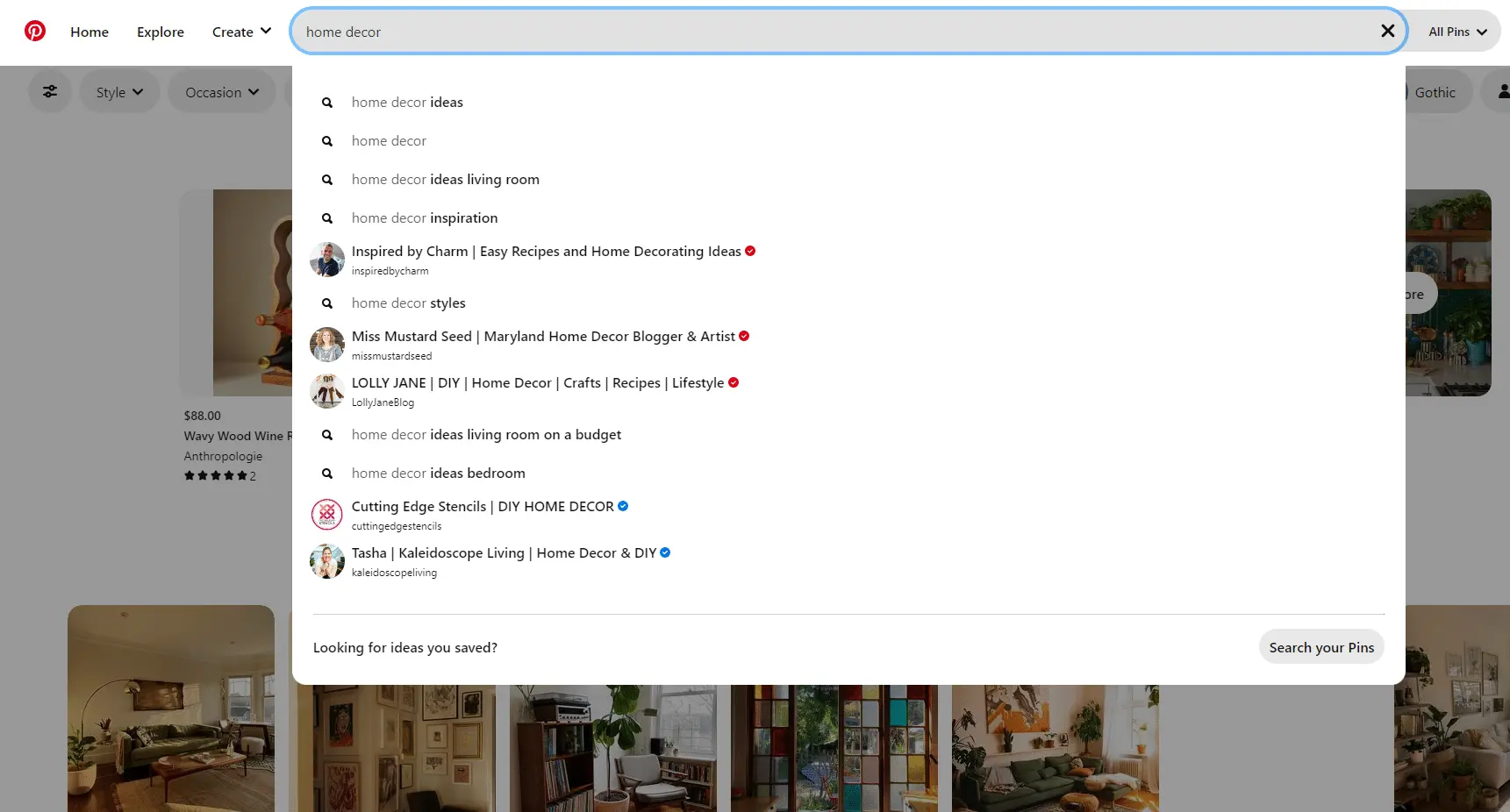
For example, searching for “home decor” might reveal suggestions such as:
- Home decor living room
- Home decor apartment
- Home decor ideas
- Home decor on a budget
These suggestions can help you find ideas faster while also showing what people are actively searching for on the platform.
For creators and businesses, the search bar is also one of the best keyword research tools available because it provides insight into how users search.
2.3. Pins
Pins are the individual pieces of content that make up Pinterest.
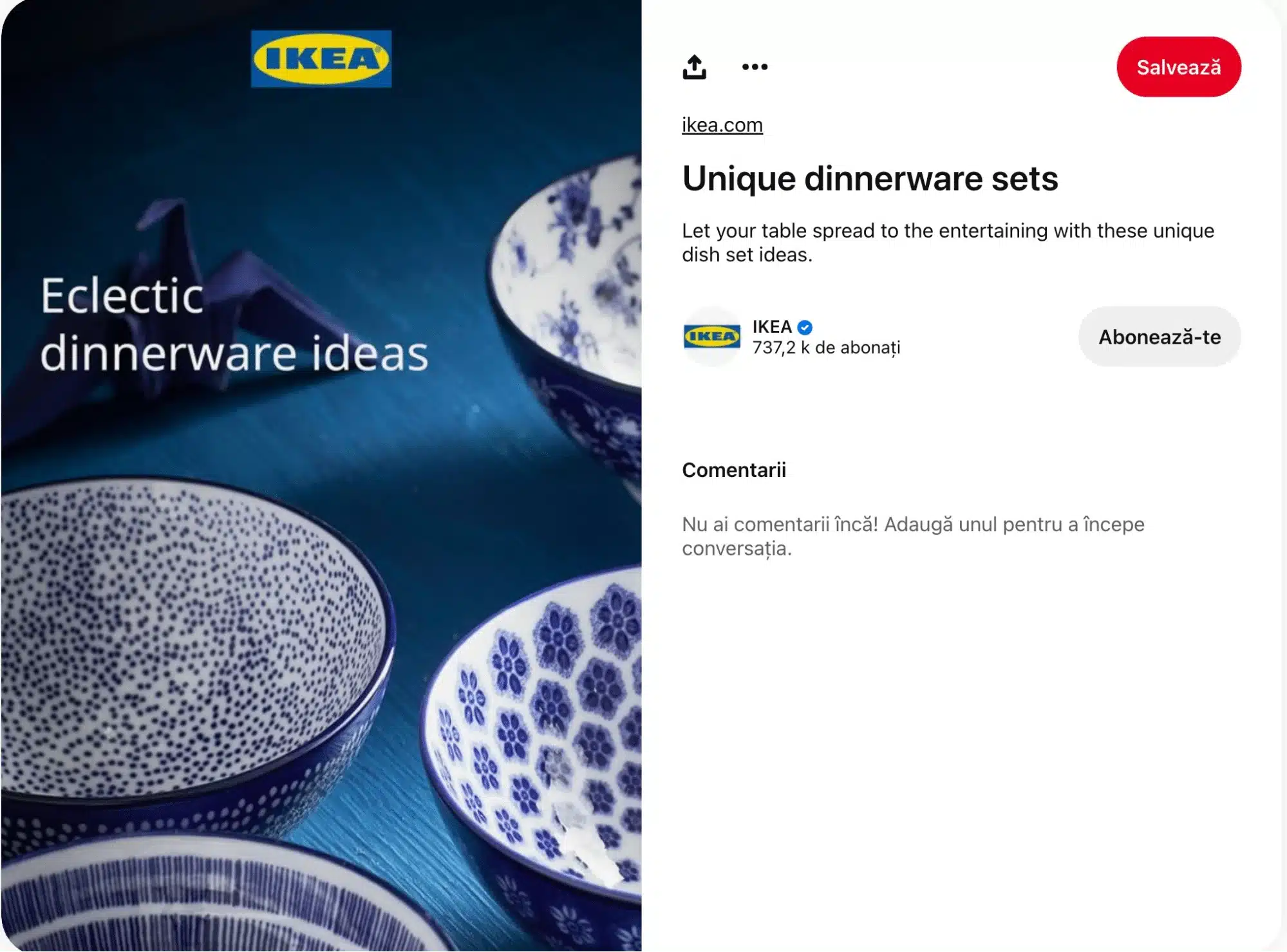
A pin can contain:
- An image
- A video
- A title
- A pin description
- A destination link
When users click a pin, they can view it in full size, save it to their own boards, or follow the pin links to a website, blog post, product page, or other resource.
Pins are essentially the building blocks of Pinterest. Every search result, recommendation, and board consists of individual pins.
2.4. Boards
Boards are collections used to organize pins around a specific topic.
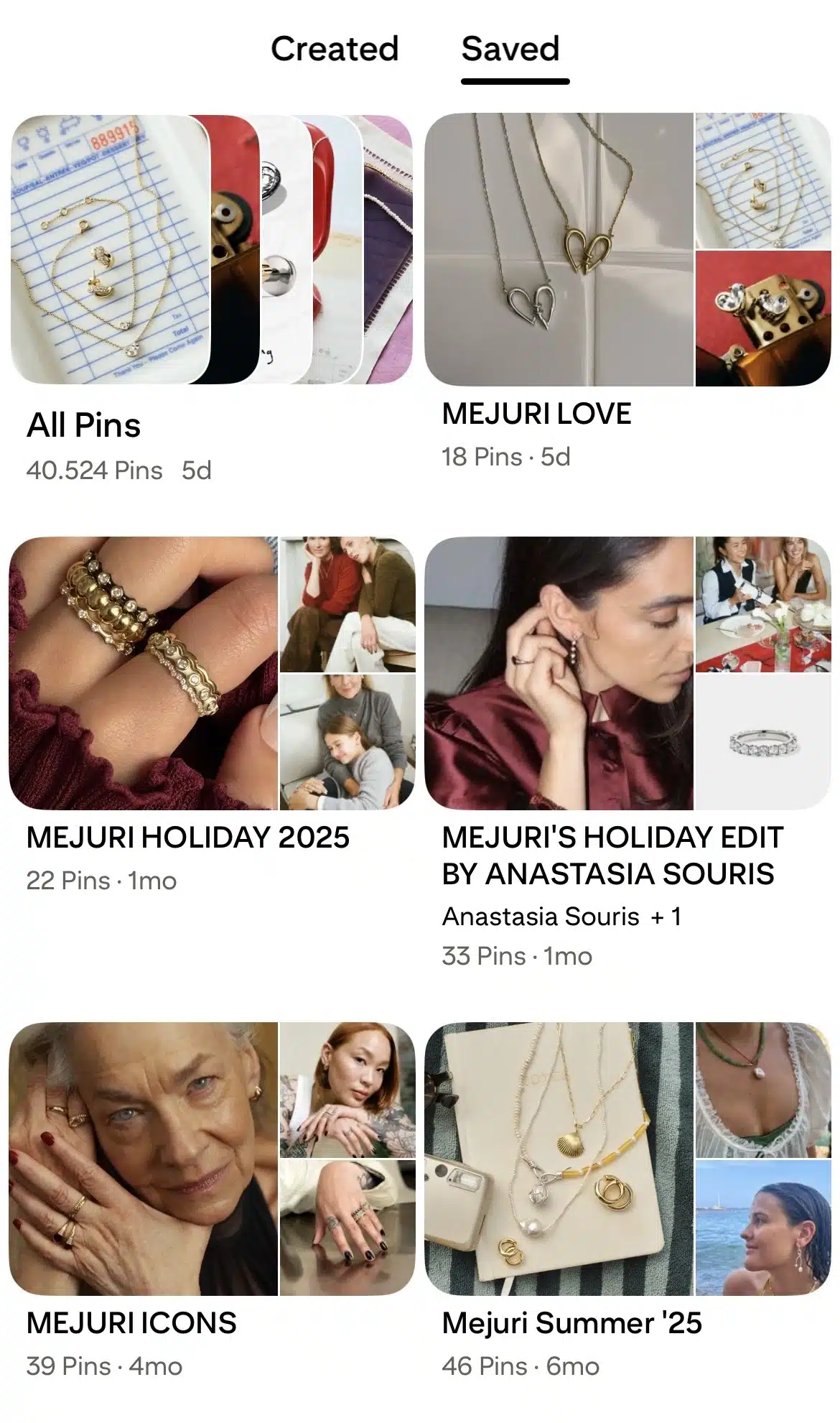
You can create boards for almost anything:
- Home decor inspiration
- Travel plans
- Content marketing ideas
- Fashion trends
- Healthy recipes
- Gift ideas
Many users create multiple boards to keep their ideas organized. Some even create secret boards that remain private and can only be viewed by the account owner or invited collaborators.
For businesses and creators, organizing content into focused Pinterest boards helps both users and the Pinterest algorithm understand what your content is about.
2.5. Profile page
Your profile page acts as your Pinterest homepage.
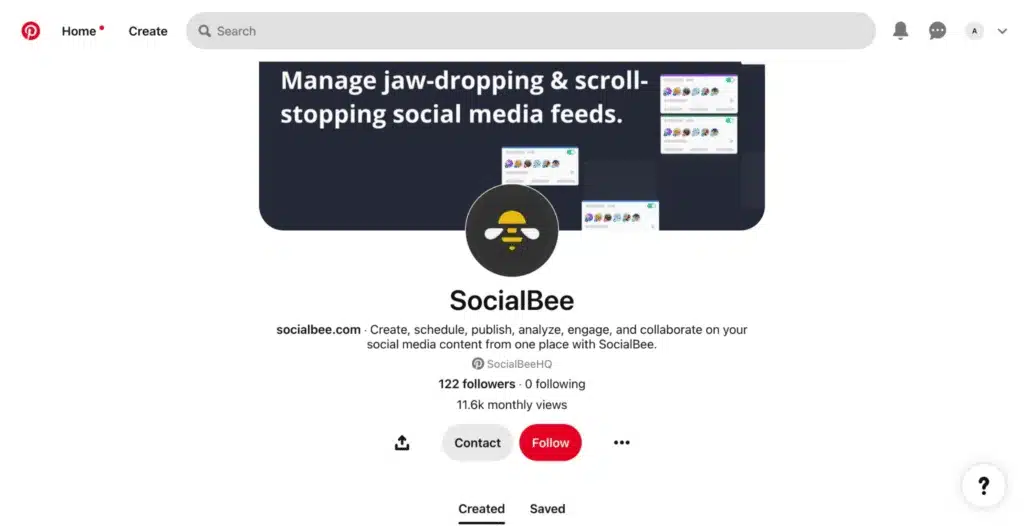
When someone visits your Pinterest profile, they’ll see:
- Your profile photo
- Username
- Bio
- Followers and following counts
- Your boards
- Your own pins
For creators and businesses, the profile page often serves as a portfolio of content. A well-organized profile makes it easier for visitors to understand your niche and discover more ideas from your account.
You can access your profile by clicking your profile icon in the top right corner of Pinterest.
2.6. Notifications
The Notifications section keeps you updated on activity related to your account.
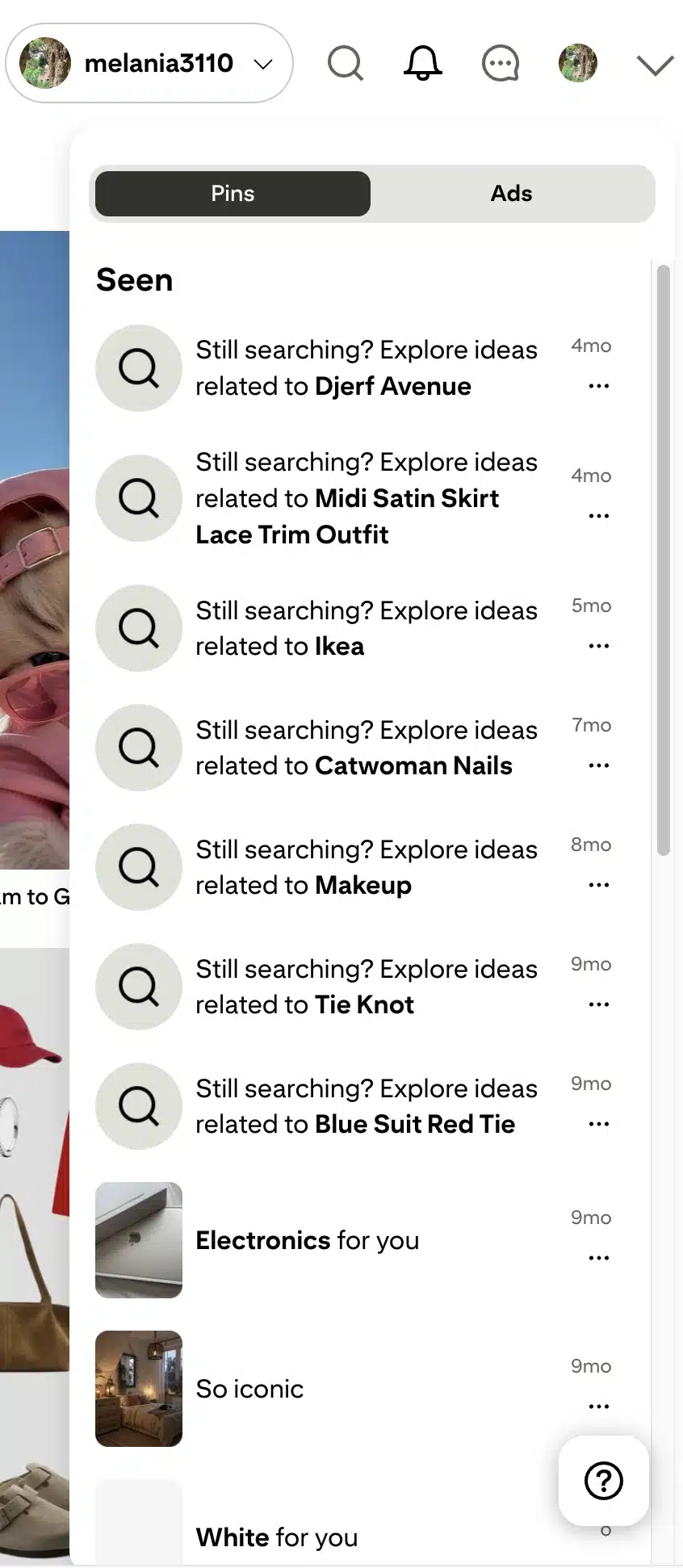
You’ll receive notifications when:
- Someone saves your pins
- Someone follows you
- Pinterest recommends new ideas
- A collaborator updates a shared board
- Your content receives engagement
Checking notifications regularly can help you spot popular content and understand what resonates with your audience.
2.7. Messages (Inbox)
Pinterest also includes a messaging feature that allows users to share pins directly with one another.
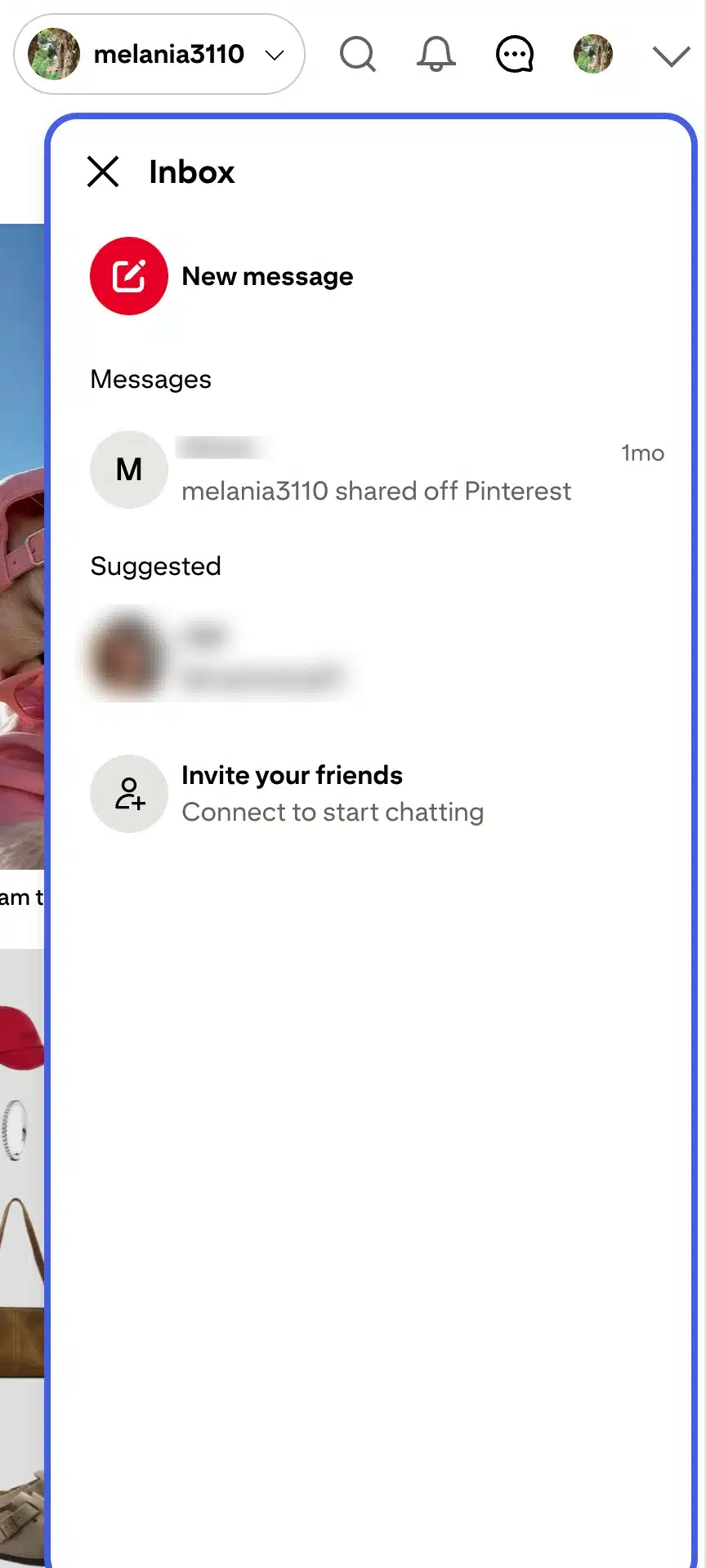
You can use the inbox to:
- Send pins to friends or colleagues
- Share ideas from boards
- Discuss projects with collaborators
- Exchange inspiration for upcoming events or campaigns
While messaging isn’t as central to Pinterest as it is on platforms like Instagram or Facebook, it can be useful when working with teams, clients, or collaborators.
Now that you understand the main areas of the platform, the next step is creating and setting up your Pinterest account properly.
3. How to set up your Pinterest account
Creating a Pinterest account only takes a few minutes, but spending a little extra time on your setup can make a big difference later. Your account type, profile information, and settings all influence how people discover your content and interact with your brand.
3.1. Choosing a personal vs. a business Pinterest account
Pinterest offers two account types: personal accounts and business accounts.
If you simply want to save ideas, organize inspiration, and create your own boards for personal use, a personal account is enough.
However, if you’re a creator, blogger, affiliate marketer, ecommerce store owner, or business, I strongly recommend starting with a business account.
A Pinterest business account gives you access to:
- Pinterest Analytics
- Pinterest Trends
- Pinterest ads
- Website claiming and verification
- Audience insights
- Additional profile features
The good news is that business accounts are free. You don’t need to run ads to benefit from the extra tools.
Personal account | Business account |
Save and organize pins | Save and organize pins |
Create boards | Create boards |
Follow other accounts | Follow other accounts |
No analytics | Access Pinterest Analytics |
No advertising tools | Access Pinterest ads |
Best for personal inspiration | Best for creators and businesses |
If your goal is to drive traffic, grow an audience, promote products, or measure results, a business account is the better choice.
3.2. How to create a Pinterest account
Getting started is straightforward.
- Visit Pinterest.com or download the Pinterest app.
- Click “Sign up”.
- Enter your email address, password, and age.
- Follow the prompts to choose topics you’re interested in.
- Create your Pinterest account.
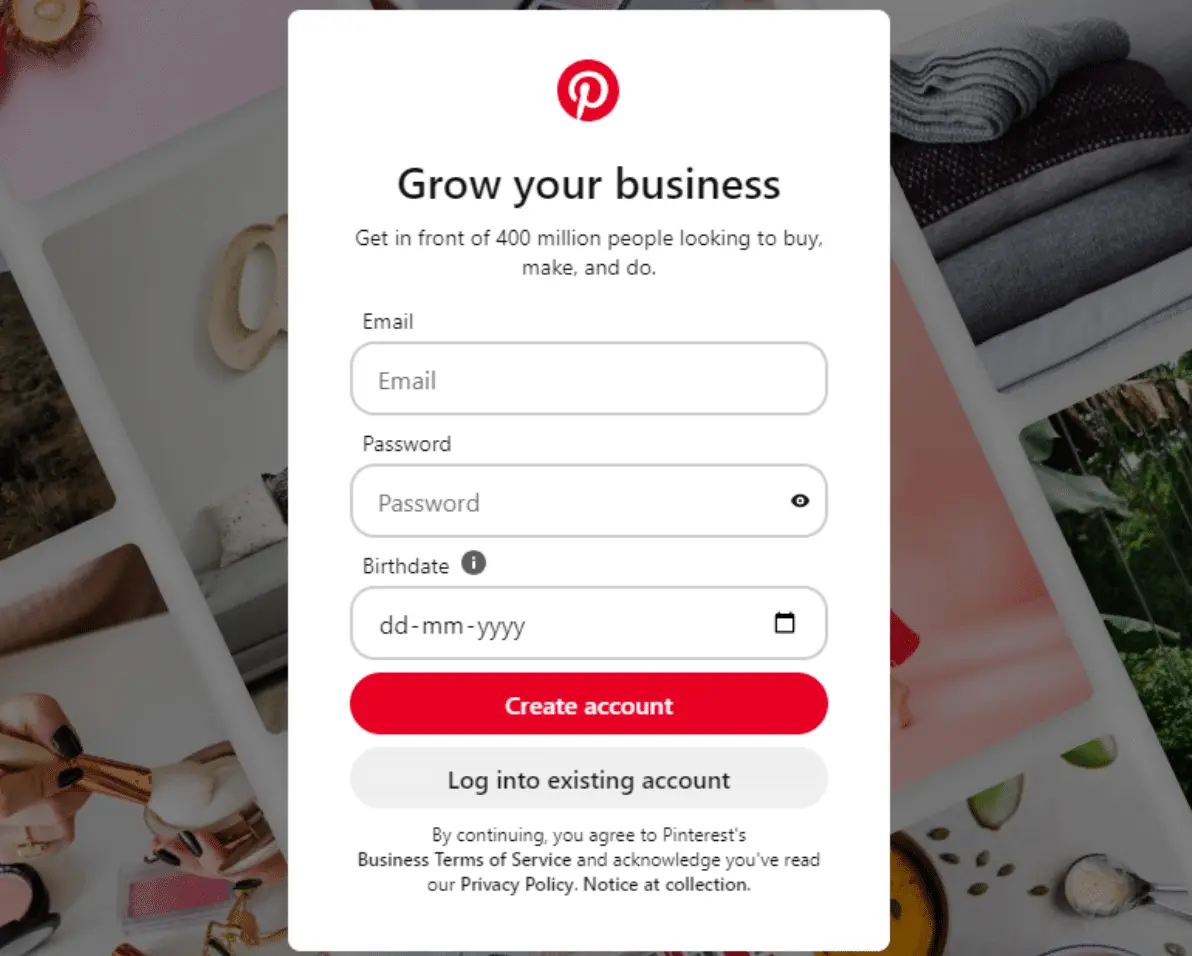
If you want a business account, simply select the business option during setup or convert your personal account later from the settings menu.

Pinterest will immediately start showing suggested pins based on the interests you selected. As you save more content and interact with the platform, those recommendations will become more personalized.
3.3. How to set up your Pinterest profile (photo, bio, username)
Your Pinterest profile helps users understand who you are and what kind of content you share.
A complete profile also helps Pinterest categorize your account more accurately.
Here’s what I recommend focusing on:
Profile photo
Choose a clear, professional image.
- Creators should usually use a headshot.
- Businesses should typically use their logo.
- Make sure the image remains recognizable on mobile devices.
Username
Your username becomes part of your profile URL.
Try to keep it:
- Short
- Easy to remember
- Consistent with your other social media accounts
For example, if your brand name is already used elsewhere, avoid creating completely different usernames on Pinterest.
Bio
Your bio should clearly explain:
- What you create
- Who you help
- What users can expect from your content
For example:
“Sharing small apartment home decor ideas, organization tips, and DIY projects for renters.”
Or:
“Helping ecommerce brands grow with Pinterest marketing, SEO, and content strategies.”
You don’t need to stuff your bio with keywords, but including a few relevant terms naturally can help Pinterest better understand your niche.
3.4. Pinterest account settings you should know
Most users never explore the settings section, but there are a few options worth reviewing early.
You can access your settings by clicking your profile icon in the top right corner and opening the settings menu.
Some of the most useful settings include:
Claiming your website
Business accounts can verify ownership of their website.

This helps Pinterest connect your content with your domain and gives you access to additional analytics data.
Managing notifications
Pinterest can send notifications for:
- Saves
- Followers
- Comments
- Recommendations
- Marketing updates
I usually recommend customizing these early to avoid unnecessary alerts.
Creating secret boards
Secret boards are private boards that don’t appear publicly on your profile.
They’re useful for:
- Content planning
- Client projects
- Product research
- Mood boards
- Event planning
Managing account privacy
Pinterest allows you to control visibility, personalization settings, and advertising preferences.
Reviewing these settings early ensures the platform works the way you want it to.
Once your account is set up, it’s time to learn how people actually discover content on Pinterest. Understanding search and Pinterest SEO is one of the most important skills for growing your account.
4. Finding content and Pinterest SEO
Pinterest SEO is one of the biggest reasons the platform works differently from Instagram, TikTok, or Facebook. On Pinterest, content isn’t primarily discovered through followers. It’s discovered through search.
Understanding how Pinterest search works will help you find better content and make your own pins easier for others to discover.
4.1. How Pinterest search works (keywords + ranking)
Every time someone uses the Pinterest search bar, the platform analyzes the keywords they entered and looks for pins that best match their intent.
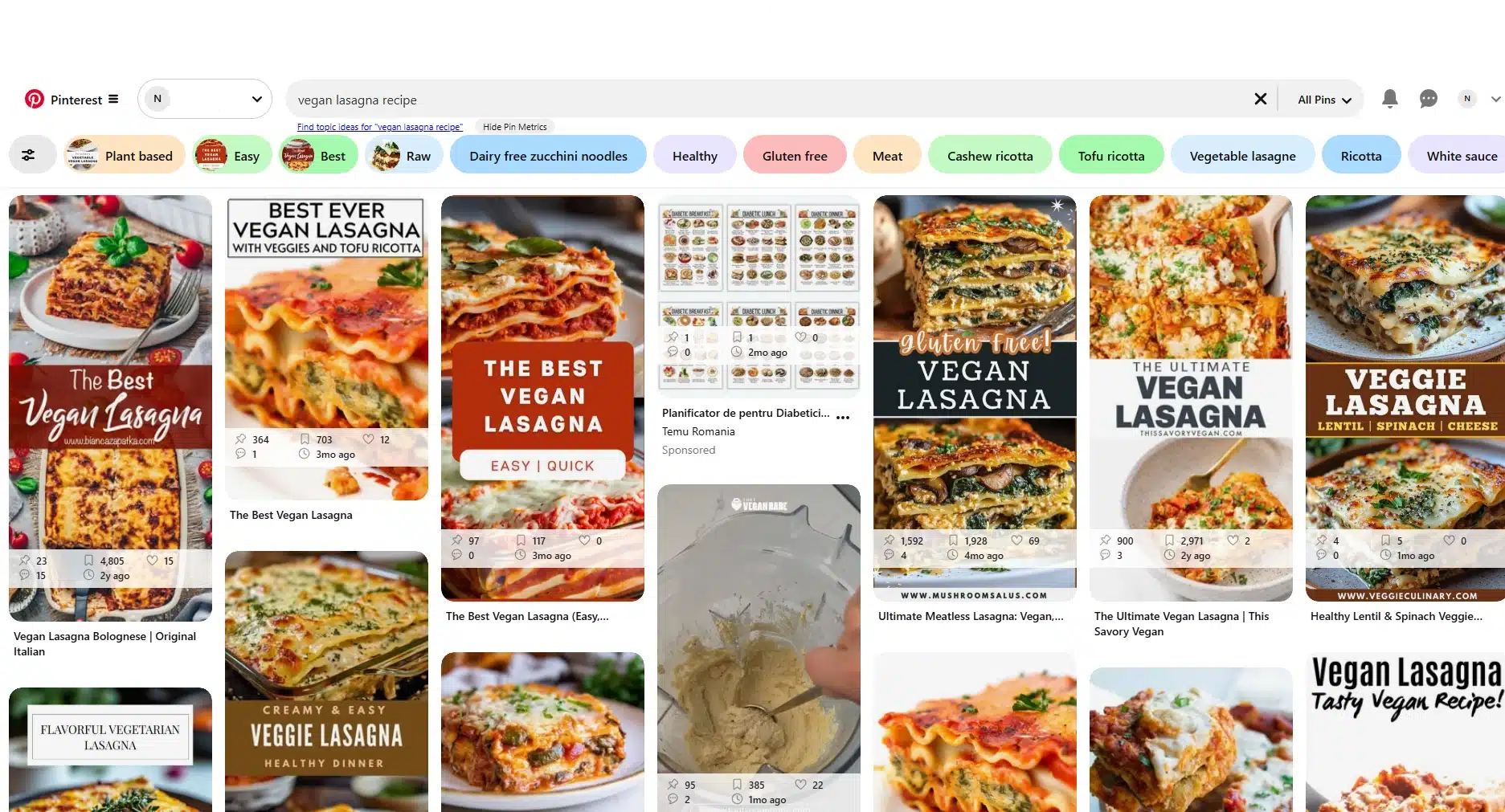
For example, someone searching for “small apartment home decor” isn’t looking for random decorating ideas. They’re looking for inspiration specifically suited to small spaces. Pinterest tries to surface the most relevant pins, boards, and accounts for that search.
To decide what appears in search results, Pinterest looks at factors such as:
- Keywords in the pin title and pin description
- Keywords used in board titles and descriptions
- User engagement, including saves and clicks
- The overall quality and relevance of the content
This is why keywords matter so much on Pinterest. The platform needs context to understand what your content is about and who should see it.
4.2. How SEO affects what you see and what others see
Pinterest SEO influences both sides of the experience.
As a user, SEO determines which pins appear in your search results, recommendations, and home feed. Pinterest uses your searches, saved pins, and interests to personalize what you see over time.
As a creator or business, SEO determines whether your content gets discovered at all.
Pinterest SEO can also influence your visibility outside Pinterest itself. Well-optimized boards and pins can rank in Google search results, and your images may appear in Google’s Image tab when people search for related topics. This creates another opportunity to reach people who may never have opened Pinterest in the first place.
I’ve seen creators spend hours designing beautiful pins only to get very little visibility because they never told Pinterest what the content was about. A strong image helps attract attention, but keywords help Pinterest understand where that image belongs.
For example, a pin titled “10 Small Apartment Living Room Ideas” is much easier for Pinterest to categorize than a vague title like “My Favorite Design Inspiration.”
The more context you provide, the easier it becomes for Pinterest to connect your content with people searching for it.
4.3. Finding ideas through search suggestions
One of my favorite Pinterest research techniques is using search suggestions.
Start typing a broad topic into the search bar, and Pinterest will automatically generate additional phrases that people frequently search for.
Let’s say you type “home office.”
Pinterest might suggest:
- Home office ideas
- Home office organization
- Home office decor
- Home office small space
These suggestions reveal what users are actually searching for, which makes them useful for both content research and keyword research.
Whenever I’m looking for new content ideas, I often spend a few minutes exploring search suggestions before creating anything. It’s one of the easiest ways to find ideas that already have demand behind them.
4.4. Exploring related pins and recommendations
Pinterest also helps users discover content through related pins and suggested pins.
When you click on a pin, Pinterest analyzes its topic and shows similar content underneath it. This creates an endless chain of recommendations that helps users discover more ideas without performing another search.
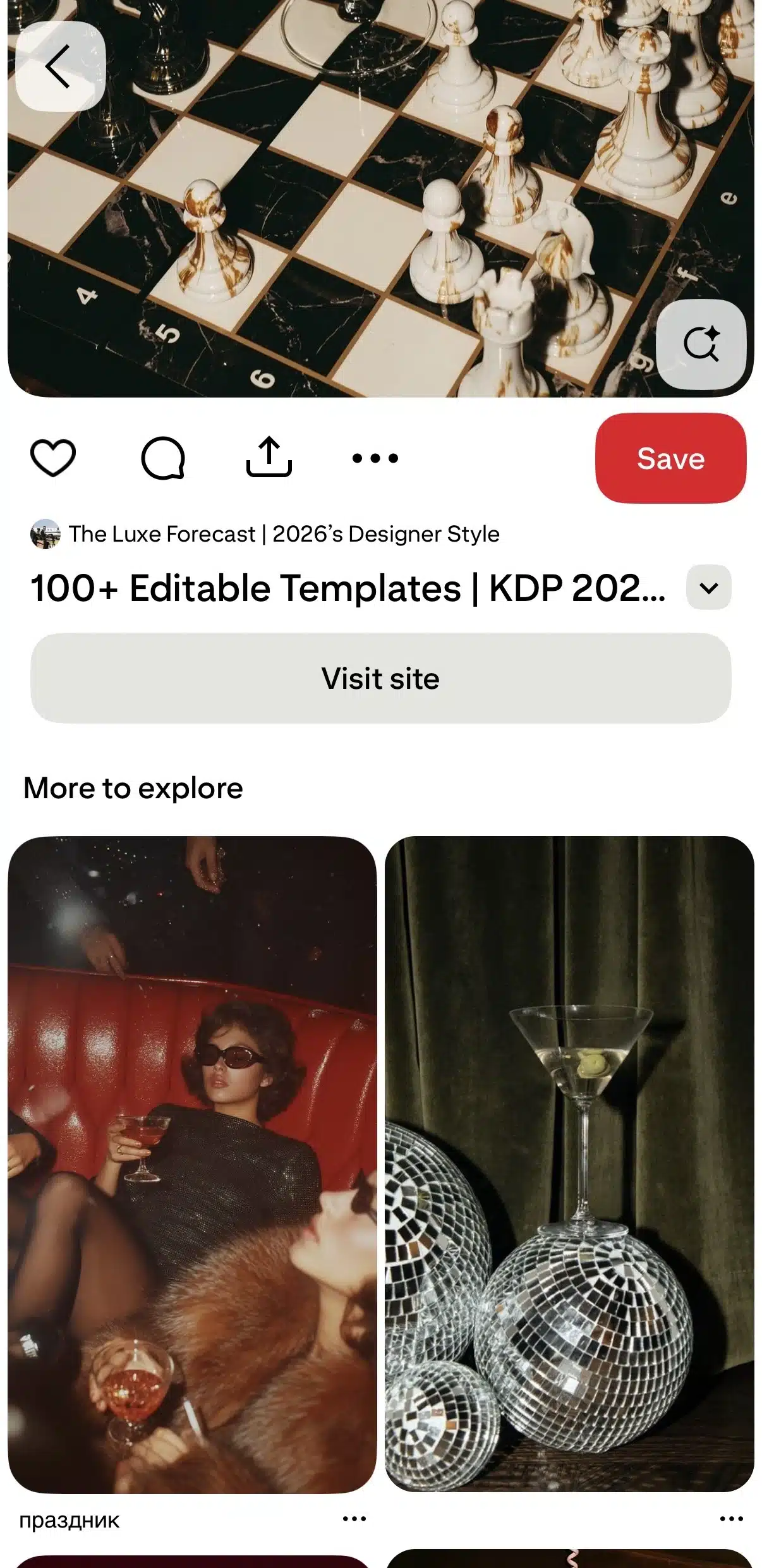
For creators, this means every pin has the potential to introduce your content to new audiences. If Pinterest understands what your pin is about, it may start recommending it alongside similar content in the same niche.
This recommendation system is one of the reasons Pinterest content often continues generating impressions long after it’s published.
4.5. Using filters to refine results
Search results can sometimes be overwhelming, especially for broad topics.
Fortunately, Pinterest provides filters that help narrow your search.
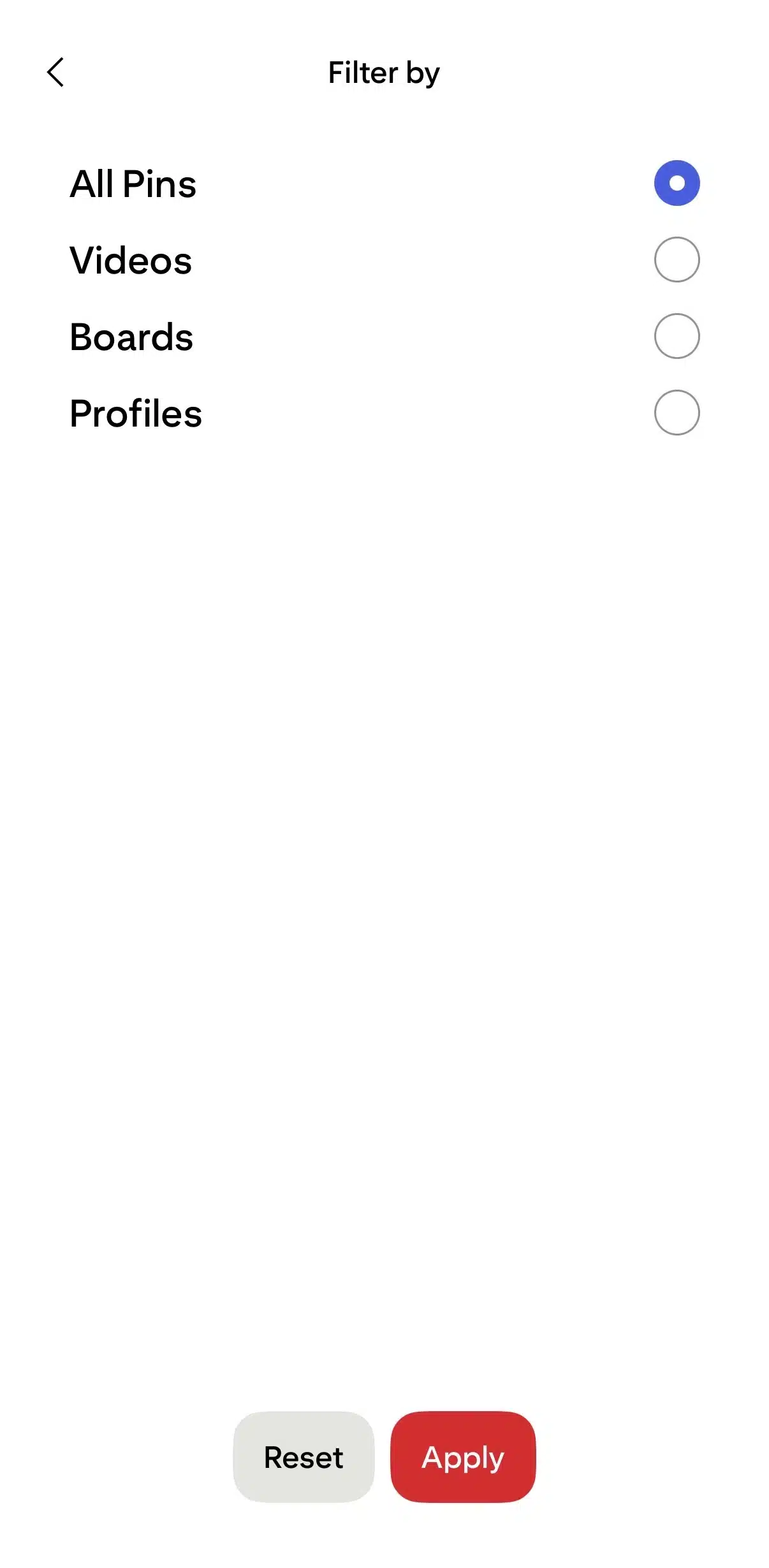
Depending on your query, you may be able to filter results by:
- Pins
- Boards
- Videos
- Products
- Profiles
You can also refine searches using related keyword suggestions that appear near the top of the results page.
For example, someone searching for “recipes” might further narrow their search to “easy recipes,” “healthy recipes,” or “meal prep recipes.”
Using filters helps you find more relevant content faster while reducing the noise that often comes with broad searches.
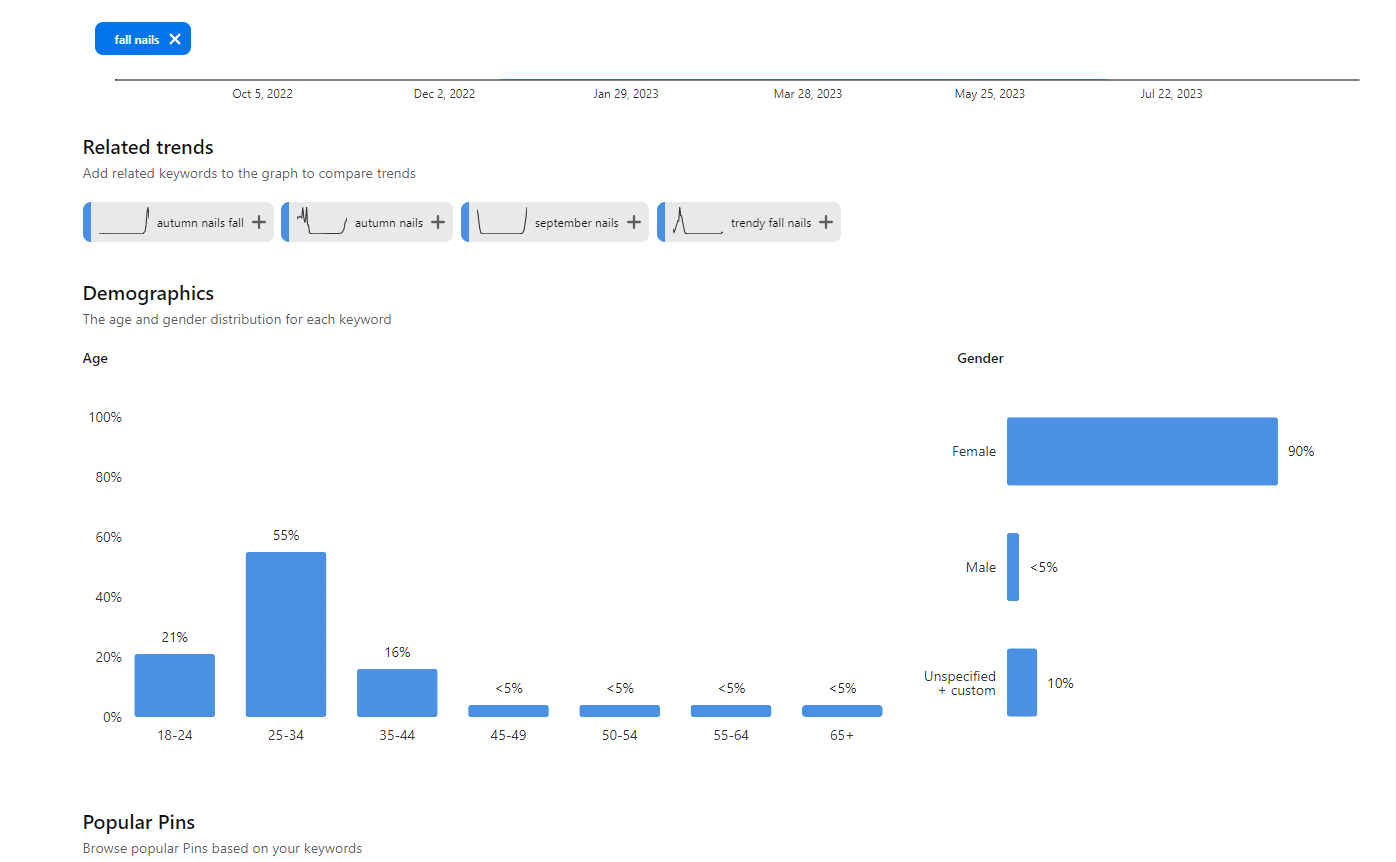
4.6. Discovering trends with Pinterest Trends
Pinterest Trends is a free tool available to business accounts that shows what people are actively searching for on the platform.
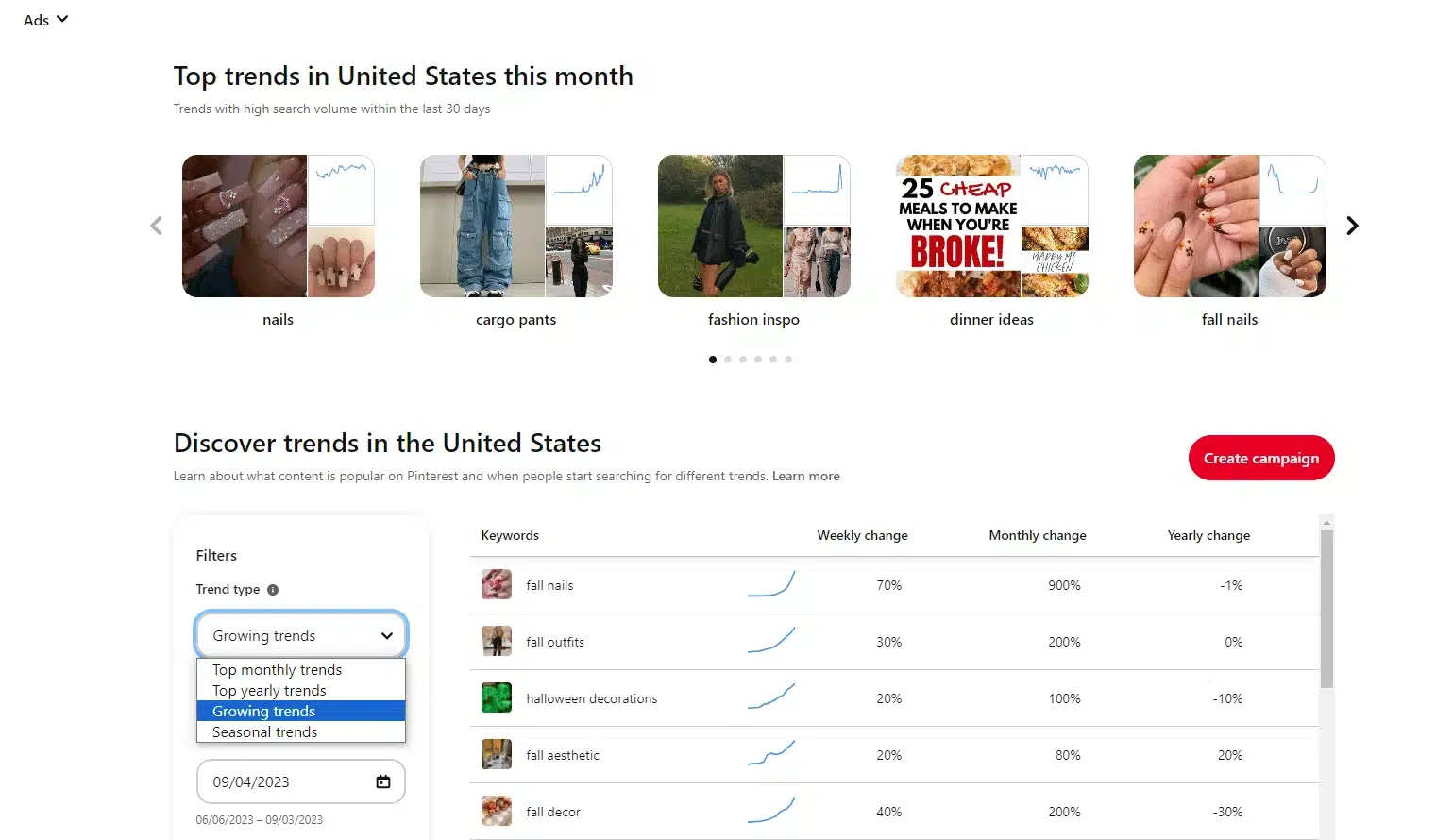
Unlike many social media platforms where trends come and go quickly, Pinterest trends often reveal what people are planning weeks or even months in advance.
For example, users frequently start searching for holiday recipes, gift ideas, travel plans, and seasonal home decor long before the actual event arrives.
This makes Pinterest Trends incredibly valuable for content planning.
If you run a business or create content regularly, checking Pinterest Trends can help you:
- Spot rising topics early
- Plan seasonal content in advance
- Find new keyword opportunities
- Understand what your audience is interested in
Now that you know how people discover content on Pinterest, let’s look at how to save, organize, and manage all those ideas effectively.
5. Saving and organizing content
One of Pinterest’s biggest strengths is how easy it is to organize ideas. Instead of bookmarking dozens of websites or losing inspiration in screenshots, you can save pins to specific boards and revisit them whenever you need them.
5.1. How to save pins
Saving pins is Pinterest’s version of bookmarking content.
Whenever you find something useful, whether it’s a recipe, a blog post, home decor inspiration, or a product you want to revisit later, you can save it to one of your boards.
To save a pin:
- Open any pin you’re interested in.
- Click the “Save” button.
- Choose an existing board or create a new board.
- Confirm the save.
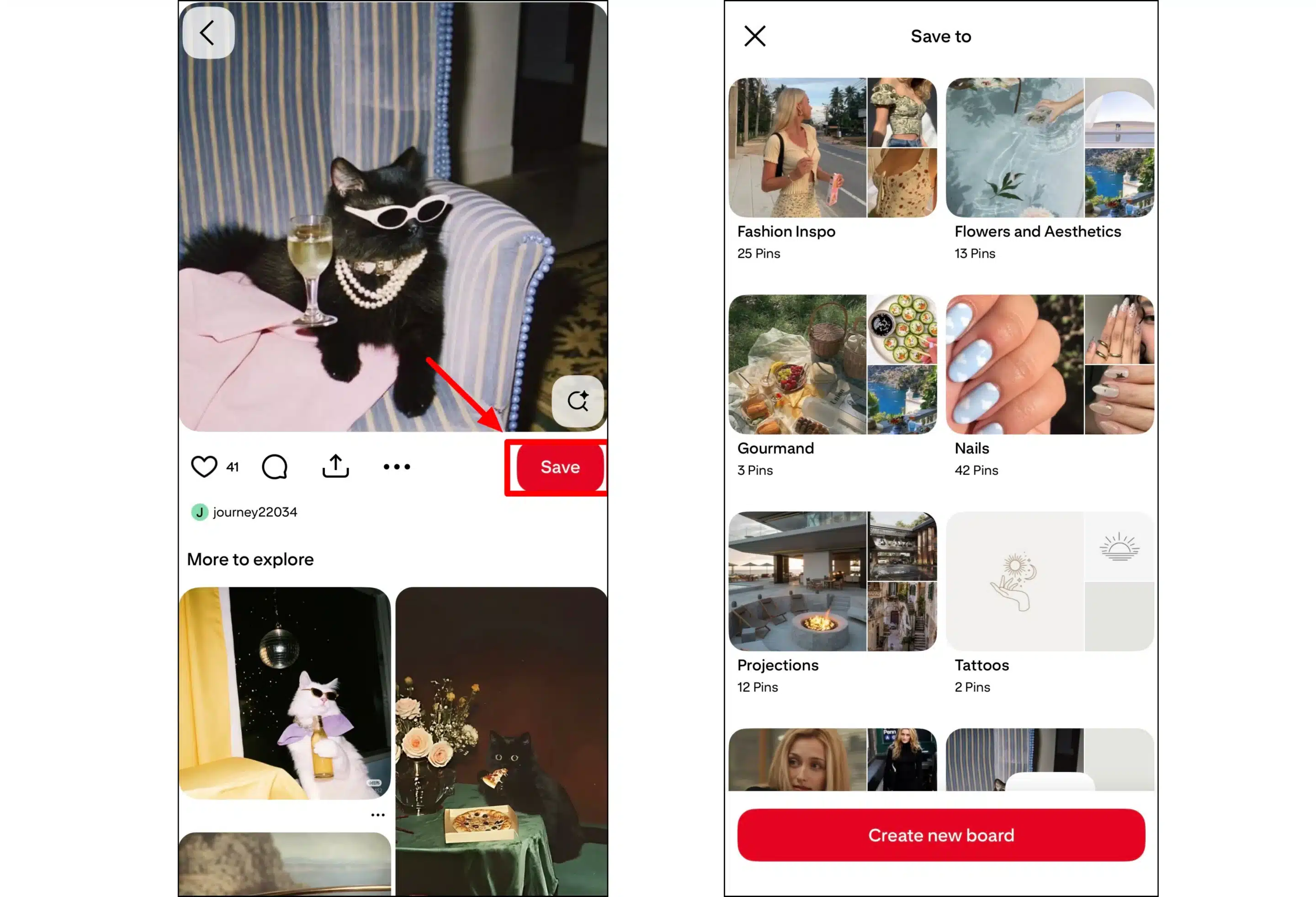
The pin will now appear inside that board and remain there until you remove it.
You can save your own pins, saved pins from other users, product pins, video pins, and even content you discover outside Pinterest through the Pinterest browser extension.
In my experience, the best approach is to save content intentionally. Instead of dumping all the pins into one giant board, organize them by topic. It’s much easier to find ideas later when everything has a clear place.
5.2. How to create Pinterest boards
Pinterest boards help you keep your ideas organized.
Each board focuses on a specific topic, making it easier to find content later and helping Pinterest understand your interests. For creators and businesses, well-structured boards also improve discoverability because board titles and descriptions contribute to Pinterest SEO.
To create a new board:
- Go to your Pinterest profile.
- Click the + button or “Create” option.
- Select “Board.”
- Enter a board name.
- Choose whether you want the board to be public or private.
- Click “Create.”
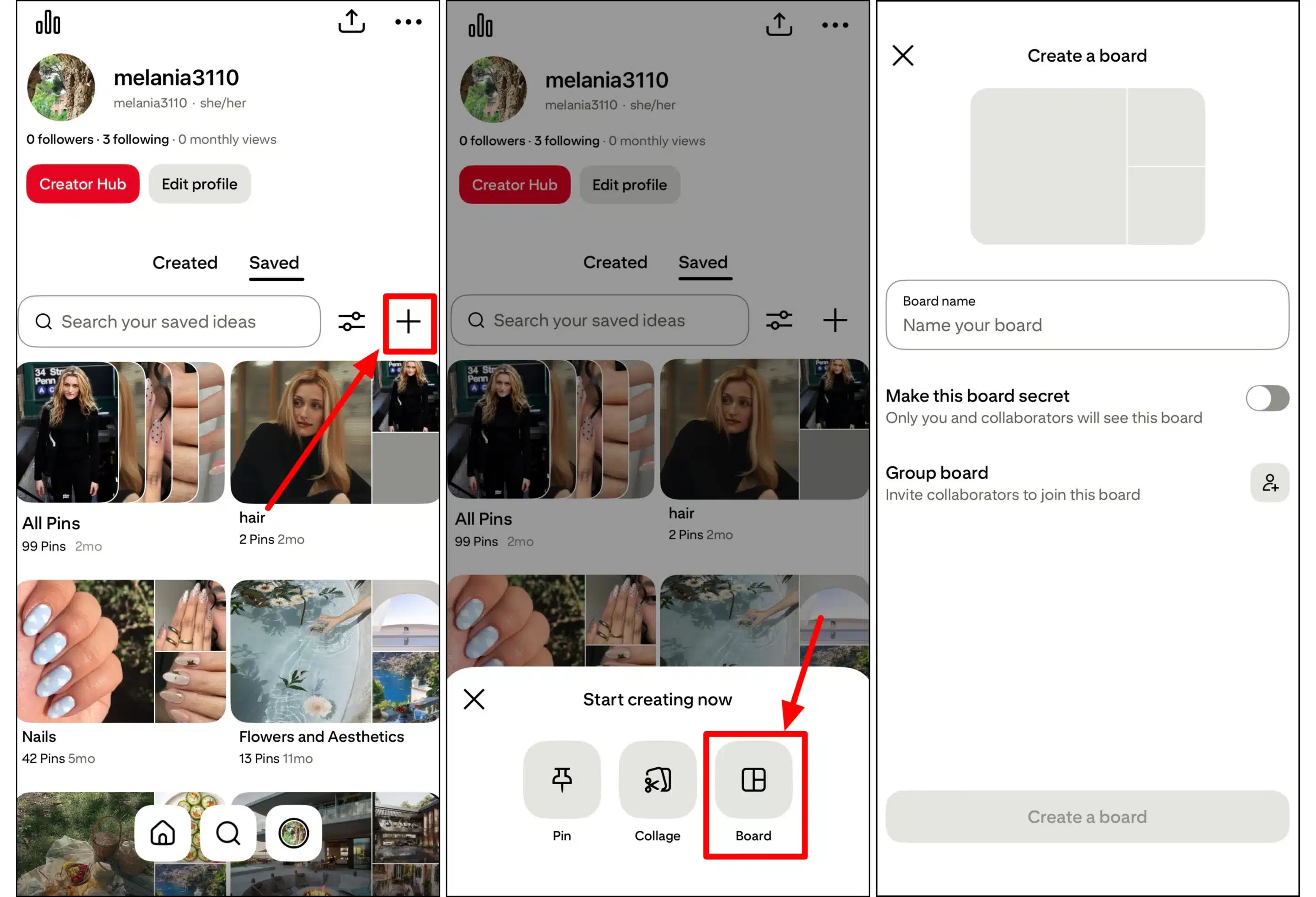
Once the board is created, you can start adding pins immediately.
For personal use, your boards might include topics such as travel destinations, recipes, fitness goals, or home decor. For businesses, boards should align with your content strategy and the topics your audience is searching for.
A food blogger might create boards for healthy breakfasts, dessert recipes, meal prep ideas, and holiday recipes.
The more focused your boards are, the easier it becomes for users to discover your content and for Pinterest to understand what each board is about.
You can also create secret boards if you want to keep ideas private. These are useful for content planning, client projects, mood boards, product development, or collecting inspiration before making it public.
As your account grows, you’ll likely end up with multiple boards covering different topics. That’s exactly what you want. A well-organized Pinterest profile makes it easier for users to explore your content and discover more ideas that match their interests.
6. How to create and post content on Pinterest
Creating content on Pinterest starts with understanding what each post format is meant to do. Some pins are best for driving traffic to a blog post or product page, while others are better for visual inspiration, tutorials, or shopping.
6.1. Types of Pinterest posts
Pinterest offers several post formats, and each one works slightly differently. The right format depends on what you want the user to do after they discover your content.
If your goal is to drive traffic, prioritize pins with clear visuals, helpful text, and relevant links. If your goal is to spark inspiration or teach a process, video pins and idea pins can help you explain more in the pin itself.
Image pins
Image pins are the classic Pinterest format.
They use a static image, a title, a pin description, and usually a destination link. These work well for blog posts, product pages, recipes, tutorials, home decor ideas, style inspiration, travel guides, and lead magnets.

For example, a food blogger might create an image pin that says “10 easy dessert recipes for summer” and link it to a full recipe roundup. A business coach might create a pin for a blog post about pricing services and send users to the article.
The best image pins are clear, vertical, and easy to understand quickly. People often browse Pinterest on mobile, so your image needs to make sense even on a small screen.
Video pins
Video pins are useful when motion makes the idea easier to understand.
Use them for quick tutorials, product demos, transformations, recipes, styling examples, behind-the-scenes clips, or step-by-step processes. A short video showing how to organize a pantry, decorate a shelf, style one jacket three ways, or assemble a product can stop people from scrolling because it gives them immediate context.
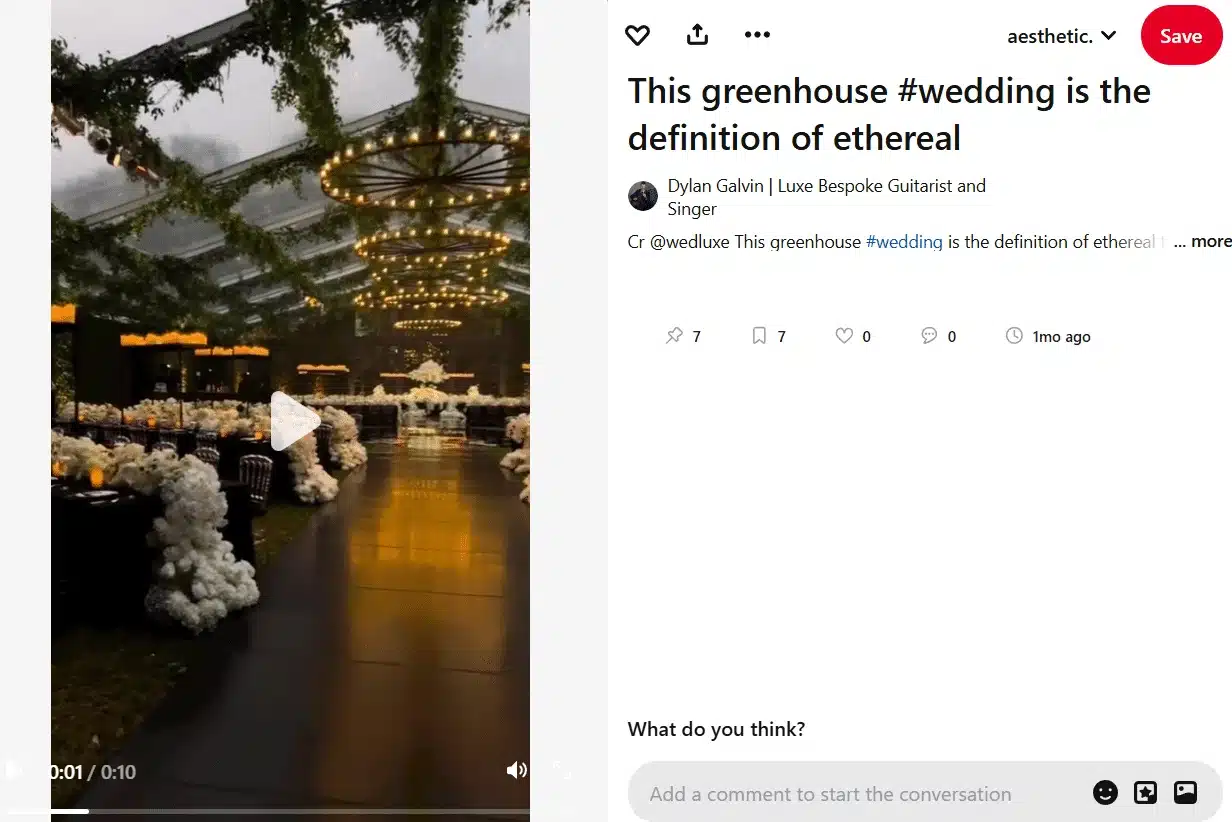
Keep the video focused. Pinterest users are usually looking for useful ideas, so the video should show the outcome quickly and make the next step obvious.
Idea pins
Idea pins are multi-page pins designed for storytelling, tutorials, and inspiration inside Pinterest.
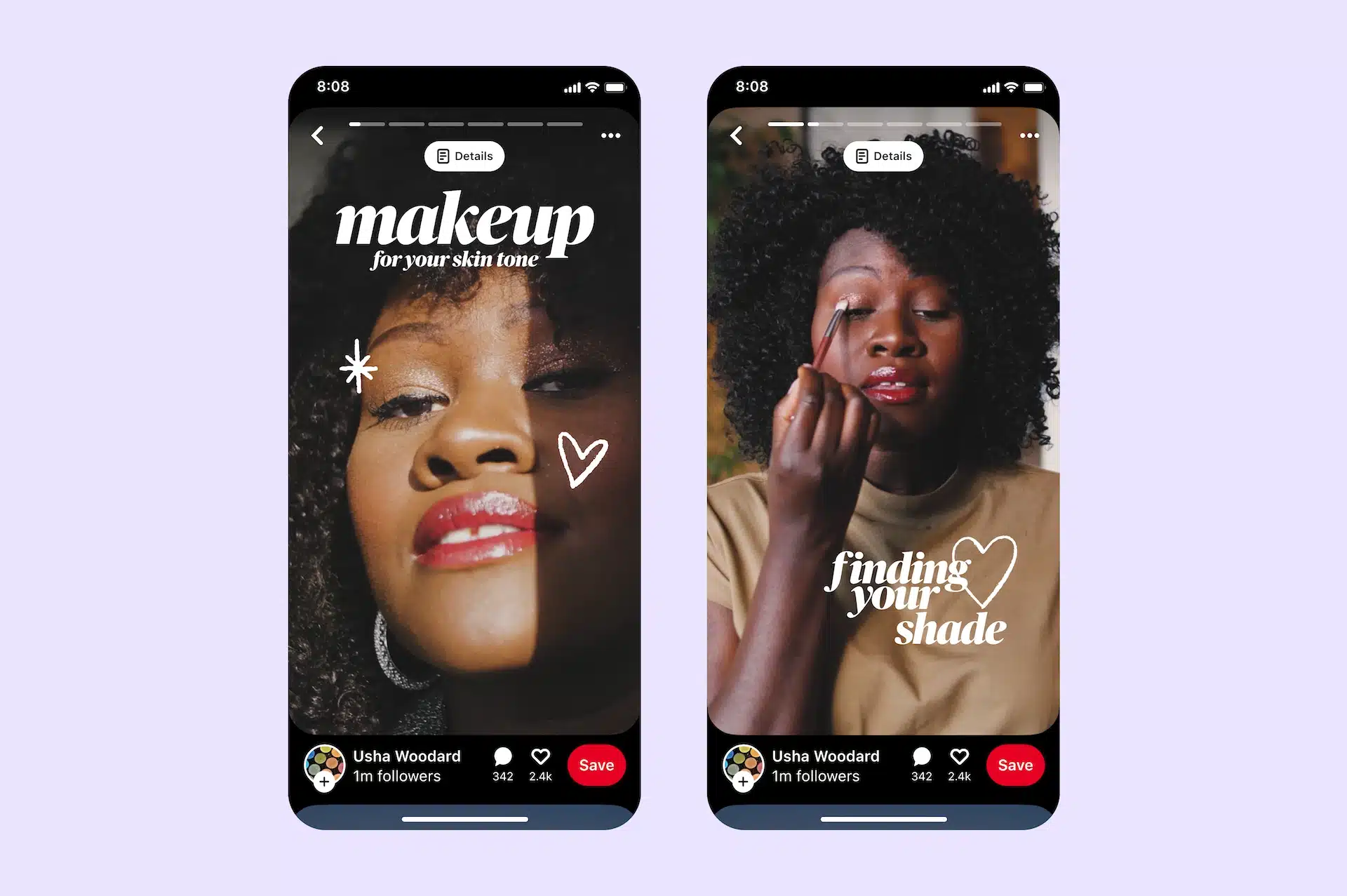
They work well when you want to show a process in several steps, such as a makeup routine, DIY project, recipe, workout, packing list, or room makeover. Each page can include a different visual, which makes the format useful for explaining ideas that need more than one image.
Idea pins are helpful for engagement and saves, but they’re not always the best choice if your main goal is outbound clicks. If you want to send people to a blog post, product page, Etsy shop, or landing page, standard image pins or video pins with links are usually a stronger fit.
Product pins
Product pins are designed for shopping.
They can include product details such as pricing, availability, and the retailer’s website. These are especially useful for ecommerce brands, boutiques, creators with merch, and sellers using platforms like Shopify or an Etsy shop.
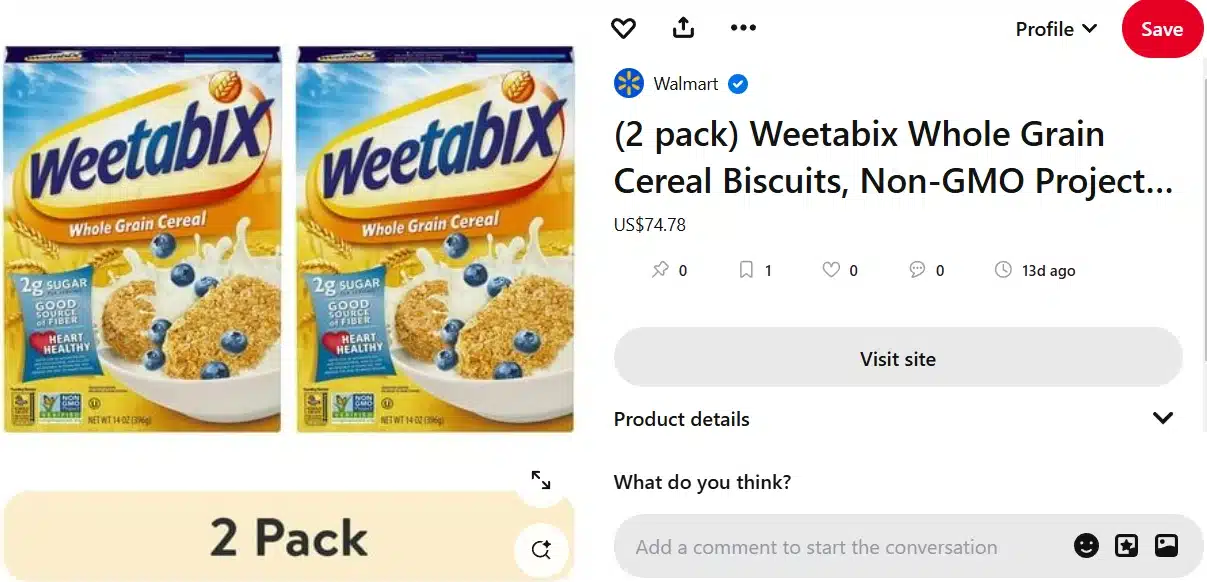
A product pin should make the item easy to understand at a glance. Use a clean product image, a specific title, and a description that explains what the product is, who it’s for, and why someone might want it.
Rich pins
Rich pins automatically pull extra information from your website into Pinterest.
There are different types of rich pins, including article pins, product pins, and recipe pins. For example, a recipe rich pin can show ingredients or serving details, while an article rich pin can pull the headline and description from a blog post.
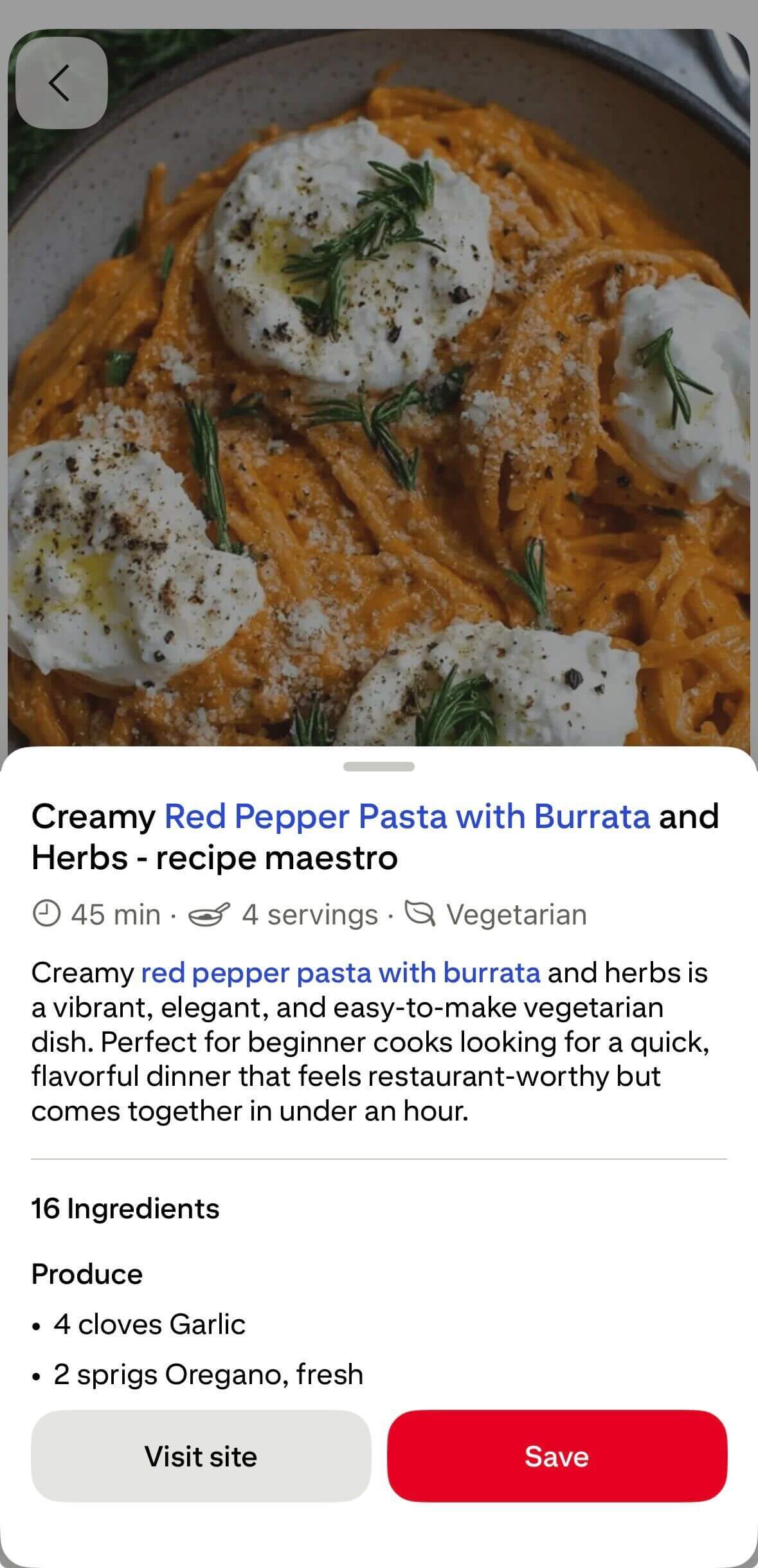
Rich pins are useful because they add more context to your content and make your pins feel more complete. If you publish blog content, recipes, or products on your website, setting up rich pins can help Pinterest display your content more accurately.
6.2. Pinterest pin sizes and specifications
Pinterest favors vertical visuals because they take up more space in the feed and are easier to view on mobile.
The recommended size for a standard Pinterest pin is a 2:3 aspect ratio, such as 1000 x 1500 pixels. Square pins can work, but vertical pins usually stand out better in the home feed and search results.
For video pins, use a vertical or square format, keep the visual clean, and make sure any text is easy to read without sound. For product pins, use high-quality images that clearly show the item. For idea pins, keep each page visually simple so users can move through the content without feeling overwhelmed.
Pin type | Recommended aspect ratio | Recommended size |
Image pins | 2:3 | 1000 × 1500 px |
Video pins | 2:3, 1:1, or 9:16 | 1000 × 1500 px (2:3) or 1080 × 1920 px (9:16) |
Idea pins | 9:16 | 1080 × 1920 px |
Product pins | 2:3 | 1000 × 1500 px |
Rich pins | 2:3 | 1000 × 1500 px |
A helpful rule: if someone can understand the value of the pin in two seconds, the design is probably clear enough.
6.3. How to create and share a post on Pinterest (step-by-step)
To create a pin on Pinterest, start from your account and choose the Create option.
Here’s the basic process:
- Log in to your Pinterest account.
- Click “Create” in the top-left corner of the screen. If you’re using a business account, you can also access this option from the Business Hub.
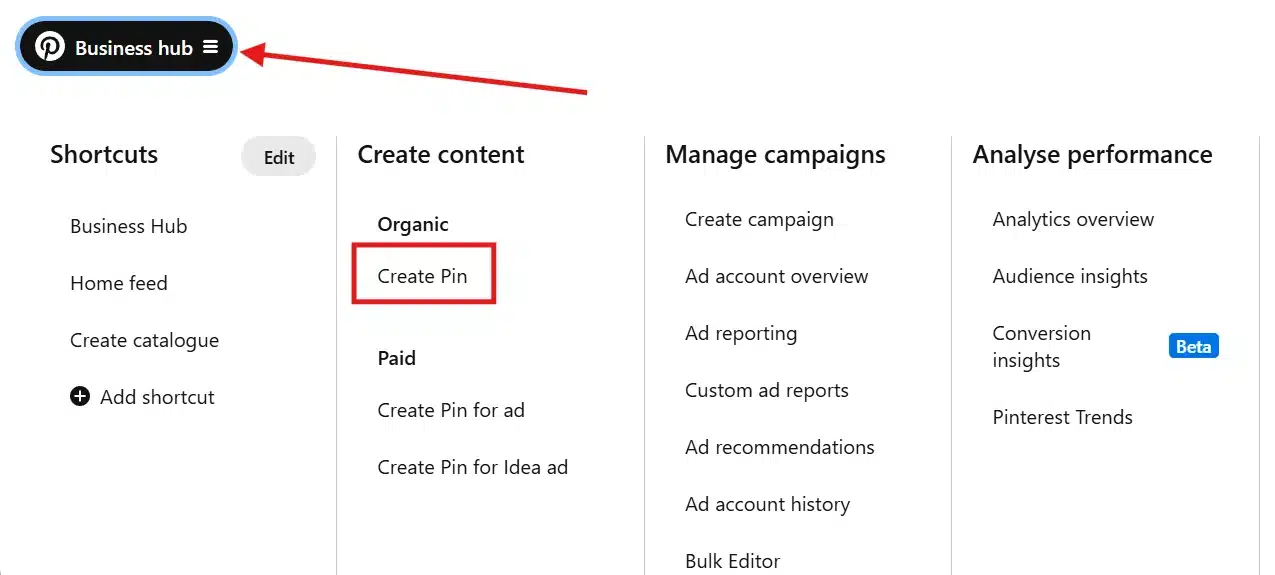
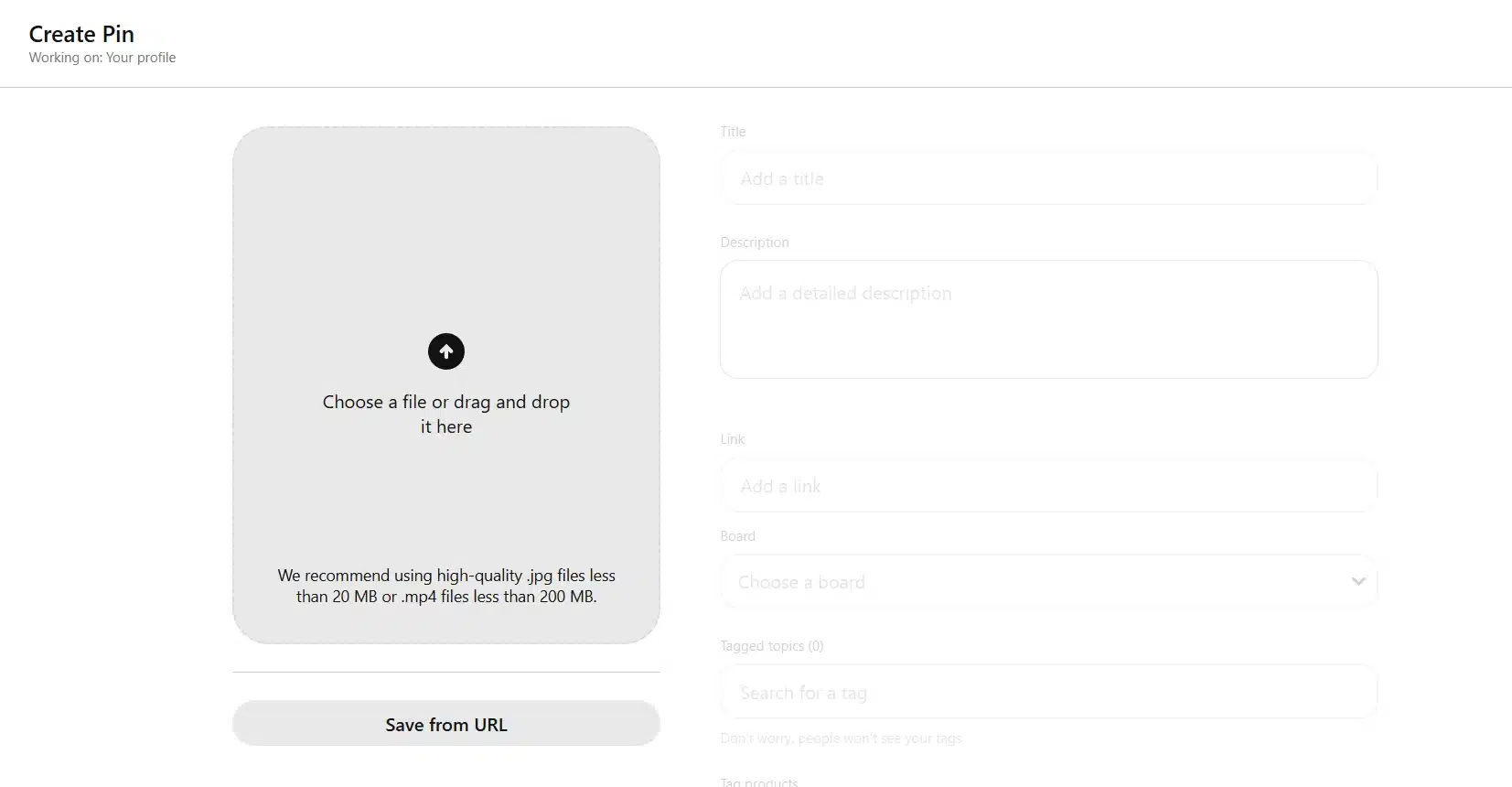
- Upload an image or video from your computer by clicking the upload icon or dragging and dropping your file into the upload area.
- Add a title and write a description that explains what your pin is about.
- If you want to send users to a website, blog post, product page, or landing page, add a destination link.
- Choose an existing board or create a new board to organize your pin.
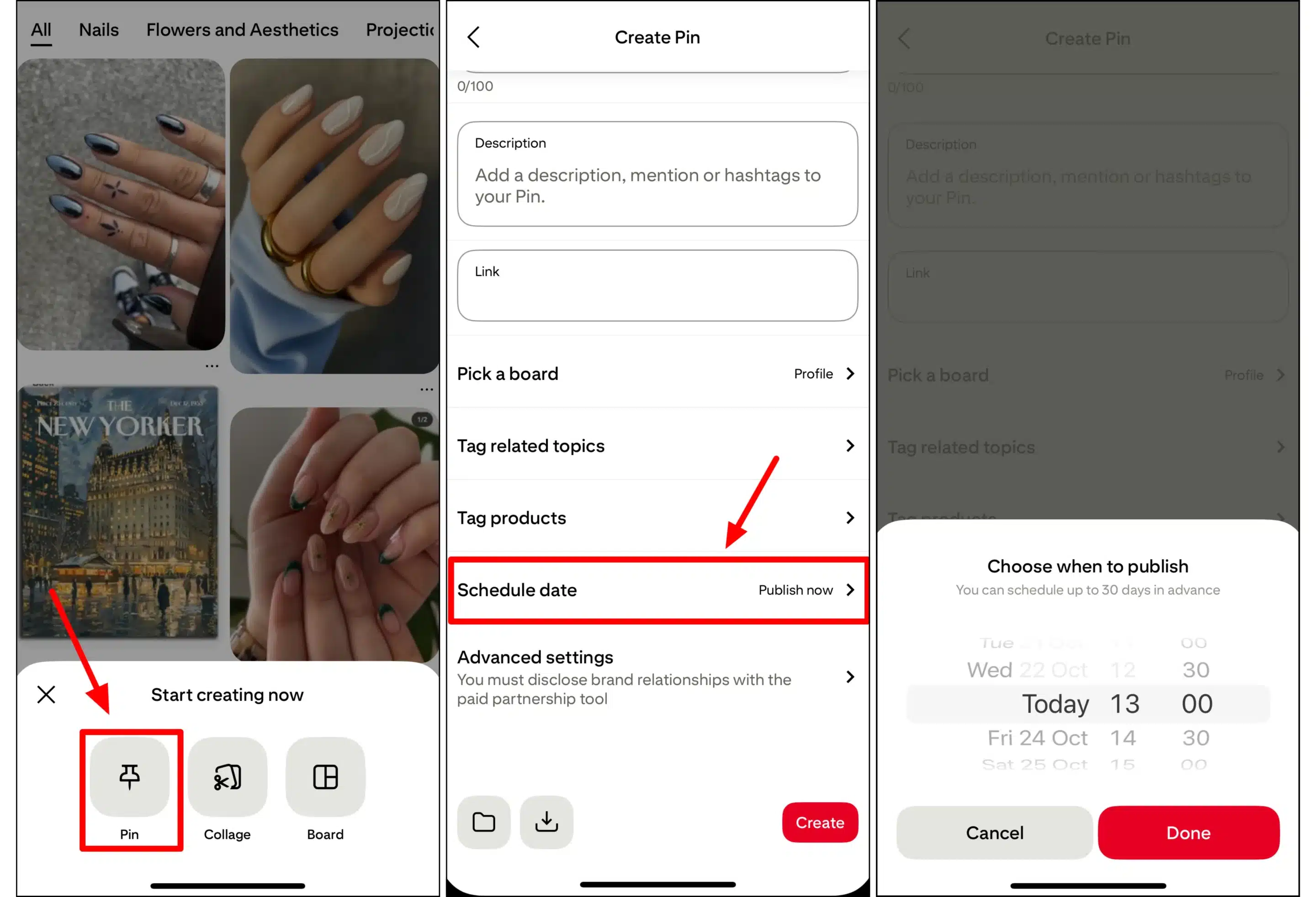
- (Optional) Add related topics to help Pinterest understand your content, schedule the pin for a future date, or edit the image before publishing.
- Review your pin and click “Publish.”
The title and description matter because Pinterest uses them to understand what your pin is about. A title like “Small apartment balcony ideas” is much stronger than “Outdoor inspiration” because it gives Pinterest and the user a specific topic.
Your pin description should sound natural while still including relevant keywords. For example:
“Find small apartment balcony ideas you can use to create a cozy outdoor space, even with limited room. Includes decor tips, furniture ideas, and renter-friendly inspiration.”
That description tells Pinterest what the pin covers while giving the user a reason to click or save.
Once your pin is live, Pinterest can start testing it in the home feed, search results, related pins, and suggested pins. The stronger your visual, keywords, board choice, and link match, the better your chances of reaching people who are already looking for that idea.
7. Planning and scheduling your Pinterest content
Pinterest rewards consistency more than volume.
You don’t need to publish dozens of pins every day to see results. What matters is creating content around the topics your audience cares about and publishing regularly enough that Pinterest understands you’re an active source of information.
That’s why I recommend creating a simple content plan before you start posting.
7.1. Define content pillars
Content pillars are the main topics your account covers.
Think of them as the categories that guide everything you publish. They help you stay focused, make content planning easier, and ensure your boards, pins, and profile all support the same themes.
For example, a travel creator might focus on destination guides, travel tips, packing advice, and hotel recommendations.
If you run a business, your content pillars should align with what your audience searches for and what your products or services help them achieve.
One mistake I often see is trying to cover too many unrelated topics. Pinterest tends to understand and recommend accounts more effectively when their content revolves around a few clear areas of expertise.
7.2. Build a weekly content schedule
Once you’ve defined your content pillars, create a simple weekly schedule.
The goal isn’t to fill every day with content, it’s to make sure you’re consistently publishing across your key topics. As a business, posting 3-10 pins a week is usually where you want to be.
For example, a creator with four content pillars might post:
- Monday: Home decor ideas
- Wednesday: DIY project
- Friday: Organization tips
- Sunday: Interior design inspiration
This approach creates variety while keeping the account focused.
As your account grows, you can also plan content around seasonal trends. Pinterest users often search for holidays, events, vacations, and seasonal projects weeks or even months before they happen. Planning ahead gives your content more time to gain visibility before demand peaks.
7.3. Schedule content in advance
Creating and publishing pins one at a time quickly becomes difficult as your content library grows.
Scheduling allows you to batch your work, stay consistent, and publish even when you’re busy working on other parts of your business.
I typically recommend setting aside one session to create multiple pins, then scheduling them throughout the week or month. This helps maintain a steady publishing cadence without requiring daily manual posting.
Pinterest offers native scheduling for business accounts, but many creators and businesses prefer using a dedicated scheduling tool for more flexibility.
For example, SocialBee is a Pinterest scheduling and management tool that helps you turn your content plan into a repeatable process. You can organize pins around your content pillars, plan a weekly publishing schedule, and schedule content across multiple boards from a single dashboard. Instead of deciding what to post every day, you can batch-create pins, add them to your content calendar, and maintain a consistent publishing rhythm weeks in advance.
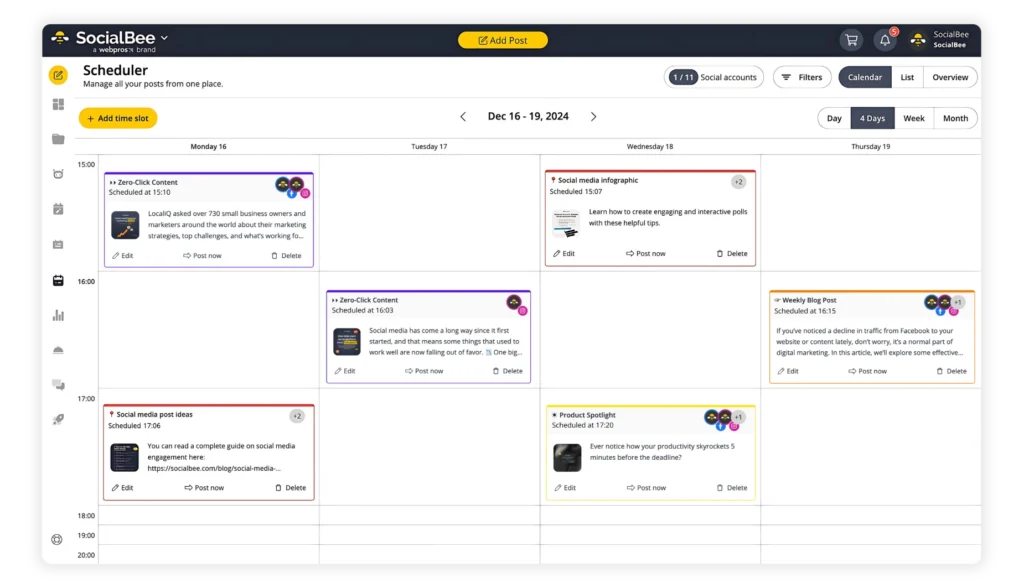
If you’re also managing Instagram, Facebook, LinkedIn, TikTok, or other social platforms, SocialBee lets you plan and schedule content for all of them from the same workspace.
The biggest benefit of scheduling is consistency. A consistent publishing schedule gives Pinterest more opportunities to understand what your account is about, test your content in search results, and recommend your pins to people interested in your niche.
8. Growing your Pinterest account
The accounts that grow consistently are the ones that make it easy for Pinterest to understand their content and easy for users to find value in it.
8.1. Build focused topic boards
Pinterest performs best when your account has a clear identity.
One of the fastest ways to confuse both users and the platform is to create boards that cover completely unrelated topics. If your account mixes home decor, cryptocurrency, fitness routines, dog training, and wedding planning, Pinterest will have a harder time understanding who should see your content.
Instead, build boards around closely related topics within your niche.
For example, a food creator might have separate boards for meal prep, healthy dinners, quick breakfasts, and dessert recipes. A marketing consultant could organize content into social media tips, content strategy, lead generation, and small business marketing.
Focused boards create a better experience for visitors because they can immediately find the content they’re interested in without sorting through unrelated pins.
8.2. Share content that matches what people are searching for
As Pinterest strategist Meagan Williamson explains, “Pinterest works best when it connects valuable, practical, helpful content with people who are actively searching for it.” That’s why educational content, tutorials, guides, and inspiration often outperform purely promotional posts on the platform.
Many creators make the mistake of creating content they want to publish instead of content users actively want to find.
Pinterest is driven by demand. Growth becomes much easier when your content aligns with existing interests and problems.
For example, a pin titled “Living Room Layout Ideas for Small Apartments” will usually have a larger potential audience than a pin titled “My New Couch.” One solves a problem. The other shares a personal update.
When planning new content, ask yourself:
What is the user trying to accomplish?
The more directly your content helps someone achieve a goal, solve a problem, learn a skill, or make a decision, the more likely it is to gain traction.
8.3. Create content that people want to save
Saves are one of the clearest signals that a pin provided value.
People save content because they want to revisit it later. That’s why practical content often performs better than purely promotional content.
In my experience, the most-saveable pins usually fall into a few categories:
- Checklists
- Tutorials
- Guides
- Templates
- Before-and-after examples
- Collections of ideas
- Step-by-step processes
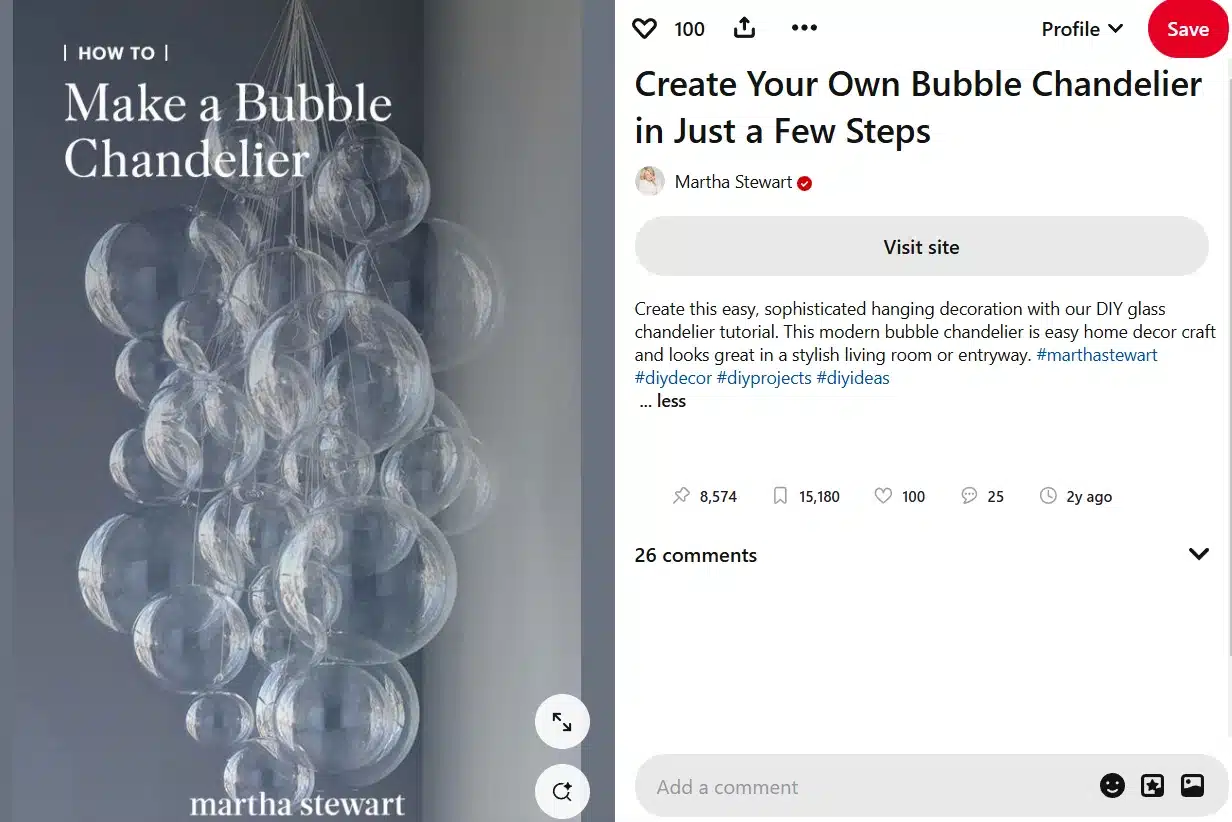
Think about the pins you’ve saved yourself. Most likely, they weren’t advertisements. They were useful resources you wanted to keep for future reference.
The more useful your content becomes, the more likely people are to save it and expose it to additional audiences over time.
8.4. Make it all about the image
Pinterest is one of the most visual platforms on the internet.
Users often decide whether to engage with a pin before reading the title or description. The image is what earns that first moment of attention.
Strong Pinterest images usually have three characteristics:
- They communicate the topic immediately.
- They remain easy to understand on mobile devices.
- They create enough curiosity to encourage a click or save.
For example, a clear photo of an organized pantry will almost always outperform a generic stock image if the topic is pantry organization.
Before publishing a pin, zoom out mentally and ask yourself:
“Would someone understand what this is about within two seconds?”
If the answer is no, the visual probably needs improvement.
8.5. Use keywords naturally in your text
Keywords help Pinterest connect your content with the right audience, but they should never make your writing sound unnatural.
I often see creators force the same phrase into every sentence because they’re worried about SEO. The result usually feels robotic and provides a poor experience for users.
Instead, write titles and descriptions the same way you’d explain the content to another person.
For example:
“Small apartment storage ideas that help you maximize space without expensive furniture.”
This gives Pinterest context while still sounding natural.
The goal isn’t to squeeze in as many keywords as possible. What you want is to clearly explain what the user will find after clicking, saving, or engaging with your pin.
9. Monitoring your Pinterest performance
Creating and publishing pins is only half the job. If you want to grow consistently, you need to understand what happens after your content goes live.
Pinterest Analytics helps you identify which topics, visuals, and content formats resonate with your audience so you can make smarter decisions going forward.
9.1. How to access your Pinterest analytics
Pinterest Analytics is available to business accounts and can be accessed directly from your dashboard.
To view your analytics:
- Log in to your Pinterest business account.
- Click the menu icon in the top-left corner.
- Select “Analytics.”
- Choose “Overview.”
From there, you’ll be able to see data about your account, boards, and individual pins.
You can filter results by date range, content type, audience, and other criteria depending on what you’re trying to analyze. If you’ve been publishing consistently for a few weeks or months, you’ll start to see patterns emerge around which content generates the strongest results.
I recommend reviewing your analytics regularly, but not obsessively. Pinterest is a long-term platform, and individual pins often take time to gain momentum. Looking at trends over weeks and months is usually more valuable than analyzing performance day by day.
9.2. Key Pinterest metrics you should care about
Pinterest provides a lot of data, but most creators and businesses only need to focus on a handful of metrics.
The first metric I look at is impressions. This shows how often your pins appeared on Pinterest. If impressions are increasing, it’s usually a sign that Pinterest is gaining confidence in your content and showing it to more users.
Next, pay attention to pin clicks. These occur when someone clicks on your pin to view it in more detail. High pin clicks often indicate that your image, headline, or topic successfully captured attention.
Another important metric is saves. Saves tell you that people found your content valuable enough to keep for later. Since Pinterest is built around collecting ideas and inspiration, saves are often a strong signal that your content is useful and relevant.
Finally, monitor outbound clicks. This metric tracks how many users leave Pinterest and visit your website, blog post, online store, or landing page. For most businesses and creators, outbound clicks are one of the most important indicators of success because they show whether Pinterest is generating meaningful traffic.
Rather than looking at these metrics in isolation, look for relationships between them.
For example:
- High impressions but low clicks may indicate that your visual isn’t compelling enough.
- Strong clicks but low saves could suggest that users are interested but don’t see long-term value in the content.
- High saves and clicks often signal a topic worth expanding into additional pins and boards.
- Strong outbound clicks usually indicate that your pin and destination page are well aligned.
As your account grows, analytics become less about measuring success and more about identifying opportunities. The best-performing pins often reveal exactly what your audience wants more of, making future content planning much easier.
If you’re managing Pinterest alongside other social platforms, SocialBee’s analytics and reporting tools can help you track performance from one dashboard instead of jumping between platforms. This makes it easier to compare results, spot trends, and understand how Pinterest contributes to your broader social media strategy.
10. Pinterest for business: advanced use cases
Once you understand how Pinterest works, you can start using it as a marketing channel instead of simply a content platform.
10.1. Pinterest for business
The most successful businesses on Pinterest don’t treat it like Instagram.
Instead of posting company updates and hoping for engagement, they create content that helps potential customers solve problems, answer questions, or find inspiration. The goal is to become visible when people search for topics related to your products or services.
For example:
- A home decor brand can create content around room makeovers, decorating tips, and furniture layouts.
- A financial advisor can share budgeting tips, savings strategies, and retirement planning resources.
- A software company can create pins that promote guides, templates, and educational articles.
The most effective business accounts focus on helping first and selling second.
10.2. Driving website traffic
One of Pinterest’s biggest advantages is its ability to send visitors to your website long after a pin is published.
Instead of creating one pin for each piece of content, I recommend creating multiple pins that promote the same page from different angles.
For example, if you’ve published a blog post called 50 Small Apartment Storage Ideas, you could create separate pins focused on:
- Bedroom storage ideas
- Small closet organization
- Apartment organization hacks
- Storage ideas for renters
Each pin targets a slightly different search intent while sending traffic to the same article.
You can apply this approach to almost any type of content:
- A fitness coach can turn one workout guide into pins targeting beginners, busy professionals, and home workouts.
- A travel blogger can create separate pins for attractions, restaurants, itineraries, and travel tips from the same destination guide.
- A SaaS company can create pins highlighting different benefits of the same resource, such as productivity tips, templates, or industry benchmarks.
I also recommend linking Pinterest traffic to pages that encourage a next step. Instead of sending visitors only to your homepage, direct them to blog posts, downloadable resources, email signup pages, product collections, or lead magnets that are closely related to the pin.
For businesses with blogs, resource centers, or lead magnets, Pinterest often works best when you focus on evergreen content that remains useful throughout the year.
10.3. Selling products
Pinterest users frequently use the platform while researching future purchases.
Instead of creating boards filled only with product photos, build content around the lifestyle or outcome your product helps create.
For example, a candle company could create boards around:
- Cozy living room ideas
- Fall home decor
- Relaxing bedroom inspiration
- Gift ideas for book lovers
The products naturally fit within those themes rather than feeling like advertisements.
The same principle applies across industries:
- A furniture brand can create room makeover inspiration and design guides.
- A skincare company can create content around morning routines, self-care habits, and skincare tips.
- A kitchenware brand can share recipes, meal prep ideas, and cooking tutorials featuring its products.
- A fashion retailer can create seasonal outfit guides and style inspiration boards.
One tactic I’ve seen work particularly well is creating content for different stages of the buying process. Some users are looking for inspiration, while others are comparing options and are much closer to making a purchase.
For example, a furniture store might create:
- “Living room design ideas” pins for early-stage inspiration
- “Best sofas for small apartments” pins for comparison shoppers
- Product pins featuring specific sofas for users ready to buy
If you sell physical products, I also recommend creating seasonal content several months before major shopping periods. Pinterest users often start planning holidays, vacations, weddings, and home projects long before they make a purchase.
10.4. Pinterest ads basics
Pinterest ads work best when you use them to amplify content that’s already performing well organically.
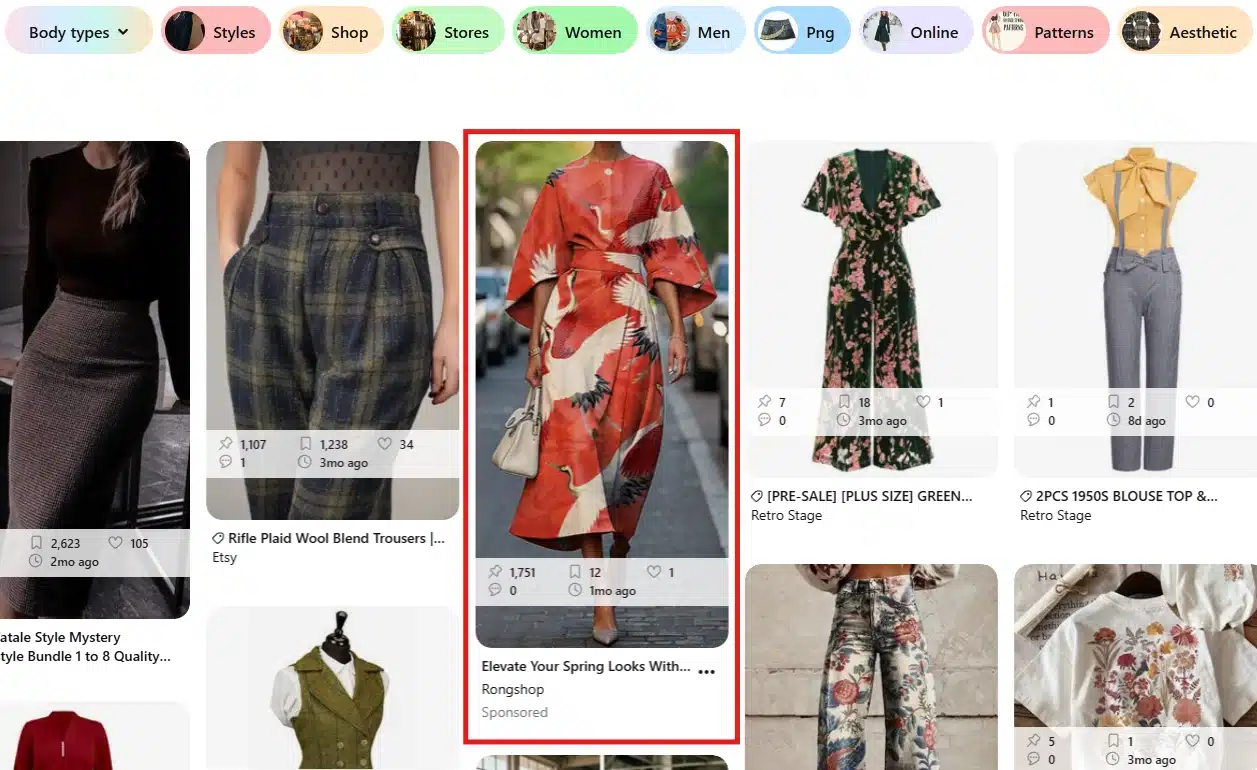
Many businesses make the mistake of promoting brand-new pins without first understanding what resonates with their audience.
A better approach is to:
- Publish pins organically.
- Monitor impressions, saves, and outbound clicks.
- Identify your strongest-performing content.
- Promote the pins that already generate engagement.
This reduces guesswork and allows you to invest in content that’s already proven its value.
When getting started with Pinterest ads, begin with a small budget and focus on a single objective, such as website traffic, lead generation, or product sales. Running simple tests often produces better results than launching multiple campaigns at once.
The businesses that succeed on Pinterest usually combine organic content and paid promotion. Organic pins help identify what people care about, while ads help you reach a larger audience once you’ve found a winning topic.
One reason many ecommerce brands invest in Pinterest ads is their strong purchase intent. According to Pinterest, Shopping ads deliver 3x higher conversion and sales lift and 2x higher positive incremental ROAS compared to other platforms, suggesting that users are often closer to making a purchase when they discover products on Pinterest.
Frequently asked questions
1. What kind of content performs best on Pinterest?
The content that performs best on Pinterest is content that helps people solve a problem, learn something new, plan a future project, or find inspiration. Tutorials, checklists, guides, recipes, home decor ideas, travel content, product roundups, and step-by-step how-to posts tend to generate the most saves and clicks. In general, content with long-term value performs better than content tied to short-lived trends.
2. How often should you post on Pinterest?
For most creators and businesses, publishing 3-10 pins per week is enough to build momentum. Consistency matters more than volume. It’s better to publish a few high-quality pins every week than to post heavily for a few days and then disappear for a month. As your content library grows, you can gradually increase your publishing frequency.
3. Do hashtags work on Pinterest?
Hashtags still work on Pinterest, but they play a much smaller role than they once did. Pinterest relies heavily on keywords in your pin titles, descriptions, board names, and profile information to understand your content. If you choose to use hashtags, stick to a few highly relevant ones and focus most of your effort on writing clear, keyword-rich descriptions that accurately describe what users will find when they click.
Create your own successful Pinterest account
Pinterest rewards creators and businesses that think long term.
If you’re serious about growing on Pinterest, having a consistent publishing process becomes essential. SocialBee is a Pinterest scheduling and management tool that helps you create, organize, schedule, and analyze your Pinterest content from one dashboard. You can plan pins across multiple boards, maintain a consistent posting schedule, and track your results without manually publishing every day.
Start small, stay consistent, and focus on helping your audience. That’s how successful Pinterest accounts are built.