


Learning how to use Twitter, now called X, is important for any professional. While the platform has changed significantly over the past few years, it remains one of the best places to share expertise, discover what’s happening in your industry, connect with other professionals, and build an audience around your ideas.
That said, it’s important to keep up with X’s latest updates and best practices. Features have changed, the interface looks different from the Twitter many people remember, and there’s plenty of conflicting advice about what works. If you’re new to the platform, it’s not always obvious where to begin.
This complete beginner’s guide walks you through everything you need to know, from creating your account and understanding the interface to writing your first posts, growing your followers, and using X effectively as a creator, professional, or business. By the end, you’ll know how the platform works and how to make it part of your social media strategy.

1. Understanding X as a social media platform
1.1. What is X (Twitter)?
X is a social media platform where people share short text posts, photos, videos, links, and participate in public conversations. It was originally launched as Twitter in 2006 and quickly became known as the place to follow breaking news, comment on live events, and connect directly with public figures, journalists, brands, and businesses.
In 2022, Elon Musk acquired Twitter for $44 billion. Less than a year later, in July 2023, the platform was rebranded as X, reflecting Musk’s ambition to turn it into an “everything app” that goes beyond social networking. Since then, the platform has introduced a steady stream of new features, including longer posts, creator subscriptions, video improvements, paid verification, enhanced analytics, and new sharing options. It has also continued to expand tools for businesses and advertisers.
Despite the new name, many people still use the terms Twitter, tweet, and retweet in everyday conversations. You’ll hear both names used interchangeably, and throughout this guide, we’ll occasionally do the same to match how most users search for and talk about the platform.
Today, X remains one of the largest social media platforms in the world. It’s where news breaks first, industry discussions unfold in real time, and creators, professionals, businesses, and everyday users exchange ideas with millions of people every day.
1.2. What makes X different from other social media platforms
Every social media platform has its own purpose. People use Instagram to share moments from their lives and keep up with what friends, creators, and brands are doing. They open TikTok to be entertained. They visit LinkedIn for professional updates.
People open X because they want to know what’s happening right now.
That’s what has always made the platform different. News breaks on X first. Industry experts share opinions while events are unfolding. Product launches, sports matches, conferences, and major announcements all generate conversations that happen in real time.
I’ve also found that X rewards ideas more than production quality. You don’t need an expensive camera, polished graphics, or carefully edited videos to get attention. A thoughtful observation or an interesting perspective can outperform content that took hours to produce.
The platform is also unusually open. It’s completely normal to reply to someone you don’t know, whether that’s a CEO, journalist, creator, or one of your favorite brands. Those public conversations are one of the reasons X remains valuable for networking and building credibility.
That doesn’t mean every post will reach thousands of people. But compared to many other social networks, it’s much easier for good ideas to travel beyond your existing followers.
1.3. How do people use X
There’s no single “right” way to use X. Some people treat it as a personalized news feed, while others use it to grow a business, build a personal brand, or connect with people in their industry.
If you’re a creator, X is a great place to test ideas before turning them into videos, newsletters, podcasts, or blog posts. A short post that sparks discussion can tell you exactly what your audience wants to learn more about.

Professionals often use the platform to share lessons from their work, comment on industry trends, and build relationships with people they might never meet otherwise. I’ve seen plenty of consultants, developers, marketers, and founders land speaking opportunities, clients, and even jobs simply by consistently sharing useful insights.

Businesses usually approach X a little differently. Many use it to announce product updates, answer customer questions, provide support, and participate in conversations their audience already cares about. The platform also makes it easy to monitor what customers are saying about your brand and respond while the discussion is still active.

Of course, you don’t have to pick just one approach. The most successful accounts usually combine several. They share useful content, join conversations, answer questions, and occasionally promote their products or services. Most of the time, they focus on being interesting or helpful first and selling second.
2. Navigating the X interface
2.1. Home feed (For You and Following)
The Home feed is where you’ll spend most of your time on X. It displays posts from people you follow, recommended content, trending discussions, and conversations the platform thinks you’ll find interesting.
At the top of the page, you’ll notice two tabs: For You and Following.
The For You feed is powered by X’s recommendation algorithm. It combines posts from accounts you follow with content from other users based on your interests and activity. The more you interact with certain topics or creators, the more similar content you’ll see here.

The Following feed works differently. It only shows posts from accounts you follow, making it much easier to keep up with people whose updates you don’t want to miss. While posts generally appear in chronological order, you may occasionally see pinned or recommended content.

I usually switch between both feeds depending on what I’m trying to do. The For You feed is useful for discovering new creators and finding conversations to join, while the Following feed is better when I want to catch up with people I already follow.
2.2. Search bar
The search bar is one of the easiest ways to discover new content on X. You can search for keywords, hashtags, usernames, businesses, or specific topics to find relevant posts and accounts.

As you type, X suggests popular searches and matching profiles. After running a search, you can filter the results to view Top, Latest, People, Photos, or Videos, making it easier to find exactly what you’re looking for.
Beyond finding content, the search bar is also a useful research tool. Businesses can monitor brand mentions, creators can see what questions people are asking, and marketers can discover trending discussions before creating their next post.
2.3. Explore tab
If you want to know what people are talking about right now, head to the Explore tab.
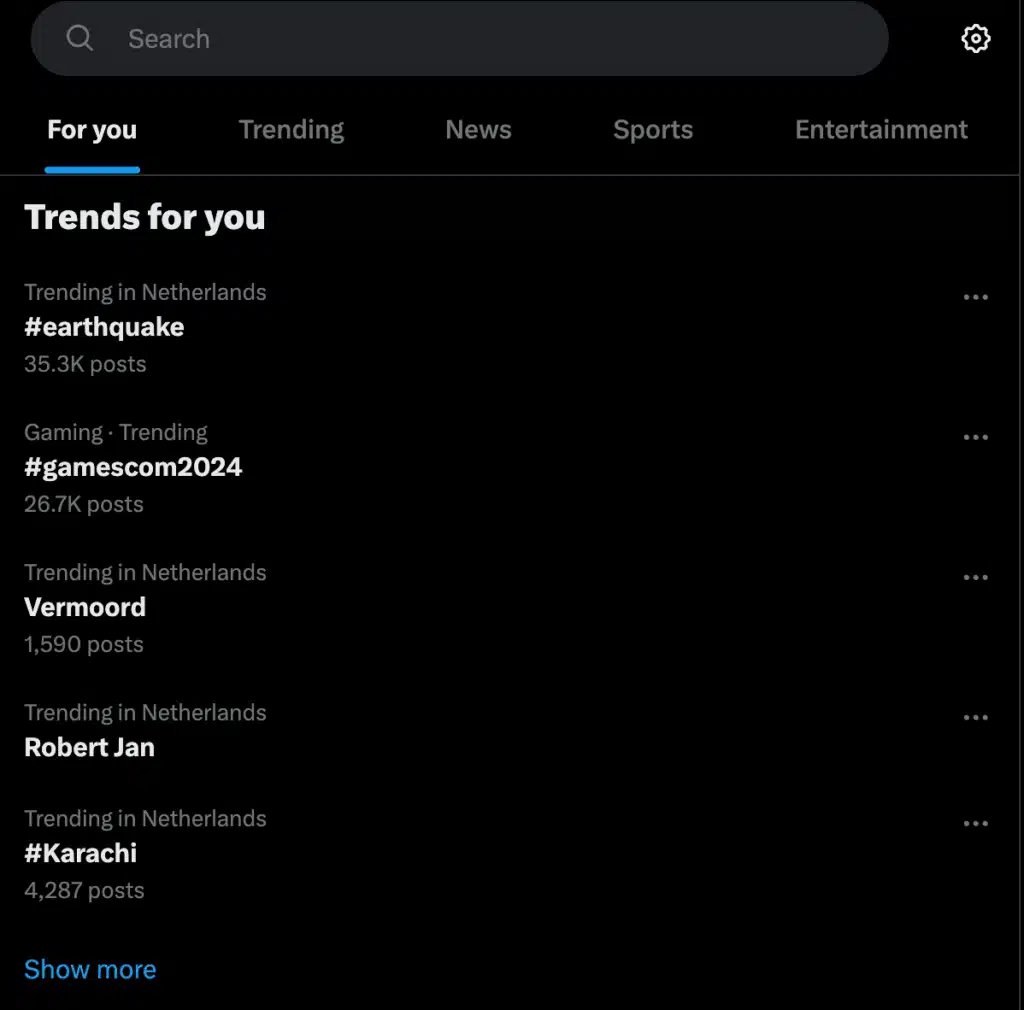
This section highlights popular topics, breaking news, trending hashtags, live events, and conversations gaining momentum across the platform. Trends are personalized based on your location and interests, although you can also explore what’s happening globally.
Checking the Explore tab regularly is a simple way to find relevant conversations you can join instead of always starting one from scratch.
2.4. Posts (tweets)
While the platform officially calls them posts, many users still refer to them as tweets.
A post can contain text, photos, videos, GIFs, polls, or links. You can also reply to other users, repost their content, quote their posts with your own commentary, or create a thread by connecting multiple posts together.

Because X moves quickly, most successful posts are concise and easy to understand. Instead of trying to say everything at once, focus on one clear idea that encourages people to reply or share their own perspective.
2.5. Profile page
Your profile page is where people go after discovering one of your posts or replies. It gives them a quick overview of who you are and what you share.
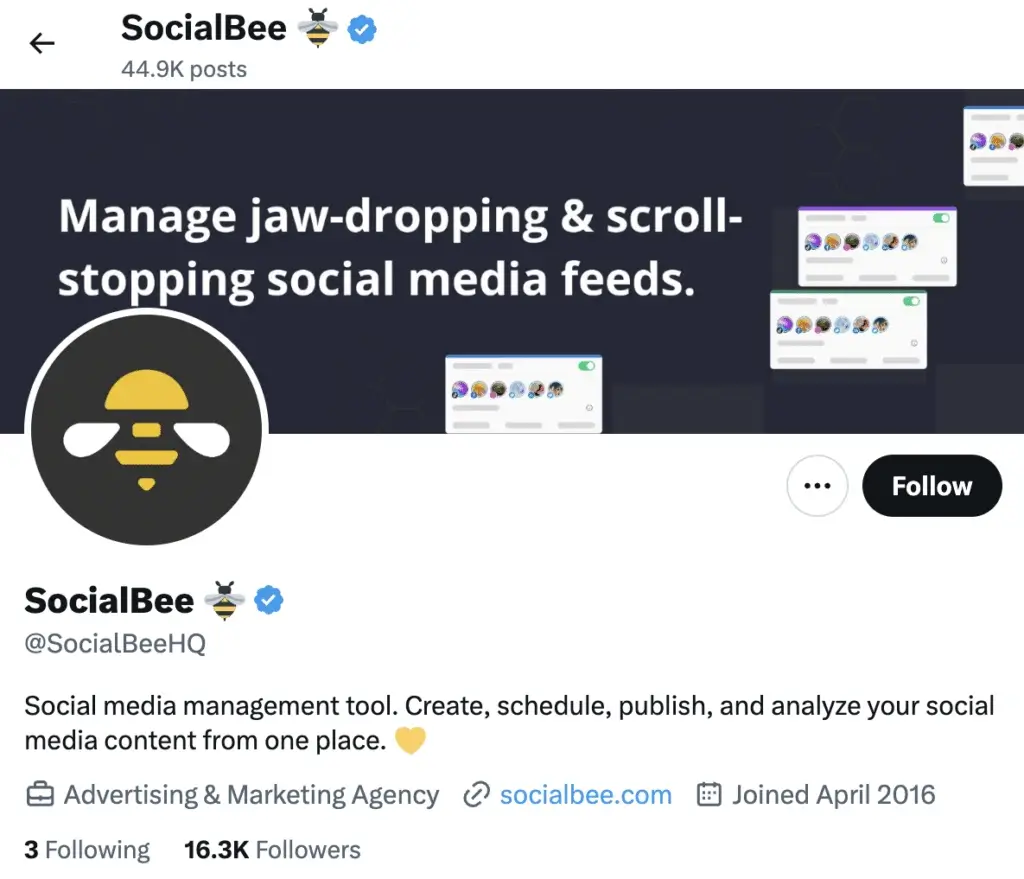
Here you’ll find your profile picture, header image, display name, username, bio, website link, follower count, and all of your published posts. Visitors can also browse your replies, photos, videos, and any posts you’ve pinned to the top of your profile.
Think of your profile as your introduction. If someone enjoys one of your posts, this page often determines whether they decide to follow you.
2.6. Notifications
The Notifications tab keeps you updated on activity related to your account.
You’ll see when someone likes your posts, replies to them, mentions your username, reposts your content, or follows your account. X also recommends conversations and accounts that might interest you.
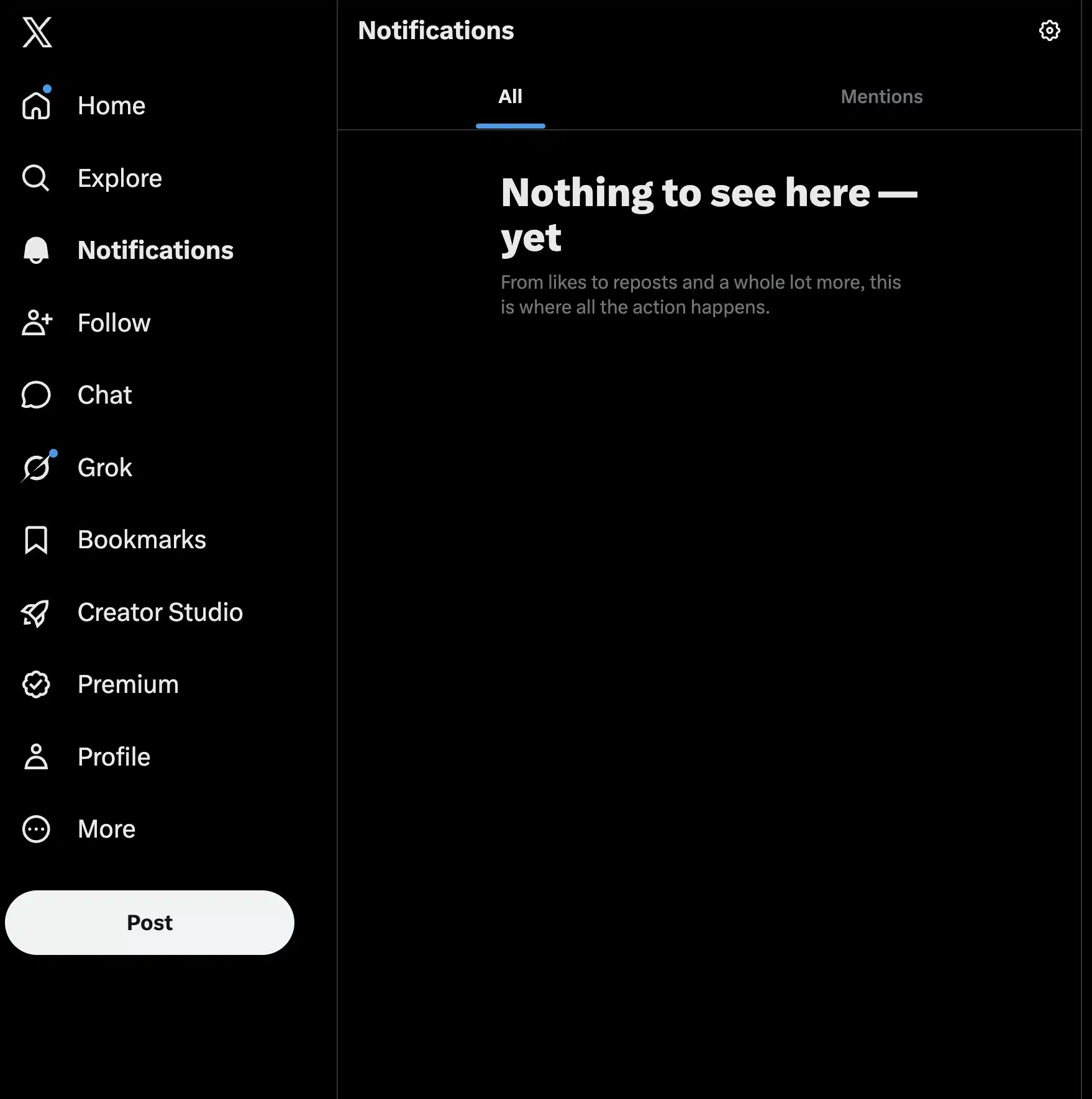
If you’re trying to grow on the platform, it’s worth checking your notifications regularly. Responding to replies while conversations are still active helps keep discussions going and shows people there’s a real person behind the account.
2.7. Messages (inbox)
Direct Messages, often called DMs, allow you to have private conversations with specific accounts through text messages directly on the platform.
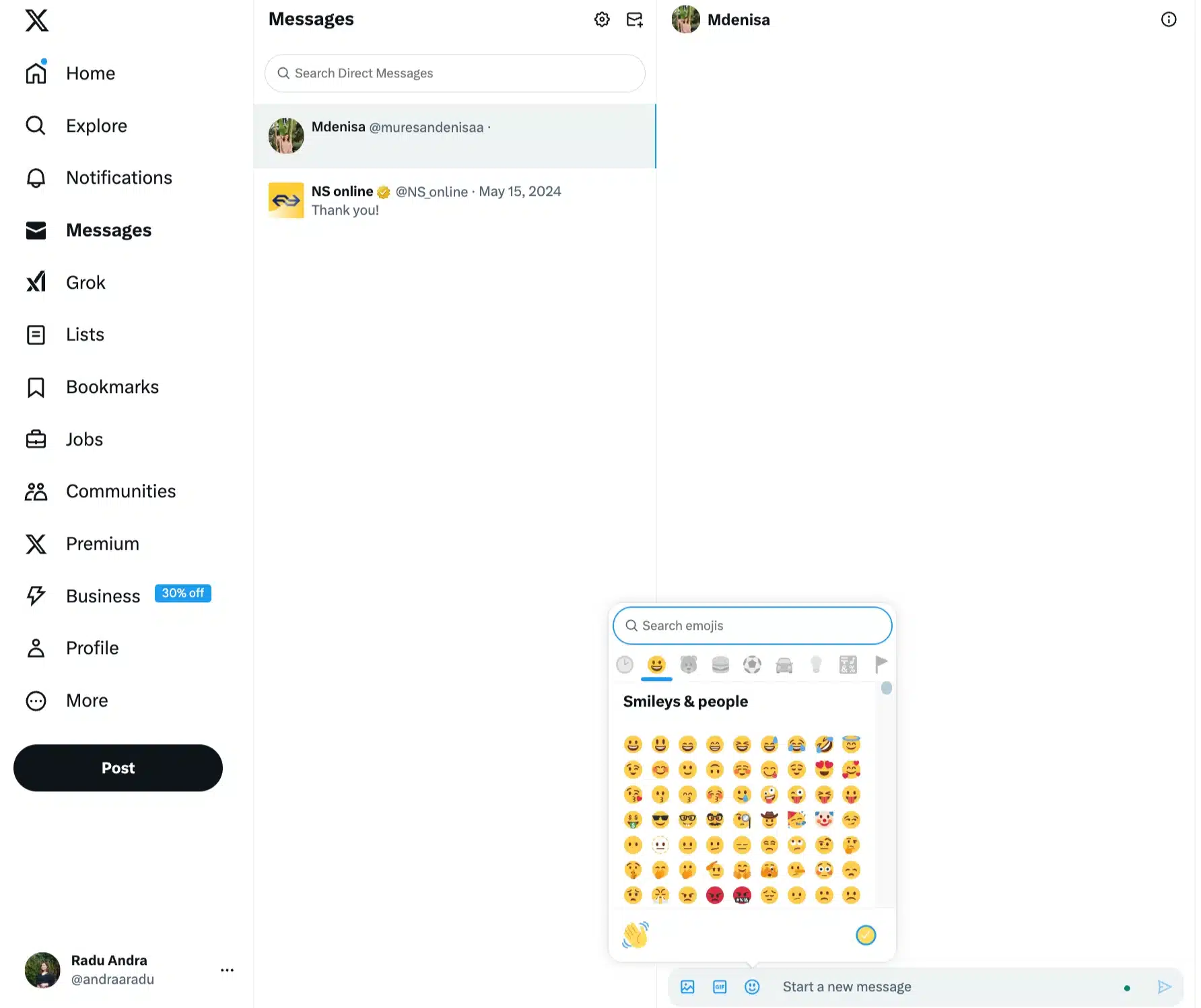
Many creators, businesses, and professionals use messages for networking, customer support, partnership discussions, or sharing information that doesn’t belong in a public conversation.
Keep in mind that message requests from people you don’t follow may be filtered into a separate inbox, depending on your privacy settings.
2.8. Settings menu
The Settings menu is where you manage your Twitter account and customize how it works.
From here, you can update your profile information, change your password, manage privacy settings, control notifications, adjust security options, review connected apps, and customize your experience on the platform.
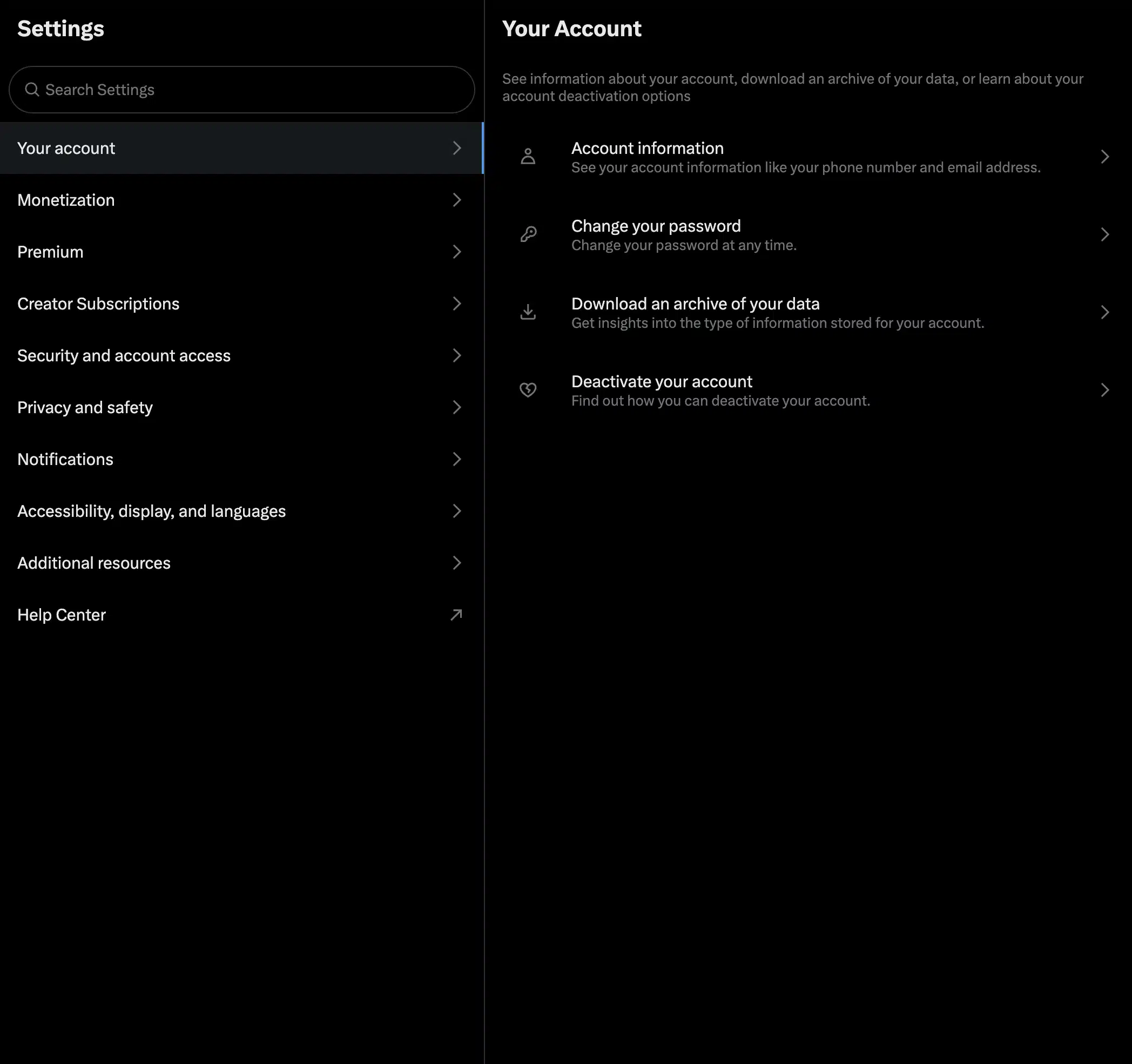
It’s also where you’ll find account verification options, subscription settings, accessibility features, and tools that help protect your account, including two-factor authentication.
3. How to set up your X account
3.1. Choosing a personal vs. business or creator account
Before creating an account, it’s worth deciding how you plan to use X and who your specific audience will be. The platform offers both personal and professional accounts, and switching between them only takes a few clicks.
A personal account is a good fit if you’re mainly using X to follow news, participate in conversations, or post occasionally. You still get access to the platform’s core features, including posts, replies, direct messages, Communities, and Spaces.
A professional account is designed for creators, businesses, nonprofits, publishers, and public figures. It unlocks business-focused profile features, lets you choose a professional category, and gives eligible accounts access to tools like profile spotlights and shopping features.
If you’re planning to grow an audience, promote a business, or create content consistently, I’d recommend starting with a professional account. Even if you don’t use every feature immediately, it gives you more flexibility as your presence grows.
3.2. How to create an X account
Creating an X account only takes a few minutes.
- Go to x.com or download the X app on your phone.
- Select “Create account.”
- Enter your name, email address or phone number, and your date of birth.
- Choose whether you’d like to receive updates from X.
- Enter the verification code sent to your email address or phone.
- Create a secure password.
- Pick a username. Don’t worry if you’re undecided because you can change it later.
- Follow a few accounts that interest you to personalize your feed.
Once you’ve completed these steps, your Twitter account is ready to use.
3.3. How to verify your account (email, phone, X verification system)
There are two types of verification you’ll come across on X.
The first happens when you create your account. X asks you to confirm your email address or phone number by entering a verification code. This confirms that you own the account and makes it much easier to recover if you ever lose access.
The second is X’s paid verification system, available through the Premium and Premium+ subscriptions. Once you subscribe, your account doesn’t receive a blue checkmark immediately. Instead, X reviews your account to make sure it meets its eligibility requirements.

To qualify for verification, your account must:
- Have a confirmed phone number.
- Be active and not recently created.
- Display a profile picture and display name.
- Show no signs of being misleading, deceptive, or involved in spam or platform manipulation.
- Comply with X’s Terms of Service.
If your account passes the review, the blue verification badge will appear next to your display name. Keep in mind that changing your profile icon, display name, or username after receiving the badge will temporarily remove it while X reviews your account again to confirm it still meets the requirements.
Even if you don’t plan to subscribe to X Premium, I still recommend verifying both your email address and phone number. It’s one of the simplest ways to improve your account’s security and makes recovering your account much easier if you ever forget your password or lose access.
3.4. X Premium (account-level subscription and features)
X is free to use, but the platform also offers a paid subscription called X Premium. It comes in three tiers: Basic, Premium, and Premium+, with each tier unlocking additional features.
The Basic plan focuses on publishing tools. Subscribers can edit posts for up to one hour after publishing, write posts of up to 25,000 characters, upload longer videos, create Communities, format text, organize bookmarks into folders, and customize parts of the app experience.
The Premium tier includes everything in Basic and adds a blue verification checkmark (after your account passes X’s review process), fewer ads, access to creator monetization programs like Creator Revenue Sharing and Creator Subscriptions, ID verification, Media Studio, and higher usage limits for Grok.
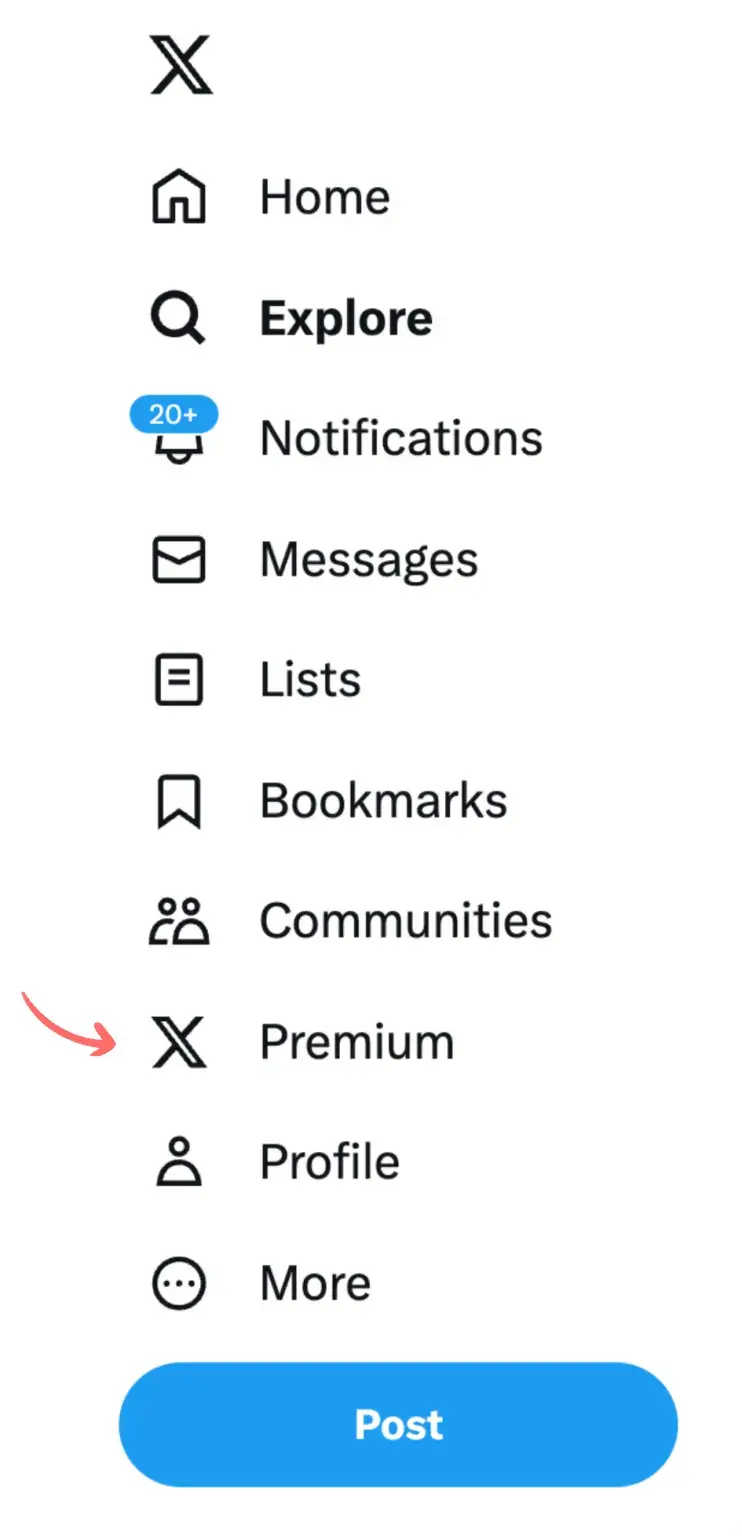
At the top is Premium+, which includes all Premium features along with an almost ad-free experience, higher Grok limits, access to Articles and X Pro, and the highest priority for replies in conversations.
Whether Premium is worth paying for depends on how you use X. If you’re an occasional user, the free version offers everything you need. If you’re actively building a personal brand, publishing long-form content, or creating content professionally, Premium’s editing tools, verification, monetization options, and additional publishing features can make it a worthwhile investment.
Important: One thing to keep in mind is that the blue checkmark isn’t applied immediately. X reviews eligible Premium and Premium+ accounts before granting verification, and changing your profile photo, display name, or username can temporarily remove the badge until your account is reviewed again.
3.5. How to switch to a professional account
If you created a personal account, you can switch to a professional account at any time.
Open your profile, and click on “Edit profile.” Then, simply scroll down and tap on “Switch to professional account.” X will ask you to choose a category that best describes your business, brand, or creator profile.
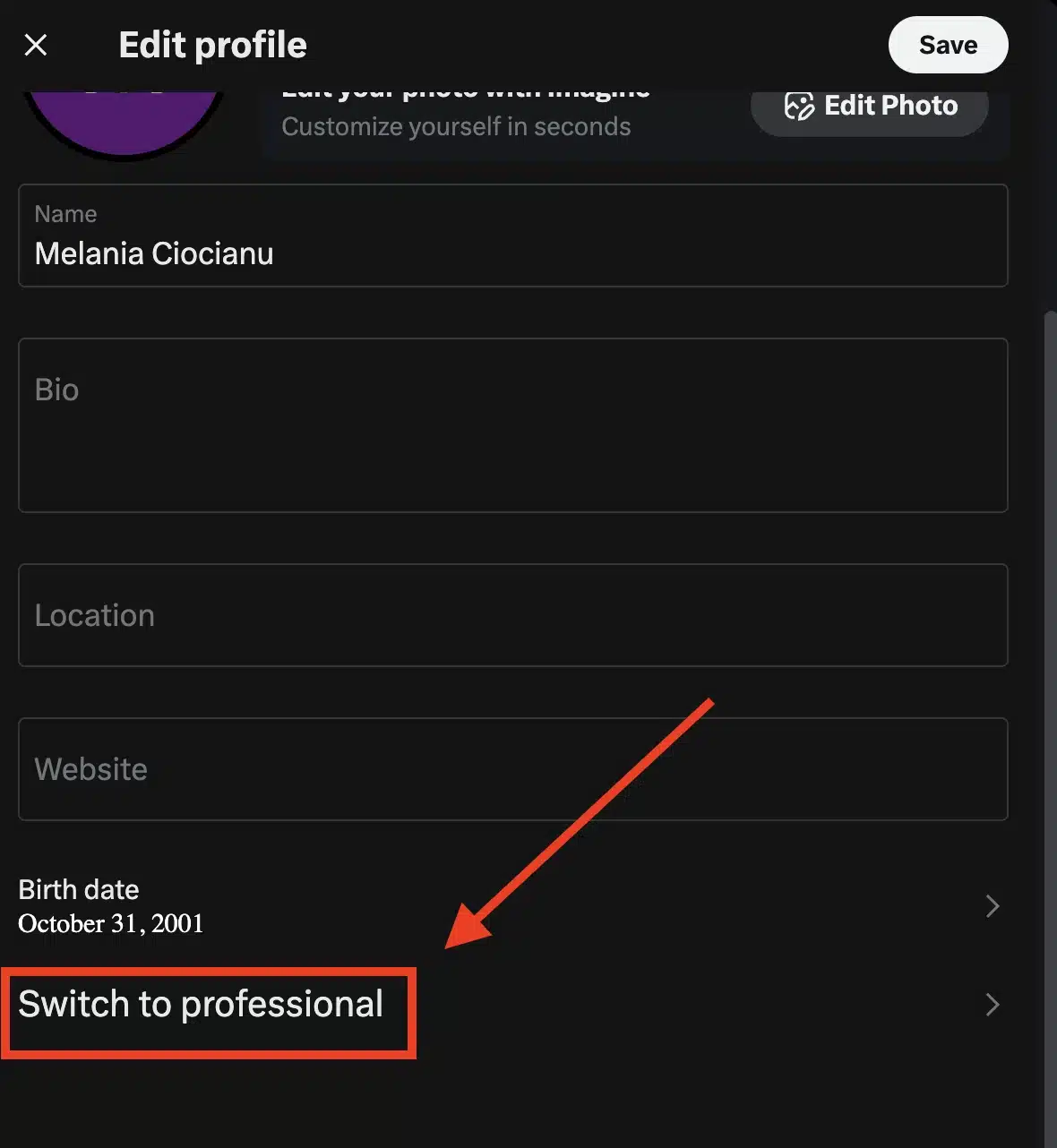
The process only takes a minute, and you can always switch back later if your needs change.
3.6. How to set up your X profile (photo, bio, username)
A complete profile makes your account look more credible and helps people decide whether to follow you after seeing one of your posts.
Start by uploading a profile picture. X recommends an image that’s 400 × 400 pixels, although uploading a higher-resolution square image will ensure it looks sharp across devices. If you’re building a personal brand, use a clear headshot. Businesses should use their brand logo.
Next, add a header (cover) image. This is the large banner displayed at the top of your profile. The recommended size is 1500 × 500 pixels. Use this space to reinforce your brand, showcase your product, promote an event, or simply make your profile more recognizable.
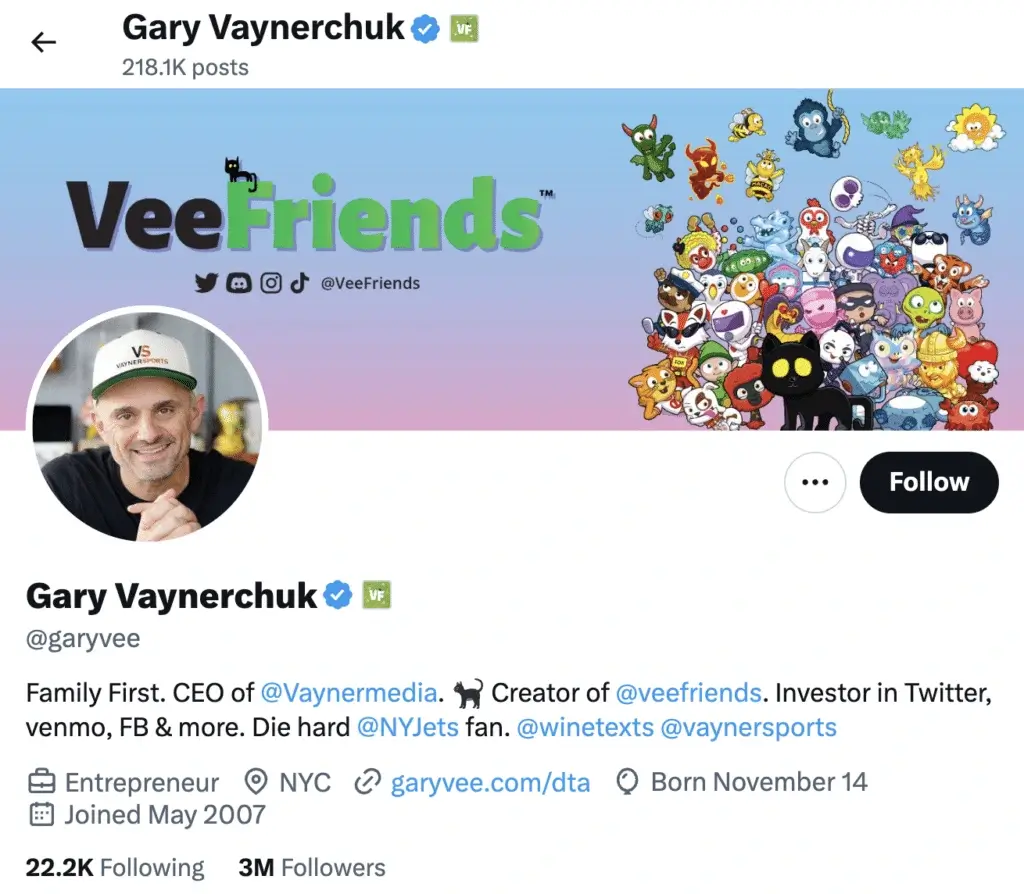
Then, complete your profile details:
- Display name: Up to 50 characters. This is the name people see on your profile and in their feed. It doesn’t have to match your username.
- Username (@handle): Up to 15 characters. Choose a Twitter handle that is short, memorable, and consistent with your other social media accounts if possible.
- Bio: Up to 160 characters. Explain who you are, what you do, and why someone should follow you. Keep it specific instead of trying to be clever.
- Location: Optional, but useful for local businesses and creators.
- Website: Add one link to your website, portfolio, online store, newsletter, or link-in-bio page. If you have multiple destinations to share, a link-in-bio tool can help you organize them.
Finally, consider pinning a post to the top of your profile. New users on your profile often read your pinned post before anything else, making it a great place to introduce yourself, highlight your best content, promote an important announcement, or direct people to a resource you’d like them to see first.
3.7. Account settings you should know
Before you start posting, review your X account settings. A few small changes can make your account safer, your feed cleaner, and your notifications easier to manage.
Start with security and account access
Make sure your email address and phone number are up to date, then enable two-factor authentication. This adds an extra login step, such as a code or security key, so someone can’t access your account with only your password. You should also check Connected apps and remove any tools you no longer use.
Next, look at privacy and safety
If you want anyone to see your posts, keep your account public. If you prefer to approve followers manually, turn on Protect your posts. Just remember that protected posts won’t travel as far because people who don’t follow you can’t see, repost, or quote them.
You should also review who can send you messages, tag you in photos, mention you, and find your account using your email address or phone number. For a creator or business account, staying visible is usually helpful. For a personal account, stricter privacy settings may be the better choice.
Then, customize your notifications
X can notify you about likes, reposts, replies, mentions, new followers, direct messages, Spaces, recommendations, and trending topics. If you leave everything on, your inbox can get noisy fast. I usually recommend keeping notifications for replies, mentions, DMs, and important account activity, then turning off anything that feels distracting.
Finally, check your content preferences
You can manage muted words, muted accounts, blocked accounts, sensitive content settings, and ad personalization. These settings shape what you see on the platform and help you avoid topics, accounts, or conversations that aren’t relevant to you.
These settings don’t take long to review, but they make a noticeable difference. A secure, well-configured account is easier to manage, especially once you start posting regularly and more people begin interacting with your content.
4. X algorithm and SEO
4.1. How the X algorithm ranks content
X uses a recommendation system to decide which posts appear in your For You feed, search results, and other discovery surfaces. The simplest way to understand it is this: X tries to predict which posts you are most likely to engage with, then ranks content based on that prediction.
Elon Musk’s mission at the beginning of this year has been to make the algorithm open source, as stated by him on the platform: “We will make the new X algorithm, including all code used to determine what organic and advertising posts are recommended to users, open source in 7 days. This will be repeated every 4 weeks, with comprehensive developer notes, to help you understand what changed.”
Its For You feed algorithm is available on GitHub. According to the repository, the system combines posts from accounts you follow with posts from outside your network, then ranks them using a Grok-based transformer model adapted for recommendations.
That means your feed is not built only from the people you follow. X also looks for posts from other users that seem relevant based on your behavior, such as what you like, reply to, repost, click, watch, expand, mute, block, or report.
The ranking system predicts how likely you are to take different actions, including:
- Liking a post
- Replying to it
- Reposting it
- Quoting it
- Clicking a link
- Opening a profile
- Watching a video
- Expanding a photo
- Following the author
- Muting, blocking, or reporting the account
Positive actions can help a post rank higher. Negative actions can push it down. So while likes still matter, X appears to care more about the full pattern of user behavior around a post.
For creators and businesses, the practical takeaway is simple: write posts that invite real interaction. A post that gets thoughtful replies, profile clicks, shares, and saves is usually a stronger signal than a post that gets passive likes and then disappears.
4.2. How the For You feed and search results are generated
The For You feed pulls content from two main places: accounts you follow and accounts you don’t follow yet.
The in-network side comes from people already in your following list. These are the posts you’d expect to see from friends, creators, customers, competitors, brands, or industry voices you follow.
The out-of-network side is where discovery happens. X scans a much larger pool of posts and looks for content that matches your interests, behavior, and engagement history. This is why you may see a post from someone you’ve never heard of simply because you’ve been interacting with similar topics.
Before posts appear in your feed, X filters out content that should not be shown. This can include duplicate posts, posts you’ve already seen, posts from blocked or muted accounts, posts containing muted keywords, very old posts, spam, deleted content, or content that violates visibility rules.
After that, the system scores the remaining posts and selects the ones most likely to interest you. It also tries to avoid showing too many posts from the same author in a row, which helps keep the feed varied.
Search works a little differently because it starts with a keyword, hashtag, username, or phrase you type into the search bar. From there, X shows results based on relevance, recency, engagement, media type, and account signals. If you search for a topic like “best Korean skincare,” X will look for posts, profiles, videos, images, and conversations connected to that phrase.
4.3. How X SEO and discovery work
X SEO means making your posts and profile easier to discover through search, recommendations, and public conversations. It’s less formal than Google SEO, but the principle is similar: use clear language that matches what people are already looking for.
Start with your profile. Your display name, username, bio, and website link all help people understand who you are and what you talk about. If you’re a freelance designer, SaaS founder, fitness coach, or local business owner, say that clearly. Don’t make people decode your profile.
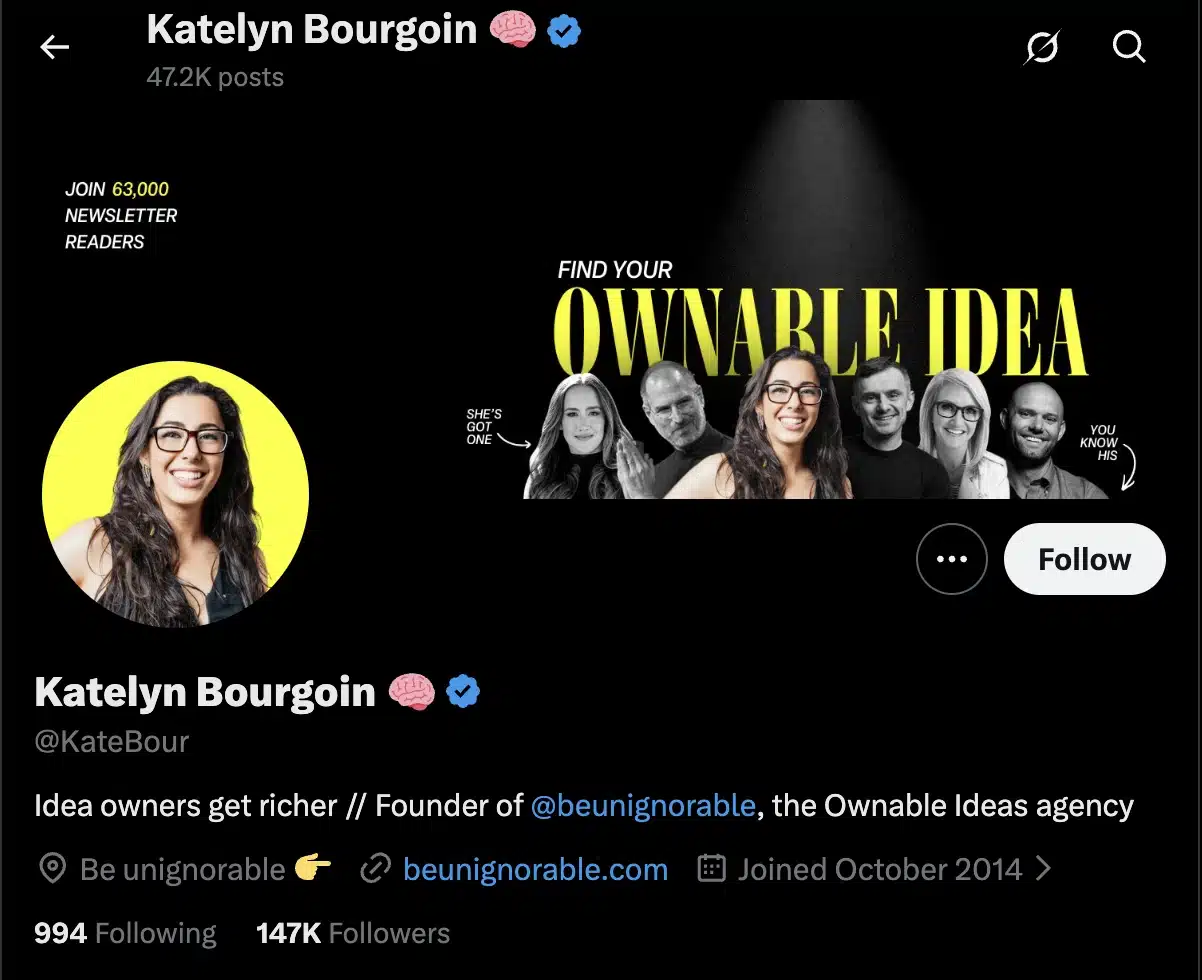
Then, apply the same thinking to your posts. Instead of writing vague updates, use specific keywords naturally.
For example, this post doesn’t tell X or other users much about the topic:
“Just finished reading an amazing book.”
A clearer version is:
“Just finished reading Atomic Habits. My biggest takeaway was that small daily improvements are easier to maintain than drastic lifestyle changes.”
The second post naturally includes keywords like the book title and its topic, making it easier for people interested in Atomic Habits or habit-building to discover it.
Hashtags can still help people discover your content, but you don’t need to fill every post with them. X recommends using no more than two hashtags per post as a best practice. Choose one or two relevant hashtags when they add context or help categorize your post. Otherwise, it’s often better to naturally include your target keyword in the text instead of forcing a hashtag at the end.
You can also improve discovery by joining conversations that already have momentum. Reply to relevant posts, answer questions, quote posts with useful context, and participate in public conversations where your audience already spends time.
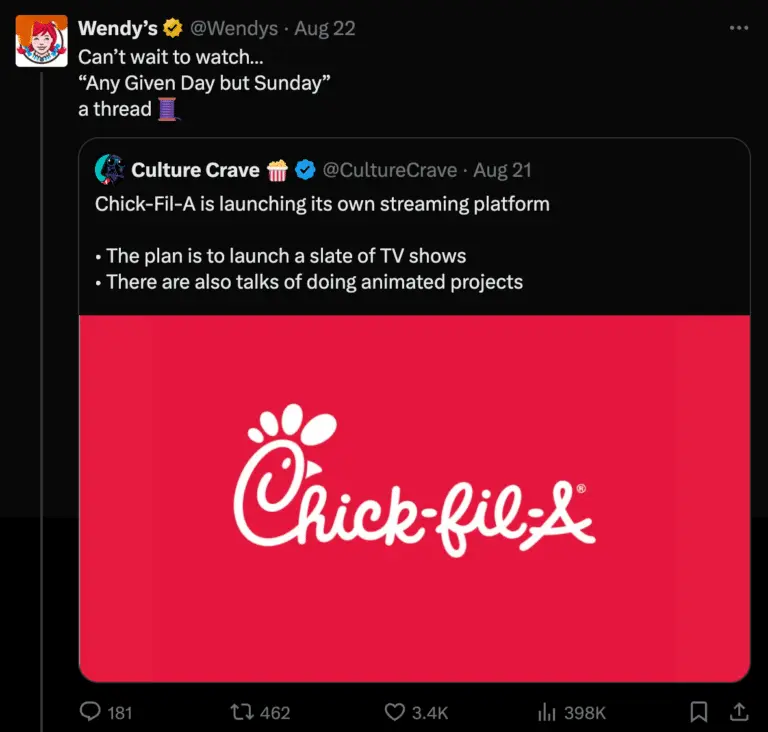
For businesses, this matters because X discovery often starts before someone follows you. A potential customer might find your account through a reply, a search result, a quote post, or a thread someone else shared. The easier it is to understand what you do and why your perspective is valuable, the more likely they are to click through to your profile.
5. Creating content on X
5.1. Types of posts on X
Text posts
Text posts are ideal for sharing opinions, asking questions, making announcements, or commenting on current events. Many of the platform’s most successful posts are simple text updates because they’re quick to read and easy for other Twitter users to reply to or repost.

Image posts
You can attach up to four images to a single post. When you upload multiple images, X displays them together in a collage within the feed. People can tap any image to open the gallery and swipe through the rest.

To add images, click the Media icon below the post composer and select the photos you want to upload.
Video posts
Videos can be uploaded directly from your computer or phone by selecting the Media icon when creating a post.

Free accounts can upload videos up to 512 MB, while X Premium subscribers can upload much larger files and significantly longer videos, depending on their subscription tier.
Because videos autoplay as people scroll, they’re a good option for demonstrations, event clips, tutorials, or product showcases.
Polls
Polls let your audience vote on a question directly from their feed.
To create one, start a new post and click the Poll icon. Enter your question, add between two and four answer choices, choose how long the poll should remain open (from 5 minutes to 7 days), then publish your post.

Once a poll is live, neither the question nor the answers can be edited.
Threads
Sometimes one post isn’t enough. Instead of squeezing everything into 280 characters, you can create a thread by connecting multiple posts together.
While writing your post, click the + button below the composer to add another post. Repeat this for as many posts as you need, then click Post all to publish the entire thread at once.

Threads are useful for telling stories, explaining a process step by step, covering live events, or breaking down a complex topic into smaller, easier-to-read sections. Even though the thread tells a complete story, users can interact with each tweet individually.
5.2. Post formatting rules
Before you publish, it’s helpful to understand X’s formatting limits. These determine how much text you can include, what types of media you can upload, and how features like hashtags, mentions, and links behave.
Character limits on X
Free accounts can publish posts of up to 280 characters, while X Premium subscribers can write posts of up to 25,000 characters. Replies and quote posts follow the same limits.
Although Premium allows much longer posts, that doesn’t mean every post should be long. In my experience, concise posts are often easier to read and encourage more people to join the conversation. If you have a lot to say, consider creating a thread instead.
Image and video sizes and aspect ratios
X supports a variety of image and video formats. These are the recommended Twitter sizes and aspect ratios that will help your content display properly across devices:
- Images: Up to 4 images per post in JPG, PNG, WEBP, or GIF format.
- Recommended image size: 1600 × 900 pixels (16:9) for landscape images.
- Square images: 1080 × 1080 pixels (1:1) also display well.
- Maximum image file size: 5 MB on the web and up to 8 MB on mobile for most formats.
For X videos:
- Supported formats: MP4 and MOV.
- Recommended aspect ratio: 16:9 (landscape) or 1:1 (square), although vertical videos are also supported.
- Maximum upload size: Up to 512 MB for free accounts. Premium subscribers can upload videos of up to 8 GB, depending on their subscription tier.
- Maximum duration: About 2 hours for standard uploads, with longer uploads available for Premium subscribers.
How hashtags work in X posts
Hashtags help categorize your posts and make them easier to discover, but they aren’t as important on X as they once were.

Instead of adding multiple hashtags to every post, focus on writing naturally. If a hashtag adds context or helps people discover your content, use one or two relevant ones. Otherwise, clear language and descriptive keywords usually do a better job.
How to use mentions (@users)
Typing @ followed by someone’s username creates a mention. Mentioning another user notifies them about your post and creates a link to their profile.

Mentions are useful when you’re replying to someone, giving credit, asking a question, or bringing another person into the conversation. Avoid mentioning unrelated accounts just to get attention, as that often comes across as spam.
How links work in posts
You can include multiple links to websites, articles, videos, products, or other online resources in any post. X automatically shortens links using its own URL shortener, so you don’t need a separate link-shortening tool. Depending on the destination website, your post may also display a preview card.
If you’re worried that links will hurt your reach, the picture is a bit more nuanced than it used to be. X has been testing changes to how link posts are displayed in the app, with the goal of making it easier for people to like and reply without leaving the conversation. X has also indicated that well-written posts with useful context and media shouldn’t be penalized just because they include a link.
Even so, I’d avoid treating X as a traffic channel first and a social network second. The posts that perform best usually give people a reason to engage on X itself. If you’re sharing a link, make sure the post stands on its own with an interesting opinion, takeaway, or question instead of relying on the link to do all the work.
6. How to publish and schedule posts on X
6.1. How to publish a post on X
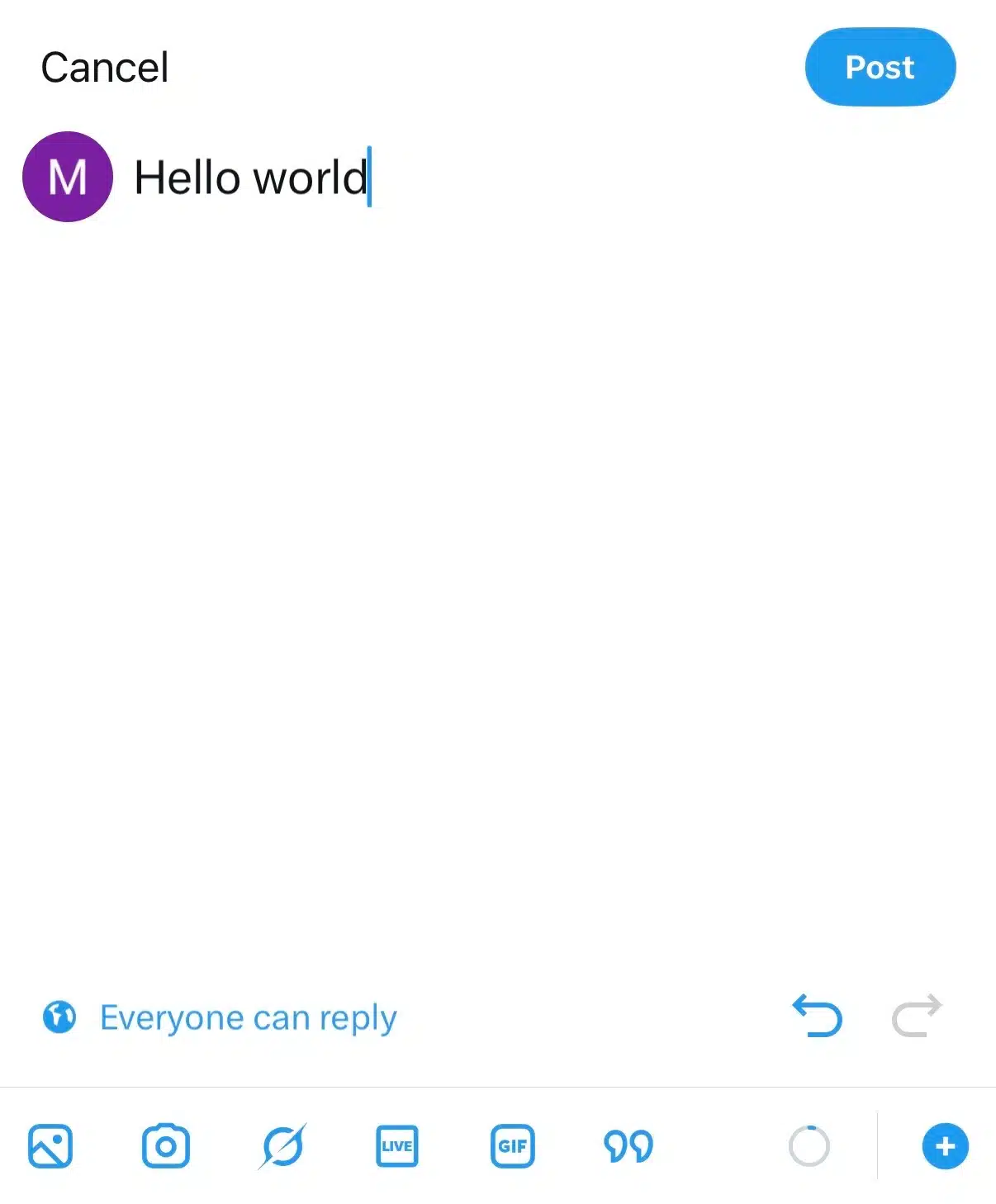
How to post on X from mobile
- Open the X app and tap the + button.
- Write your post.
- Add photos, videos, a GIF, poll, location, or other media if needed.
- Mention other users by typing @ followed by their username, or include relevant hashtags and links.
- Review your post, then tap Post to publish it immediately.
How to post on X from desktop
- Visit x.com and log into your account.
- Click the post composer at the top of your Home feed or select Post from the left-hand menu.
- Write your post and attach any media you’d like to include.
- When you’re happy with the post, click Post.
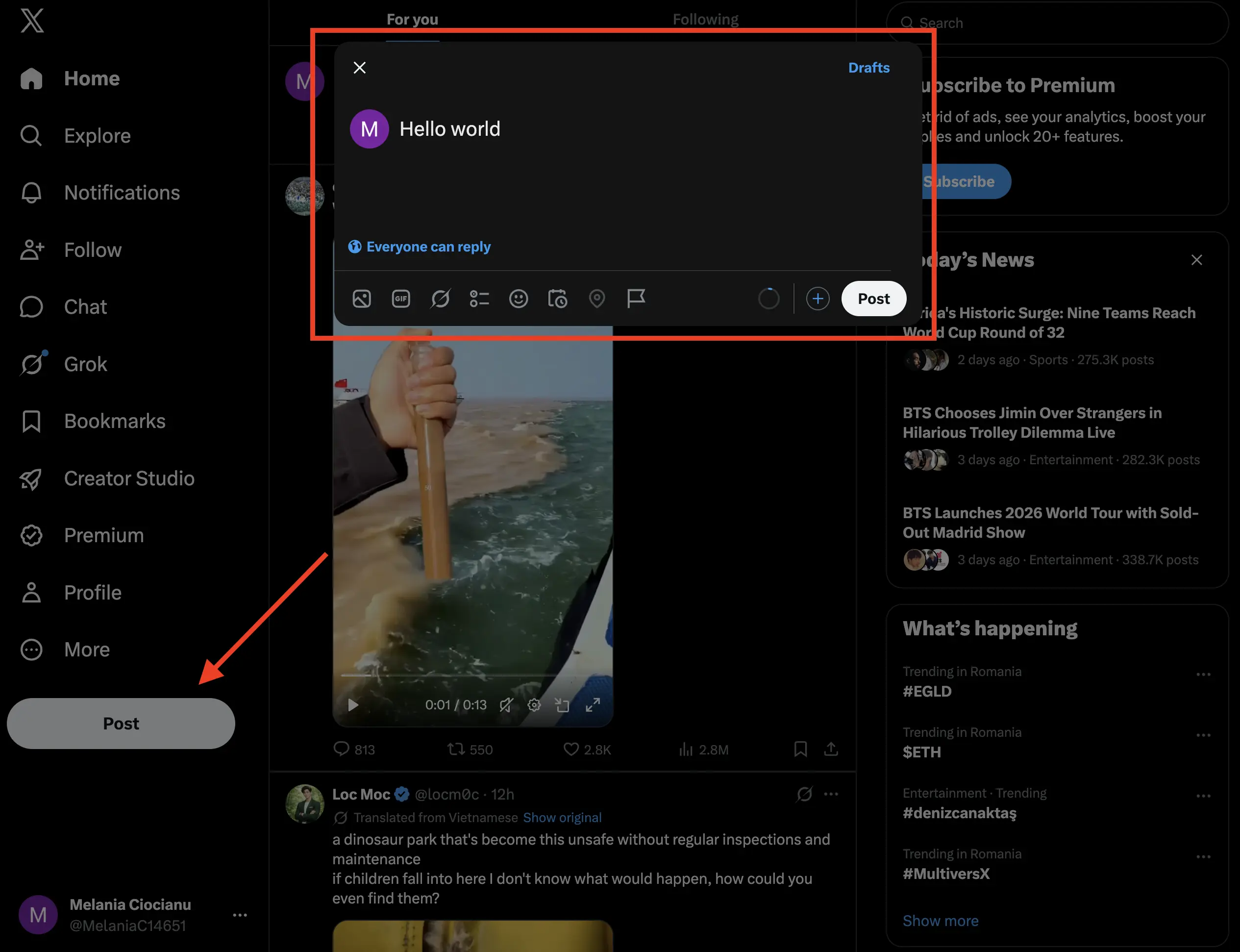
The desktop version gives you access to the same publishing features as the mobile app, making it easy to switch between devices.
6.2. How to schedule posts on X
If you know what you want to post ahead of time, scheduling can save you a lot of work. Instead of remembering to publish every day, you can prepare your content in advance and let it go live automatically.
Native scheduling on X
X includes a built-in scheduling tool on its desktop website. At the time of writing, this feature isn’t available in the mobile app.
To schedule a post natively:
- Go to x.com and start creating a new post.
- Click the Schedule icon (calendar with a clock) below the post composer.
- Select the date and time you’d like your post to be published.
- Click Confirm, then Schedule.
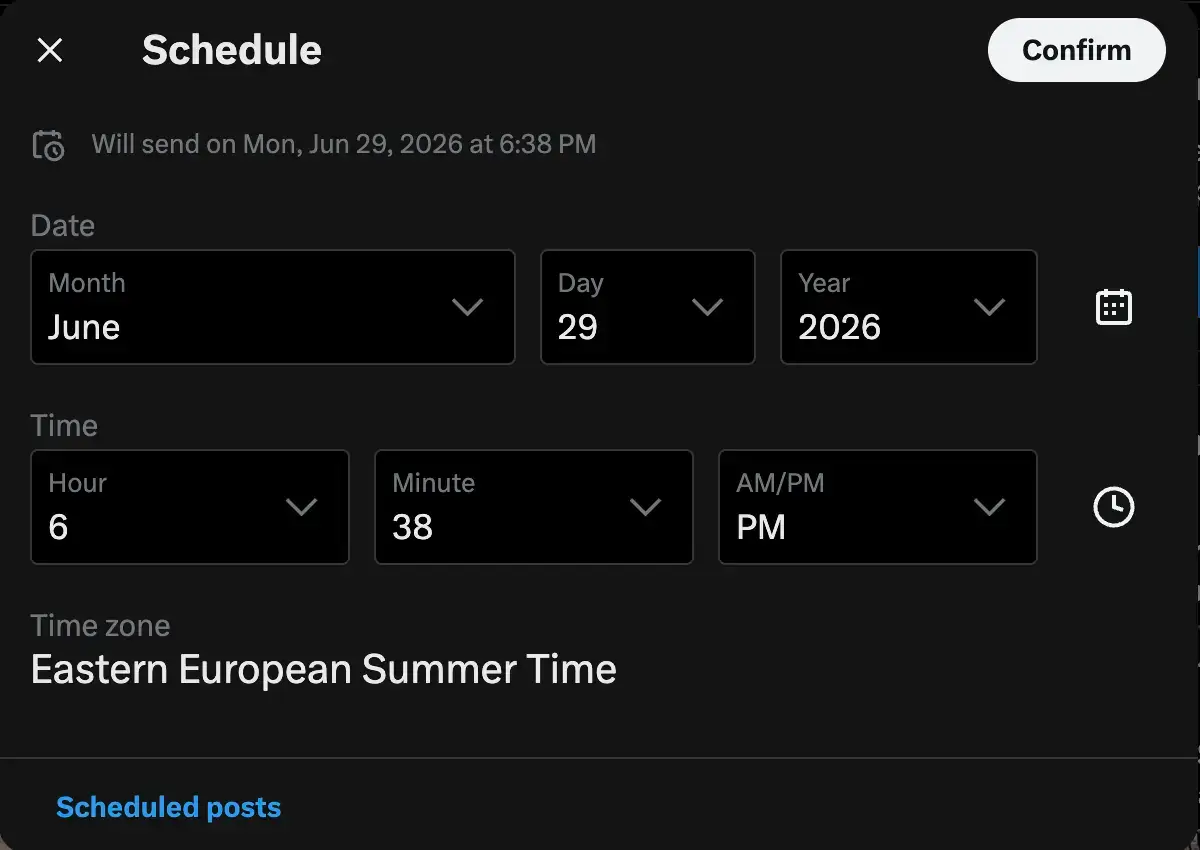
To review or edit scheduled posts, open the post composer again and click Unsent Posts, then switch to the Scheduled tab.
Native scheduling works well if you only publish occasionally. However, it becomes limiting if you manage multiple social accounts, collaborate with a team, or want to plan content weeks in advance.
Using SocialBee to schedule X posts
If you’re publishing regularly, a dedicated scheduling tool gives you much more flexibility than X’s built-in scheduler.
With SocialBee, you can create, schedule, and publish X posts from the same dashboard you use for your other social media accounts. It supports text posts, images, videos, GIFs, and links, and recognizes whether you’re using a standard X account or an X Premium account, allowing you to publish posts up to the appropriate character limit.
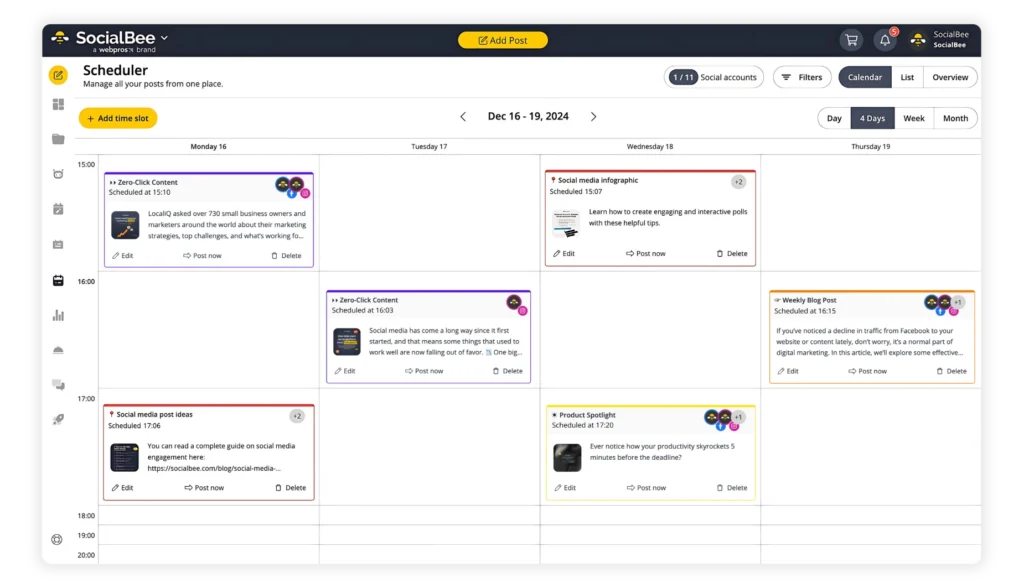
Scheduling a post takes just a few steps:
- Connect your X account to SocialBee.
- Click Create post and select your X profile.
- Write your post from scratch or generate a caption with SocialBee AI.
- If you’re publishing to multiple platforms, enable Customize for each to tailor your X post separately.
- Add images, GIFs, or videos, include alt text if needed, and make quick edits such as cropping or resizing without leaving SocialBee.
- Add hashtags manually or generate relevant ones with the built-in Hashtag Generator. You can also save hashtag collections to reuse later.
- Organize your post into a content category to keep your publishing schedule organized.
- Choose Post now or schedule the post for a specific date and time. If you’re scheduling ahead, SocialBee can recommend the best posting times based on your previous performance.
7. Engagement on X
7.1. Likes and reposts
Every post on X includes buttons for liking, replying, reposting, quoting, bookmarking, and sharing.
To like a post, click or tap the heart icon below it. The icon will turn red to confirm that you’ve liked it. You can remove your like at any time by clicking the heart again.
To repost someone else’s post:
- Click or tap the Repost button (the icon with two arrows) below the post.
- Choose Repost to immediately share the original post with your followers.
- Alternatively, select Quote if you want to add your own comment before sharing it.
- If you choose Quote, write your message in the post composer, then click Post.
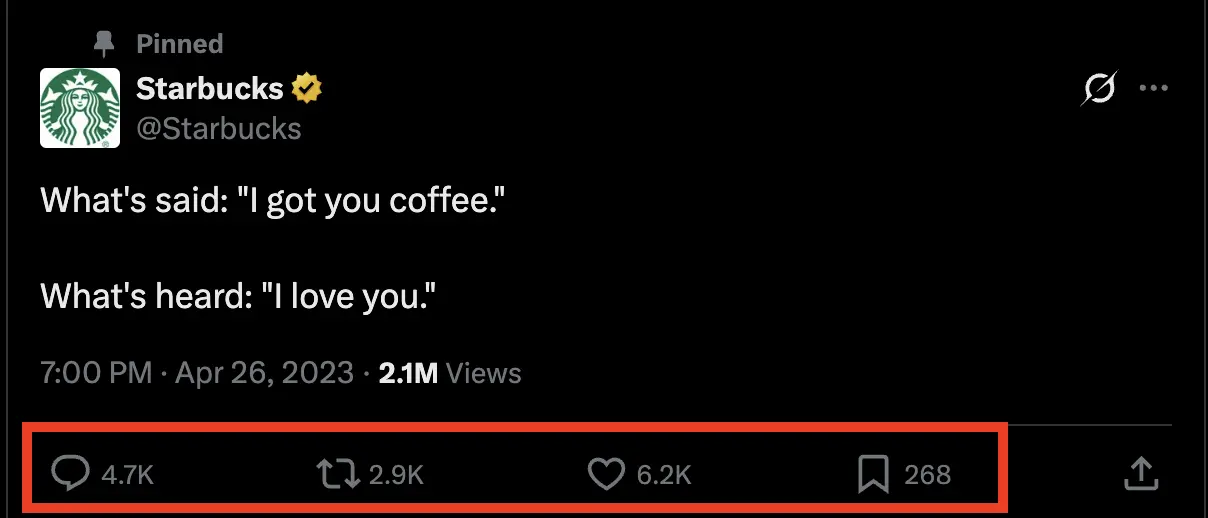
If you change your mind, you can undo a repost by clicking the Repost button again and selecting Undo repost.
7.2. Replies and conversations
Replies are where most conversations happen on X.
Instead of only publishing your own content, spend some time responding to posts from other users. Ask questions, answer questions, share your perspective, or add useful information to an existing discussion.

I’ve found that thoughtful replies often reach just as many people as original posts, especially when you’re replying early to an active conversation. They also make it much easier to connect with people in your industry because you’re contributing to discussions instead of waiting for others to discover your profile.
7.3. Mentions and tagging
You can mention another account by typing @ followed by its username.
Mentions notify the person or business you’ve referenced and create a link to their profile. They’re useful when you’re replying to someone, giving credit, asking a question, or recommending another account.

It’s best to mention people only when they’re genuinely relevant to the conversation. Tagging random accounts in hopes of getting more views rarely works and can come across as spam.
As your audience grows, tracking every mention manually becomes harder. Instead of checking each platform separately, you can use SocialBee’s Social Inbox to manage X mentions, comments, and messages alongside your other social accounts.


8.2. Key metrics (impressions, engagement, reach)
You don’t need to track every number X provides. A handful of metrics will tell you whether your content is moving in the right direction.
- Impressions: The number of times your post was displayed on someone’s screen. High impressions mean your content is reaching people, but they don’t necessarily indicate engagement.
- Engagements: The total number of interactions your post received, including likes, replies, reposts, quotes, profile clicks, link clicks, media views, and follows generated from that post.
- Engagement rate: The percentage of impressions that resulted in an interaction. This helps you understand how interesting your content was relative to the number of people who saw it.
- Profile visits: How many people visited your profile after seeing one of your posts. A spike here usually means your content encouraged people to learn more about you.
- Follower growth: The number of new followers gained over a selected period. Looking at which posts coincided with follower increases can reveal the types of content that attract your target audience.
8.3. What makes a post perform well
A successful post isn’t necessarily the one with the most impressions. The best-performing posts are the ones that achieve the goal you had when publishing them.
For example, if your goal was to start a discussion, focus on replies and quote posts. If you wanted people to visit your website, look at link clicks. If you were trying to grow your audience, check whether the post generated new followers and profile visits.
It’s also helpful to compare posts on similar topics. If one travel photo received twice as many engagements as another, ask yourself why. Was it posted at a different time? Did the caption ask a question? Did it include a location or better images? Looking for these patterns is much more valuable than judging a post by its like count alone.
Finally, don’t evaluate a single post in isolation. Review your last 20 or 30 posts together. That’s usually enough data to spot trends in the topics, formats, and publishing times that consistently produce better results. Those patterns should guide your future content more than any one viral post ever will.
8.4. How to improve posts using analytics
The purpose of analytics isn’t to admire good results. It’s to make better decisions about your next post.
Review your top-performing posts every few weeks and look for similarities. Ask yourself questions like:
- Which topics consistently receive the most engagement?
- Do certain post formats perform better than others?
- Are people replying, reposting, or simply liking your posts?
- Which posts lead to the most profile visits or new followers?
- Does your audience engage more at certain times of day?
Once you’ve identified those patterns, test them intentionally. Publish more content around successful topics, experiment with different opening lines, and try new formats while measuring the results.
If you schedule your content with SocialBee, you can combine these insights with your publishing calendar to refine your strategy over time. Instead of guessing what your audience wants, you’ll be making decisions based on the performance of your own content.
9. X for business
9.1. Why should brands and creators use X?
X isn’t the largest social media platform, but it offers something many others don’t: direct access to public conversations happening in real time.
For businesses, it’s a place to announce product launches, answer customer questions, respond to feedback, and establish expertise in a particular industry. Many customers already turn to X when they have a question about a product or service because they expect a quick, public response.
Creators can use the platform to build an audience around their interests, posting updates, sharing ideas, and connecting directly with followers. Since posts can reach people who don’t already follow you, X can also be an effective platform for growing a personal brand.
9.2. Monetization on X
X offers several ways for creators to earn money directly through the platform, although these features are only available to accounts that meet specific eligibility requirements.
Creator Revenue Sharing
Creator Revenue Sharing allows eligible creators to earn income based on engagement from Premium subscribers who interact with their content.
To qualify, you must:
- Be at least 18 years old.
- Live in a country where monetization is available.
- Have an account that’s at least three months old.
- Subscribe to X Premium, Premium Business, or Premium Organizations.
- Complete identity verification.
- Connect a verified Stripe account to receive payments.
- Have a complete profile with a bio, profile picture, and header image.
- Secure your account with two-factor authentication.
- Keep your account in good standing by following X’s rules and Creator Monetization Standards.
Subscriptions
Subscriptions let creators offer exclusive content in exchange for a monthly fee.
Subscribers can receive perks such as subscriber-only posts, exclusive conversations, or other premium content, depending on how the creator chooses to use the feature.
To be eligible for Subscriptions, creators must also:
- Have at least 2,000 verified followers.
- Generate 5 million organic impressions during the previous three months.
- Have posted within the last 30 days.
Tips and direct payments
X also supports Tips, allowing followers to send money directly to creators through supported third-party payment services.

Unlike Subscriptions, Tips don’t require followers to commit to a monthly payment. They simply provide a way for people to support creators whose content they enjoy.
9.3. X Ads and paid promotion
While organic content can reach large audiences on X, businesses can also pay to expand their reach through X Ads.
The most common format is the Promoted Ad. These look almost identical to regular posts but are labeled as Ad or Promoted and are shown to users beyond your existing followers. People can still like, reply to, repost, and quote promoted posts just as they would any other post.

Depending on your campaign goals, X also offers additional advertising formats, including Vertical Video Ads, which appear as full-screen videos, and Collection Ads, which combine a hero image with multiple products or offers in a single ad.
To launch an advertising campaign, you’ll need an eligible account and access to ads.x.com, where you can choose your campaign objective, define your audience, set a budget, and monitor results.
Whether you use paid promotion or not depends on your goals. Organic content is often enough for building relationships and joining conversations, while X Ads can help businesses reach new audiences faster, promote products, drive website traffic, or generate leads.
10. Growing your X account
10.1. Pick a clear niche
People are much more likely to follow an account if they know what to expect from it.
That doesn’t mean you have to post about one topic forever, but your content should have a clear focus. For example, if you’re a photographer, most of your posts could revolve around photography tips, gear, editing, and your own work. If you’re a restaurant, your account might focus on your menu, behind-the-scenes moments, local events, and customer experiences.
A clear niche also helps X understand who might be interested in your content, making it easier to recommend your posts to the right audience.
10.2. Post for engagement, not just likes
Likes are nice, but they aren’t the only signal that matters.
The X algorithm also looks at replies, reposts, profile visits, follows, link clicks, and other interactions. A post that starts a discussion will often reach more people than one that collects likes without generating conversation.

Instead of ending every post with a statement, try asking a genuine question, inviting other people to share their experience, or encouraging different perspectives. The goal isn’t to manufacture engagement, but to give people a reason to respond.
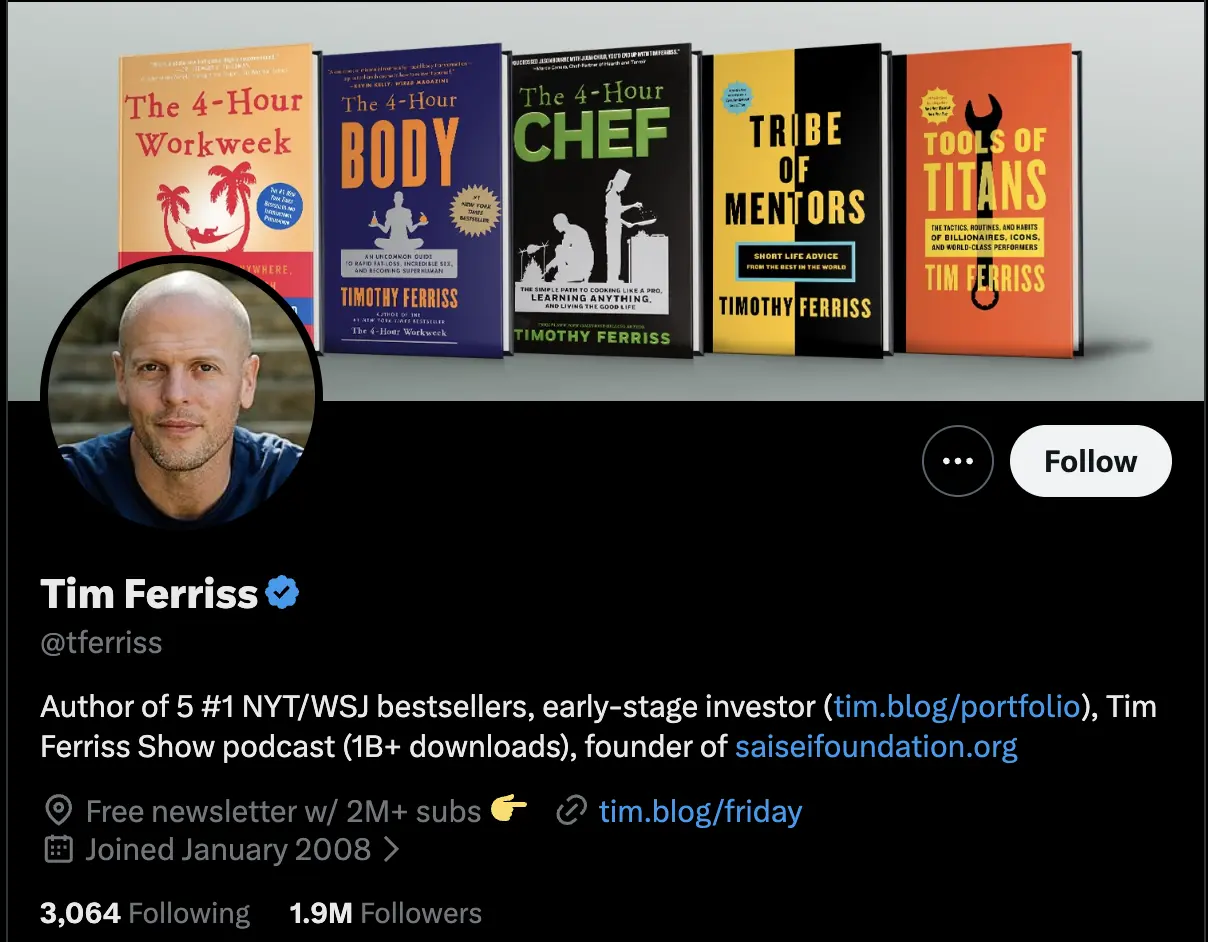
10.3. Use keywords in posts and on your profile
X is a search engine as much as it is a social network. People search for topics, businesses, places, and interests every day.
Using clear, descriptive language in your bio and posts makes it easier for your content to appear in search results. Mention what you do, what topics you write about, and use the same words your audience is likely to search for instead of relying on vague descriptions or inside jokes.
Tim Ferriss’ description is a good example of Twitter SEO done right:
10.4. Start with strong hooks
The first line of your post determines whether someone keeps reading or scrolls past.
You don’t need clickbait, but you do need to capture attention quickly. Lead with the most interesting part of your message, ask a question, share an unexpected fact, or make a statement that sparks curiosity.

If you’re writing a thread, the opening post is especially important because it determines whether people click to read the rest.
10.5. Use formats that work (threads, opinions, insights)
Different ideas work better in different formats:
- Use a single text post when you have one clear point to make.
- Create a thread if you’re explaining a process, telling a story, or breaking down a complex topic.
- Images and videos work well when they add context or show something that would be difficult to explain with text alone.

Experiment with different formats over time and pay attention to which ones your audience responds to most often.
10.6. Engage with accounts in your niche
One of the fastest ways to grow on X is to become part of conversations that are already happening.
Reply to posts from people in your industry, answer questions, congratulate others on their achievements, and share your perspective when you have something valuable to add.

Over time, people will start recognizing your name, visiting your profile, and following you because they’ve seen you contribute consistently to discussions they care about.
10.7. Join trending conversations
The Explore tab is a good place to find topics that are gaining traction.
When a trend is relevant to your interests or expertise, don’t be afraid to join the conversation. Sharing your perspective while the discussion is active can expose your posts to people who have never seen your account before.

That said, not every trend is worth joining. Focus on conversations where you can contribute something meaningful instead of commenting on every trending topic simply because it’s popular.
Frequently asked questions
Is X free to use?
Yes. You can create an X account, publish posts, reply to other users, send direct messages, and use most of the platform’s features for free. X also offers paid subscriptions through X Premium, Premium+, Premium Business, and Premium Organizations, which add features like post editing, longer posts, verification, monetization tools, and enhanced analytics.
Do hashtags still matter on X?
Yes, but not as much as they once did. X’s recommendation system understands the text in your posts, so you don’t need to add multiple hashtags to every update. In most cases, one or two relevant hashtags are enough. If a hashtag doesn’t add context, it’s usually better to write naturally and use clear keywords instead.
What type of content works best on X?
There’s no single format that always performs best, but posts that share useful information, spark discussion, or offer a unique perspective tend to generate the most engagement. Questions, opinions, timely observations, and well-structured threads often perform well because they encourage replies and reposts rather than passive likes.
How often should you post on X?
Quality matters more than volume, but consistency is still important. For most creators and businesses, posting one to three times per day is enough to stay active without overwhelming followers. If you’re trying to grow your account faster, spend just as much time replying to other people’s posts and joining conversations as you do publishing your own content.
Get started with X (Twitter)
X can feel overwhelming when you’re new to the platform, but the fundamentals are straightforward. Set up a complete profile, learn how the feed works, publish content consistently, participate in conversations, and pay attention to what your analytics tell you. The more you use the platform, the easier it becomes to understand what resonates with your audience.
If you’re planning to post regularly, scheduling your content can help you stay consistent without having to log in every day. With SocialBee, you can create, schedule, and publish X posts alongside content for all your other social media platforms from one dashboard. You’ll also get AI-powered writing assistance, content categories, best-time posting suggestions, analytics, and collaboration tools to simplify your workflow.
Start your 14-day free SocialBee trial and build a more consistent presence on X without adding more work to your day.