
Social media tools are supposed to make your work easier, but you don’t necessarily need all the tools you’ve collected over the years. A good social media management platform can often handle content creation, publishing, engagement, collaboration, and reporting in one place.
The goal is to keep specialized tools that earn their place and replace unnecessary overlap, and I’ll help you do that in this article.

We’re SocialBee LABS SRL, part of WebPros. We use the information you provide to share relevant content & updates, as outlined in our Privacy Policy. You can opt out anytime.
Short summary
- Audit your current tools by cost, purpose, and actual usage.
- Look for overlapping features you’re paying for more than once.
- Choose social media management software that covers the everyday tasks your team does most.
- Test it with real social media accounts, posts, approvals, and reports before switching.
- Move accounts and scheduled posts before canceling old subscriptions.
- Keep specialized tools when they do something your main platform can’t do well.
Signs you’re using too many social media tools
Using several social media tools isn’t automatically a problem. The issue starts when your setup creates more admin than it removes.
1. You’re paying for overlapping features
Take a look at what each subscription actually gives you. You may have one tool for scheduling, another for analytics, and another for content creation, only to realize all three cover some of the same ground.
That overlap is easy to ignore because each monthly charge looks manageable on its own. Added together, though, you can end up paying several times for features you only need once.
2. You’re constantly jumping between different tools
If your day involves creating a post in one app, checking the schedule in another, getting approval somewhere else, and then opening the native social media apps to reply to comments, your setup is probably too scattered.
The problem isn’t just the number of tabs. Every switch breaks your focus and makes simple social media tasks take longer than they should.
3. You’re moving content around manually
Copying captions, downloading visuals, re-uploading files, and moving campaign details from one tool to another is usually a sign that your tools aren’t working together well enough.
A good setup should reduce this kind of repetitive work. If you’re acting as the bridge between your own apps, there’s room to simplify.
4. Your performance data is spread across different platforms
Some reporting will always live in different places. Google Analytics, for example, answers different questions from social media analytics.
But you shouldn’t need to open several dashboards just to understand how your social media posts are performing. Your main engagement, reach, audience, and post-level data should be easy to review together.
5. Logins and permissions are getting hard to keep track of
This becomes especially noticeable when you manage multiple accounts, brands, or clients.
As more tools enter the mix, so do more passwords, access requests, billing seats, and permission settings. Bringing more of your social media management into one platform makes it easier and more secure to control who can see, edit, approve, or publish content.
6. You’re using only a small part of some subscriptions
One of the easiest checks is to look at each tool and ask: What did we actually use this for last month?
If the answer is one or two basic features, the subscription may no longer deserve its place in your stack. You might be paying for advanced analytics, competitor analysis, social listening, or other features that looked useful when you signed up but rarely make it into your day-to-day work.
How to replace multiple social media tools with one platform
Once you’ve decided you’re using too many social media tools, don’t start canceling subscriptions right away.
Here are the steps to take:
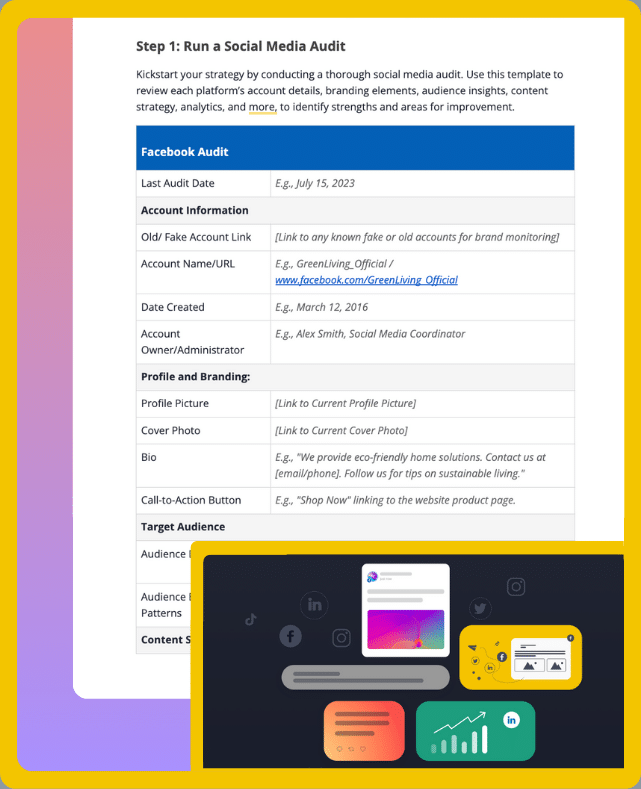
- Audit your current tool stack
- Find one platform that can do most of what you need
- Compare what you’re paying now with what you’d pay for one platform
- Test the new platform before making the switch
- Move your accounts and content to the new platform
- Show your team how to use the new platform
- Cancel the tools you no longer need
- Check whether using fewer tools has made things easier
1. Audit your current tool stack
Before you look for a new platform, figure out what your current setup is actually doing for you.
Make a list of your social media tools and write down:
- What you use each tool for. Keep it practical: creating graphics, writing captions, scheduling posts, replying to comments, tracking performance, or creating reports.
- How much each tool costs. Add everything up to see what you’re spending on your current setup.
- Which tasks could move to one platform. If your social media scheduling tool can also handle analytics, content creation, and engagement, you may not need separate tools for each job.
You may find that some tools are better left alone. If you need advanced social listening or influencer marketing, for example, a dedicated tool may offer more than a general social media platform.
The point isn’t to get down to one tool at all costs. It’s to see where one platform could realistically replace several subscriptions without giving up features you need.
2. Find one platform that can do most of what you need
Now you have something useful to compare social media management apps against.
Start with the tasks you perform most often. If you publish several times a week, for example, your new platform needs powerful scheduling tools that work with the social channels you actually use. If you’re an agency, being able to manage multiple clients and multiple accounts may matter more than having dozens of AI features.
Check platform support carefully too. “Supports Facebook” doesn’t tell you everything you need to know. Look at whether the tool supports the post formats you publish and the specific accounts you manage, such as LinkedIn company pages or a Google Business Profile.
Then check the practical limits:
- Can you manage multiple accounts?
- How many users can you add?
- Are there limits on scheduled posts?
- Do higher plans offer more analytics data?
- Which features require an upgrade?
This is also why I wouldn’t choose the best social media management software based on the longest feature list. The best tools for your business are the ones that cover the work you do regularly without making you pay for all the features you don’t need.
3. Compare what you’re paying now with what you’d pay for one platform
Add up the real cost of your current social media tools over a year.
Then compare that with the plan you’d actually need on the new platform.
Don’t compare five paid subscriptions with the advertised price of a free social media tool if the free plan can’t support your social accounts, users, or publishing needs. Likewise, check whether important features are locked behind a professional plan or another higher-priced tier.
Say you’re spending $25 a month on social media scheduling, $20 on an AI writing assistant, and $30 on reporting. That’s $900 a year. If one social media management tool can cover those same needs for $50 a month, your annual cost drops to $600.
Your numbers may look very different, but putting them side by side makes the decision much easier.
4. Test the new platform before making the switch
A feature page can’t tell you what it will feel like to use the platform every day.
Connect some of your real social media accounts and run a normal week of work through it. Create social posts, schedule them, make changes in the content calendar, and check the analytics data afterward.
If you’re testing AI features, give the tool a topic you genuinely plan to post about. Does it give you useful content ideas? Can it write captions that need only light editing, or are you rewriting most of what it gives you?
Social media managers should also test the less obvious situations they deal with regularly. Try managing multiple accounts at once or preparing different versions of the same campaign for several social media networks.
If you’re part of a team, don’t test alone. The people who will use the software should get a chance to work with it before you commit.
5. Move your accounts and content to the new platform
Once you’re happy with the test, connect the rest of your social accounts and start moving the content you’ll need going forward.
Focus first on anything that affects upcoming publishing. That includes scheduled posts, drafts, recurring schedules, and campaigns that are already in progress.
Check scheduled content particularly carefully. If the same social media posts are sitting in both your old and new social media scheduling apps, you could accidentally publish them twice.
You don’t need to drag years of old social posts into your new platform just because they’re there. Export anything you want to keep for reference, then concentrate on what your team will actually use.
6. Show your team how to use the new platform
Your team doesn’t need a tour of every feature.
Show people how to do the things they’re responsible for. A social media marketer creating content needs to know where posts are drafted and scheduled. Someone responsible for approvals needs to know where to review them. Whoever manages audience engagement needs to know where to find incoming conversations.
For agencies, start with one client. Show the team how social accounts, content, permissions, and reporting are organized before you move multiple clients into the new setup.
I find that walking through one real social media post from creation to publication is much more useful than explaining menus people may never open.
7. Cancel the tools you no longer need
Before you cancel a subscription, check whether there’s anything inside it you still need.
That might include historical reports, analytics data, invoices, creative assets, or content from previous social media campaigns.
Once you’ve saved what matters and confirmed that upcoming posts have been moved, cancel the tools you’ve replaced. Remove old user access too, particularly if several employees, contractors, or clients had logins.
And make a note of the tools you’re keeping. You don’t want your collection of social media apps quietly growing again six months from now.
8. Check whether using fewer tools has made things easier
After you’ve used the new setup for a month, look at what has actually changed.
Can you manage social media without bouncing between as many apps? Is it faster to prepare a campaign? Are client approvals easier to find? Can you get the social media analytics you need without piecing together several reports?
Ask your team as well. They may spot problems you don’t see yourself.
If you’re saving money but everyday tasks are taking longer, the change hasn’t worked as well as it should. If your social media efforts are easier to manage and you’re paying for fewer overlapping subscriptions, you’re on the right track.
How SocialBee can replace several of your social media tools
SocialBee is built to cover the parts of social media management that tend to happen most often, so you don’t need a different app for every step between having an idea and seeing how the published post performed.
Here’s what you can bring into SocialBee:
- Create social media content and generate ideas with AI
- Plan, schedule, and publish your posts
- Work with your team and approve posts
- Manage comments, mentions, and messages
- See how your social media content is performing
- Connect the tools you still want to use
1. Create social media content and generate ideas with AI
If you use a separate AI tool to create social media content, you can move that work into SocialBee.
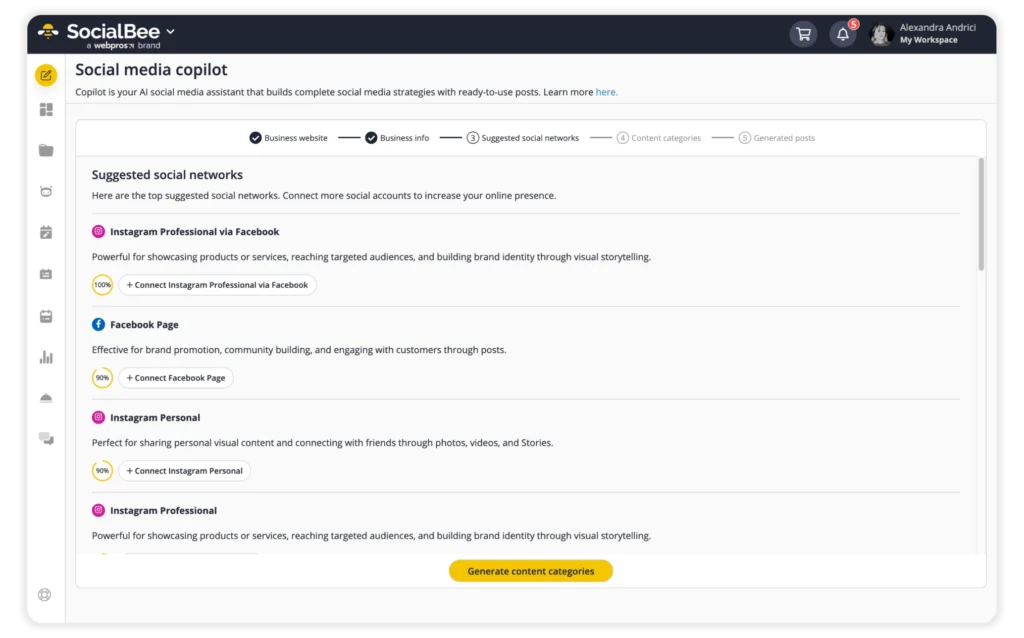
SocialBee’s AI features help you brainstorm content ideas, write captions, generate images, and adapt posts for different platforms. SocialBee’s Copilot can also help build a social strategy around your business and suggest what to post.
To get started with Copilot, enter your website URL, and it will automatically gather details about your business, including your services, target audience, and tone of voice. You can review and edit this information before Copilot recommends which social media platforms to focus on and suggests content categories for your posts.
Once you’ve chosen your categories, it generates draft posts with captions and images, which you can edit and approve before scheduling. If you don’t have a website, you can simply answer a few questions about your business instead.
The important part is that the content doesn’t have to make another trip through your tool stack afterward. Once you’re happy with it, you can get it ready for publishing from the same platform.
2. Plan, schedule, and publish your posts
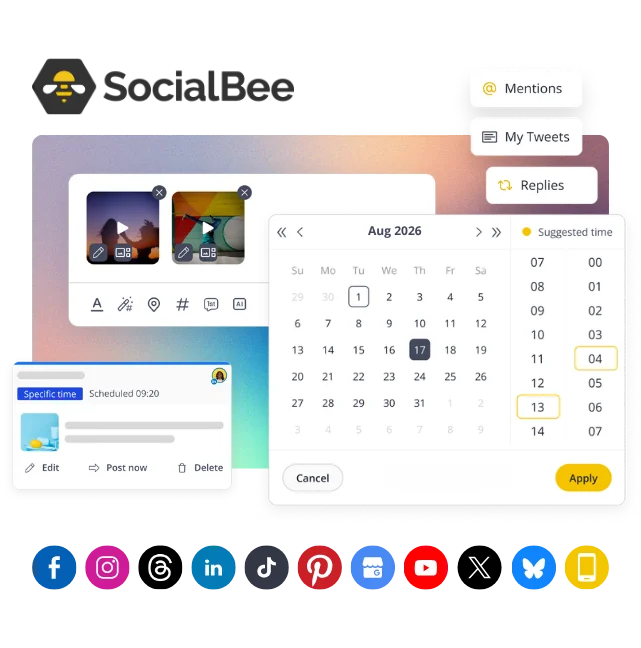
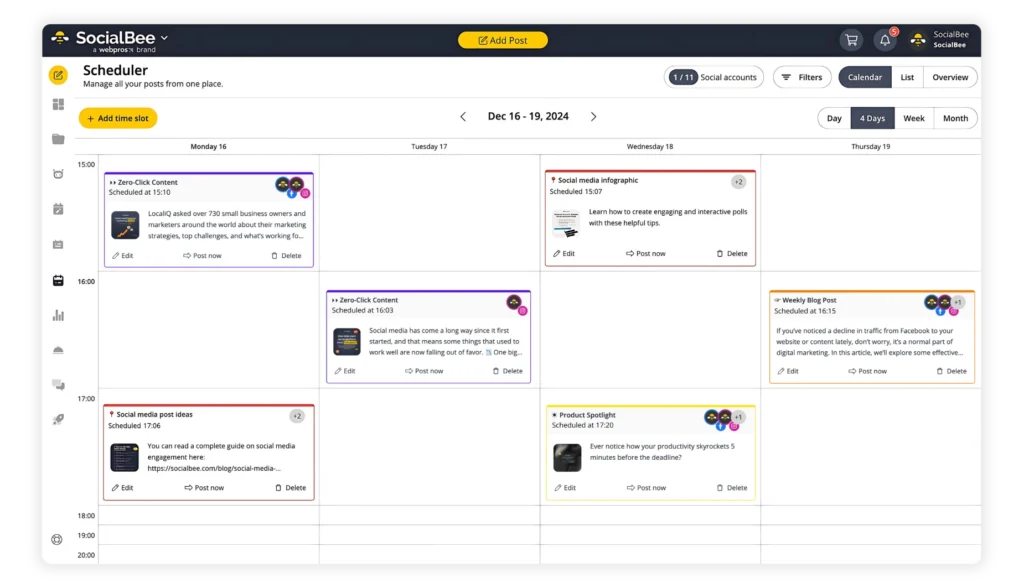
Instead of scheduling posts separately through each social media platform’s native tools, SocialBee lets you plan and publish content across all your accounts from one calendar. You can see what’s coming up on every channel, adjust your posting schedule, and customize posts for different platforms without switching between apps.
SocialBee’s visual content calendar shows you what’s scheduled across your accounts, while category-based scheduling lets you organize posts by topic, such as educational tips, promotions, or customer stories, and assign each category specific publishing times.
This way, SocialBee automatically fills your schedule with posts from the right categories, so you don’t have to choose a date and time for every post manually.
SocialBee supports scheduling across 10 social media platforms, including:
- Facebook: Personal profiles, Pages, and Groups, with support for feed posts, images, videos, Reels, and Stories. Pages support direct publishing, while profiles and Groups use reminders.
- Instagram: Business, Creator, and personal accounts, with support for feed posts, carousels, Reels, and Stories. Professional accounts support direct publishing for eligible formats, while personal accounts use reminders.
- LinkedIn: Personal profiles and company pages, including text posts, images, videos, links, and document carousels.
- X (Twitter): Profiles, including text posts, images, GIFs, videos, and links.
- Pinterest: Personal and business accounts, including image Pins, video Pins, and carousels.
- TikTok: Personal and business accounts, including videos and image posts, with direct publishing and reminder-based options.
- YouTube: Channels, including regular videos and Shorts.
- Threads: Profiles, including text posts, images, carousels, videos, and links.
- Bluesky: Profiles, including image posts and links.
- Google Business Profile: Business locations, including text updates, images, and links.
Some account types and post formats require reminder-based publishing rather than automatic posting, depending on each platform’s restrictions.
You can also adapt a post for different social networks instead of publishing identical copy everywhere.
For social media managers responsible for multiple accounts, that means you can plan and schedule content without maintaining a separate calendar for every channel.
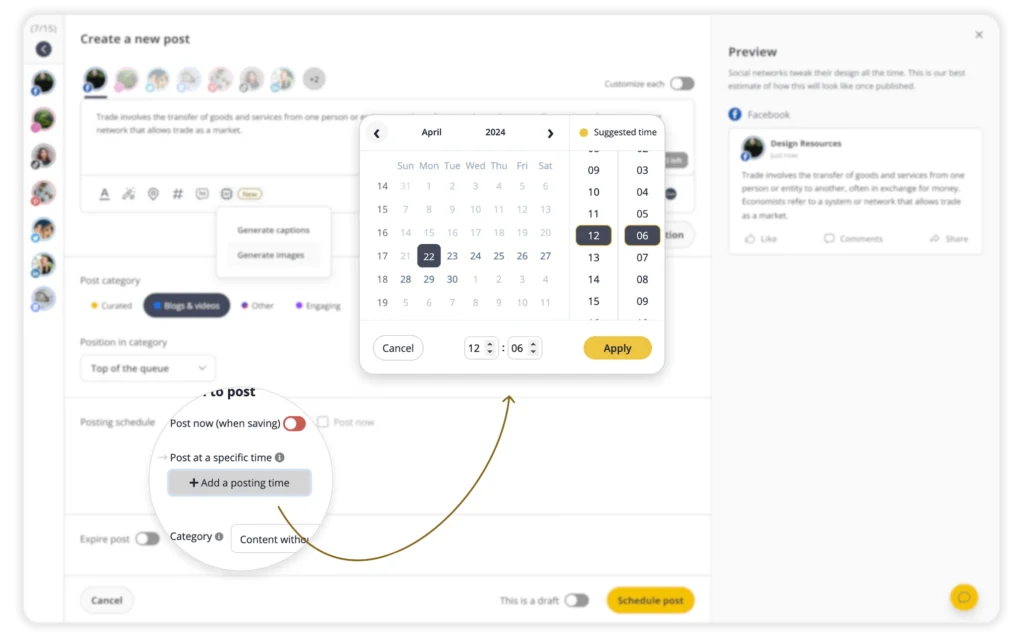
SocialBee also helps you decide when to publish with best posting time recommendations based on your audience’s activity. Instead of guessing when your followers are most likely to be online, you can use these suggestions to plan your schedule and give your posts a better chance of being seen.
3. Work with your team and approve posts
You don’t necessarily need another app just to get a post from draft to approved.
SocialBee lets teams work on social media posts together, leave feedback, and approve content before it goes live. Roles and permissions give you control over what each person can access.
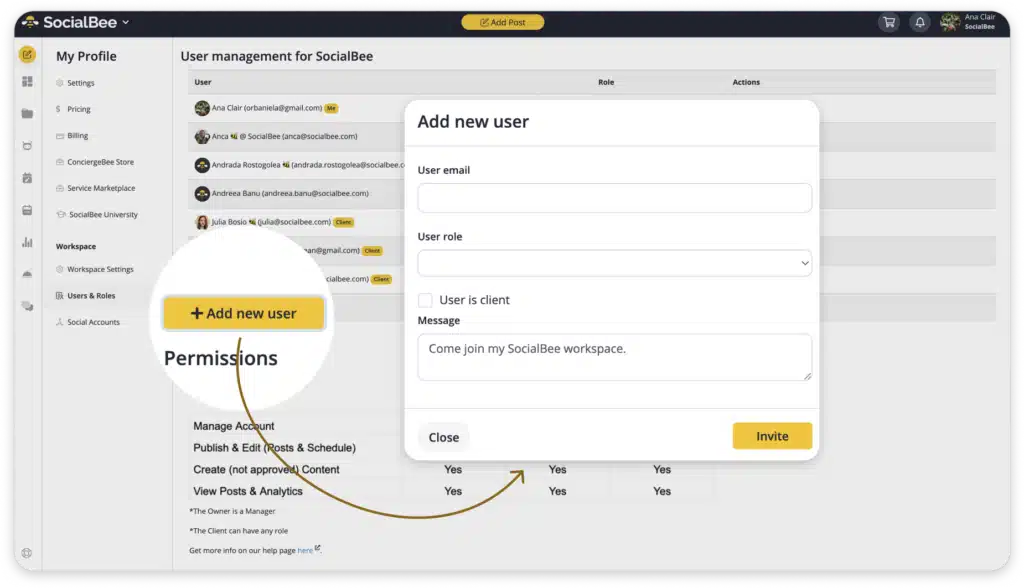
Agencies can organize multiple clients in separate workspaces, which is much cleaner than sharing one crowded calendar across every account you manage.
So if approvals are currently happening in one tool while publishing happens in another, this is one place where you can bring the two closer together.
4. Manage comments, mentions, and messages
SocialBee’s social inbox can also take over part of the work you would otherwise do in native social media apps or a separate inbox management tool.
You can use it to keep up with supported comments, mentions, and messages across your connected social channels. For someone trying to manage multiple accounts, having those conversations closer together can make daily audience engagement much easier to stay on top of.
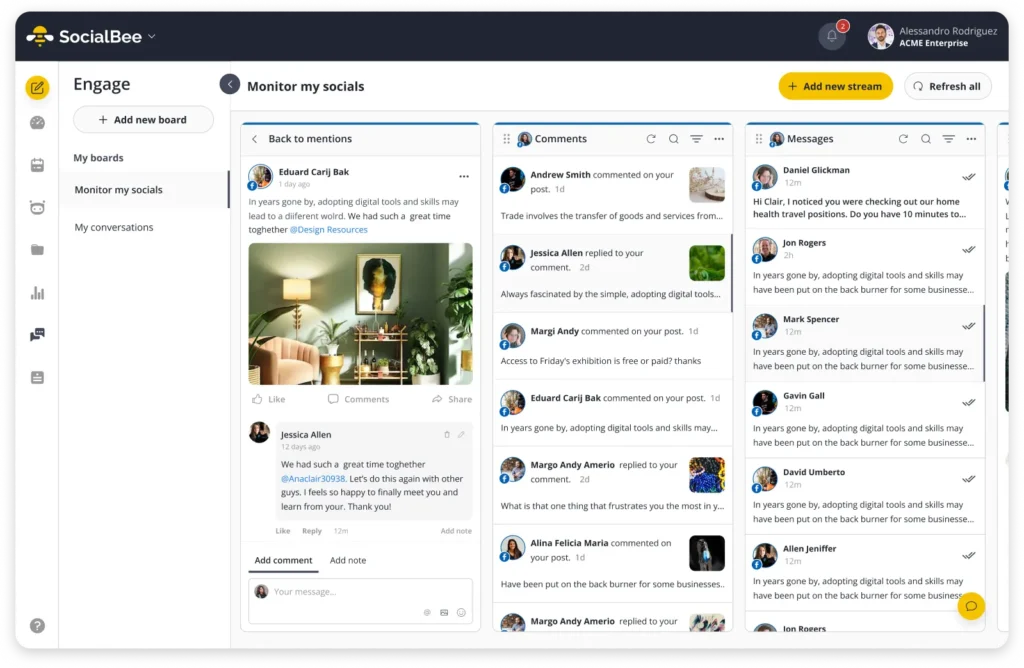
Exactly what you can manage depends on the access each social network gives third-party platforms, so test the social inbox with the accounts that matter most to you.
5. See how your social media content is performing
SocialBee includes social media analytics alongside your publishing tools, so you can check performance without immediately opening another dashboard.
You can review account growth, engagement, and post analytics to see which content is working. That gives you the information you need for regular reporting and for adjusting your social media strategy based on actual results.
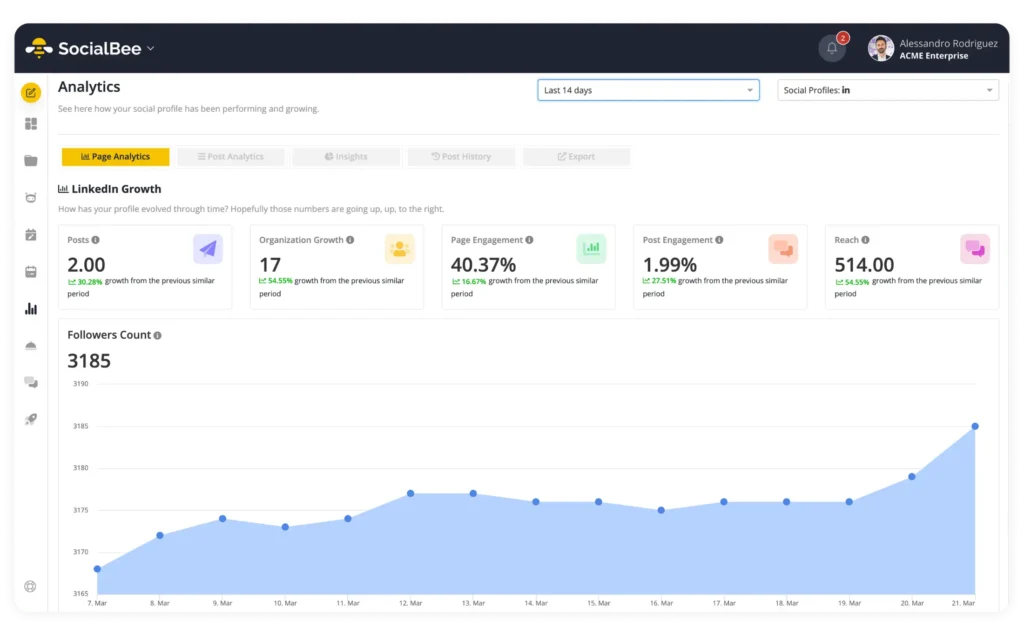
If you need detailed analytics for a very specific use case, you may still want a specialist platform. But for regular social media metrics and content performance, you may find that a separate analytics subscription isn’t necessary.
Eligible SocialBee plans also let you generate PDF reports, which is useful when you need to share results with clients or the rest of your team.
6. Connect the tools you still want to use
Not every tool needs to disappear.
SocialBee integrates with:
- Canva
- Unsplash
- GIPHY
- Quu
- Zapier
- Switchy
- Bitly
- Replug
- Rebrandly
- BL.INK
- JotURL
- Rocketlink
- Pabbly
- Make
You can keep useful parts of your current setup without treating every app as a separate place where social media work has to happen.
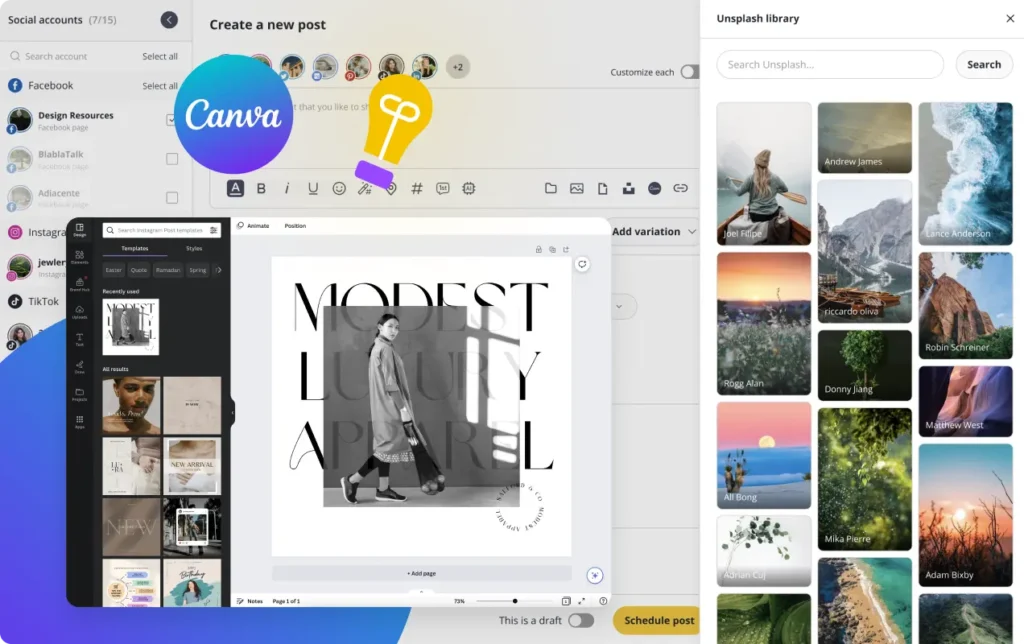
This is especially useful when another tool does one thing particularly well. Instead of replacing it for the sake of replacing it, see whether you can connect it to the platform you’re already using to manage social media.
Get help moving your content to SocialBee
If you’re switching from a different social media scheduling platform, SocialBee’s Concierge Migration service can take care of most of the transfer. The team can bring over your content, posting schedule, RSS feeds, and shortlink provider settings. Once the migration is complete, you’ll get a report detailing what was transferred and highlighting anything that couldn’t be moved as expected.
The first step is submitting the form on the migration page. Within a few business days, someone from SocialBee’s customer success team will get in touch to arrange a 15-minute setup call and give you a quote based on your migration.
Once you’ve created a SocialBee account and purchased the migration service, here’s what happens:
- Tell SocialBee about your setup. Complete the intake form with some information about your business, your current setup, and what you want to accomplish with SocialBee.
- Add your social media accounts. On the setup call, the team can walk you through connecting the social profiles that will receive your migrated content.
- Give the team secure access to your existing platform. You’ll share the credentials they need through LastPass so they can access the social media tool you’re moving away from.
- SocialBee transfers your setup. The team will migrate your content along with your posting schedule, RSS feeds, and shortlink provider settings. You’ll receive an email when they begin the process.
- Check the final report. When the migration is done, SocialBee will email you a report outlining what was successfully transferred and pointing out any problems encountered along the way.
There’s also a safeguard for migrated content: transferred posts are marked as “not approved” in SocialBee. They won’t be published until you review and approve them, which gives you a chance to check everything before any migrated content reaches your social accounts.
Frequently asked questions
1. How many social media tools does a business actually need?
There’s no ideal number. Small businesses may be able to manage most of their social media presence with one main platform, while agencies and larger teams may need additional tools for specialized work.
A better question is whether every subscription has a clear purpose. If two social media management apps are doing almost the same thing, you probably don’t need both.
2. Which social media tools can one platform replace?
A social media management platform can often replace separate tools for content creation, social media scheduling, content calendars, team approvals, inbox management, and basic analytics.
You may still want specialist software for things like advanced social listening, competitor analysis, influencer marketing, employee advocacy, or website analytics. It depends on how important those areas are to your social media strategy.
3. Can using fewer social media tools save you money?
Yes, particularly when you’re paying for multiple tools with similar features.
Compare the annual cost of your current subscriptions with the plan you’d actually need from one social media management platform. Then consider the time you’re spending moving between apps and repeating work. The cheaper option on paper isn’t always the one that costs your team less overall.
Make social media management easier with fewer tools
You don’t need all the tools in one dashboard, and you don’t need to replace every specialist app you use.
What you do need is a simpler home base for the social media work that happens every day.
That’s where an all-in-one social media management platform can make a noticeable difference. Instead of maintaining separate apps for creating social posts, scheduling them, getting approvals, managing conversations, and checking results, you can handle more of that work in the same place.
SocialBee can become that home base while still letting you keep the other tools that have a reason to stay.
Start your 14-day SocialBee trial and see how much of your current social media tool stack you can replace.