


















Free Facebook image resizer for every format

Upload your media, choose the correct format, and get perfectly sized Facebook visuals without losing image quality.

How to resize Facebook posts with our free online image resizer

Quickly resize images for Facebook posts, ads, cover photos, profile pictures, Stories, Reels, event covers, and Marketplace listings, following these steps:

  • Upload your images to our free image resizer. It supports JPG, PNG, and WebP formats.
  • Choose the Facebook image format you want to resize for.
  • Scroll with your mouse to zoom in or out on the image.
  • Drag the image inside the frame to adjust the crop and positioning.
  • Download your resized image as a JPG, PNG, or WebP file.
  • Do you want to resize multiple images? Click “Resize Another Image” to start again with a new photo.
  • Upload your resized image directly to Facebook, or schedule it with SocialBee. Start your 14-day free trial today!

Facebook image sizes & aspect ratios

Not up to date with Facebook’s image dimensions?

Here is the recommended size and image aspect ratio for all Facebook post formats:

  • Facebook profile pictures (1:1) – 320 x 320 pixels
  • Facebook cover photos (2.7:1) – 851 x 315 pixels
  • Facebook square posts (1:1) – 1080 x 1080 pixels
  • Facebook portrait posts (4:5) – 1080 x 1350 pixels
  • Facebook landscape posts (1.91:1) – 1080 x 566 pixels
  • Facebook Stories (9:16) – 1080 x 1920 pixels
  • Facebook Reels (9:16) – 1080 x 1920 pixels
  • Facebook link preview images (1.91:1) – 1200 x 628 pixels
  • Facebook event covers (1.91:1) – 1920 x 1005 pixels
  • Facebook Marketplace images (1:1) – 1080 x 1080 pixels
  • Facebook carousel images (1:1) – 1080 x 1080 pixels
  • Facebook feed ads (1:1 or 4:5) – 1080 x 1080 pixels or 1080 x 1350 pixels
  • Facebook Story ads (9:16) – 1080 x 1920 pixels

Why is it important to resize your Facebook images?

Uploading visuals with the wrong dimensions can reduce image resolution, create blurry results, or crop important parts of your content. Since Facebook automatically compresses oversized or incorrectly formatted files, your posts may not appear as sharp as intended.

Using a photo resizer helps you resize an image to the correct Facebook dimensions before uploading. This keeps text readable, prevents awkward cropping, and helps your posts display properly across mobile and desktop devices.

Correct sizing also helps preserve high-quality images for Facebook posts, Stories, Reels, ads, cover photos, and profile pictures, so your content looks more professional and polished in the feed.

Resize, schedule, and manage your Facebook content with SocialBee

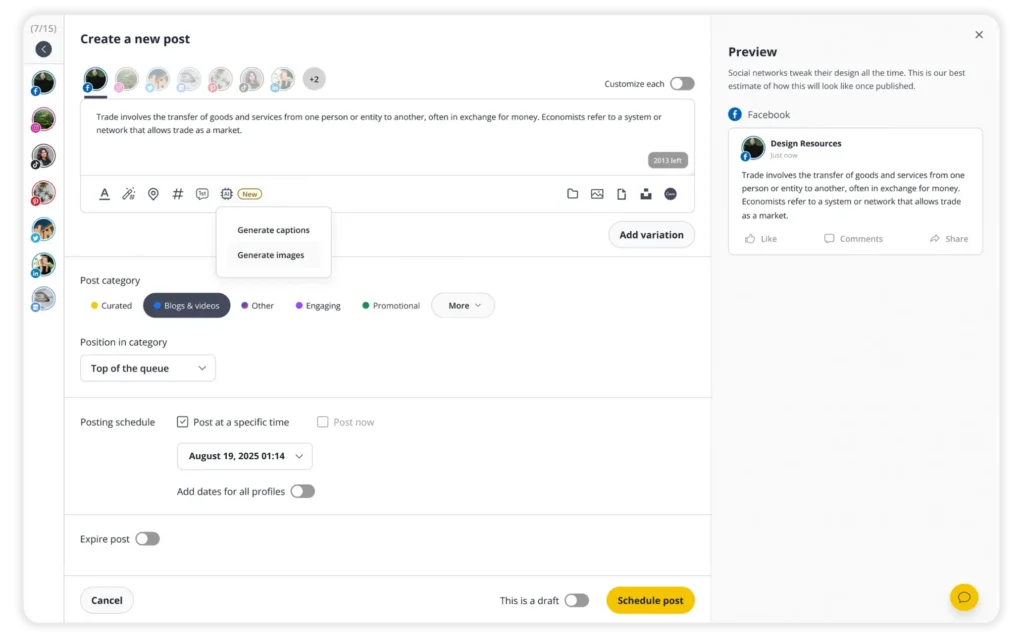
Image resizing is only one step of your content creation process. After that, you still need to create the post, write the caption, publish it, respond to comments, and track results. With SocialBee, you can handle all of that from one place.

Instead of posting manually every day, schedule and automatically publish Facebook posts, Stories, and Reels ahead of time to save time and maintain a consistent posting schedule.

When creating posts, you can upload images directly, import designs from Canva, use visuals from Unsplash, or generate captions and images with AI. You can also edit visuals before publishing without switching tools.

SocialBee also includes collaboration and approval features, which makes it easier for teams and clients to review posts before they go live.

Once your content is published, you can reply to Facebook comments, mentions, and messages from one inbox instead of checking multiple tabs manually.

Want to improve your strategy? Track engagement, reach, audience growth, and top-performing posts with built-in analytics, and generate PDF reports to share results with clients or your team.

So instead of using one tool to resize photos, another to schedule posts, and another to track analytics, you can manage your full Facebook workflow in one platform.

If you want to see how it works, try SocialBee free for 14 days. You don’t even need a credit card to sign up.

Frequently asked questions

How do I resize a photo without cropping it?

To resize a photo without cropping it, you need to design with the final dimensions in mind from the start by setting the correct width and height in your design tool before exporting the image.

If the photo doesn’t naturally fit the format, the best way to avoid cropping is to keep the entire image visible and add borders, padding, or a background image around it instead of stretching or cutting off the edges. This helps preserve the original image resolution and avoid unnecessary increases in image file size.

How do I change the width and height of an image?

You can change an image’s width and height either by using a design tool or a simple photo resizer. For new images, design tools like Canva let you set the exact dimensions before creating the design.

For existing images, a quick image resizer or free online tool works well for basic resizing, while a design tool gives you more control.

You can crop the image to fit new dimensions or use editing tricks like adding borders, padding, colored backgrounds, or blurred edges to avoid cutting off important parts of the image. This makes it easier to resize an image while still creating high quality images.

Many tools also let you convert images into different formats depending on where you plan to upload them.

Does Facebook compress photos?

Yes, Facebook compresses photos after you upload them. The platform automatically reduces image file size and sometimes image resolution to make pages load faster and save storage space.

That’s why photos can sometimes look blurrier, softer, or less sharp on Facebook compared to the original file. Facebook may also resize images that don’t match its preferred dimensions, including images used on a Facebook page, video thumbnails, background image banners, or overlay ads.

To reduce quality loss:

  • Upload images at Facebook’s recommended sizes (often 2048 px on the longest edge).
  • Use high-quality JPG or PNG files.
  • Avoid uploading extremely large files that trigger heavier compression.
  • Enable “HD upload” in the Facebook app settings if available.
  • Use a free photo resizer before uploading to optimize dimensions and image file size.

Even with these tricks, some compression will always happen on Facebook.

Does Facebook resize pictures automatically?

Yes, Facebook automatically resizes pictures when you upload them. The platform reformats images to fit its supported layouts and display sizes across desktop and mobile devices while trying to maintain high quality images where possible.

This can affect everything from regular posts to video thumbnails, overlay ads, and cover images on a Facebook page.

Using a free online tool before image download or upload can help you resize and convert images more accurately for Facebook’s recommended formats.

Manage your social media with SocialBee: publishing, AI assistance, Canva magic, analytics, unified inbox, and more.
SocialBee supported social channel logos
14-day free trial, no credit card required

Here's what our customers have to say about us

Jobs in football
cosmopolitan logo
harper's bazaar logo
Expatica
Washington university
Lehigh university
Slow cooker club
elle logo
mark cuban companies
esquire logo
Beaufort hotel
Dublin Bus
Charles university
D-Link gray logo
Compass logo

Improve your social media content strategy

SocialBee helps you plan posts in advance, engage with your audience, collaborate seamlessly with your team, and track performance with ease.

14-day free trial, no credit card required

Level up your social media marketing with exclusive resources delivered straight to your inbox

We’re SocialBee LABS SRL, part of WebPros. We use the information you provide to share relevant content and product updates, as outlined in our Privacy Policy. You can opt out anytime.

Fill in the form and get our calendar delivered to your inbox

We’re SocialBee LABS SRL, part of WebPros. We use the information you provide to share relevant content and product updates, as outlined in our Privacy Policy. You can opt out anytime.
Grab our 2026 social media calendar and unlock 500+ content ideas and ready-to-use Canva templates!