


Knowing what to look for in a social media management tool can save you from paying for features you’ll rarely use or choosing software that creates more work than it saves.
Social media tools differ in what they do best. Some focus on publishing, while others specialize in reporting, content creation, community management, or managing large teams.
So, how do you tell which one is worth your money? In this guide, I’ll cover the 10 features worth checking and how to compare your options based on what you actually need.

We’re SocialBee LABS SRL, part of WebPros. We use the information you provide to share relevant content & updates, as outlined in our Privacy Policy. You can opt out anytime.
Short summary
- Make sure the tool supports your social media platforms. Check that you can connect all your social media accounts and publish the types of posts you need, including Reels, Stories, carousels, and videos.
- Check whether AI can help you create posts faster. Look for content creation features that generate captions, suggest post ideas, create visuals, and help you adjust content for each platform.
- Look beyond basic post scheduling. Features like a visual calendar, bulk scheduling, content categories, and best-time-to-post suggestions can save time when managing multiple accounts.
- See how well your team can work together. Look for separate workspaces to organize clients and multiple brands, permissions to control access, and approval workflows to review posts before they go live.
- Learn how the tool handles messages and reports. A unified inbox helps you keep up with comments and messages, while analytics and downloadable reports show how your posts are doing.
- Find out what you’ll actually pay. Check how many accounts and team members are included, which integrations and advanced features cost extra, and whether you can try the software for free before subscribing.
What is social media management software?
Social media management software is a tool that helps individuals and businesses create, schedule, publish, monitor, and analyze content across multiple social media platforms from one place.
Rather than opening Instagram, Facebook, LinkedIn, and other apps separately, a social media management platform brings the tasks involved in managing social media into a shared dashboard.
Depending on the software, its key features may include:
- Content creation: Write captions, generate post ideas, create visuals, and prepare social media content for different platforms.
- Scheduling and publishing: Plan posts in a content calendar and publish social media posts automatically at specific times.
- Account management: Manage multiple social media accounts, brands, or clients without constantly switching profiles.
- Community management: Monitor comments, messages, and brand mentions, then respond to your audience.
- Social media analytics: Track engagement, reach, audience growth, and other performance metrics.
- Team collaboration: Assign permissions, review drafts, and approve posts before publishing.
Why choosing the right social media management tool matters
Choosing the right social media management software gives you access to the features you need to run your social media strategy at a good cost for your team.
It’s important to find a tool that actually matches the tasks you need to get done. A small business owner managing five social channels will most likely care about creating content faster and scheduling posts in advance..
A social media management tool is a poor choice when it lacks the features you need or can’t support your business as it grows:
- Missing publishing features can leave you uploading posts manually or using another tool to prepare content.
- Paying for multiple tools adds up quickly. A good all-in-one tool gives you everything you need in one place, without extra charges for add-ons or features locked behind more expensive plans.
- Disorganized accounts make it easier to publish content to the wrong brand or profile. With the right tool, you will be able to group your accounts based on the business or client and keep track of your content more easily for each one.
- Third-party tools won’t give you more data than the social media platforms themselves. The benefit is being able to generate reports and see everything in one place. The right tool should offer analytics for the channels you use, so it’s important to find one that supports all your platforms.
- Software that supports your current social accounts may become too restrictive if you run into posting limits or you have to pay extra as you add more platforms, employees, or clients.
Before comparing features, think about where managing social media takes the most time and which responsibilities you’re likely to take on as your business grows.
What to look for in a social media management tool: 10 essential features
There are 10 essential features worth checking out before committing to a social media management platform:
- Support for the social media platforms you use
- Tools to create faster content with AI
- Options to schedule and publish posts
- Ability to separate campaigns for different clients and brands
- A social inbox to manage comments and messages
- Tools to track performance and create reports
- Options to collaborate with your team and approve posts
- Integrations with tools you already use
- An easy-to-use interface and reliable customer support
- Affordable pricing that fits your needs
1. Support for the social media platforms you use
Check which post formats the tool supports, including whether it can publish them automatically.
Pay attention to these five things:
- Social media platforms: Does the tool support every channel you currently use, including Facebook, Instagram, LinkedIn, X, Pinterest, TikTok, YouTube, Threads, Bluesky, or Google Business Profile?
- Post formats: Can you schedule and publish images, carousels, videos, Reels, Stories, and other social media posts you regularly create?
- Automatic publishing: Which posts go live automatically, and which require you to finish publishing manually?
- Account types: Are all the features available for your personal, creator, or business accounts? Some publishing options depend on the account type.
- Account limits: How many social accounts are included in the plan? Find out whether adding more profiles costs extra, especially if you manage multiple social accounts or brands.
The quickest way to check is to connect one account from each of your social media platforms during a free trial and try scheduling the post formats you use most often. This will reveal restrictions that aren’t always obvious from a feature list.
SocialBee supports Facebook, Instagram, LinkedIn, X, Pinterest, TikTok, YouTube, Threads, Bluesky, and Google Business Profile.
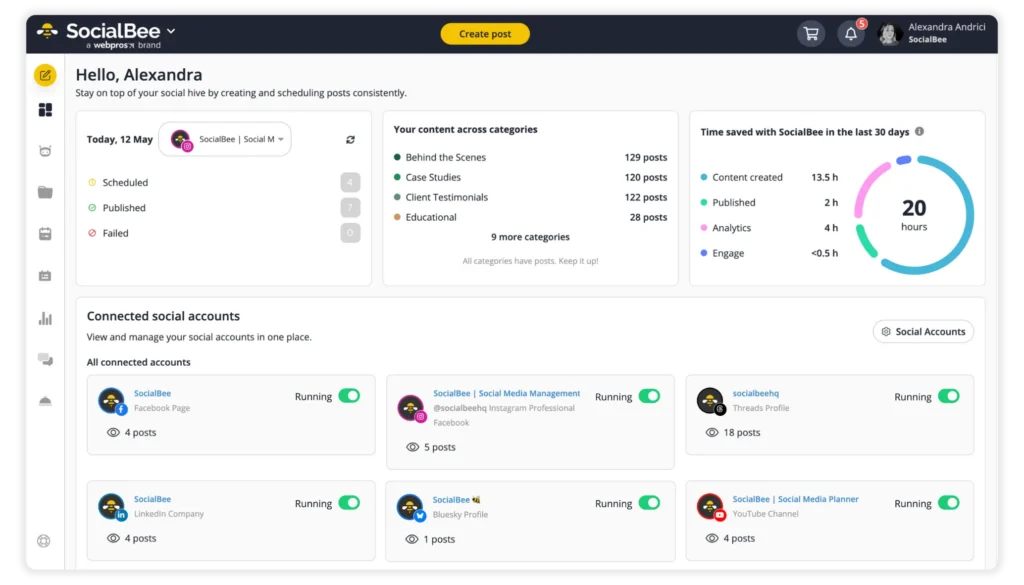
For channels without a direct integration, its universal posting option lets you prepare content and receive a reminder to publish it manually.
2. Tools to create content faster with AI
Try generating a few social media posts with AI using topics you regularly cover. See whether the AI can write captions in your brand’s tone, suggest relevant hashtags, and come up with post ideas that fit your audience.
Make sure the software also supports other parts of post creation:
- Visuals: Generate images, resize existing ones, and add alt text.
- Media library: Store approved photos, videos, and designs for future posts.
- Platform-specific customization: Quickly adjust captions, visuals, hashtags, and links for each social media account.
For a practical test, take one piece of content you’ve already published and use the tool to prepare new versions for LinkedIn, Instagram, and X. Compare the results with your original posts to learn how much editing the captions needed, if the suggested visuals are usable, and if you can make all the changes in the same editor.
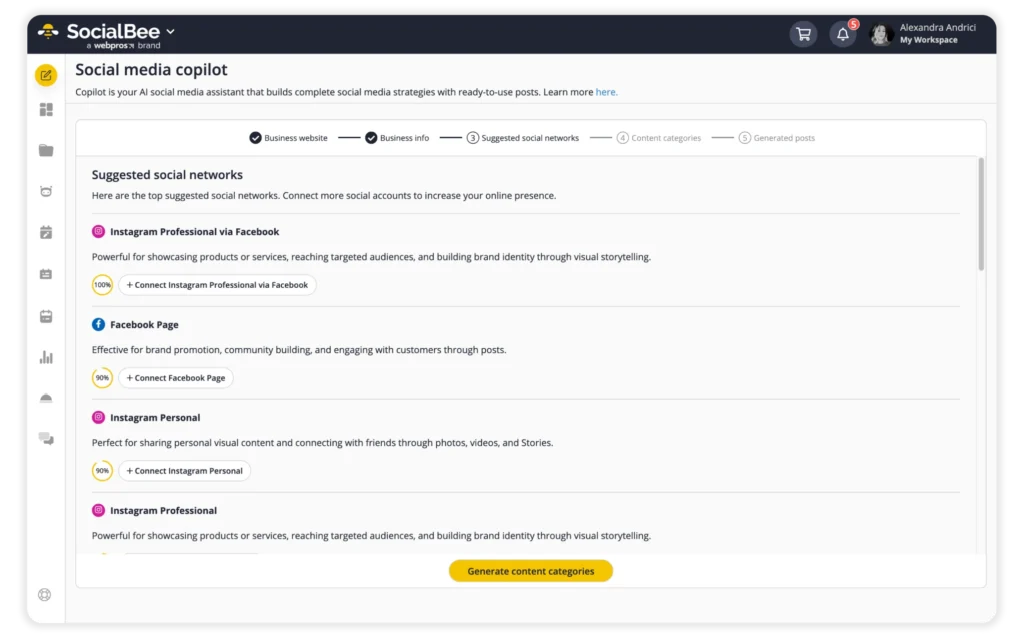
SocialBee lets you create one base post and customize the caption, visuals, hashtags, links, and alt text for each profile in the same editor. Its AI features help generate post ideas or even finished content, and SocialBee’s Copilot suggests a social media strategy, including content topics, posting frequency, and which platforms to focus on.
3. Options to schedule and publish posts
Your scheduling tool should let you edit, reschedule, or cancel posts when campaign dates change or announcements get delayed.
Here are the scheduling features that matter:
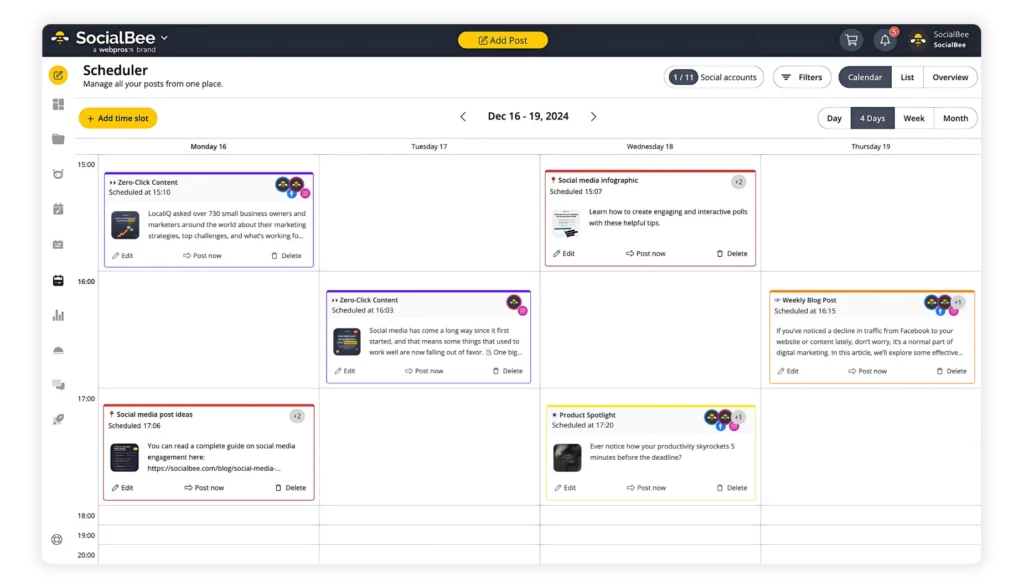
- Visual content calendar: See what’s scheduled across your social media accounts, spot empty days, and have campaign posts going out in the right order.
- Bulk scheduling: Prepare and schedule multiple posts at once in bulk.
- Content organization and posting queues: Organize posts by topic or campaign, then assign regular publishing times to each category.
- Best-time-to-post suggestions: Get posting time recommendations based on your previous social media performance.
- Post previews: Review captions, images, and other content before it goes live.
- Failed-post notifications: Find out when a post doesn’t publish so you can fix the problem.
SocialBee includes a visual calendar to review scheduled posts, bulk scheduling to prepare multiple posts at once, and best-time-to-post suggestions based on your previous performance. You can also preview posts before publishing and receive notifications if something fails to publish.
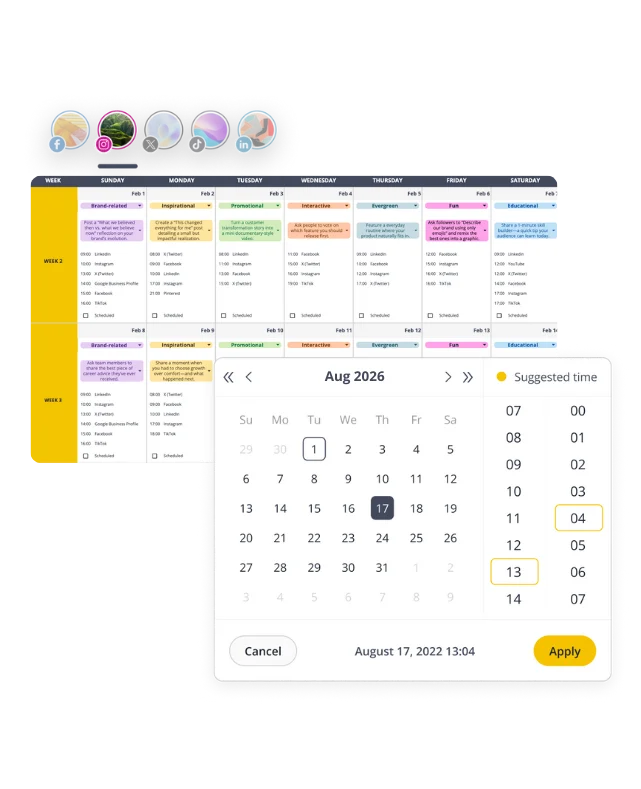
One particularly useful feature is category-based scheduling. You can organize posts into categories, such as educational tips, product promotions, and customer testimonials, and assign each category its own posting schedule.
As you add new posts to these categories, SocialBee automatically places them in the next available time slots, so you don’t have to schedule each post individually.
4. Ability to separate campaigns for different clients and brands
Managing multiple brands or client accounts means keeping track of lots of different publishing schedules. Without a clear way to organize everything, it’s easy to mix up posts or accidentally publish something to the wrong account.
Separate workspaces are particularly useful here. They let you group social media accounts and content so you’re only working with the posts that belong to that business.
When planning a product launch or seasonal promotion, related posts should be easy to find and review within your social media campaigns.
For agencies managing multiple brands, account access matters too. Team members should only have access to the brands they’re responsible for, and the selected social media account should always be clearly visible before publishing. Some tools also include project management features, such as task assignments, deadlines, and campaign progress tracking, which may be useful when coordinating larger projects.
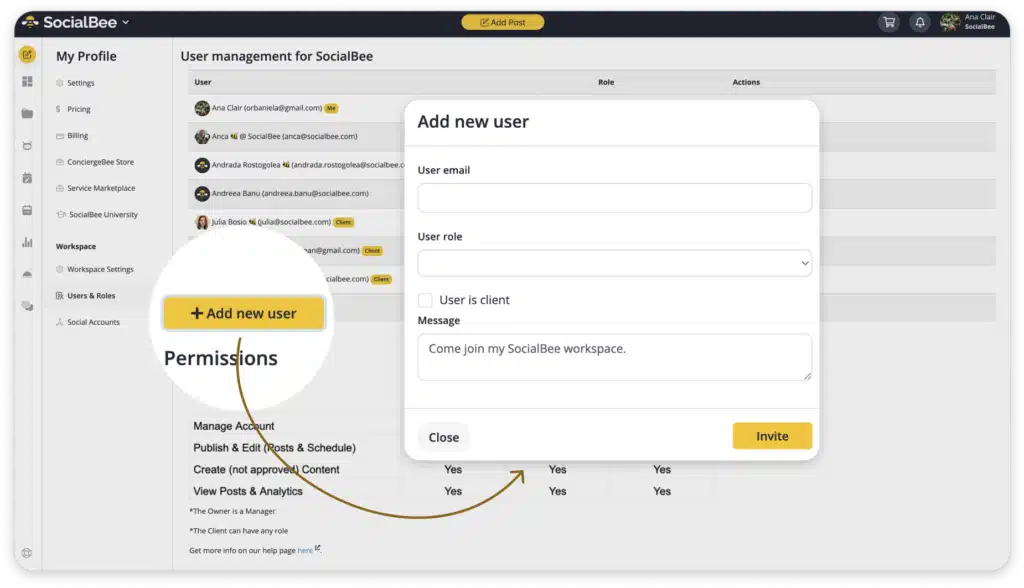
SocialBee lets you create separate workspaces for different clients or brands, each with its own connected social media accounts and content. This helps keep client posts and publishing schedules separate, so there’s less chance of mixing up content when switching between brands.
5. A social inbox to manage comments and messages
When customers leave questions on Instagram, send messages on Facebook, or mention your business on other social media channels, keeping up with every conversation can take time.
A unified social inbox brings every interaction from supported social media accounts into one place, so you can identify conversations that still need a reply.
Before choosing a tool, check which platforms and types of interactions its inbox supports. Some tools handle comments but have limited support for direct messages or mentions. It’s also worth seeing whether you can quickly find unanswered conversations, keep track of replies, and give team members access to customer messages.
SocialBee’s unified inbox lets you manage comments, mentions, and messages in one place across supported networks.
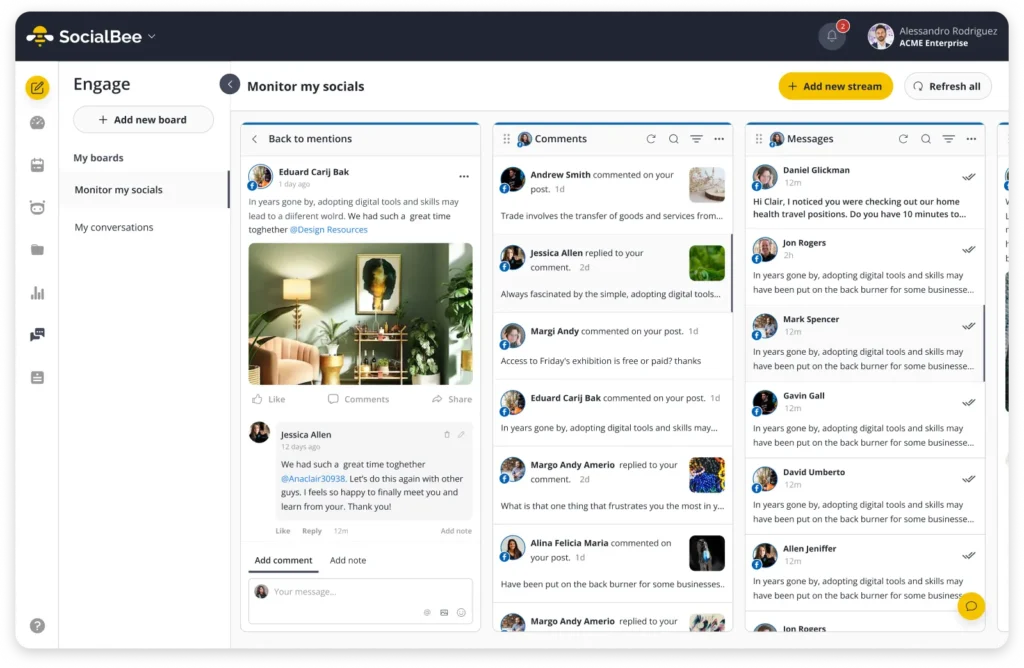
The inbox must cover the channels where your customers actually contact you. If most customer questions arrive through Instagram messages, make sure the inbox supports them.
6. Tools to track performance and create reports
Social media analytics should help you understand which posts are working and where your social media efforts could improve.
Most social media management tools show basic analytics, such as likes, comments, shares, impressions, and follower growth. These numbers are only useful for your social media marketing when you can compare them and understand what they mean for your strategy.
Look for reporting at both the post and account level, covering reach, views, clicks, engagement, and available audience demographics.
For those handling multiple clients, reporting across various social media platforms is another important feature. Ideally, the software should let you compare results, choose custom date ranges, and download reports.
Pay attention to how much historical data is available, too. Some tools limit how far back you can see results or reserve advanced analytics and PDF reports for more expensive plans.
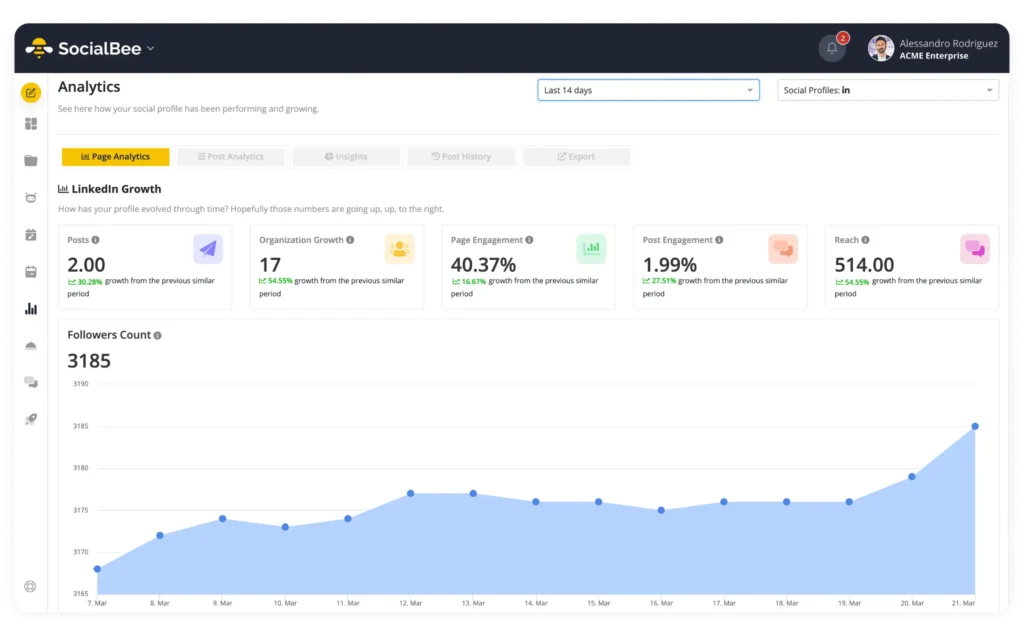
SocialBee’s analytics help you track account growth, audience engagement, and your best-performing social media posts. You can also export PDF reports, which is handy when you need to share results with clients or show your team what’s working.
Pro tip: There’s a difference between measuring social media performance and tracking what happens on your website. Social analytics can show how many people clicked a post, while Google Analytics helps you see what those visitors did afterward, such as viewing product pages or completing a purchase. It’s a good idea to have the necessary tracking for both.
7. Options to collaborate with your team and approve posts
When several people work on social media content, it’s important to know who can edit posts, who needs to review them, and who has the final say before anything goes live.
A good place to start is with user roles and permissions. Give your copywriter access to create and edit drafts, and a client permission to review posts and request changes without giving everyone full access to your social media accounts.
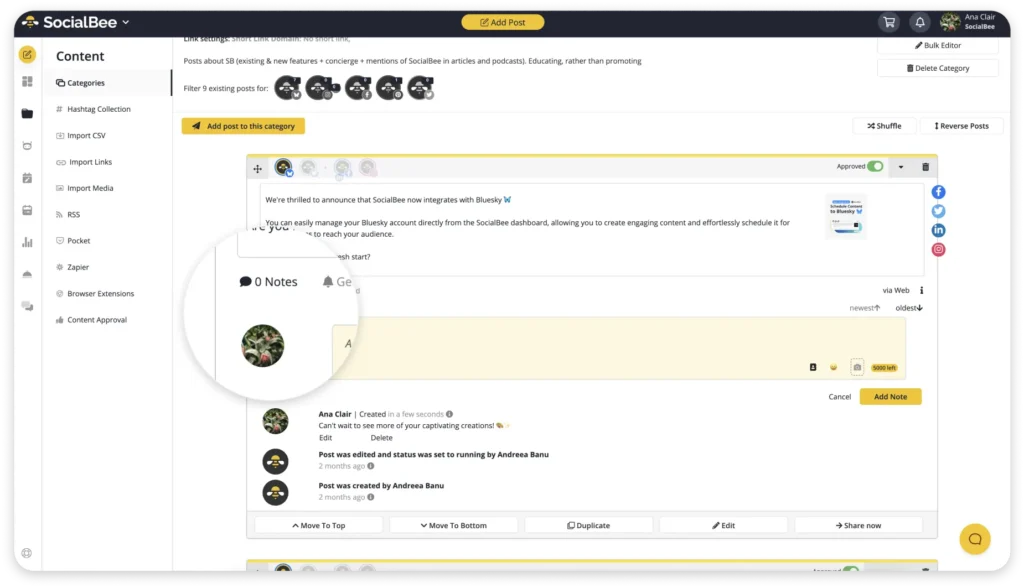
Approval workflows are equally important. Ideally, a post should stay unpublished until the right person approves it. Reviewers should be able to leave feedback directly on the post, so the person making changes doesn’t have to piece together comments from emails or chat messages.
Also, check how easy it is to tell where each post stands. Clear post statuses help everyone tell apart drafts from posts awaiting feedback or approved for publishing.
SocialBee lets you invite team members and clients to collaborate on content, assign roles and permissions, and review posts before they’re published. Feedback stays connected to the relevant post, making it easier to handle revisions and get final approval.
One detail that’s easy to overlook is how the software charges for additional users. How many team members are included in your plan, whether clients need paid seats, and whether approval features are available at that price are all important details. A tool that looks affordable for one person can become expensive when the whole team needs access.
8. Integrations with tools you already use
Think about how many times you download a graphic from Canva, save a video from Google Drive, or copy a shortened link before adding it to a social media post. Those extra steps add up, especially when you’re preparing content for multiple accounts.
Integrations can connect your social media management platform with tools you already use.
The same goes for cloud storage, link management, analytics, and automation tools. You should be able to access the files or features you need without running into restrictions and have the integrations you use included in your subscription.
SocialBee lets you import existing Canva designs or Unsplash images in just a few clicks, directly into the post editor. It also supports cloud storage and URL-shortening integrations, which can save time when preparing social media posts.

Focus on the two or three integrations you’d use most often. Try importing an existing design or adding a file from cloud storage to see how many steps the process takes. An integration is only worth having if it saves you time on tasks you regularly handle.
9. An easy-to-use interface and reliable customer support
A social media management tool might have all the features you need, but how easy are they to find and use? Spending several minutes searching for a scheduled post or figuring out how to change its caption can get frustrating pretty quickly.
The learning curve matters, especially when several people on your team need to use the software. During your free trial, ask someone who hasn’t used the tool before to complete a few everyday tasks:
- Create and schedule a post completely independently.
- Find a scheduled post and edit it, including changing its caption or publishing date.
- Switch between social media accounts and confirm which profile they’re working on.
- Find the analytics dashboard and check how a recent post performed.
- Locate a failed post and figure out what went wrong and how to fix it.
Pay attention to where they get stuck. Basic tasks should become straightforward after a short introduction to the interface.
Customer support is another thing worth testing. Social media platforms change their publishing requirements, account connections sometimes break, and scheduled posts can fail. When something goes wrong, clear instructions and a helpful support team can save you a lot of frustration.
Find software that offers tutorials, an up-to-date help center, and customer support through email, chat, or other channels. Also, look for which support options are included in your plan and whether they’re available during your working hours.
Try contacting support with a question you’ve encountered while testing the tool and see if the response explains how to solve your problem, or if it sends you to a generic help article that leaves you searching for answers.
10. Affordable pricing that fits your needs
Social media management software can cost anywhere from $0 for a basic free plan to several hundred dollars per month for tools designed for larger marketing teams and agencies.
The advertised price doesn’t always tell the whole story, though. Some platforms charge extra for additional social media accounts or team members, while others reserve certain features for more expensive plans.
To compare social media management costs fairly, work out what each tool would charge for your actual needs. Check the monthly price, any required upgrades, and whether paying annually comes with a discount. Be careful with prices advertised as monthly rates that require a full year of payment upfront.
It’s also worth calculating the cost per account, especially when managing multiple platforms. A $50 subscription covering five accounts works out to $10 per account each month. Just remember that this figure doesn’t account for differences in features or how many people can use the software.
How to compare social media management tools before buying
So, you’ve found a few social media management tools that seem to offer everything you need. How do you know which one is actually worth paying for?
The answer is pretty simple: compare the real costs, try the software yourself, and see what happens when you need to do something beyond scheduling a basic post.
Here’s how I’d approach it.
1. Find out what you’ll actually pay
Social media management software can cost anywhere from $0 to hundreds of dollars per month. And two plans with similar prices can offer very different things.
Imagine you manage eight social accounts. One tool charges $29 per month for five accounts, while another charges $39 for ten. The second option could be cheaper once you factor in the cost of adding three more accounts to the first.
The same applies to team members, analytics, and approval features. Some providers include them in their basic plans; others charge extra.
Compare the price of the subscription that covers everything you need, including any account limits, publishing restrictions, and annual billing requirements.
2. See how the software handles a normal working week
A free trial will show you how well the software handles the tasks you complete every week.
The quickest way to find out is through a free trial. I’d suggest testing a few tasks you already do every week:
- Create and schedule posts for your main social platforms.
- Edit a caption and move a scheduled post to another date.
- Publish the formats you regularly use, such as Reels, Stories, or carousels.
- Test client approvals, inbox management, or reporting if they’re important to your work.
And don’t ignore the little frustrations. If scheduling five posts involves switching between several screens, imagine doing that for 100 posts every month.
It’s also a good opportunity to contact customer support with a real question and see how helpful their response is.
3. Think about what happens when your needs change
Let’s say you manage five social accounts today, but you’re planning to take on three new clients.
Will your current subscription accommodate them? Or will you need to move to a plan that costs twice as much?
You might also need to invite teammates, introduce client approvals, or generate more detailed reports later.
There’s no reason to pay for all these features now. Just find out what upgrading involves before you commit.
By the end of your trials, you should know which tool handles your regular tasks, what it will cost, and where its limitations are.
And if two platforms do everything you need equally well, go with the more affordable one.
Frequently asked questions
1. What are some common mistakes to avoid when choosing social media management software?
One common mistake is choosing a tool based on its feature list without checking how those features work in practice. Another is paying for an expensive plan because it offers advanced features you don’t currently need.
Also, watch out for choosing software based on a temporary requirement, such as one large campaign, without considering how you’ll use it during a normal month.
2. How much does social media management software cost?
Social media management software ranges from free plans to enterprise subscriptions costing hundreds of dollars per month or more.
Prices vary based on the number of social accounts, team members, and features included. Some providers offer lower monthly rates when you pay annually, so check the billing terms before comparing plans.
3. What is the best social media management software for small businesses?
For most small businesses, a good starting point is a tool like SocialBee that supports their main social platforms, makes content creation and scheduling manageable, and provides clear analytics.
Social media managers will also know that an easy-to-use interface and affordable pricing are often more valuable than enterprise features such as deep social listening or complex approval systems. The best choice will depend on how many accounts you manage and which tasks take up the most time.
4. How do I test a social media management tool before committing?
Use the free trial to complete tasks from your regular working week, rather than exploring features at random.
Prepare and schedule posts, edit something you’ve already scheduled, and check how the software handles an activity you currently find time-consuming. By the end of the trial, you should know whether the tool saves you time and whether anything important is missing.
5. Is free social media management software worth using?
Free social media management software can be enough when you’re managing a small number of accounts and only need basic scheduling.
However, free plans often limit connected profiles, scheduled posts, analytics, or team access. Compare those restrictions with how frequently you publish and how much content you need to manage before deciding whether a paid plan is worthwhile.
Choose the right social media management software for your needs
Choosing the best social media management software comes down to how well it handles the work you do every day.
Start with the problems you want to solve, compare a few suitable options, and use their trials to see how they perform.
SocialBee brings content creation, scheduling, engagement, and analytics together, with options for managing multiple social networks and collaborating with your team. If those are the features you’re looking for, start your 14-day free trial and see how SocialBee fits your needs.